
Enable proxy servers
To control outbound internet traffic, you can set up a proxy server in XenMobile® to carry that traffic. You set up a proxy server through the command-line interface (CLI). Setting up the proxy server requires restarting your system.
-
In the XenMobile CLI main menu, type 2 to select the System menu.
-
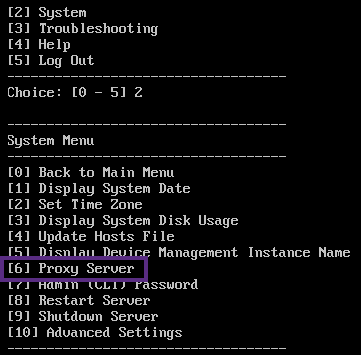
In the System menu, type 6 to select the Proxy Server menu.
-
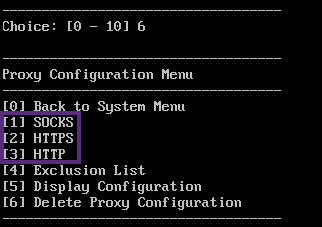
In the Proxy Configuration menu, type 1 to select SOCKS.Before you save this setup, you must also configure HTTPS. The proxy works only if you save the SOCKS and HTTPS settings in the same configuration.
-
Type your proxy server IP address, port number, and target. See the following table for supported target types for each proxy server type.
Proxy type Supported targets SOCKS APNS HTTP APNS, Web, PKI HTTPS Web, PKI HTTP with authentication Web, PKI HTTPS with authentication Web, PKI 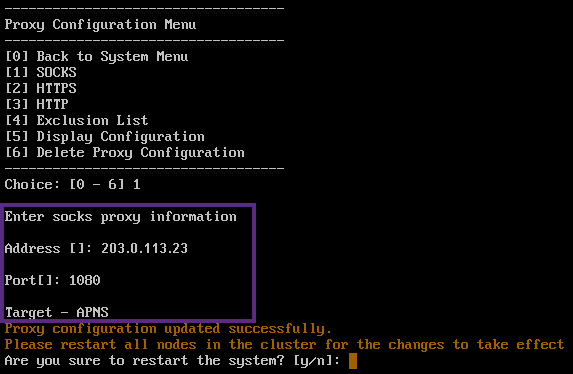
-
Type n and then type 2 to select HTTPS.
-
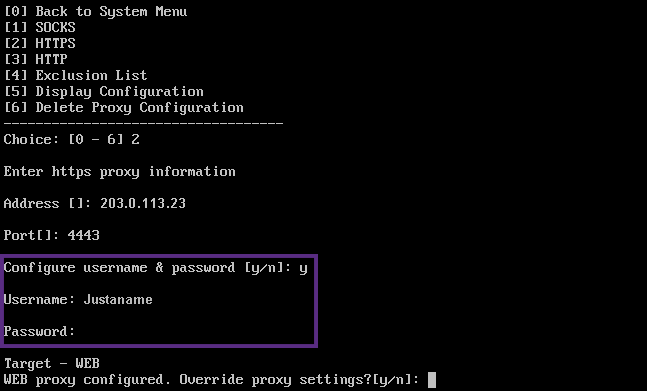
Type your proxy server IP address, port number, and target.
-
If you choose to configure a user name and password for authentication on your proxy server, type y, and then type the user name and password.
-
Type y to save the setup.