
Mail device policy
You can add a mail device policy in XenMobile® to configure an email account on iOS or macOS devices.
To add or configure this policy, go to Configure > Device Policies. For more information, see Device policies.
iOS and macOS settings
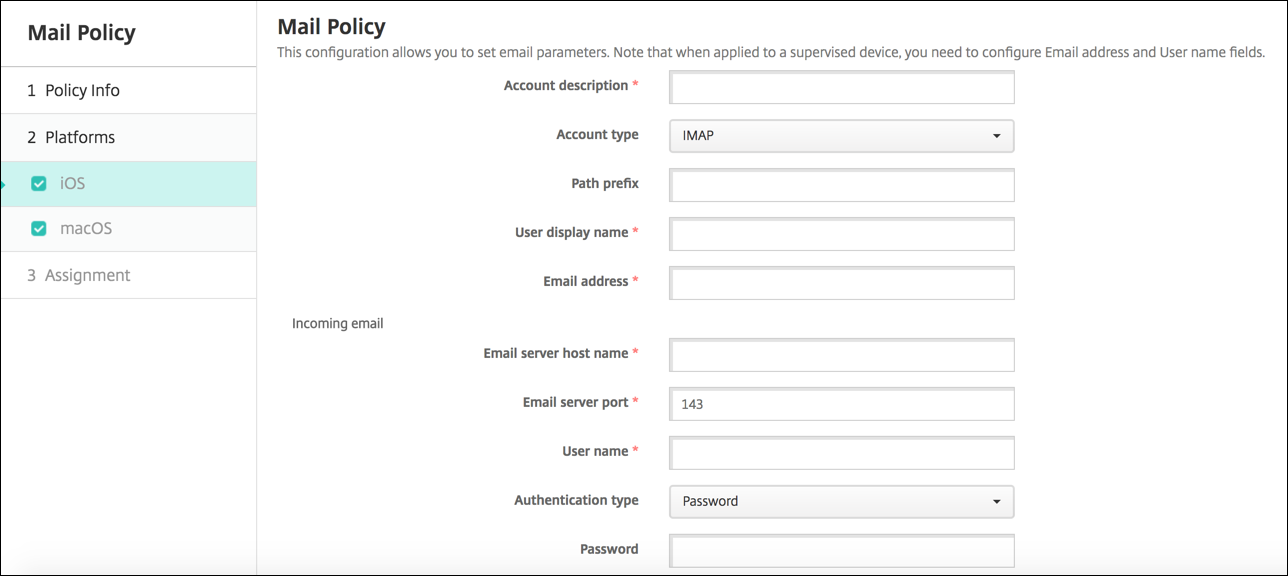
-
Account description: Type an account description that appears in the Mail and Settings apps. This field is required.
-
Account type: Choose either IMAP or POP to select the protocol to be used for user accounts. The default is IMAP. When you select POP, the following Path prefix option disappears.
-
Path prefix: Type INBOX or your IMAP mail account path prefix. This field is required.
-
User display name: Type the full user name to be used for messages and other purposes. This field is required.
-
Email address: Type the full email address for the account. This field is required.
-
Incoming email settings
-
Email server host name: Type the incoming mail server host name or IP address. This field is required.
-
Email server port: Type the incoming mail server port number. The default is 143. This field is required.
-
User name: Type the user name for the email account. This name is generally the same as the email address up to the @ character. This field is required.
-
Authentication type: Choose the authentication type to be used. The default is Password. When None is selected, the following Password field disappears.
-
Password: Type an optional password for the incoming mail server.
-
Use SSL: Select whether the incoming mail server uses Secure Socket Layer authentication. The default is Off.
-
-
Outgoing email settings
-
Email server host name: Type the outgoing mail server host name or IP address. This field is required.
-
Email server port: Type the outgoing mail server port number. If no port, you do not enter a port number, the default port for the given protocol is used.
-
User name: Type the user name for the email account. This name is generally the same as the email address up to the @ character. This field is required.
-
Authentication type: Choose the authentication type to use. The default is Password.
-
Password: Type an optional password for the outgoing mail server.
-
Outgoing password same as incoming: Select whether the incoming and outgoing passwords are the same. The default is Off, which means the passwords are different.
-
Use SSL: Select whether the outgoing mail server uses Secure Socket Layer authentication. The default is Off.
-
-
Policy
-
Authorize email move between accounts: Select whether to allow users to move email out of this account into another account and to forward and reply from a different account. The default is Off.
-
Sending email only from mail app: Select whether to restrict users to the iOS mail app for sending email.
-
Disable mail recents syncing: Select whether to prevent users from syncing recent addresses. The default is Off. This option applies only to iOS 6.0 and later.
-
Allow Mail Drop: Select whether to allow use of Apple Mail Drop for devices running iOS 9.2 and later. The default is Off.
-
Enable S/MIME Signing: Select whether this account supports S/MIME signing. The default is On. When set to On, the following fields appear.
-
Signing identity credential: Choose the signing credential to use.
-
S/MIME Signing User Overrideable: If set to On, users can turn S/MIME signing on and off in the settings of their devices. The default is Off. This option applies to iOS 12.0 and later.
-
S/MIME Signing Certificate UUID User Overrideable: If set to On, users can select, in the settings of their devices, the signing credential to use. The default is Off. This option applies to iOS 12.0 and later.
-
-
Enable S/MIME Encryption: Select whether this account supports S/MIME encryption. The default is Off. When set to On, the following fields appear.
-
Encryption identity credential: Choose the encryption credential to use.
-
Enable per message S/MIME switch: When set to On, shows users an option to switch S/MIME encryption on or off for each message they compose. The default is Off.
-
S/MIME Encrypt By Default User Overrideable: If set to On, users can, in the settings of their devices, select whether S/MIME is on by default. The default is Off. This option applies to iOS 12.0 and later.
-
S/MIME Encryption Certificate UUID User Overrideable: If set to On, users can turn S/MIME encryption identity and encryption on and off in the settings of their devices. The default is Off. This option applies to iOS 12.0 and later.
-
-
-
Policy Settings
-
Remove policy: To remove the policy later, you can configure this setting to remove the policy on a Select date or for a Duration until removal (in hours).
-
Allow user to remove policy: Allow users to remove the mail policy Always, only with a Passcode required, or Never.
-
Profile scope: For macOS only, choose whether the policy applies on a per User level or across the whole System.
-