
Connectivity checks
From the XenMobile® Support page, you can check the XenMobile connection to Citrix Gateway and to other servers and locations.
Conducting XenMobile Connectivity Checks
-
In the XenMobile console, click the wrench icon in the upper-right corner of the console. The Support page appears.
-
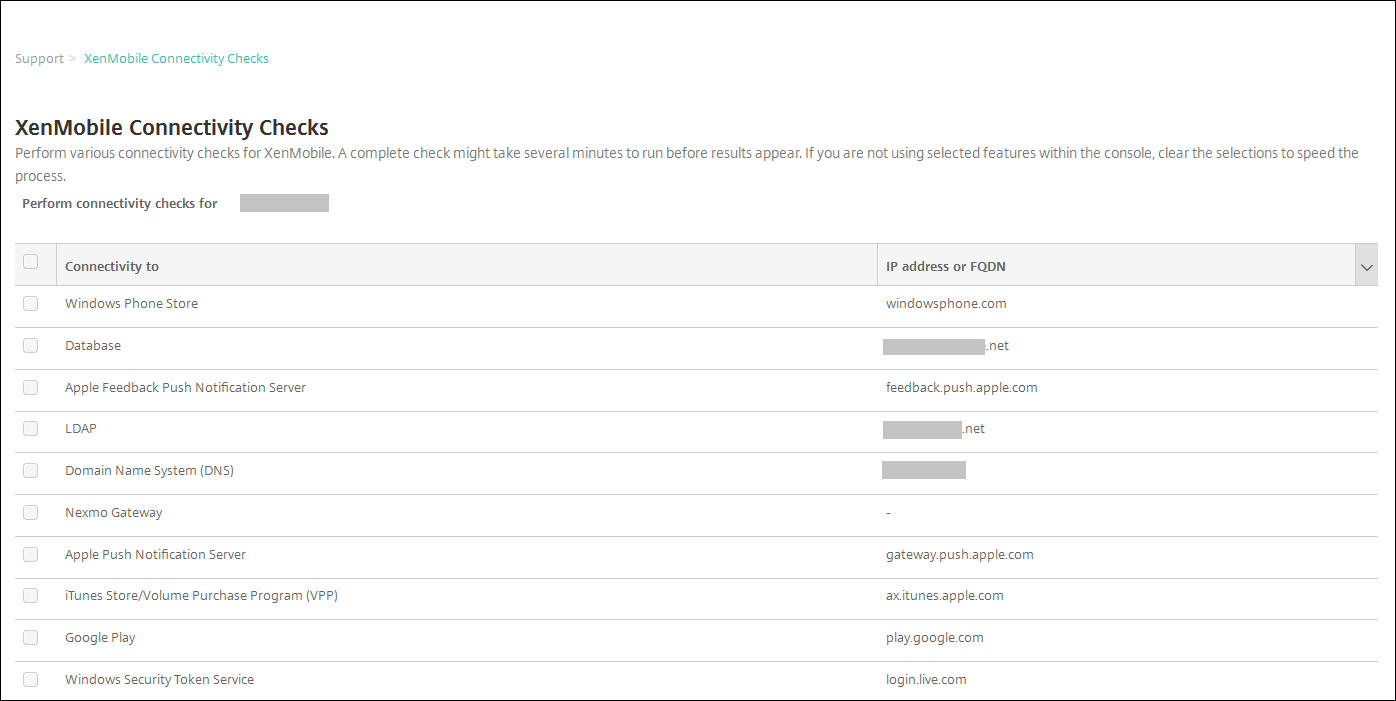
Under Diagnostics, click XenMobile Connectivity Checks. The XenMobile Connectivity Checks page appears. If your XenMobile environment has clustered nodes, all nodes are shown.
-
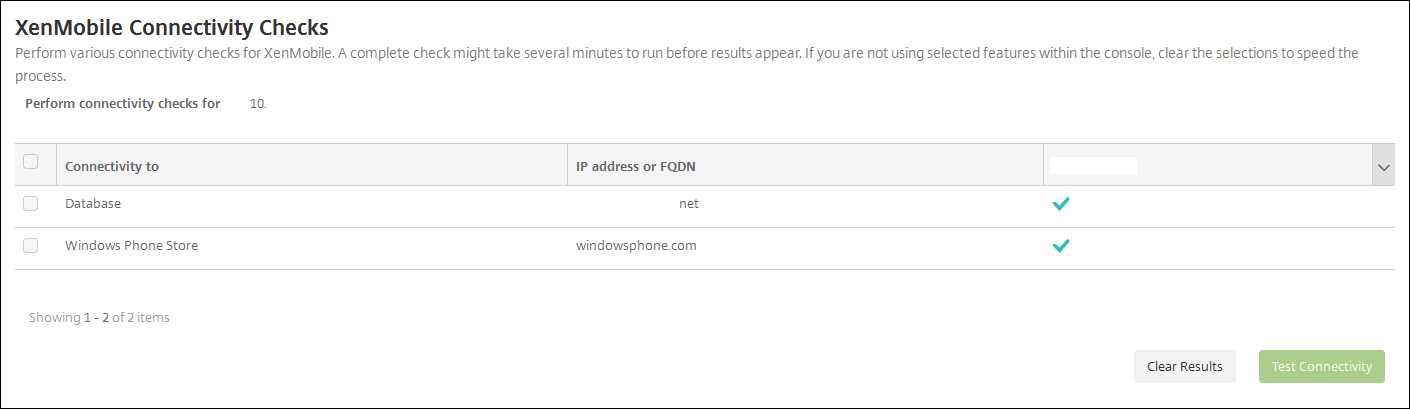
Select the servers that you want to include in the connectivity test and then click Test Connectivity. The test results page appears.
-
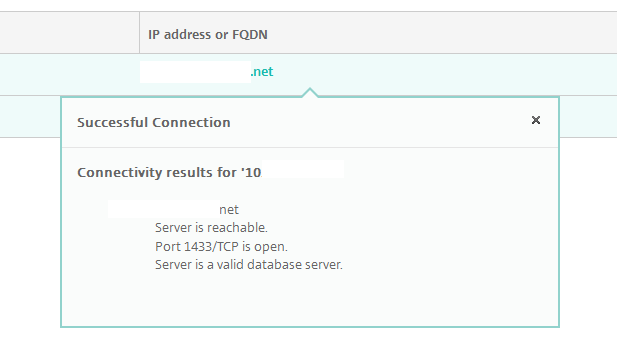
Select a server in the test results table to see detailed results for that server.
Conducting Citrix Gateway Connectivity Checks
-
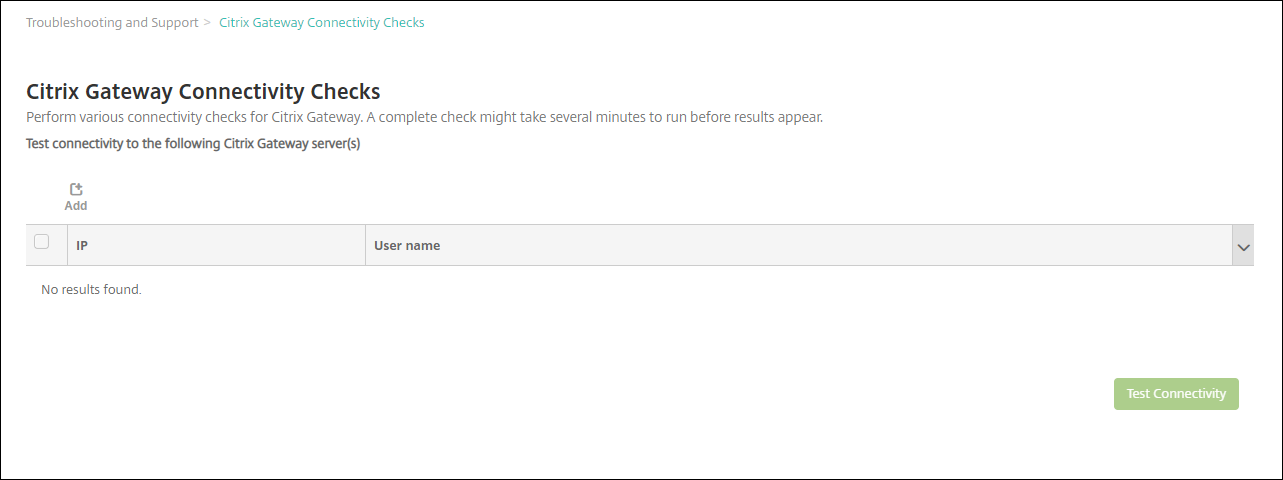
On the Support page, under Diagnostics, click Citrix Gateway Connectivity Checks. The Citrix Gateway Connectivity Checks page appears. The table is empty if you haven't added any Citrix Gateway servers.
-
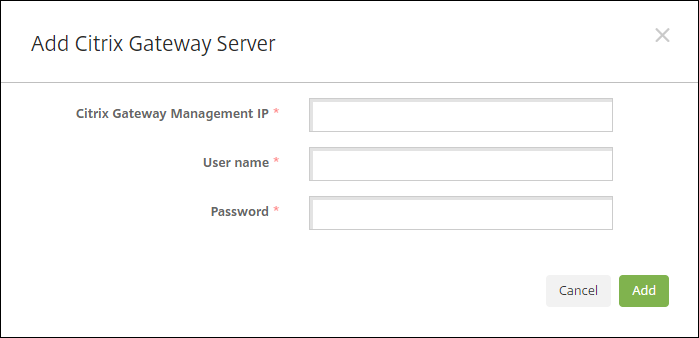
Click Add. The Add Citrix Gateway Server dialog box appears.
-
In Citrix Gateway Management IP, type the management IP address for the server running Citrix Gateway that you want to test.Note:If you're conducting a connectivity check for a Citrix Gateway server that has already been added before, the IP address is provided.
-
Type your administrator credentials for this Citrix Gateway.Note:If you're conducting a connectivity check for a Citrix Gateway server that has already been added before, the user name is provided.
-
Click Add. The Citrix Gateway is added to the table on the Citrix Gateway Connectivity Checks page.
-
Select the Citrix Gateway server and then click Test Connectivity. The results appear in a test results table.
-
Select a server in the test results table to see detailed results for that server.