
License Activation Service
The License Activation Service (LAS) is a new cloud-based licensing solution that provides an alternative to the traditional Citrix® legacy licensing. LAS introduces new modules for activation, ensuring a seamless and modern approach to license management.
The LAS simplifies the Citrix Licensing experience. There are no longer license access codes or files to generate, download, or install on the license server. You only need to upgrade your license server and register with Citrix Cloud. Once the compatible products are pointed to the license server, they can be activated automatically.
After activation, the License Server regularly communicates with the License Activation Service to keep its activation up to date. The LAS is built with cloud technology, which improves performance and ensures that there is no downtime. If, for any reason, the License Server or LAS is unreachable, the system enters license caching mode, which is designed to protect the system from being unlicensed and avoid an outage. For more information, see License caching mode.
For more details on LAS, see the Licensing documentation License Activation Service.
Prerequisites
-
Install or update the License Server to version 11.17.2 build 51000 or later.
-
Reliable and continuous internet connection for the License Server.
Considerations
-
All Delivery Controllers must be compatible with LAS before the Web Studio prompts for activation. A single site can use either legacy licenses or LAS.
-
You can have multiple License Servers registered with the same Citrix Cloud ID (CCID) or OrgID. However, a site can be configured to point to only one license server.
Limitations
-
Migrating to LAS sets the Product Edition to Premium and the License Model to Concurrent but this might change in the future. Do not modify the license configuration using PowerShell as this might impact registration and session launch.
-
You can migrate your Citrix Virtual Apps and Desktops™ site from the existing legacy license to LAS using only Web Studio.
Key steps
-
Install or upgrade the License Server to version 11.17.2 build 51000 or later and configure LAS as per the instructions mentioned in How to Configure License Server for License Activation Service.
-
Install Citrix Virtual Apps and Desktops version 2411 or later. Install the core components, such as Citrix Delivery Controller, Citrix Studio, Web Studio, and Citrix Director.Note:All Delivery Controllers in the Citrix Virtual Apps and Desktops site must be compatible with LAS.
-
After you install the required components, use Citrix Site Manager to create a site. For information on creating a site, see Create a site. If the License Server is configured to use LAS, the Metainstaller displays the entitlements. The entitlements are provided along with their corresponding license expiration dates.
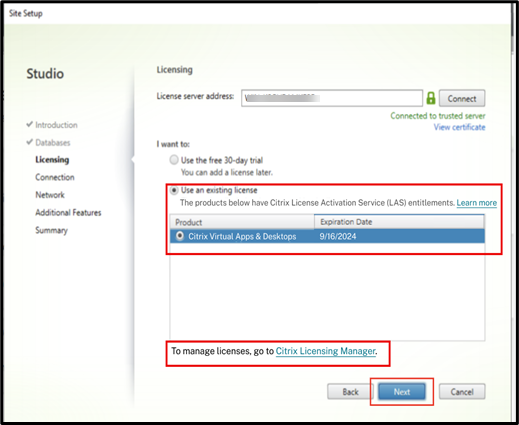 Note:If the License Server is not upgraded to the latest License Server version, you get an error message.
Check licensing details
After creating the site, check the licensing details using Web Studio.
-
In Web Studio, select the Licensing node.
-
On the Overview tab, check if the Citrix Virtual Apps and Desktops site has the appropriate license or if the license has expired while using LAS features.
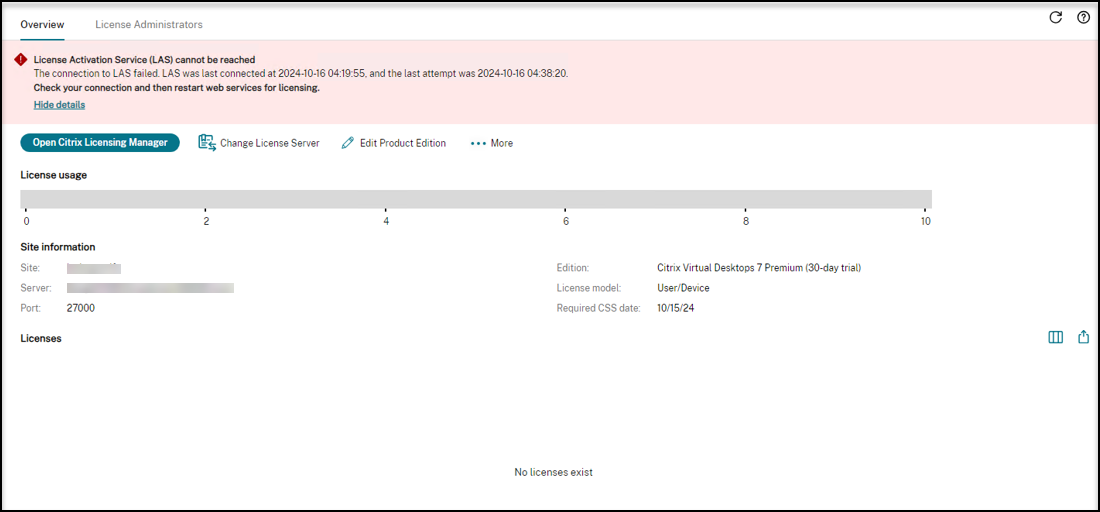
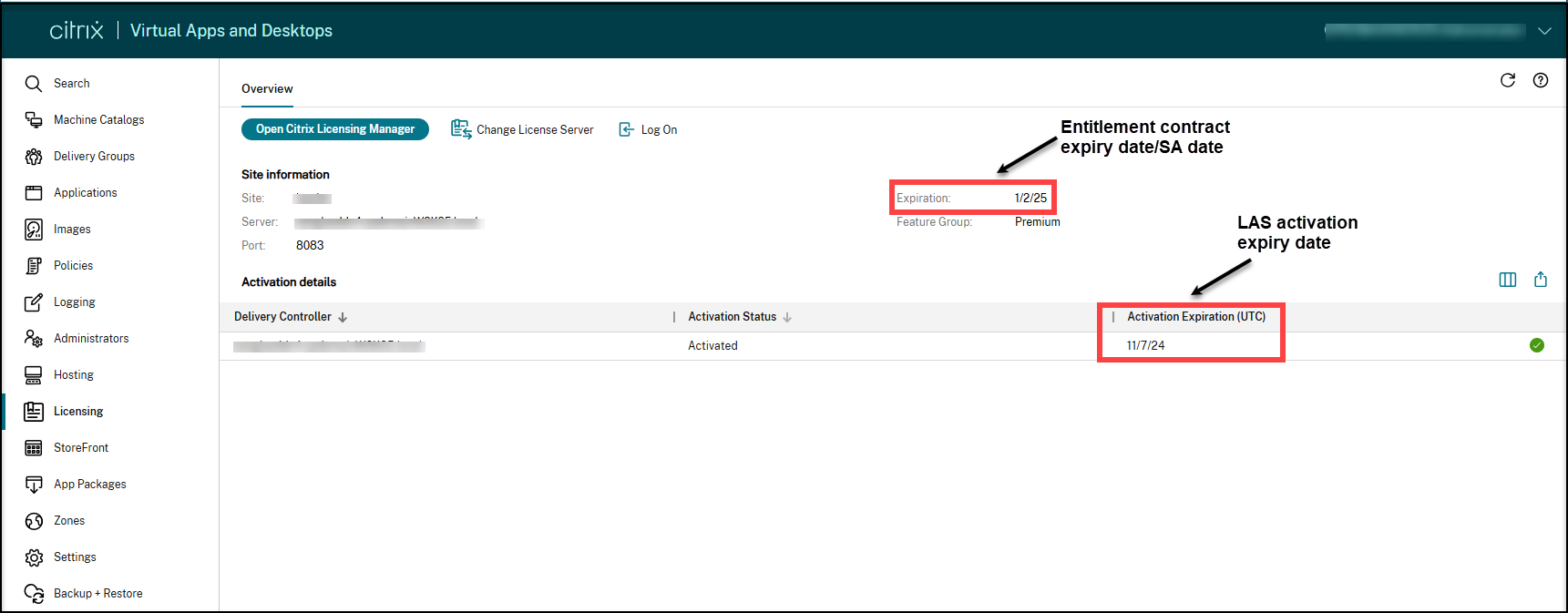 If the LAS is not reachable, you might see an error message:
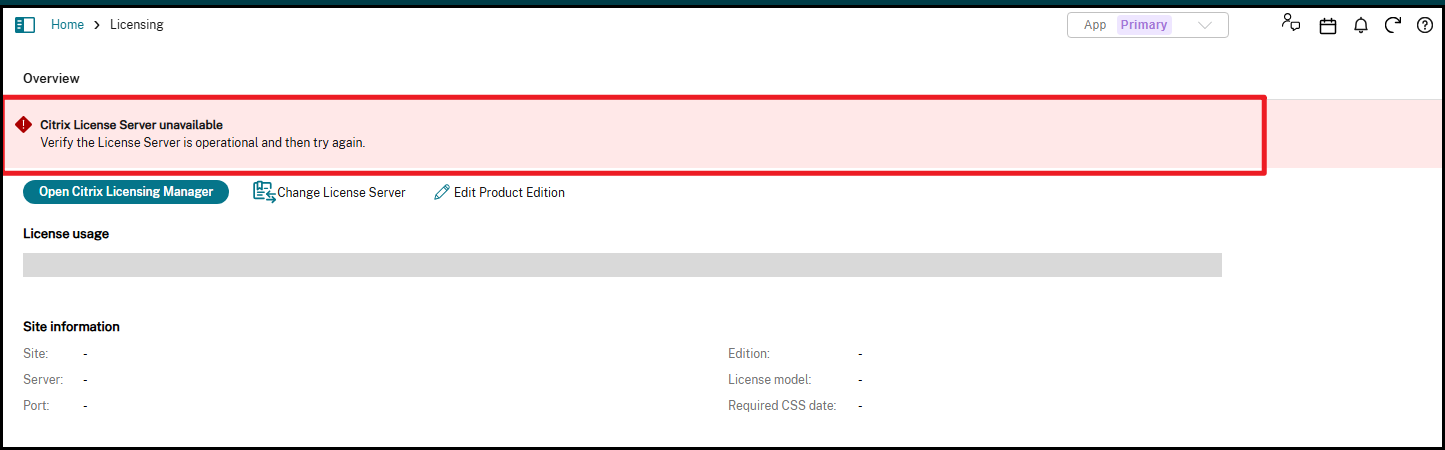
 If the License Server is not available, you might see an error message:
 If your License Server is still using an old legacy license and the Citrix Virtual Apps and Desktops site is LAS-aware, then the Web Studio prompts you to register your License Server with Citrix Cloud.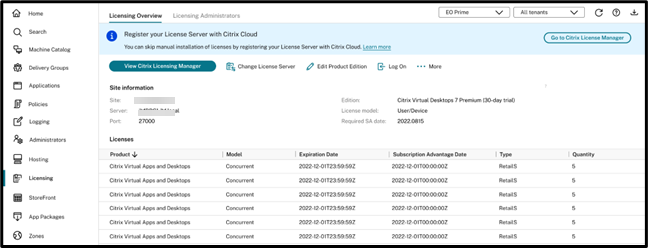
Migrate legacy licensing to LAS
If you have already registered your License Server with Citrix Cloud and have the necessary entitlement, you must follow the specific sequence below to migrate your existing Citrix Virtual Apps and Desktops site from legacy licensing to LAS without impacting user sessions.
-
Upgrade License Server: Upgrade the License Server to the minimum supported version.
-
Upgrade Delivery Controllers: Upgrade all the Delivery Controllers in the site to a LAS-supported version.
-
Remove Delivery Group License Assignments:
-
Before clicking Migrate to LAS, manually remove any license assignments set below the Site level (that is, remove the license assignment in the delivery group level).
-
-
Confirm Allocations: Verify that the LAS allocations are accurate.
-
Click Migrate to LAS:
-
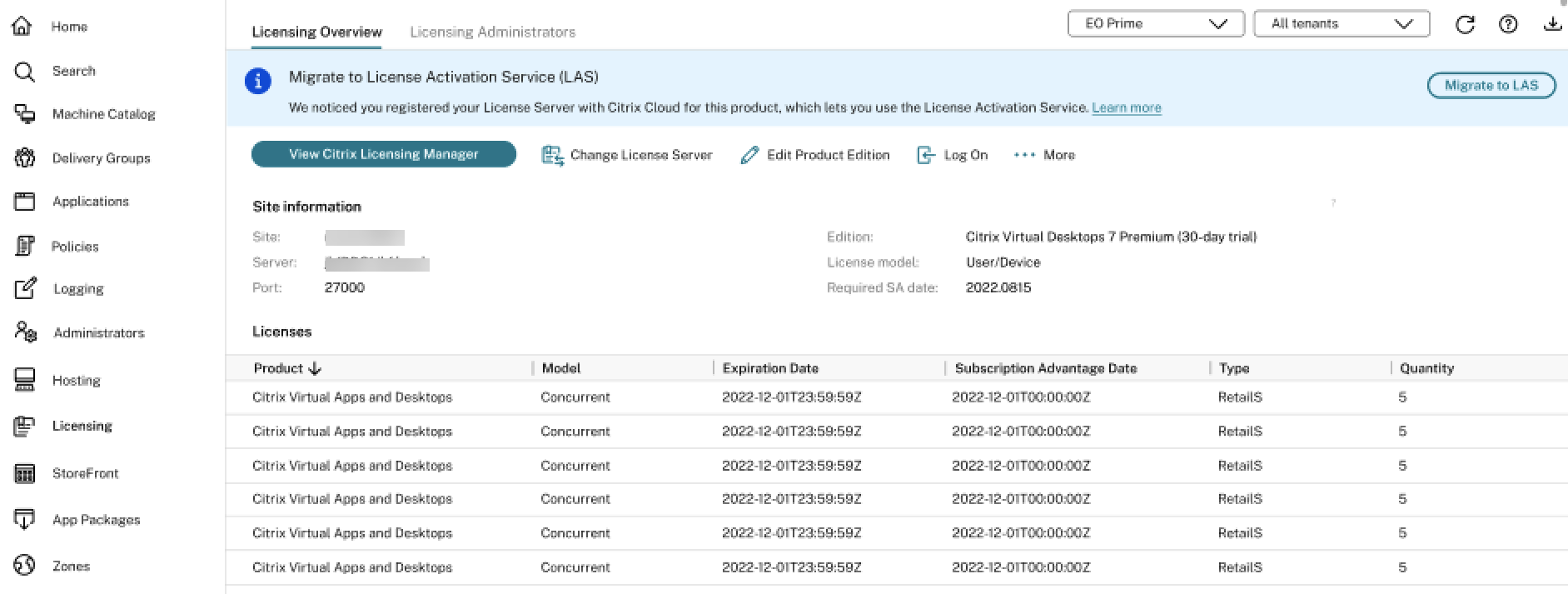
Once the previous steps are complete, click Migrate to LAS.
-
The License Edition of the Citrix Virtual Apps and Desktops site is set to Citrix Virtual Apps and Desktops Premium and the License Model is configured to Concurrent once you migrate to LAS.
-
Roll back from LAS to legacy licensing
Do the following to roll back from LAS to legacy licensing:
-
Run the following PowerShell command.
Set-ConfigSite -UseLicenseActivationService $false -
Configure the legacy licenses in Web Studio.
Note:
These steps are provided for temporary troubleshooting only. Legacy license files are approaching End of Life (EOL) and will not function beyond April 15, 2026. To ensure uninterrupted service, we recommend migrating to the License Activation Service (LAS). For details, see the announcement.
Important considerations for upgrade
When you upgrade from any earlier Citrix Virtual Apps and Desktops version to 2411 and later, upgrade the License Server to the latest version (version 11.2.17 build 51000 or later).
-
You get the following errors on the Licensing Errors page while upgrading using the metainstaller UI:
-
If you do not upgrade to the latest License Server version:
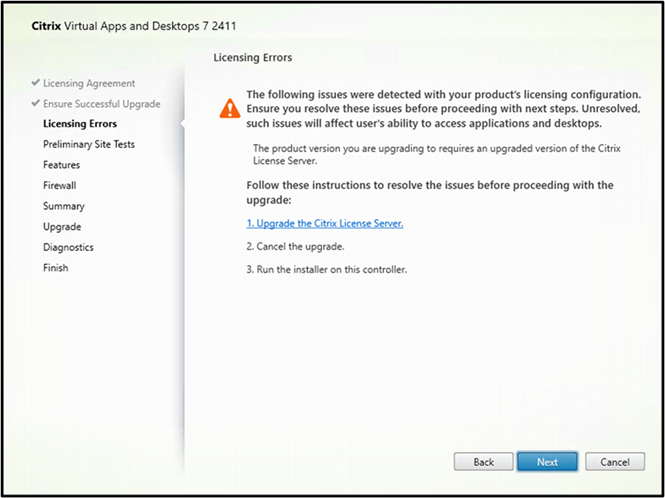
-
If there are any incompatibilities, such as an outdated License Server or unavailability of licenses:
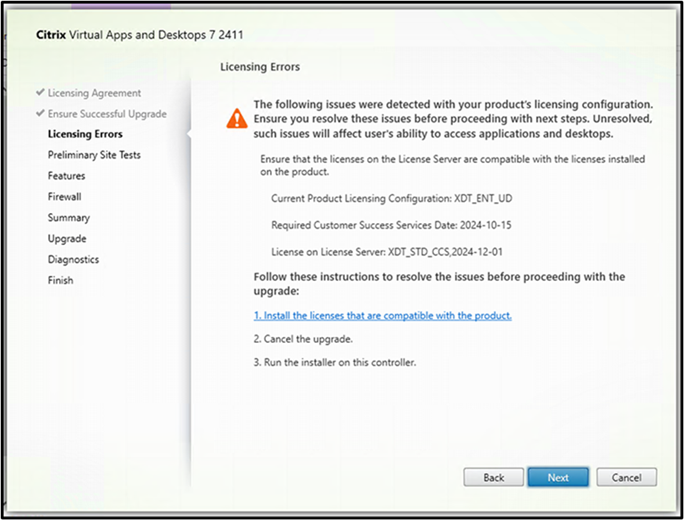
-
-
If you are upgrading using the command-line, run the following commands to avoid upgrade failure (assuming that you are inside the \x64 folder in the mounted ISO):
-
Run the following:
\x64\Licensing\CitrixLicensing.exe /quietIf you have copied the Licensing binaries to any of the local drives, then run the following command:\x64\Licensing\CitrixLicensing.exe /quiet /l install.log -
Run the following:
\x64\XenDesktop Setup\XenDesktopServerSetup.exe /components "CONTROLLER,DESKTOPSTUDIO,DESKTOPDIRECTOR" /CONFIGURE_FIREWALL
Uninstall core components
During upgrade, if you have installed License Server first using the commands
\x64\Licensing\CitrixLicensing.exe /quiet or \x64\Licensing\CitrixLicensing.exe /quiet /l install.log and then installed the core components, then follow the same order to uninstall:
-
Uninstall License Server using the command line:
CitrixLicensing.exe /quiet /uninstall /l uninstall.log -
Uninstall components using the GUI or command line. For information, see Remove components.
If you uninstall the License Server and components using the command line
XenDesktopServerSetup.exe or removeall, then clean up the registry entry and the remaining files.
To clean registry entries :
-
Search for the registry key
Citrix Licensingand delete that entry. Mostly, you can find the entry in the following location:"Computer\HKEY_LOCAL_MACHINE\SOFTWARE\WOW6432Node\Microsoft\Windows\CurrentVersion\Uninstall\ -
Delete the folder pointed by the Uninstall String in the registry key.
Troubleshooting
If the status of license server is showing anything other than green in Citrix Cloud, do the following to understand the granular details of the activations that could have issues:
-
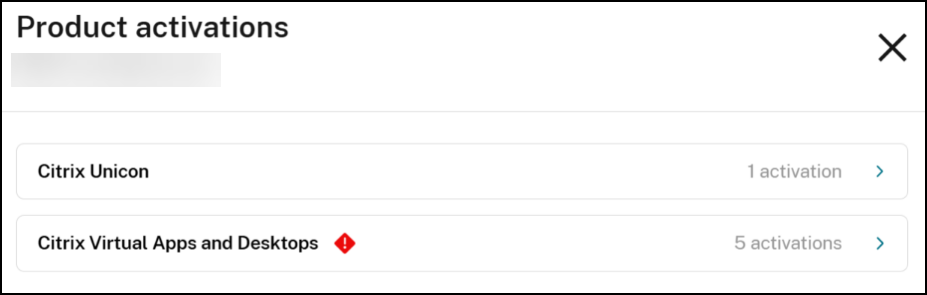
In Citrix Cloud, navigate to Licensing > Licensed deployments > License Servers.
-
Click the expand button > across Citrix Virtual Apps and Desktops to see the list of Delivery Controllers that were activated.
-
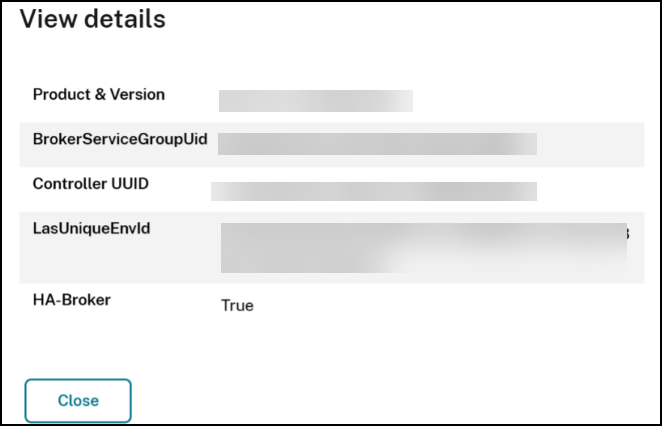
Click View details across the activation to see the granular details.ID is the unique identifier to identify the activations.The following details are provided:
-
Product & Version: The Product_Edition_Model and the Burn In Date that the product is configured to use when activating with LAS. BurnInDate is usually the release date of the product.
-
BrokerServiceGroupUid: The UID for the Broker Service Group.
-
Controller UUID: The UUID of the Delivery Controller.
-
LasUniqueEnvId: The unique ID of the instance provided by LAS for activation.
-
HA-Broker: True or False indicating whether its a HA broker or main broker.
-
To map the activated host details with the actual host, run the following commands on the host.
-
Get-BrokerSite: To compare the BrokerServiceGroupUid value displayed on the screen with the command'sBrokerServiceGroupIdoutput. -
Get-BrokerController: To compare the Controller UUID value displayed on the screen with the command's UUID output.
Event viewer logs related to Licensing events
| Event ID | Description |
|---|---|
| 1112 | The Citrix Broker Service failed to broker a connection for user to resource. The product and edition licensing configuration for the site does not allow this type of resource. Check that the correct license has been selected for this site. |
| 1150 | The Citrix Broker Service successfully contacted the license server. |
| 1151 | The Citrix Broker Service cannot contact the license server. Ensure that the license server is functioning correctly and that the details identifying the license server are correct in the XenDesktop configuration. |
| 1152 | This XenDesktop site does not have the required product licenses present on the license server. Use the License Administration Console to add the relevant product licenses to the license server. |
| 1153 | This XenDesktop site's license expired. The Citrix Broker service will request a new license from the license server. |
| 1154 | This controller has entered license caching mode because it could not contact the license server. You have 2 hour(s) remaining before this controller stops providing desktop and application sessions. |
| 1155 | The Citrix Broker Service will now stop providing desktop and application sessions. This controller is no longer in or could not enter a license caching mode due to sustained failure to communicate with the license server. Ensure that the license server is functioning and, if necessary, use the License Administration Console to add the relevant licenses to the license server. |
| 1156 | The Citrix Broker Service is successfully communicating with the license server. This controller is no longer in license caching mode. |
| 1157 | The version of the license server running on is older than the version of the Citrix Broker Service, and is therefore incompatible. Upgrade your license server or specify a license server location with the correct version in your XenDesktop configuration. |
| 1158 | The Citrix Broker Service detected that you have exceeded the number of licenses available for this site on the license server for this edition. The license server granted you an overdraft license. |
| 1159 | The Citrix Broker Service denied a desktop connection because the maximum number of installed licenses for this site has been exceeded. There are three licenses installed for edition but the maximum allowed number of licenses for this edition is two. Remove the relevant licenses from the license server to comply with the license limit. |
| 1160 | The Citrix Broker service encountered an internal error while managing licenses. Ensure that the license server is functioning correctly and that the details identifying the license server are correct in the XenDesktop configuration. Restarting the Citrix Broker service may also resolve the problem. If this problem persists, reinstall the Citrix XenDesktop Controller. See Citrix Knowledge Base article CTX126990. |
| 1161 | Error initializing licensing. Check license server connectivity. |
| 1162 | Error stopping licensing. Check license server connectivity. |
| 1163 | No connection license available. To resolve, free licenses by closing sessions that are not needed, or add more licenses. |
| 1164 | Error checking out a connection license. Check license server connectivity. |
| 1165 | Error checking in a connection license. Check license server connectivity. |
| 1166 | Error checking license availability. Check license server connectivity. |
| 1167 | Failed to start licensing. Check license server connectivity. |
| 1168 | Error reading licensing user notification settings. Check license server connectivity. |
| 1169 | This controller has entered the out-of-box license caching mode as no suitable licenses were found on the license server. You have 2 hour(s) remaining before this controller stops providing desktop and application sessions. |
| 1170 | The Citrix Broker Service has successfully detected suitable licenses on the license server. This controller is no longer in the out-of-box license caching mode. |
| 1171 | No license server has been specified. The Citrix Broker Service cannot provide desktops and applications to users until a valid license server is specified. You can specify a license server in Citrix Studio or with the Citrix PowerShell SDK cmdlet Set-ConfigSite. |
| 1172 | Error checking license server suitability. The Citrix broker service received an unexpected response when checking if a machine is suitable for use as a license server. Check that the machine can be contacted from the controller and that any firewall on the machine allows connections from the controller. If a license server is installed on the machine check that it is configured and operating correctly. |
| 1173 | This XenDesktop site does not have the required start up licenses present on the license server. Use the License Administration Console to add the relevant licenses to the license server. |
| 1174 | The configured product edition for this XenDesktop site does not support applications; application resources will not be available. |
| 1176 | The configured product edition does not support multi-session machines. The registration was rejected. |
| 1177 | The configured product edition does not support single-session machines. The registration was rejected. |
| 1178 | The configured product edition does not support RemotePC. The registration was rejected. |
| 1179 | The configured product edition does not support machines provisioned into a cloud system. The registration was rejected. |
| 1180 | The configured product edition for this XenDesktop site does not support applications on single session (workstation OS) machines. Application resource was refused launch. |
| 1181 | The configured product edition for this XenDesktop site does not support applications on multi session (server OS) machines. Application resource was refused launch. |
| 1182 | The configured product edition for this XenDesktop site does not support desktops on single session (workstation OS) machines. Desktop resource was refused launch. |
| 1183 | The configured product edition for this XenDesktop site does not support desktops on multi session (server OS) machine. Desktop resource was refused launch. |
| 1196 | This controller has entered a license burst mode due to exhausting all usable licenses on the license server. Add more licenses to resolve this. You have 2 hour(s) remaining before this controller stops providing desktop and application sessions. |
| 1197 | The Citrix Broker Service will now stop providing desktop and application sessions. This controller is no longer in or could not enter a license burst mode due to insufficient licenses on the license server. Use the License Administration Console to add the relevant licenses to the license server. |
| 1198 | The Citrix Broker Service is successfully consuming licenses from the license server. There are sufficient licenses on the server to satisfy current demand. This controller is no longer in a license burst mode caused by license exhaustion. |
| 1199 | The Citrix Broker Service will now stop providing desktop and application sessions. This controller is no longer in or could not enter a license caching mode since no licenses are installed on the license server. Use the License Administration Console to add the relevant licenses to the license server. |
| 1205 | Your software maintenance has expired. Your Citrix environment is currently unsupported. Check your license server for expired licenses and remove them. There is a 30-day license caching mode before users start getting warning messages. |
| 1206 | License certificate hash is invalid. Your Citrix License certificate hash is invalid. |
| 1300 | The Citrix Broker Service will now stop providing desktop and application sessions. There is a problem with the system clock of the license server. |
| 1301 | Issues with the system clock of license server have been corrected. The Citrix Broker Service will now resume normal operation. |
| 1302 | This controller failed checking in or checking out a connection license again. Previously detected failures still exist. To avoid excessive event logging, the service is suppressing related messages (event ID 1163, 1164, 1165) until the problem is resolved. Licensing attempts will continue. |
| 1303 | This controller is no longer suppressing related messages (event ID 1163, 1164, 1165). |
| 1304 | The Citrix Broker Service successfully contacted LAS. |
| 1305 | The Citrix Broker Service cannot contact LAS. Ensure that the LAS is functioning correctly and that the details identifying LAS are correct in the XenDesktop configuration. |
More information
For information on checking the LAS state of a site or verify if a site is in license caching mode, see:
For detailed information on the commands, see: