Store access
In Store access settings you can configure the following:
- Whether users are required to open their store in Citrix Workspace™ app or whether they can use a web browser.
- When opening their store in a web browser, whether virtual apps and desktops always open in a browser or Citrix workspace app.
- When opening their store in a web browser, whether they must install Citrix® Web extension.
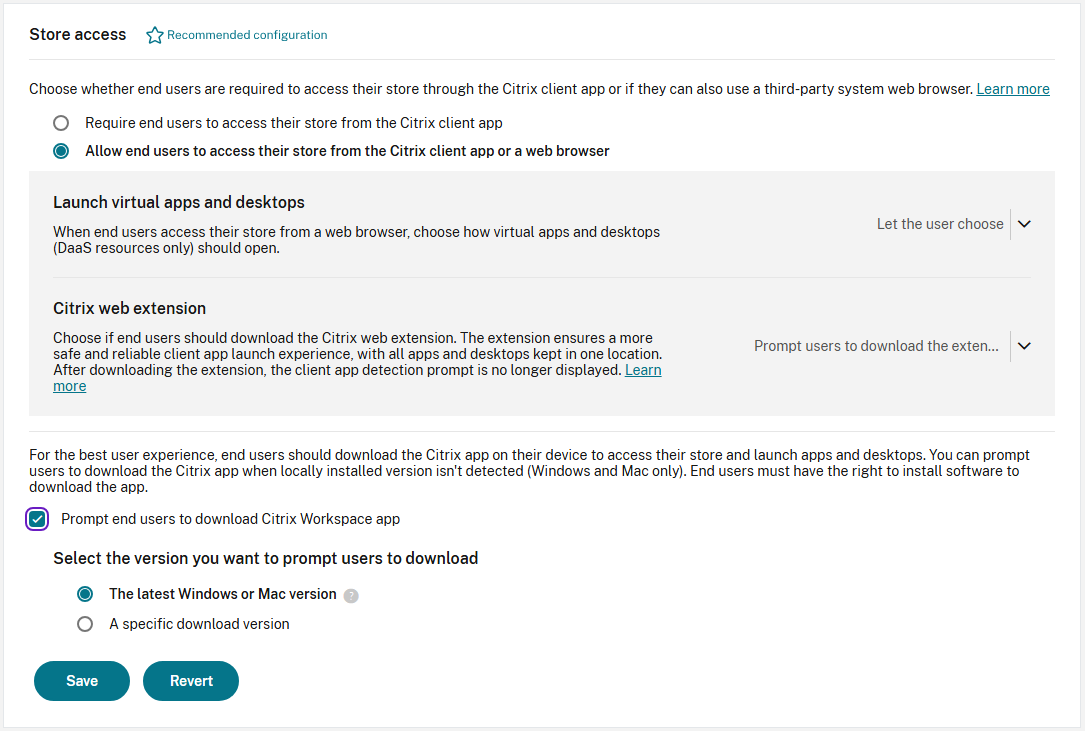
To configure store access settings:
- Log in to Citrix Cloud console.
- From the Citrix Cloud menu, choose StoreFront Cloud.
- From the Customize menu, choose Preferences.
- Go to the Store access section.
- Update the setting as required.
- Select Save to save your changes.
Require Citrix Workspace app
Enforcing native Citrix Workspace app on user devices implies restricting end users to sign in and use only the locally installed Citrix Workspace app. By doing so, end users can’t access their store using a web browser. This feature is designed for customers who want to use the full benefits of Citrix Workspace app.
Configuration
Administrators can use their Citrix Cloud account to mandate the use of native Citrix Workspace app on user devices. To manage this feature, follow these steps:
-
Select Require end users to access their store from the Citrix client app.
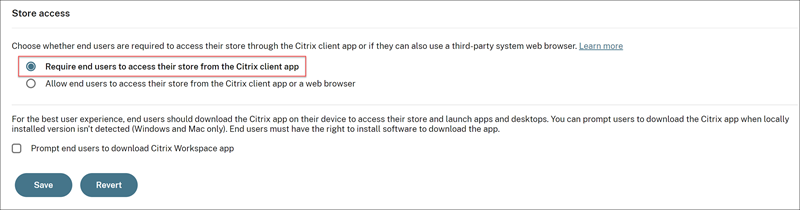
[Optional] Select Prompt end users to download Citrix Workspace app to prompt the users to download Citrix Workspace app if they don’t have the app installed on their device. For more information, see Configure native app download link for end users.
-
Click Save to save the changes, or click Revert to discard the changes.
End user experience
For details on the user experience, see Require Citrix Workspace app.
Launch virtual apps and desktops
If you have allowed users to open the store in their web browser then you can then choose whether applications are also launched within the web browser or in Citrix Workspace app.
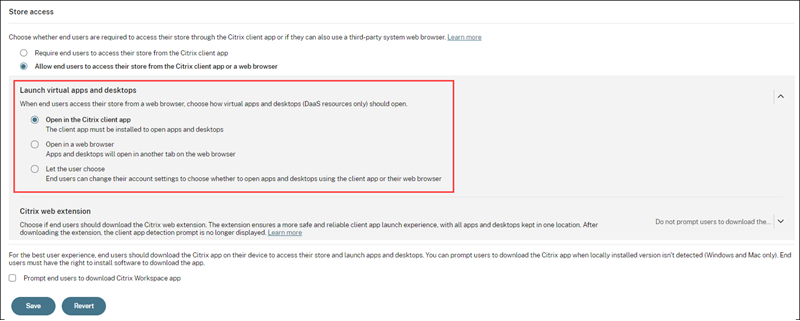
Choose one of the following settings:
- In the Citrix client app (default): End users are required to use a locally installed version of the Workspace app.
- In a browser End users are required to launch virtual apps and desktops in their web browser. Choose this option if users are not able to install software locally.
- Let the user choose: When users first open the store in their browser, they can choose whether to launch virtual apps and desktops in Citrix Workspace app or their browser.
Prevent ICA downloads
If you have allowed users to open the store in their web browser and launch in Citrix Workspace app then you can configure the store to prevent ICA downloads.

When this setting is enabled, the Citrix Workspace app detection does not display the option to Skip detection. Users must either install Citrix web extension or successfully complete detection using Citrix Workspace Launcher.
Important:
This setting prevents launching resources if Citrix Workspace launcher and Citrix web extensions are not available, including on ChromeOS. For a list of supported browsers and clients, see Citrix Workspace launcher and Citrix web extensions.
Prevent ICA downloads using PowerShell
You can use the PowerShell API cmdlet Set-StoreConfigurations with the following parameters.
-AllowSkipNativeAppDetection - Configures whether users have the option on the Citrix Workspace app detection screen to Skip detection.
-PreventIcaDownloads - Configures whether all ICA file downloads are blocked, including on platforms that do not support Citrix Workspace launcher. If -AllowSkipNativeAppDetection is enabled then ensure -PreventIcaDownloads is disabled.
The deprecated setting -DisallowICADownload corresponds to the inverse of -AllowSkipNativeAppDetection.
Manage installation prompt for Citrix web extension
If you have allowed users to access their store from a web browser, you can configure whether the website prompts the user to install Citrix Web Extension. The prompt only appears if the website does not detect the extension.
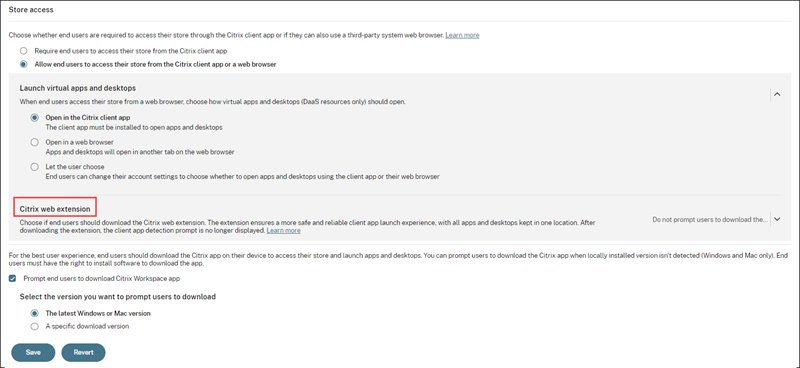
Set Citrix web extension to one of the following values:
- Prompt end users to download the Web Extension but allow access to the store if it isn’t detected (default): The website prompts the end user to install the extension. They are allowed to use store even if they decide to install the store Web Extension later.
- Require end users to download the Citrix Web Extension and block access to the store until it is detected: End users aren’t allowed to use store until they install the store Web Extension.
- Do not prompt end users to download the Citrix Web Extension: The store doesn’t prompt end users to install Citrix web extension.
Show or hide resources requiring App Protection
App protection provides additional security against screen capture and key logging.
When users open their store in a version of Citrix Workspace app that supports App Protection, the app always displays resources requiring App Protection. Legacy versions of Citrix Workspace app hide resources requiring App Protection. For supported versions, see System requirements.
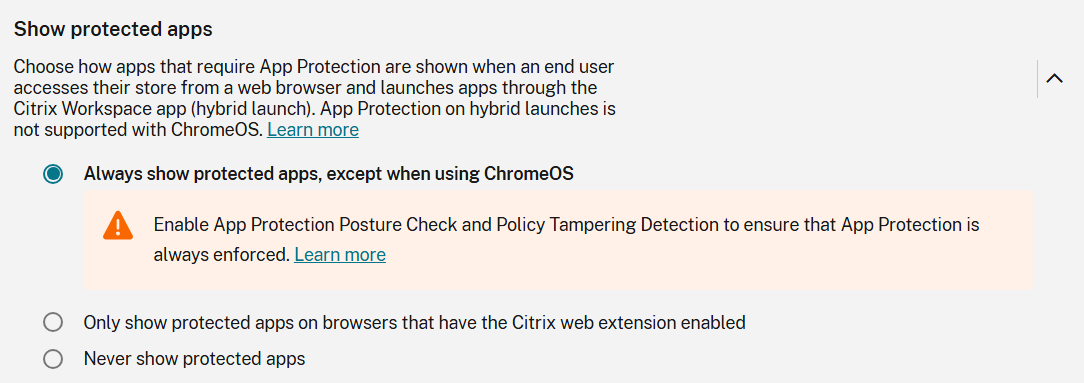
When users open their store in a web browser and launch resources in Citrix Workspace app, you can configure whether the user interface displays resources requiring App Protection. You can choose from the following options.
-
Always show protected apps, except when using ChromeOS. New deployments of Citrix® StoreFront Cloud use this as the default. In some cases, the store is not aware of which version of Citrix Workspace app is installed, so may display resources when users use a legacy client that is not capable of applying App Protection. Therefore Citrix recommends that you enable App protection posture check to validate the client capability when starting the session. If users can download ICA files, then they can modify the ICA file before launching the resource. Therefore Citrix recommends that you enable App protection tampering detection.
-
Only show protected apps on browsers that have Citrix web extension installed. Older deployments of Citrix® StoreFront Cloud used this as the default. Citrix web extension provides additional security by checking the version of Citrix Workspace app and transfers the ICA file in-memory to prevent tampering. If the user has not installed Citrix web extension, the store hides all resources requiring App Protection.
-
Never show protected apps. With this option, the store does not display resources requiring App Protection, preventing them from being launched.
Note:
- Citrix Workspace app for Chrome OS cannot apply App Protection. Therefore on ChromeOS the store website always hides resources requiring App Protection.
- The browser HDX client cannot apply App Protection. Therefore, if users choose to open resources in their web browser, the store website always hides resources requiring App Protection.
Configure native app download link for end users
Administrators can prompt end users to download Citrix Workspace app if they don’t have the app installed on their device.
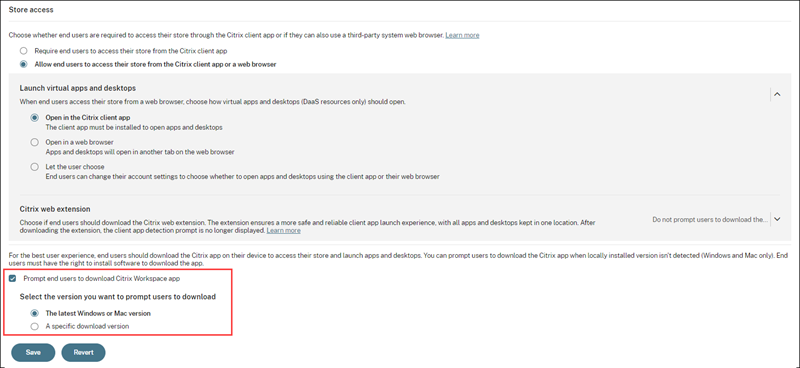
Select either of the following option:
- The latest Windows or Mac version: Prompts users to download the latest version of Citrix Workspace app on their devices. When users click the download link, they’re redirected to the respective download page.
Note:
For devices running Linux, when users click the download link, it opens the Citrix Download page where the users can manually download the executable file. For ChromeOS, Android and iOS devices, the download link redirects users to the Chrome Web Store, Play Store, and App Store respectively.
- A specific download version: In the Download URL text field, provide the URL of the Citrix Workspace app version you want users to download.
Note:
Administrators need to provide the download URL for the specific version of Citrix Workspace app based on the operating system of the user device. If there are users who have both Windows and Mac devices, administrators can give a common link that directs to Citrix Workspace app download page instead of giving a URL for just one operating system.