Configure endpoint recording policies
You can define policies to capture user actions on endpoint devices when accessing Citrix-delivered web apps, virtual apps and desktops.
Prerequisites
Before you begin, ensure you have met the following requirements:
- Citrix Session Recording server version 2511 or later
- Citrix Workspace App version 2511 or later
- Proper integration with Citrix Gateway and StoreFront, see Site settings
Note:
Endpoint recording is triggered only when the ICA session is launched through Citrix Workspace app (CWA). Sessions launched by any other means are not recorded.
Configure endpoint recording policies
You can activate system-defined endpoint recording policies or create and activate your custom endpoint recording policies. System-defined policies apply a single rule to entire sessions. Custom policies specify which sessions are recorded.
Note:
After you create or activate an endpoint recording policy, the policy applies to all Session Recording servers of the selected site. You can create and activate separate endpoint recording policies for different sites, but only one site’s active policy can be in effect globally.
System-defined endpoint recording policies
Session Recording provides the following system-defined endpoint recording policies:

- Do not record endpoint sessions. The default policy. If you do not specify another policy, no sessions are recorded.
You can’t modify or delete the system-defined endpoint recording policies.
Create a customer endpoint recording policy
Considerations
You can record endpoint sessions of specific users or groups.
For each rule you create, you specify an endpoint recording action and a rule scope. The recording action applies to sessions that fall into the rule scope.
For each rule, choose one endpoint recording action:
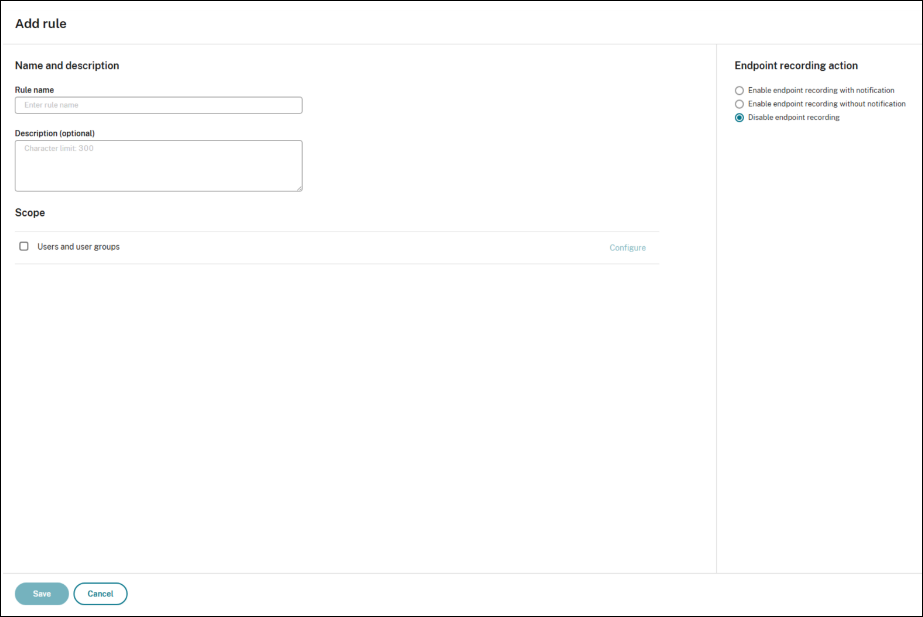
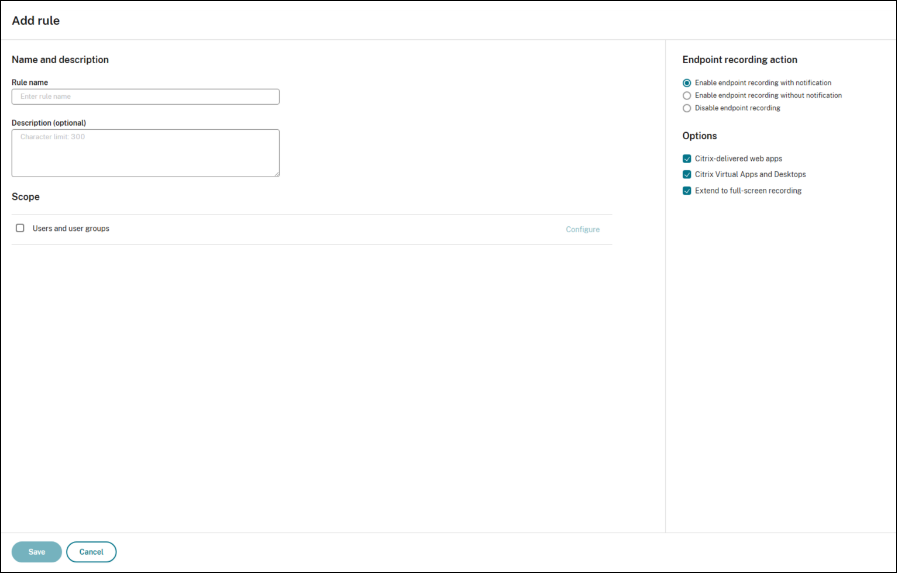
- Enable endpoint recording with notification. This option records user actions on endpoint devices. Users receive recording notifications in advance. With this option selected, you can further select to enable recording for Citrix-delivered web apps or Citrix Virtual Apps and Desktops. Additionally, you can choose to extend to full-screen record in endpoint recording.
- Enable endpoint recording without notification. This option records user actions on endpoint. Users do not receive recording notifications. With this option selected, you can further select to enable recording for Citrix-delivered web apps or Citrix Virtual Apps and Desktops. Additionally, you can choose to extend to full-screen record in endpoint recording.
- Disable endpoint recording. This option means that no user actions on endpoint devices are recorded.
- Citrix-delivered web apps. This option lets you record user actions on endpoint devices accessing these apps.
- Citrix Virtual Apps and Desktops. This option lets record user actions on endpoint devices accessing these apps.
-
Extend to full-screen recording. This option lets you record the entire screen space, including any extended displays.
For each rule, choose the following items to create the rule scope.
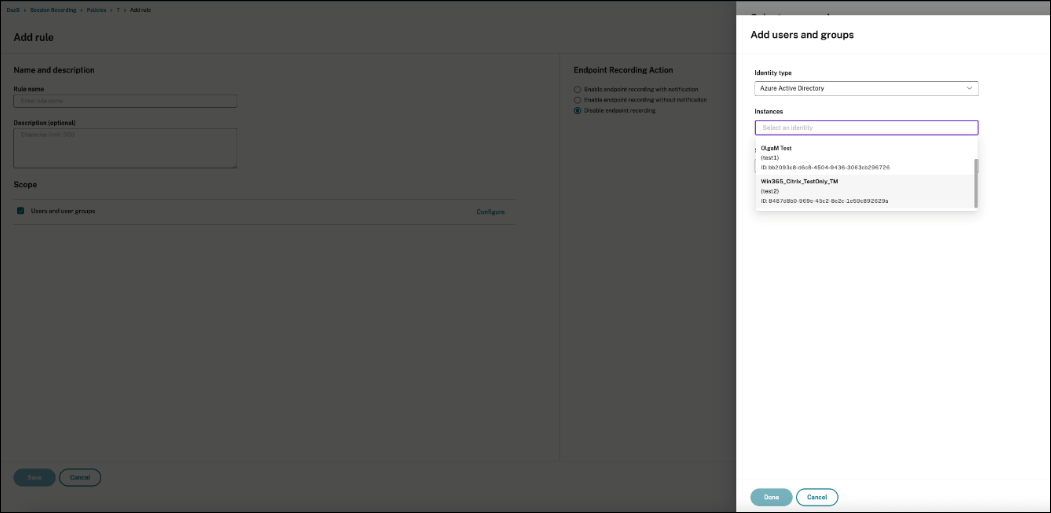
Users and user groups. Creates a list of users and user groups to which the action of the rule applies. Both Azure Active Directory (Azure AD) and Active Directory identity types are supported. Selecting Azure AD as the identity provider allows you to choose an instance from the drop-down list. The available instances depend on your settings on the Citrix Cloud Identity and Access Management > Authentication tab.
Note:
Azure AD support is a preview feature. It is available with Session Recording version 2402 and later. Preview features might not be fully localized and are recommended for use in nonproduction environments. Citrix Technical Support doesn’t support issues found with preview features.
When you create more than one rule in an endpoint recording policy, some sessions might match the criteria for more than one rule. In these cases, the rule with the highest priority is applied to the sessions.
The recording action of a rule determines its priority:
- Rules with the Disable endpoint recording action have the highest priority.
- Rules with the Enable endpoint recording with notification action have the second-to-highest priority.
- Rules with the Enable endpoint recording without notification action have the lowest priority.
Some sessions might not meet any rule criteria in an endpoint recording policy. For these sessions, the action of the policy fallback rule applies. The action of the fallback rule is always Disable endpoint recording. You can’t modify or delete the fallback rule.
Steps
- Sign in to Citrix Cloud.
- In the upper left menu, select My Services > DaaS.
- In the DaaS tile, scroll down in the left navigation pane and select Session Recording.
- In the Session Recording service view, select Policies from the left navigation.
- Select a target site. Choose the Endpoint recording policy.
- Click Add policy.
- Enter a name and description for the new policy, and then click Add rule.
-
Enter a name and description for the rule. Specify a endpoint recording action and choose at least one of the following items to create the rule scope.
For each rule, specify a recording action:
- Enable endpoint recording with notification.
- Enable endpoint recording without notification.
- Disable endpoint recording.
For each rule, choose the following items to create the rule scope:
- Users and user groups.
- After the new policy is created, find it on the Endpoint recording policy tab and turn the toggle on to activate the policy.
Select the global configuration site
Although you can have different active policies on different sites, only one site’s configuration and active policy can be in effect globally at any time.
Steps
- Select Configuration > Site Management from the left navigation of the Session Recording service.
- Click Settings for the target site.
-
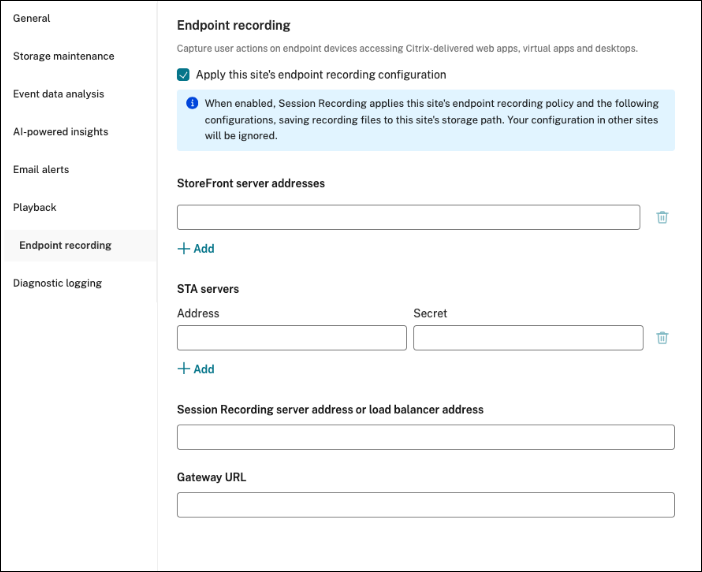
On the Endpoint recording page, enable the checkbox of Apply the endpoint recording configuration of this site.
Note:
- By checking this box, you are making this site the single source for all endpoint recording.
- The active policy and configuration you set for this site will now be applied globally. Recording files will be saved to this site’s storage path.
- All endpoint recording policies and configurations on all other sites will be ignored.
-
Complete the other configuration fields.
-
Session Recording server address: e.g.,
https://SRServer.domain.com -
STA server address: e.g.,
https://sta.domain.com -
Gateway URL: e.g.,
https://gateway.domain.com -
(Optional) StoreFront server address: e.g.,
https://storefront.domain.com/citrix/store- Required for On-premised StoreFront.
- Leave this blank if you are using Citrix Cloud StoreFront.
Note:
By default, the Cloud StoreFront integration is disabled. You must set the following registry key to enable the Citrix Workspace app to communicate with the Cloud StoreFront service.
- For 64-bit Citrix Workspace App
Location: HKEY_LOCAL_MACHINE\Software\Citrix\Dazzle Name: EnableCwaToSraCloudstore Type: String Value: true <!--NeedCopy-->- For 32-bit Citrix Workspace App
 Location: HKEY_LOCAL_MACHINE\Software\Wow6432Node\Citrix\Dazzle
 Name: EnableCwaToSraCloudstore
 Type: String
 Value: true
 <!--NeedCopy-->
-
Session Recording server address: e.g.,
Integrate the Session Recording server with Secure Ticket Authority
Note:
This step can be skipped if using On-prem StoreFront.
- STA is an XML web service that exchanges XenApp® server information for randomly generated tickets. It is used to control access for a Citrix Secure Gateway server.
- Use your Citrix account credentials to access the Citrix Virtual Apps and Desktops™ download page and download the product ISO file. Unzip the ISO file or burn a DVD of it.
- Use a local administrator account to log on to the machine in your trusted network and that is accessible by the Session Recording Server. Insert the DVD in the drive or mount the ISO file. The installer can be found in
x64/Citrix Desktop Delivery Controller/Sta_Service_x64.msi. - Install the secure ticket authority server. On a trusted machine, mount the CVAD product ISO and install the STA service from
x64/Citrix Desktop Delivery Controller/Sta_Service_x64.msi. - Configure Secure Ticket Authority service.
- This step is mandatory if sta service is installed in the same machine with session recording server.
- Update new ports for STA service: navigate to
"C:\Program Files\Citrix\StaService\Service" run.\StaService.exe -StoreFrontPort 8980 -StoreFrontTlsPort 8443
- Update new ports for STA service: navigate to
- Update Certificate Binding for New HTTPS Port.
- Restart Citrix Secure Ticketing Authority Service in Windows Services Management.
- This step is mandatory if sta service is installed in the same machine with session recording server.
Integrate the Session Recording server with NetScaler
Note:
This step can be skipped if the endpoint devices and the Session Recording server are in the same internal network (intranet). Otherwise, NetScaler configuration is required.
- On the Session Recording server, download the generated NetScaler configuration script from the Session Recording Web Console Configuration> Site Settings-> Endpoint recording-> Gateway areas.
-
Upload the script to the NetScaler appliance. You can use tools such as WinSCP or a scp command similar to the following:
scp ns_gateway_sessionrecording.sh root@NetScaler:/var/tmp
<!--NeedCopy-->
(Replace NetScaler with the actual host name or IP address.)
Ensure that the script is saved with LF (Line Feed) line endings. FreeBSD (which NetScaler OS is based on) does not support CRLF (Carriage Return Line Feed) line endings. If you encounter the error -bash: /var/tmp/ns_gateway_sessionrecording.sh: /bin/sh^M: bad interpreter: No such file or directory, it indicates incorrect line endings. Convert the script using a text editor such as Notepad++ and ensure that it’s saved with LF line endings.
- Connect to the NetScaler appliance through SSH and switch to the NetScaler shell by typing shell in the NetScaler CLI.
-
Make the uploaded script executable using the chmod command:
Chmod +x /var/tmp/ns_gateway_sessionrecording.sh <!--NeedCopy--> -
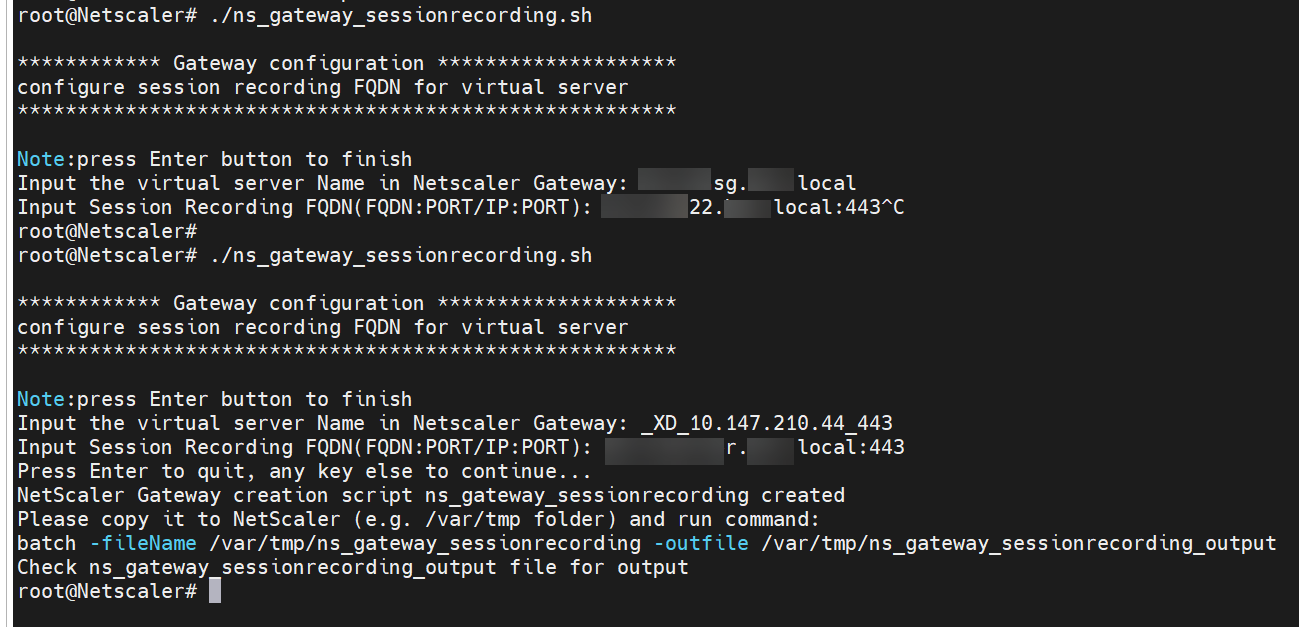
Run the uploaded script in the NetScaler shell.
-
Provide the required parameters. The script prompts you for the following:
- The name of the virtual server in NetScaler Gateway, which can be found in the NetScaler console.
- The Fully Qualified Domain Name (FQDN) of the Session Recording server (or load balancer if applicable).
-
The script generates a new file, /var/tmp/ns_gateway_sessionrecording, containing multiple NetScaler commands. You can review the input parameters using the cat /var/tmp/ns_gateway_sessionrecording command.

-
Return to the NetScaler CLI and run the generated commands using a batch command similar to the following:
batch -fileName /var/tmp/ns_gateway_sessionrecording -outfile /var/tmp/ns_gateway_sessionrecording_output
<!--NeedCopy-->
NetScaler executes the commands sequentially. If a command fails, it proceeds to the next.
-
Ensure that all commands were successfully completed.

-
Add Secure Ticket Authority(STA) server address in NetScaler. For more information, see Configure NetScaler Gateway to handle the STA and ICA traffic
Note:
If you are using Citrix Workspace app for Windows version 2503, ensure that ICA® Proxy mode is set to OFF on the Citrix NetScaler Gateway to enable endpoint recording functionality.
For detailed configuration steps, refer to the NetScaler command reference guide.
Note:
For more detailed information on configuration steps, refer to session recording for endpoint devices.