Session recording media task service
The Session Recording Media Task Service handles backend operations such as exporting session recordings and performing AI-based analysis tasks. It can be installed either on the Session Recording Server itself or on a separate high-performance server within the same domain.
Prerequisites
For optimal performance, the server hosting the media task service should have:
-
8-core CPU
-
16 GB RAM
Installation and configuration
Follow the steps below to install and configure the Task.
Step 1: Install the Session Recording media task service
-
Run the installer
SessionRecordingTaskClient.msiwhich is included in the Session Recording installer package. -
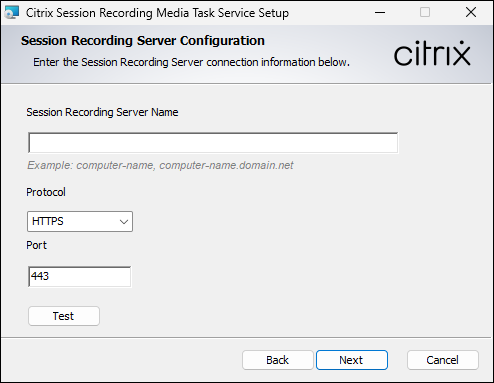
On the Session Recording Server Configuration screen, enter the name of your Session Recording Server or for load-balanced environments, the load balancer address. Specify the protocol (HTTPS/HTTP) and port (443/80), then click the Test button to verify the connection.
Note:
When deploying in a load-balanced environment, enable session persistence on your load balancer and select SOURCEIP (or equivalent) as the persistence type.
-
For Citrix NetScaler/ADC, see Persistence settings.
-
For Azure Load Balancer, see Session Persistence.
-
-
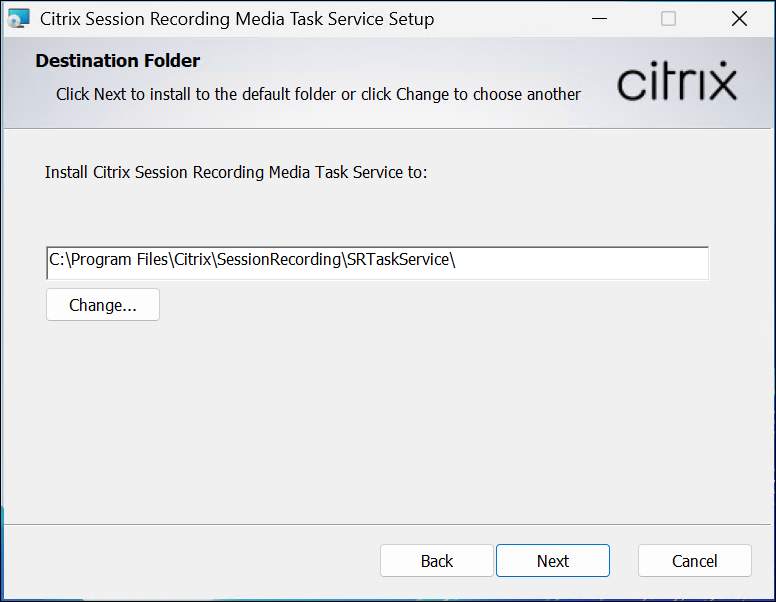
On the Destination Folder screen, confirm or change the installation path, and then complete the installation.
Step 2: Enable the media task service on the server
-
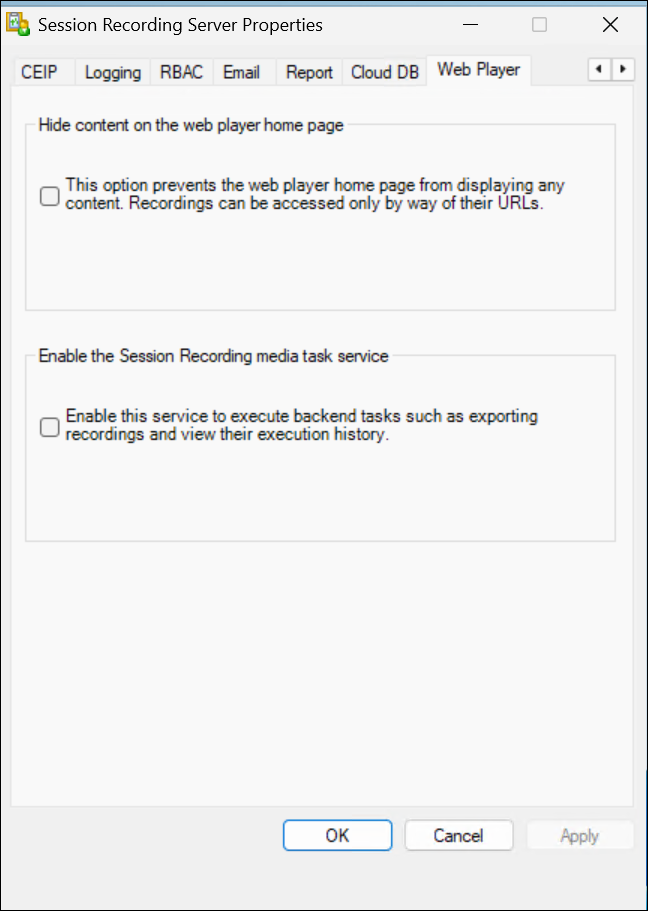
On the Session Recording Server, open Session Recording Server Properties.
-
Switch to the Web Player tab.
-
Check the Enable the Session Recording media task service checkbox.
-
Click Apply. This action allows the service to perform backend tasks, such as exporting recordings.
Step 3: Assign permissions for the media task service
-
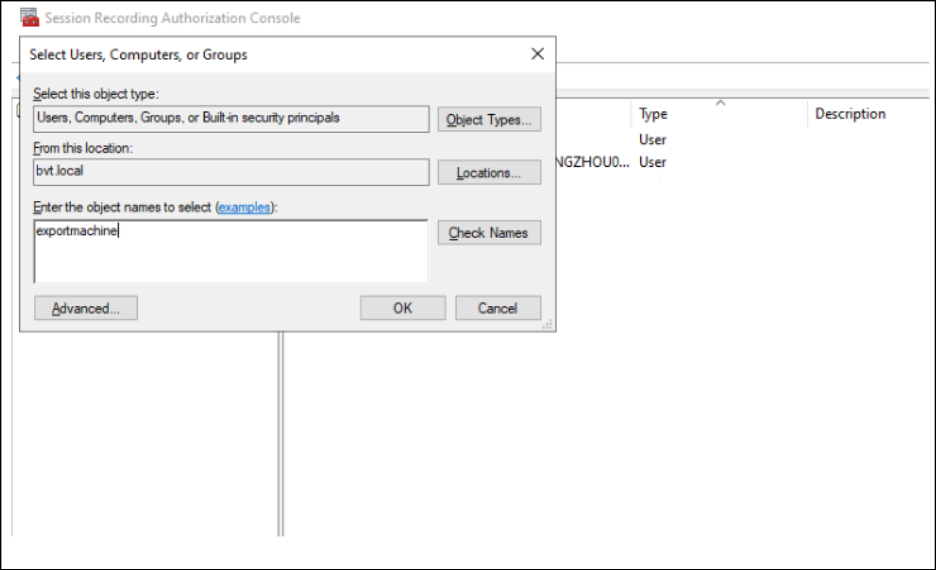
On the Session Recording Server, open the Session Recording Authorization Console.
-
From the menu bar, select Player > Assign Users and Groups.
-
Add the Fully Qualified Domain Name (FQDN) of the computer where the Session Recording Media Task Service is installed.
Important:
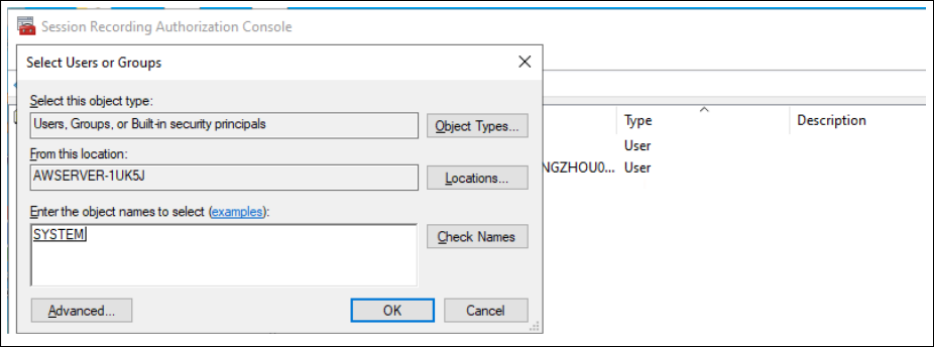
If the Media Task Service is installed on the same machine as the Session Recording Server, you must also add the SYSTEM account to the Player role.
Step 4 (Optional): Configure a custom export directory
Users can configure a custom path for exporting recordings by changing the registry key value for: at Computer\HKEY_LOCAL_MACHINE\SOFTWARE\Citrix\SmartAuditor\SRTaskService\SROutputDir.