
Configure ERP Cloud
The following sections provide more information about configuring ERP Cloud.
Citrix Gateway SaaS Application
Users can securely log on to ERP Cloud using their enterprise credentials.
To configure ERP Cloud for SSO through SAML, perform the following:
-
In a browser, type:
https://<organizationid>.identity.oraclecloud.com/ui/v1/adminconsole/?root=security&security=external-idpand press Enter. -
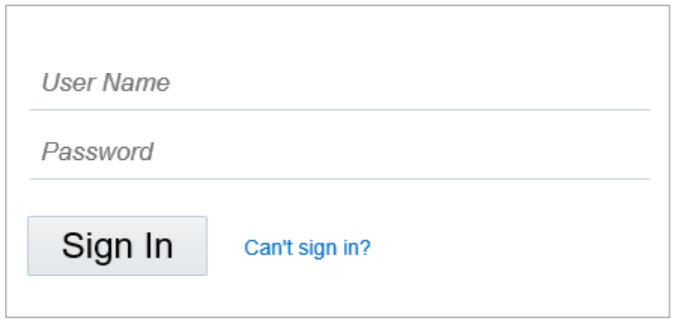
Log on to your ERP Cloud account.
-
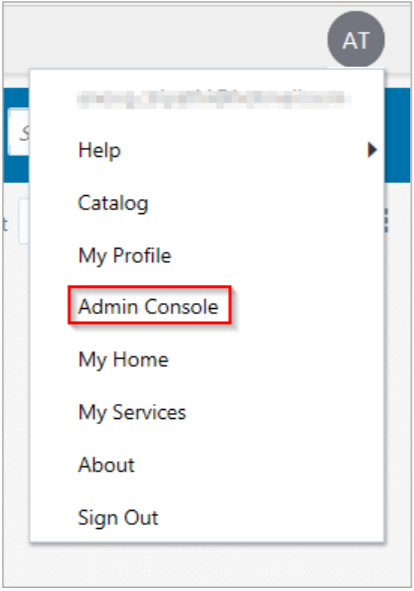
On the home page, in the upper right corner, click your profile initials and click Admin Console.
-
In the upper left corner, click the ellipses.
-
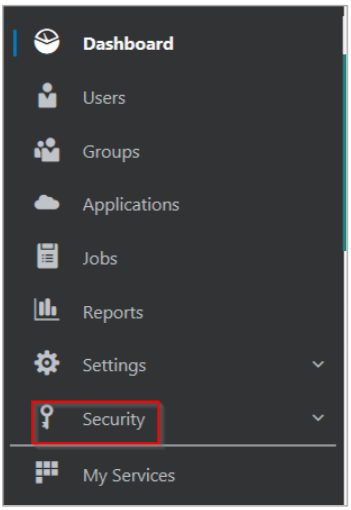
Click Security.
-
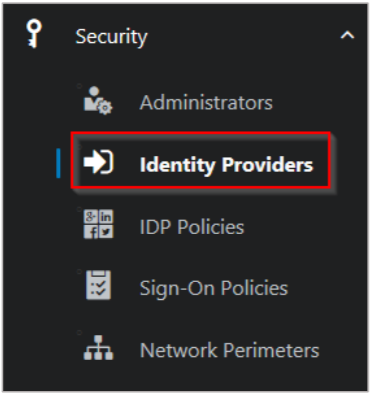
Click Identity Providers.
-
On the Identity Providers page, click Add SAML IdP.

-
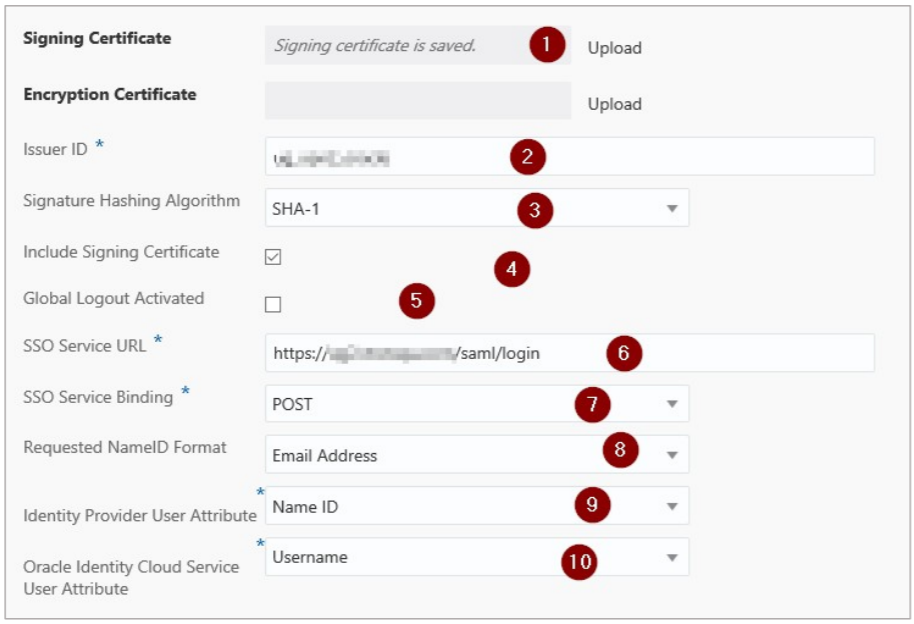
On the Identity Providers page, specify the following information:
-
Signing Certificate– paste the PEM certificate.To obtain your IdP certificate, perform the following:
-
Remotely access your NetScaler® instance using PuTTY.
-
Navigate to /nsconfig/ssl folder (using shell command
cd/nsconfig/ssl) and press Enter. -
Type cat
<certificate-name>and press Enter. -
Copy the text from -----BEGIN CERTIFICATE----- to -----ENDCERTIFICATE-----
-
Paste the text in a text editor and save the file in an appropriate format such as
your organization name.pem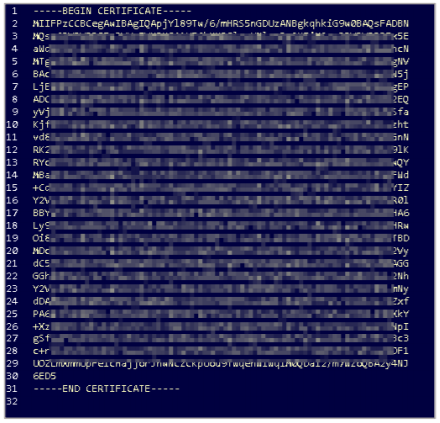
-
-
Issuer ID – type a unique name.
-
Signature Hashing Algorithm – select hashing algorithm used to sign SAML messages.
-
Include Signing Certificate - select the check box if you want to include signing certificate to verify the signature of the messages for the IdP.
-
Global Logout Activated - select the check box if you want to activate SAML global logouts.
-
SSO Service URL – enter the IdP URL followed by /saml/ login. For example:
https://<netscalerinstance>.com/saml/ login -
SSO Service Binding– click the appropriate option to send an authentication request.
-
Requested NameID Format – click the appropriate format for mapping the user’s attribute value in IdP to the corresponding attribute in Oracle Identity CloudService.
-
Identity Provider User Attribute – click the appropriate attribute value received from IdP to uniquely identify the user.
-
Oracle Identity Cloud Service User Attribute– click the appropriate attribute that you use to map the attribute received from IdP.
-
-
Click Save Changes.