
Configure Tableau
Users can securely log on to Tableau using their enterprise credentials.
To configure Tableau for SSO through SAML, perform the following:
-
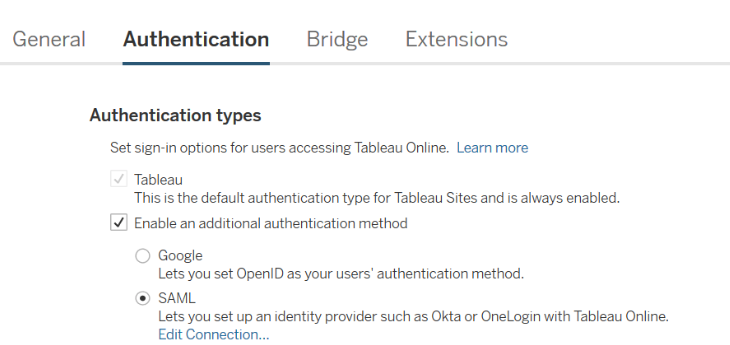
Log on to Tableau as an admin.
-
Click Settings in the menu bar.
-
Click Authentication.
-
In Authentication types, select SAML and click Edit Connection.
-
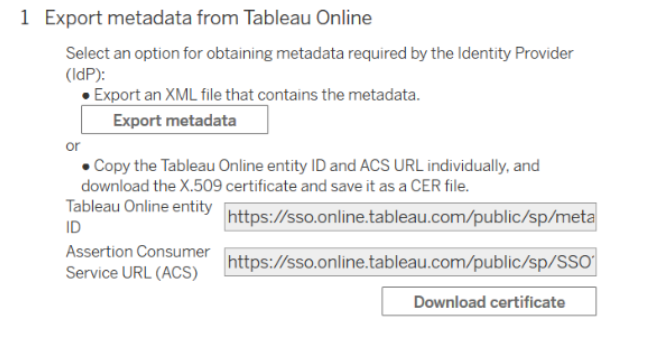
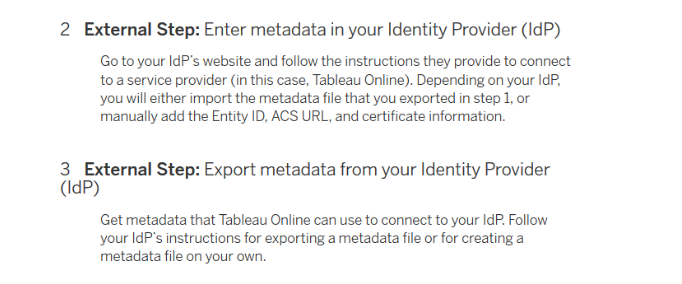
Download the metadata file from the Citrix Cloud wizard (Citrix Gateway Service > Add a Web/SaaS App > Single sign on > SAML Metadata).Note:
-
Citrix® recommends that you import the metadata XML file instead of configuring it manually.
-
You can download the certificate from the Citrix Cloud wizard (Citrix Gateway Service > Add a Web/SaaS App > Single sign on > Certificate).
-
-
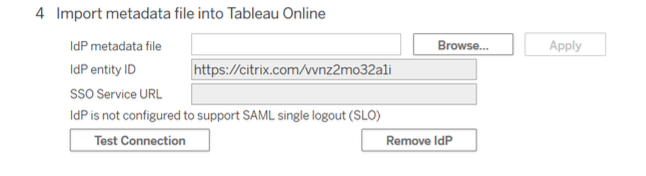
Import the IdP metadata file into Tableau Online.
-
Enter the IdP entity ID in the format
https://citrix.com/<customerID>. -
Click Test Connection.
-
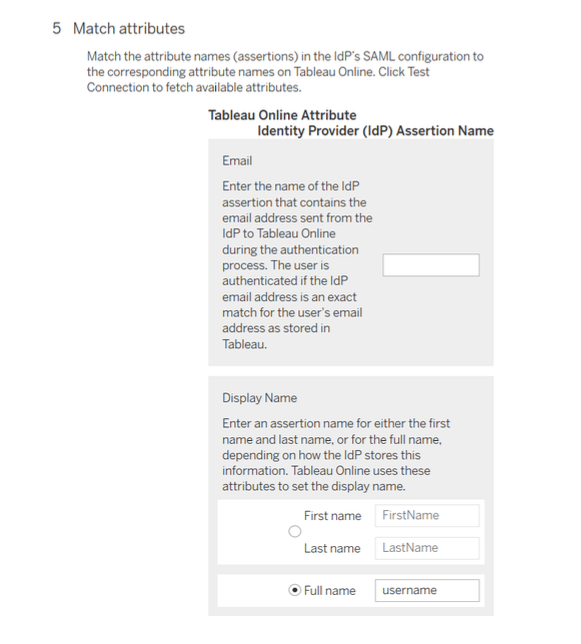
Match your IdP Attributes with Tableau Attributes then click Apply.
-
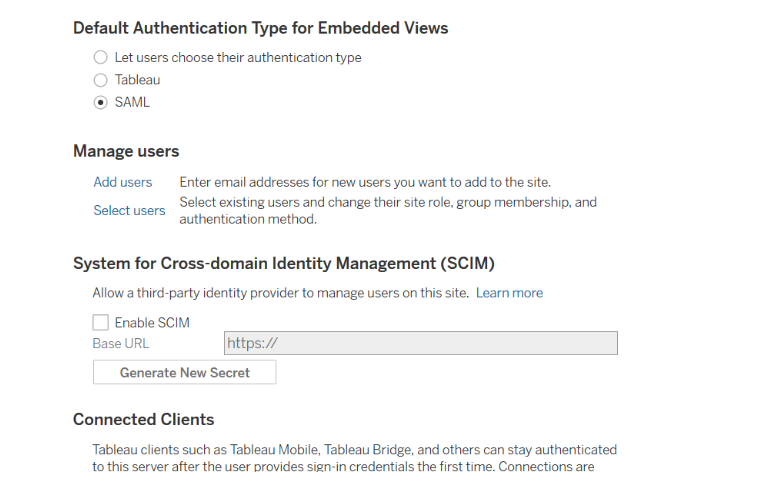
Scroll down and select SAML as the default authentication type for an embedded view.
-
Add or select users for SSO, as required.
-
To add new users, click Add users and enter the email address.
-
For existing users, click Select users and make changes as required.
-