Troubleshoot unregistered VDAs using scripted tasks in Monitor
When a Virtual Delivery Agent (VDA) is unregistered, published apps and desktops on it are unavailable to users. As administrators, you often need to connect to the machine, review logs, check services, and retry the launch. You can now run scripted tasks directly in Monitor to diagnose unregistered VDAs and restart an affected Windows service without opening a separate remote session to the VDA.
Use this article when you need to investigate a single unregistered VDA on demand. For recurring issues across multiple VDAs, consider using Windows event triggers to run health checks automatically. For more information, see Use Windows events as triggers to detect VDA registration issues.
Prerequisites
Before you start, make sure that:
- WEM is enabled for the site.
- The target VDA is bound to a WEM configuration set.
- The WEM Agent is installed and running on the target VDA.
- You have permission to run WEM scripted tasks on the target machine.
If the scripted task cannot start, see Troubleshoot scripted task execution problems in Monitor.
Symptoms
Use this procedure when one or more of the following symptoms occur:
- A user reports that a published app or desktop fails to launch.
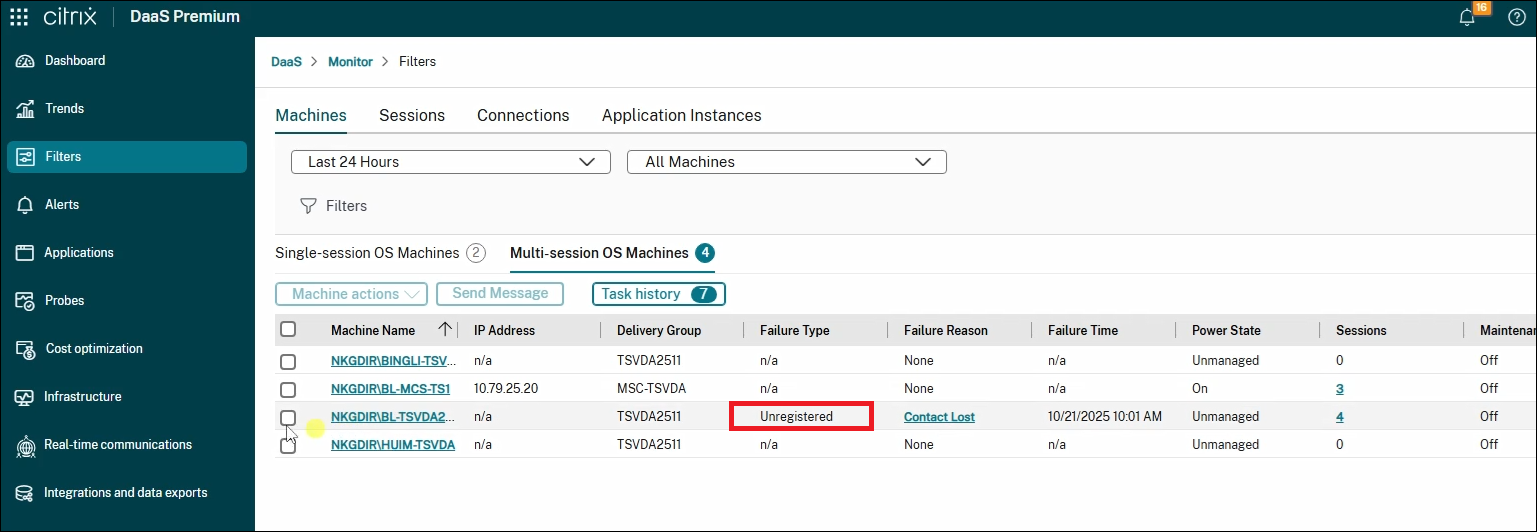
- Monitor shows an Unregistered status in the Failure Type field for the affected VDA.
Workflow
Use the following workflow to diagnose and remediate the issue:
- Locate the unregistered VDA in Monitor.
- Run the Diagnose VDA Unregistration scripted task on the target VDA.
- Review the scripted task result and identify the failed check.
- If the result points to a stopped or unhealthy service, run the Restart Windows Service scripted task for that service.
- Verify that the VDA registers and that the user can launch the app or desktop.
Step 1: Locate the unregistered VDA
- From Monitor, select Filters in the left pane.
- Find the affected machine from the Machines view or search results.
-
Verify that the machine registration state is Unregistered.
Step 2: Run the Diagnose VDA Unregistration scripted task
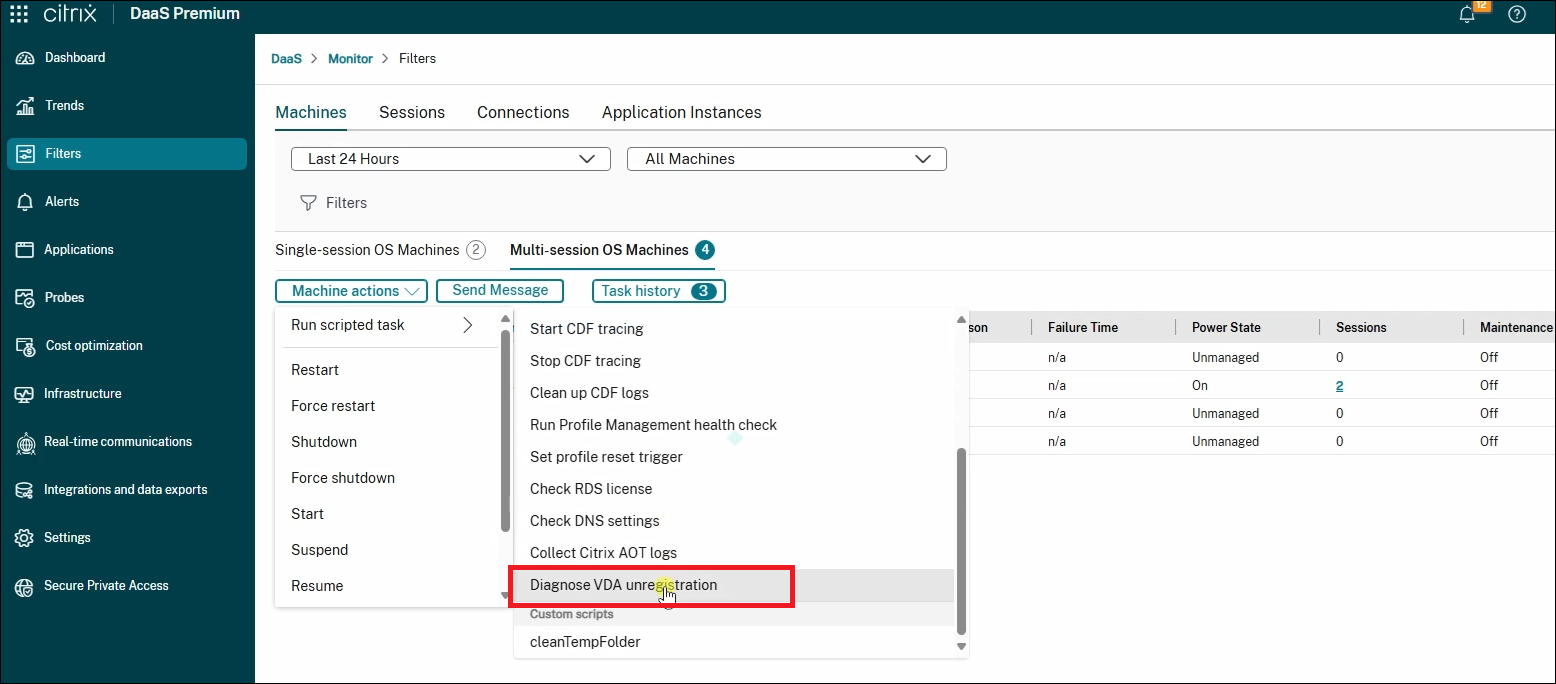
- Select the affected machine.
-
Select Machine actions > Run scripted task > Diagnose VDA Unregistration.
-
Enter the time range for collecting Always On Tracing (AOT) failure logs.
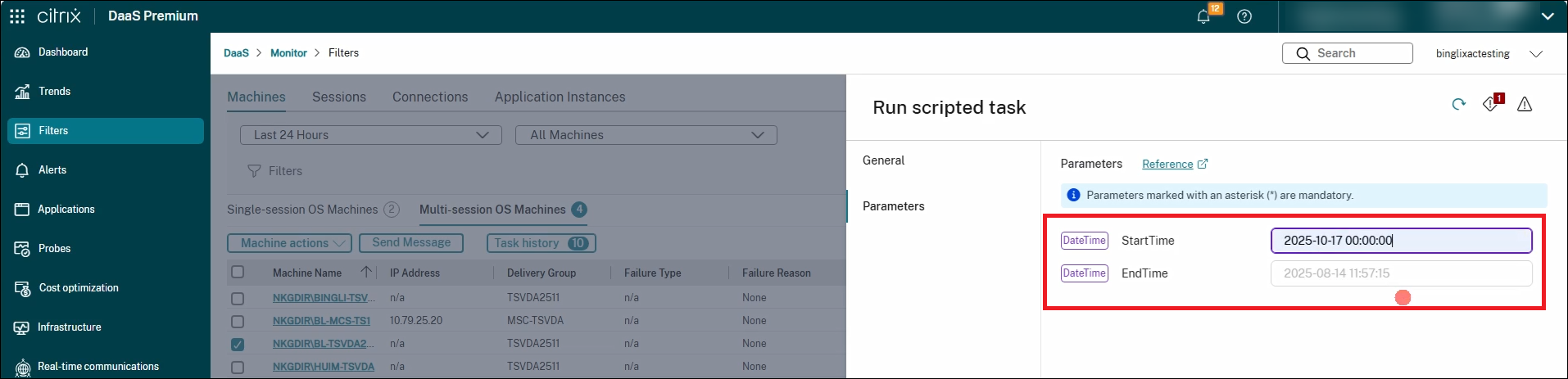
- Click Run to submit the task.
The task runs diagnostic checks on the target VDA and generates a result that summarizes passed, warning, and failed checks.
Checks included in the diagnosis
The Diagnose VDA Unregistration scripted task can check the following areas:
- CHC (Citrix Health Check) check. Validates common VDA registration prerequisites, including firewall rules, registry settings, Delivery Controller or Cloud Connector configuration, domain trust, certificates, TLS configuration, and time synchronization.
- RDS check. For multi-session VDAs, verifies that Remote Desktop Services is installed and running and that Remote Desktop Services licensing is configured correctly.
- DNS check. Verifies that the VDA can resolve configured Delivery Controllers or Cloud Connectors.
-
Delivery Controller / Cloud Connector connectivity check. Tests whether the VDA can reach the Delivery Controllers or Cloud Connectors on the required broker ports, such as
80or443. - AOT failure log check. Collects and filters Citrix AOT logs so that recent registration failure details are easier to review.
- Event log scan. Scans recent Windows Application and System event logs for known registration-related events, and lists the matches.
Step 3: Review the diagnosis result
-
After the scripted task finishes, open the task result or output.
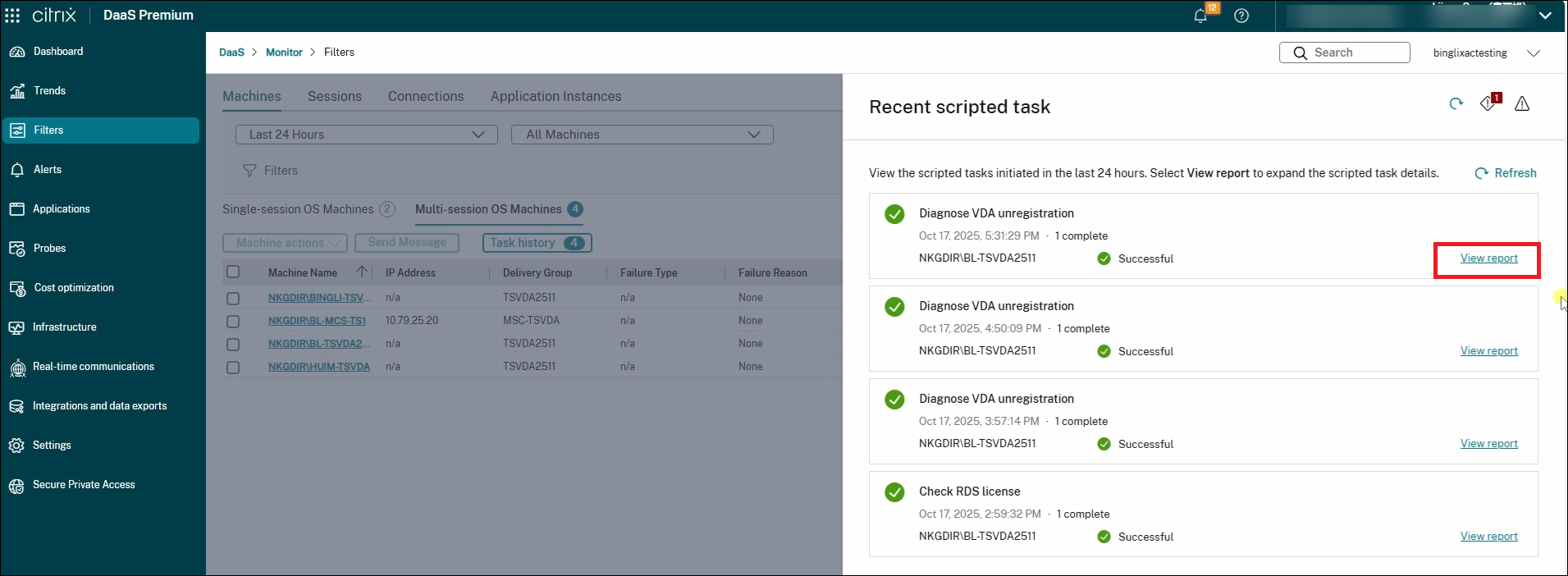
- Review the summary in the Summary section and identify failed checks.
- Use the details in the result to decide the next action.
Common findings include:
-
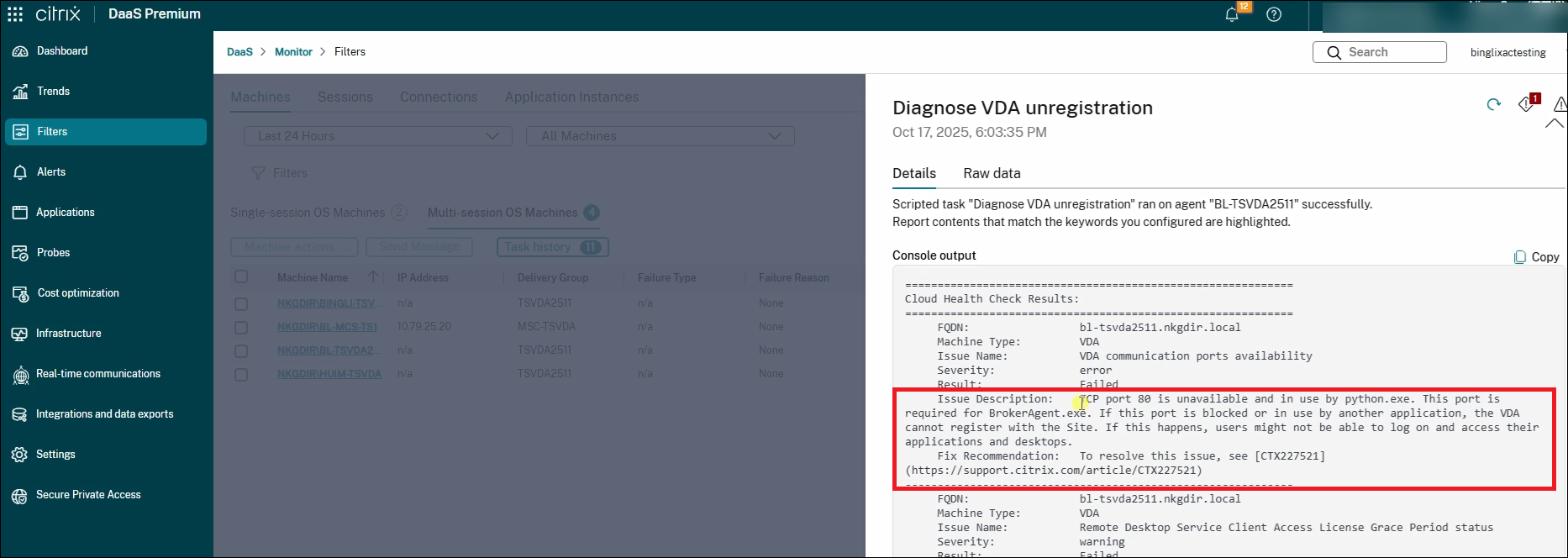
TCP port errors. The VDA cannot reach DaaS or Cloud Connector on the required port.
-
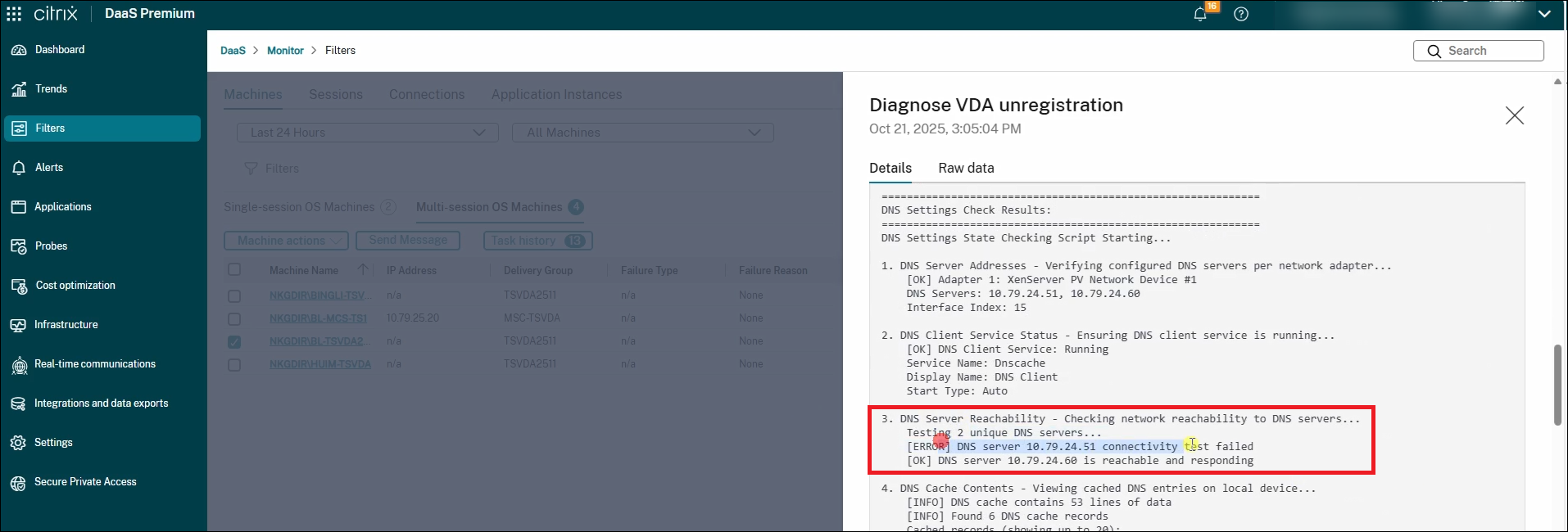
DNS errors. The VDA cannot reach DNS servers.
-
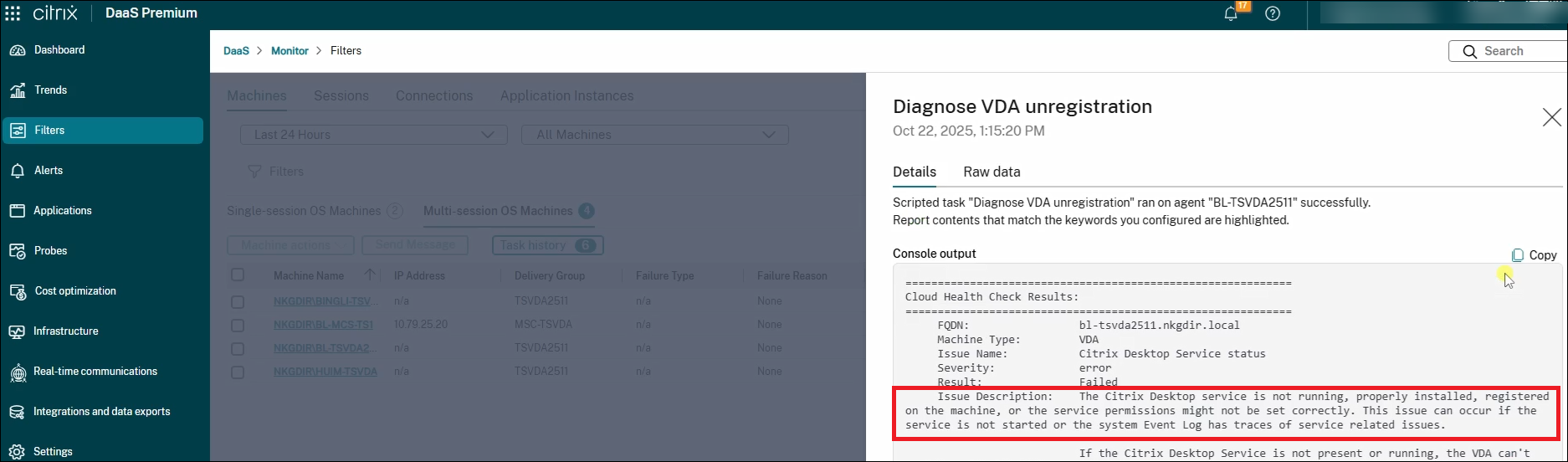
Citrix Desktop Service errors. The Citrix service that is required for registration is stopped or unhealthy.
These errors are typically associated with VDA unregistration.
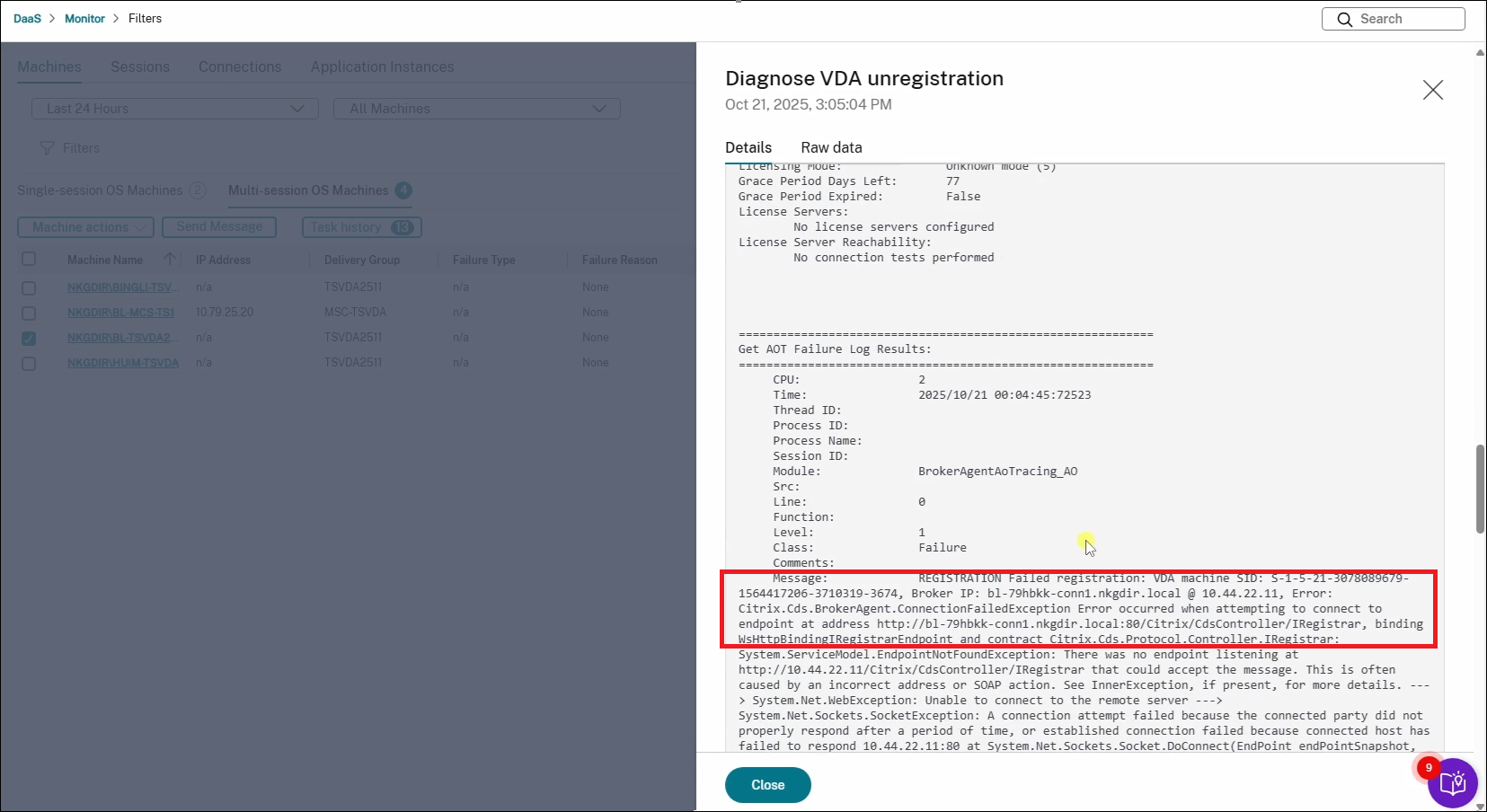
If the result points to network, DNS, controller, domain trust, or certificate issues, resolve those issues based on the diagnostic details. If the result points to a stopped or unhealthy service, continue to the next step.
Step 4: Restart the affected Windows service
Run the Restart Windows Service scripted task only for Citrix Desktop Service errors reported by the diagnosis result.
- Select the same VDA.
-
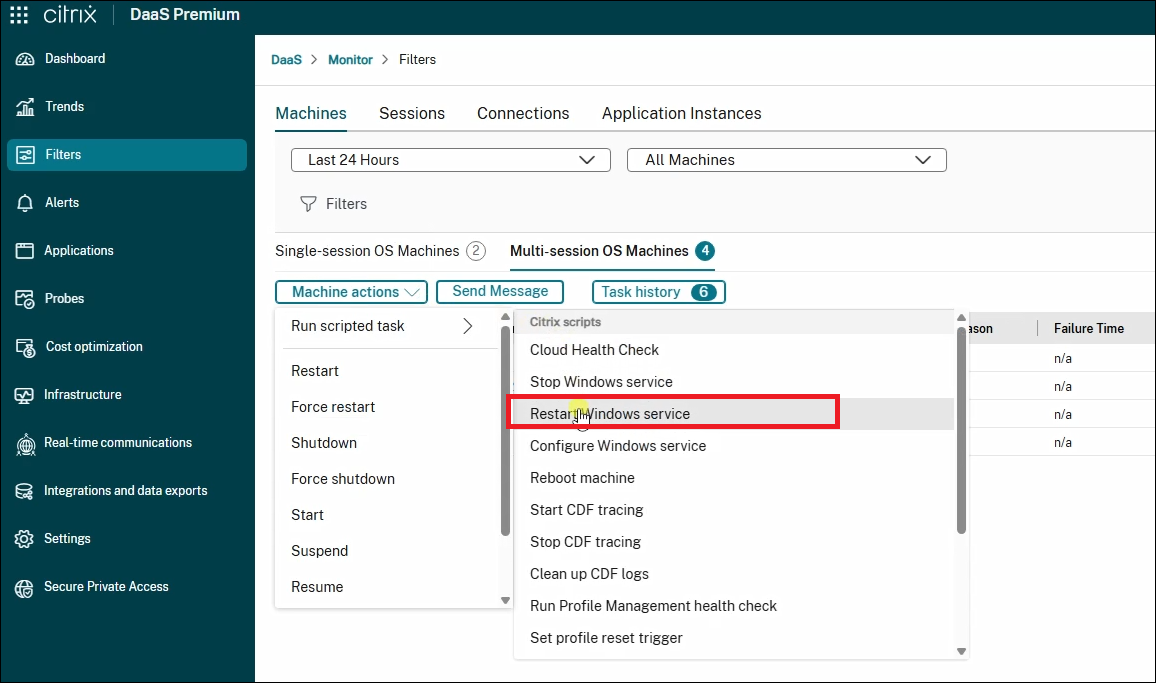
Select Machine actions > Run scripted task > Restart Windows Service.
-
Enter the service name from the diagnosis result. For example, if the result identifies the Broker Agent service, enter
BrokerAgent.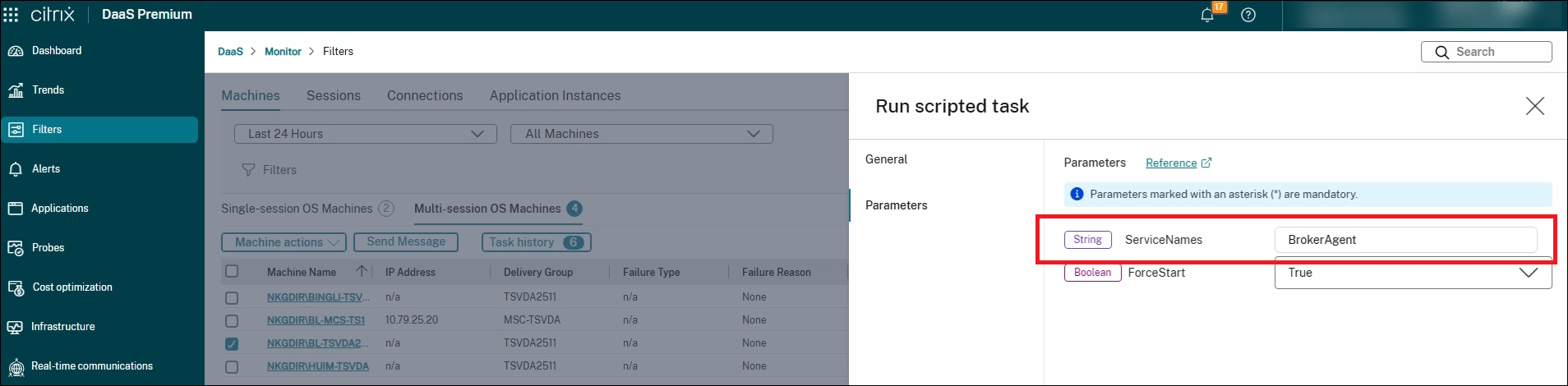
- Click Run to submit the task and wait for it to finish.
The task restarts the specified service and verifies that the service returns to the Running state.
Step 5: Verify the VDA registration state
- In Monitor, refresh the machine view.
- Verify that the VDA registration state changes to Registered.
- Ask the user to launch the app or desktop again.
If the VDA remains unregistered, use the diagnosis result as evidence for further troubleshooting or support escalation. Include the failed checks, related event IDs, and AOT failure log details when you open a support case.