Overview
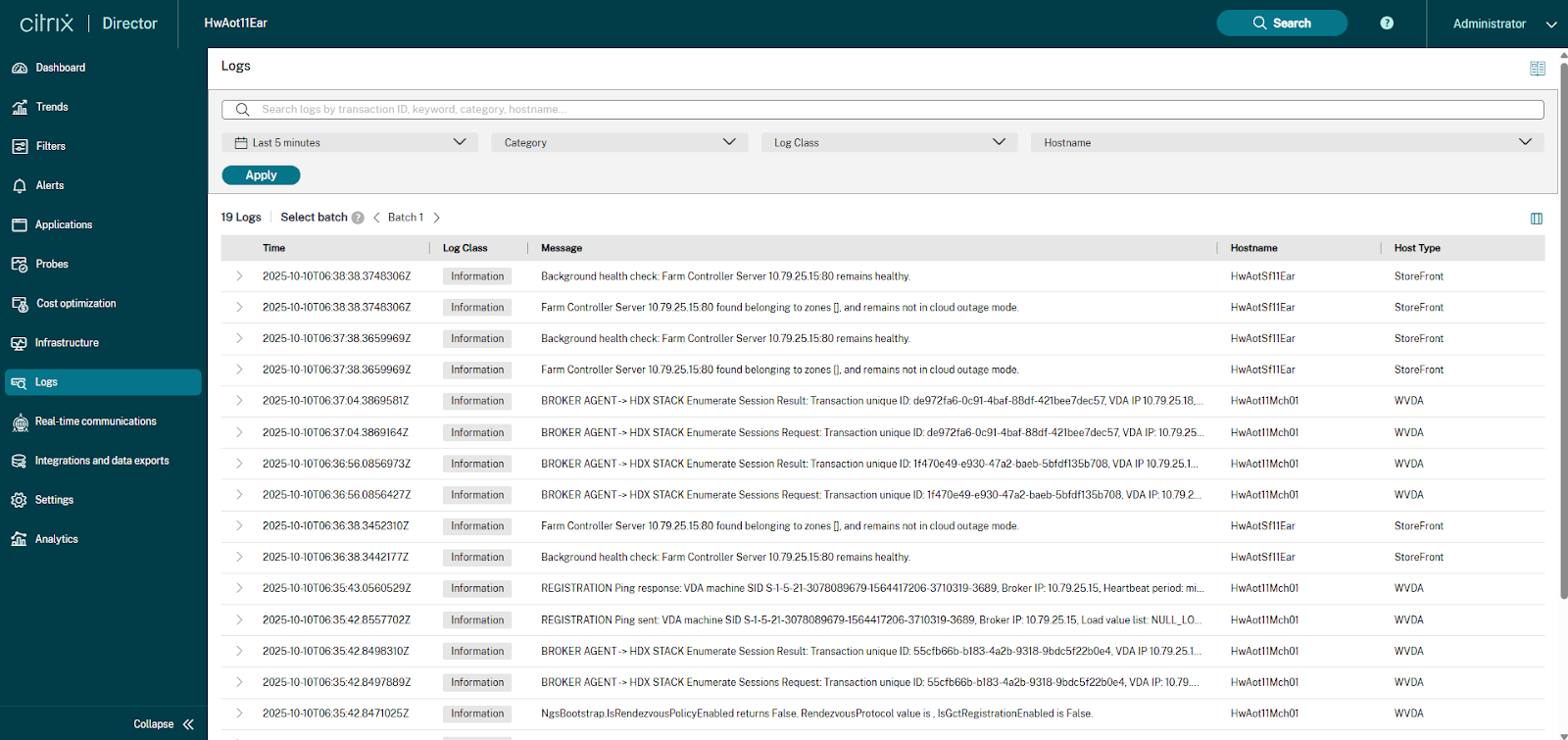
The new Logs View in Citrix Director/Monitor is designed to surface Always On Tracing (AOT) to significantly enhance an administrator’s ability to diagnose and resolve customer issues within Citrix Virtual Apps and Desktops (CVAD) environments. By integrating with your Centralized Log Server, this feature provides a unified, searchable view of AOT logs across various core components, including Virtual Delivery Agents, Delivery Controllers, StoreFront and other Citrix components. This centralized access streamlines troubleshooting by allowing for quick log retrieval and analysis from a single console.
Learn more about the architecture and benefits of Always On Tracing (AOT) in the product documentation.
Prerequisites and Configuration
To effectively use the “Logs” view in Director, your environment needs to be configured correctly and fulfill the necessary prerequisites.
- CVAD Version Requirement: You must be running CVAD 2507 CU1 or CVAD 2511 (or a later version).
- Centralized Log Server: Your customer-managed Resource Location must host a Centralized Log Server. Learn more about Installing and Configuring your Log Server
- When the log server is configured in HTTPS mode (e.g.,
https://<LogServerFQDN>:port), it is essential to install and trust the necessary certificate on both the Director and DDC machines. This certificate must be managed by the computer account on each machine.
Getting Started
Once the prerequisite configurations are complete, the new Logs tab in the Director UI, will provide unified visibility to your centralized AOT logs.
Accessing the Logs View
The Logs View can be accessed directly as a dedicated tab within Director, or contextually navigated to from other key troubleshooting areas:
- Dedicated “ Logs” Tab: Access the new “Logs” page directly in the Director/Monitor interface using the navigation panel.
- Activity Manager: Click an option to view related logs for the machine hosting the session.
- Machine Filters: Click an option to view related logs with a pre-filled Machine name.
Using the Logs View
The Logs View is designed for flexible and powerful log search, enabling administrators to quickly pinpoint relevant events.
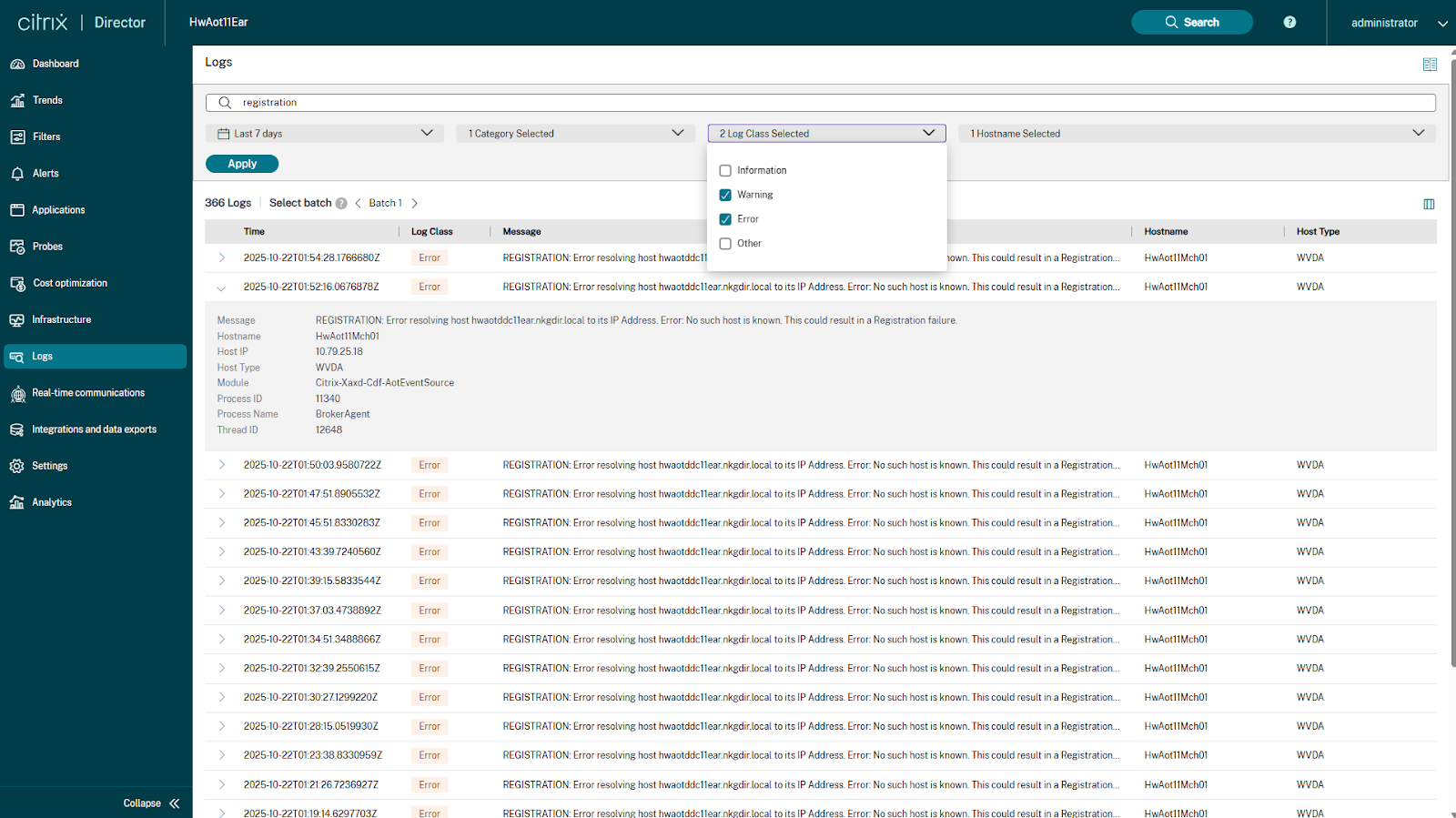
The main search interface includes:
- Search Bar: A powerful text box allowing you to search by any keyword. Common search terms include Transaction ID, Session ID, User Name, or specific error messages.
- Filter Selectors: Use the following drop-down filters to narrow your search scope:
- Time Interval: Filter logs by a specific time range.
- Category: Filter by log category.
- Log Class: Filter by the class of the log message (e.g., AOT_INFO).
- Machine name: Filter logs originating from a specific machine name.
Search results are presented in a comprehensive table format with key attributes such as Time, Message, HostName, Level, Module, ProcessId, and more. You can expand individual log entries to view full details. Director supports configuring and viewing custom columns relevant to your log data. Additionally, results are paginated for easy viewing and navigation of large data sets.
By providing immediate, context-aware access to all AOT logs, this feature aims to reduce the time spent switching between tools and manually correlating logs, leading to faster issue resolution.