Integrate services into stores
This article outlines the steps involved in adding services to Citrix® StoreFront Cloud, which is a two-step process:
- Configure individual services in Citrix Cloud. You can find a list of Citrix Cloud services that link to instructions for each one in Citrix Cloud Services.
- Enable (and disable) access to your configured services in StoreFront Cloud > Service Integrations.
Configure services
Your purchased services are displayed in a card layout in the Citrix Cloud™ dashboard. Services that you’ve purchased include a Manage button.
To configure purchased services:
- Sign in to Citrix Cloud.
- Select Manage in the tile of the service that you want to configure.
- Follow the instructions for setting up that service.
For a brief description of cloud-hosted services, visit Cloud-hosted services through Citrix® StoreFront Cloud.
If you’d like to try a new service, you can request a trial or demo. For more information on service trials, visit Citrix Cloud Service Trials.
Enable services
Once you’ve configured your services, you can integrate them into Citrix® StoreFront Cloud.
Subscribing to DaaS and the Remote Browser Isolation service enables them by default. All other new services that your organization subscribes to are disabled by default.
To enable Citrix® StoreFront Cloud integration for a service:
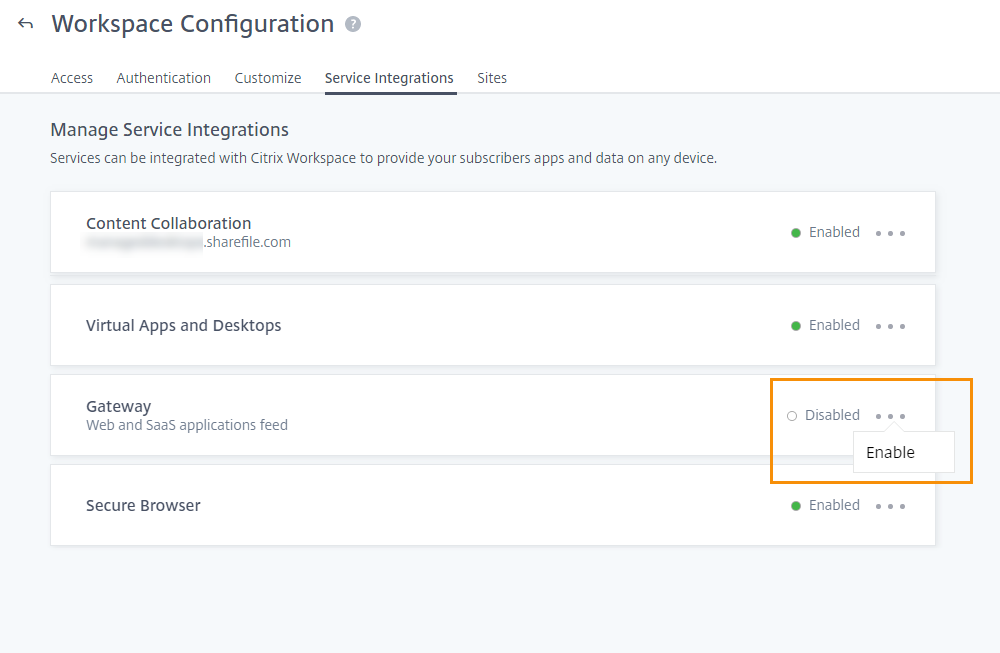
- Navigate to StoreFront Cloud > Service Integrations.
- Select the ellipses button next to the service and then select Enable.
Disable services
Disabling Citrix® StoreFront Cloud integration blocks end user access for that service. This doesn’t disable the store URL, but end users can’t access data and applications from that service in Citrix® StoreFront Cloud.
To disable Citrix® StoreFront Cloud integration for a service:
- Navigate to StoreFront Cloud > Service Integrations.
- Select the ellipses button next to the service and then select Disable.
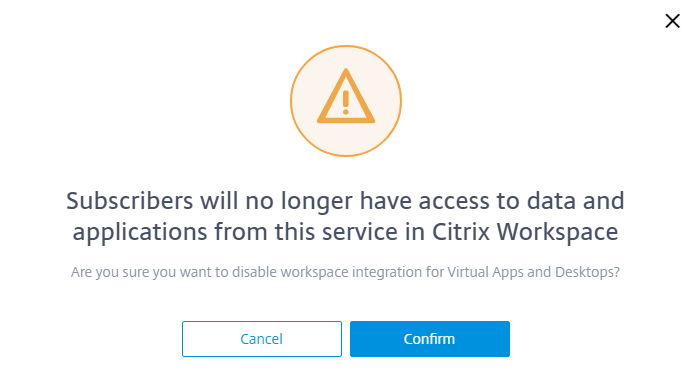
- When prompted, select Confirm to acknowledge that end users won’t have access to data or applications from the service.