-
-
-
Overview
-
-
-
-
This content has been machine translated dynamically.
Dieser Inhalt ist eine maschinelle Übersetzung, die dynamisch erstellt wurde. (Haftungsausschluss)
Cet article a été traduit automatiquement de manière dynamique. (Clause de non responsabilité)
Este artículo lo ha traducido una máquina de forma dinámica. (Aviso legal)
此内容已经过机器动态翻译。 放弃
このコンテンツは動的に機械翻訳されています。免責事項
이 콘텐츠는 동적으로 기계 번역되었습니다. 책임 부인
Este texto foi traduzido automaticamente. (Aviso legal)
Questo contenuto è stato tradotto dinamicamente con traduzione automatica.(Esclusione di responsabilità))
This article has been machine translated.
Dieser Artikel wurde maschinell übersetzt. (Haftungsausschluss)
Ce article a été traduit automatiquement. (Clause de non responsabilité)
Este artículo ha sido traducido automáticamente. (Aviso legal)
この記事は機械翻訳されています.免責事項
이 기사는 기계 번역되었습니다.책임 부인
Este artigo foi traduzido automaticamente.(Aviso legal)
这篇文章已经过机器翻译.放弃
Questo articolo è stato tradotto automaticamente.(Esclusione di responsabilità))
Translation failed!
Profile overview
The Profile Overview Page serves as a comprehensive summary of the user’s information, their workspace ownership and project membership.
User Information
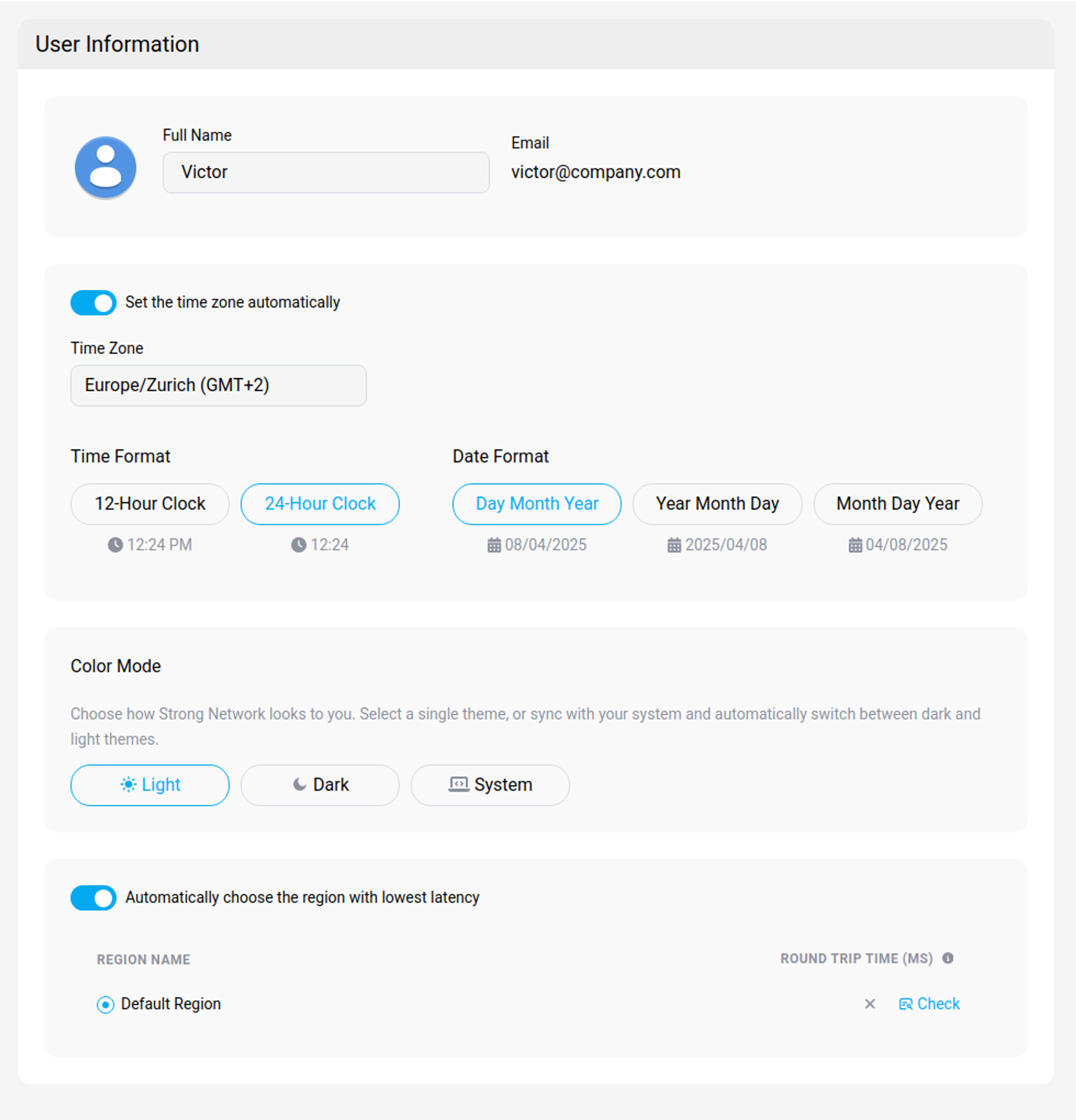
In the User Information section you can modify your user’s name and time zone. The email linked to your profile cannot be modified. The profile picture is retrieved from your identity provider when available.
Display preferences
The same tab holds the settings that control how the console looks to you. They apply to your account only, follow you between devices, and affect nothing that other people see.
| Setting | Options |
|---|---|
| Time Zone | Set manually, or turn on Set the time zone automatically |
| Time Format | 12-hour or 24-hour |
| Date Format | Day/Month/Year, Year/Month/Day, or Month/Day/Year |
| Color Mode | Light, Dark, or System to follow your operating system |
| Interface Language | English (United States) or Français (Suisse) |
Interface Language changes menus, labels, and system messages in the console. It does not translate content that you or your administrators created, such as project names, workspace names, or template descriptions, and it does not change the language inside a workspace or its IDE.
Below these settings, Automatically choose the region with lowest latency lets the platform pick a region for you. The table beneath it lists each region with its round-trip time, and Check measures it again.
Work Schedule
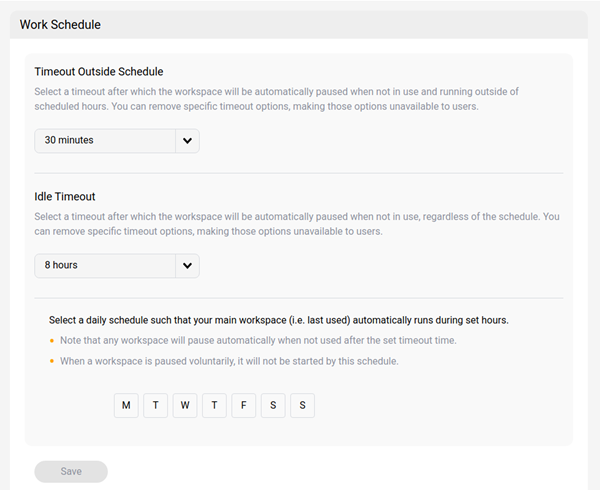
In the Work Schedule section, you can configure your profile’s work schedule. During set hours your main workspace (i.e. last used) is automatically deployed.
Tip:
Workspaces will pause automatically when not used for over a pre-set time, typically 60 minutes, depending on the setup of your platform.
When a workspace is paused voluntarily, it will not be impacted by the schedule.
Workspaces
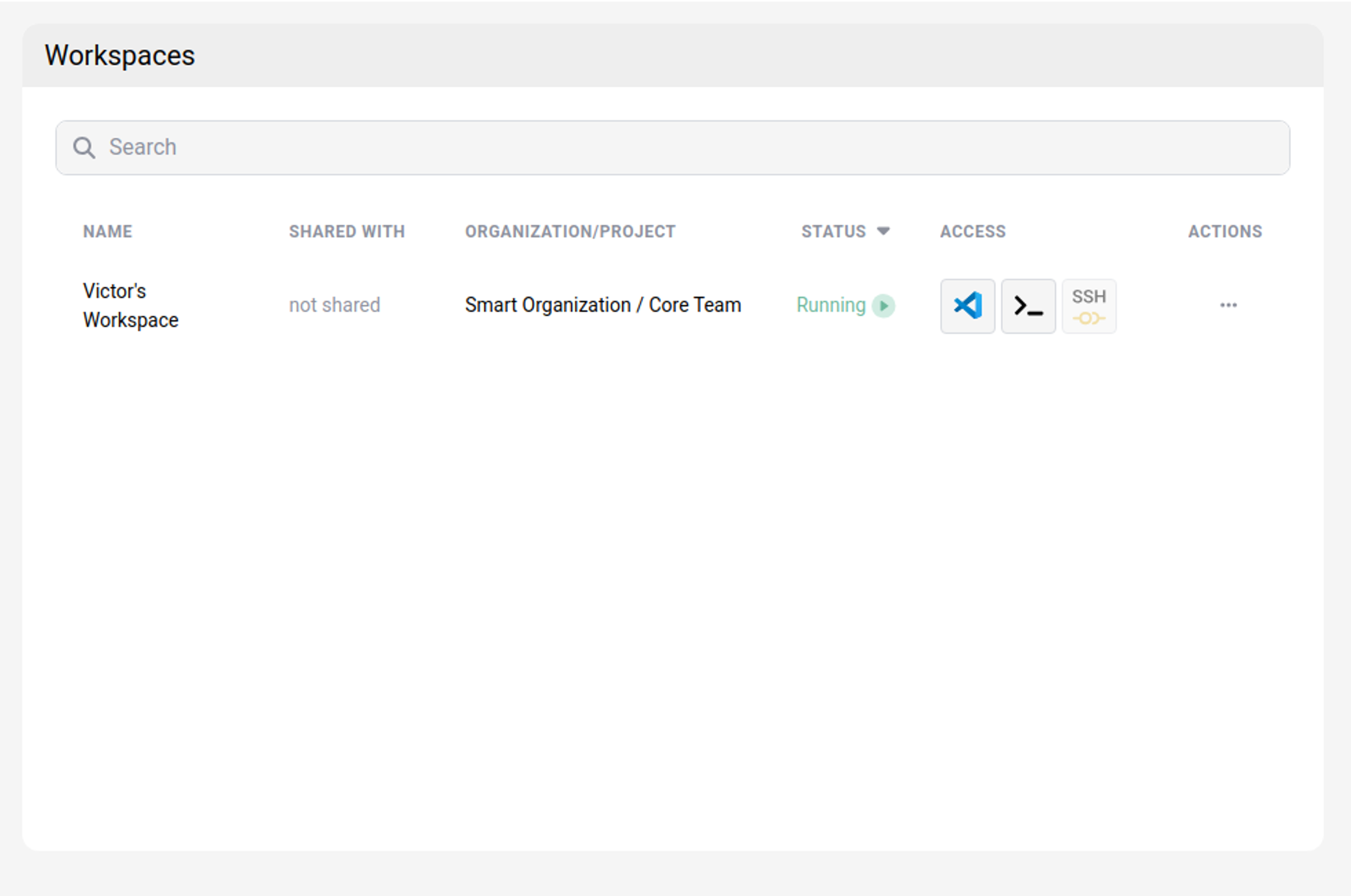
In the Workspaces section, you can find details about your individual workspaces across all projects that you are a part of. By selecting the “…” option on a specific workspace, you can directly perform actions such as running, pausing, editing, viewing details, or deleting the workspace.
Workspaces pending deletion
Your workspaces are listed in two sections. Active workspaces lists the workspaces you can use now. Workspaces pending deletion lists your own workspaces that have been moved to the recycling bin and can still be recovered.
A workspace usually reaches this section because your administrator configured a custom action that removes workspaces after a period of inactivity. Deleting a workspace yourself also places it here.
Each entry shows the date and time at which the workspace is permanently deleted, in UTC.
Note
The date shown is the deadline for permanent deletion, not the date the workspace was moved to the recycling bin. After that time the workspace cannot be recovered.
To recover a workspace, select Restore and confirm. The workspace returns to Active workspaces.
Restoring counts against the maximum number of workspaces you are allowed to have. If you are already at your limit, delete or release another workspace first.
To remove a workspace immediately rather than waiting for the deadline, select Delete and confirm. Permanent deletion cannot be undone.
Email notifications about pending deletion
When a custom action moves one of your workspaces to the recycling bin, SecurSpaces emails you. You receive:
- A message when the workspace is moved to the recycling bin.
- A reminder 24 hours before the workspace is permanently deleted.
Both messages name the workspace and its project, give the permanent deletion time in UTC, and link to this page. If you restore the workspace, the reminder is cancelled.
Restore a workspace as an administrator
Project owners, platform administrators, and Security Officers can restore any workspace in their scope, rather than only their own. Open Deleted Workspaces from the project settings or the platform workspace settings, find the workspace, and select Restore.
For the retention period that controls how long a deleted workspace stays recoverable, see Workspace Settings.
Projects
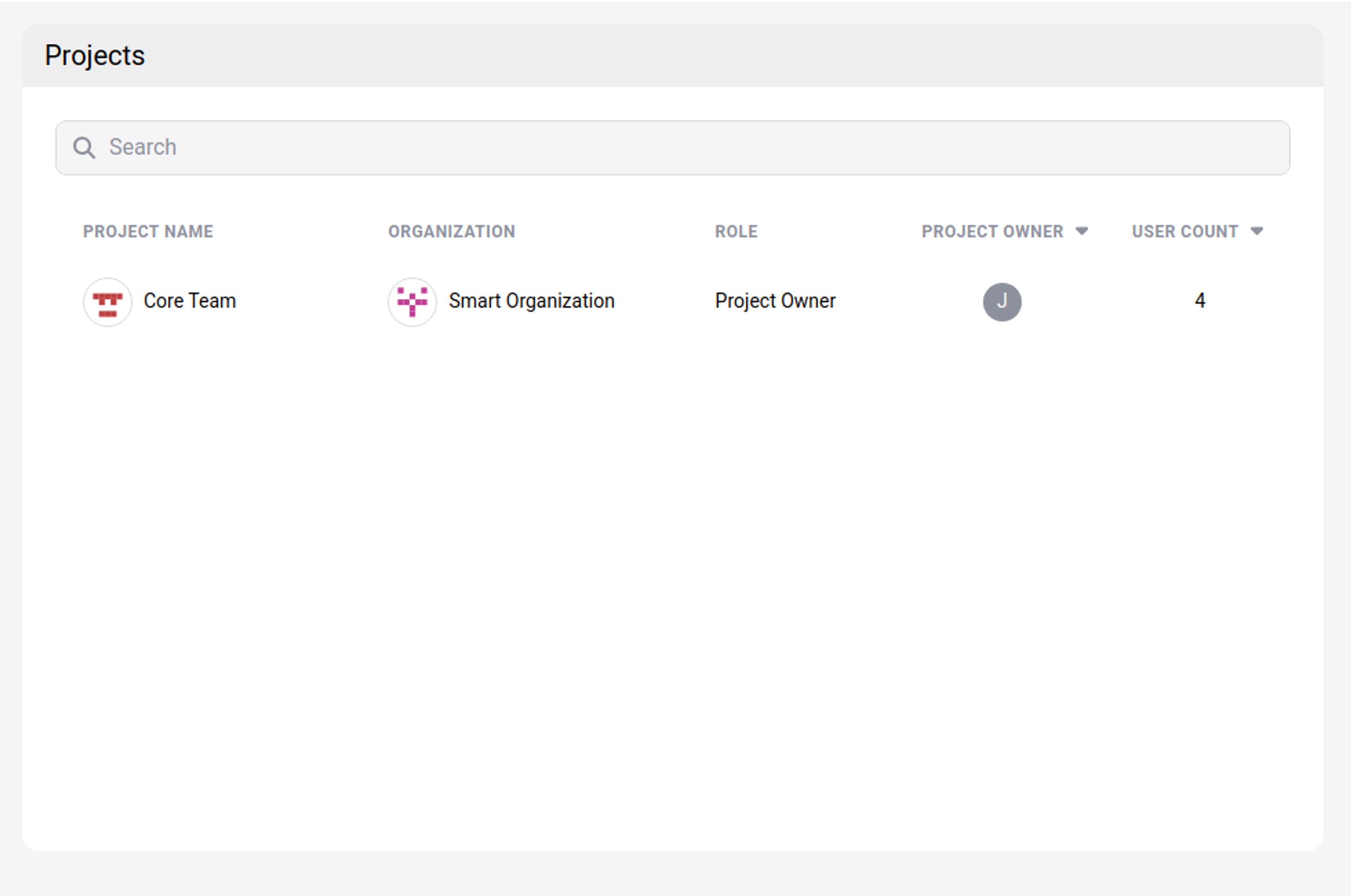
The Projects section displays information about every project that you are a member of, within the organizations to which you belong. This includes details such as the project name, the organization hosting the project, your role within the project, the project owner, and the number of users involved in the project. By clicking on a project’s name, you can access its dashboard for more information.
Related information
Share
Share
This Preview product documentation is Citrix Confidential.
You agree to hold this documentation confidential pursuant to the terms of your Citrix Beta/Tech Preview Agreement.
The development, release and timing of any features or functionality described in the Preview documentation remains at our sole discretion and are subject to change without notice or consultation.
The documentation is for informational purposes only and is not a commitment, promise or legal obligation to deliver any material, code or functionality and should not be relied upon in making Citrix product purchase decisions.
If you do not agree, select I DO NOT AGREE to exit.