Troubleshooting
Developer
Start here when something is wrong and you are not sure why. Each symptom below points at the page that explains it. If none of them matches, the diagnostic tools in your profile will tell you whether the problem is your workspace, the network, or the platform.
Many problems in Citrix SecurSpaces™ are not faults at all: they are policies working as configured. A blocked domain, a missing repository, or a workspace that pauses overnight are all deliberate, and all fixed by a project owner or platform administrator rather than by you. Knowing which is which saves the most time.
Find your symptom
Starting and running a workspace
| Symptom | Likely cause | Where to look |
|---|---|---|
| The workspace takes minutes to start | The cluster is provisioning a node, or pulling a large image | How long a workspace start takes |
| The workspace does not start, or stalls partway | A stage of the start sequence is failing | What happens when a workspace starts |
| The workspace stopped while I was away | Idle detection paused it | Workspace idle detection |
| A long job was killed overnight | Idle detection again — ask for Bypass Schedule | Bypass Schedule |
| I cannot create a workspace | A project or licence limit, or your role | Roles and permissions |
No space left on device |
The workspace disk is full | Develop in a workspace |
The workspace error mentions OOMKilled
|
A task used more memory than the workspace allows | Workspace runs out of memory |
Losing work
| Symptom | Likely cause | Where to look |
|---|---|---|
| Files are gone after a restart | Only some paths survive a restart | What persists in a workspace |
| Installed packages disappear | They were installed outside the persisted path | What persists in a workspace |
| Docker images have to be pulled or rebuilt after every restart | Persistent Docker is not enabled, so the image cache is not on the persistent volume | Persistent Docker |
| The workspace is running a different image than the console shows | An image change applies when the workspace restarts | Create a workspace |
| A shared file changed under me | Mount points are live, shared storage | Mount point limits |
Reaching things outside the workspace
| Symptom | Likely cause | Where to look |
|---|---|---|
| A download or package install is blocked | Network policy restricts outbound traffic | Network policies |
| I cannot clone or push to a repository | The repository is not attached, or your Git identity is not set up | Integration |
| A database or internal service is unreachable | The service is not attached, or DNS is failing | Connect to external services, then DNS Lookup |
no signers found or no auth passed yet when using SSH or git
|
No SSH method is configured for that host | Connect to external services |
| My application is not reachable from the browser | The port is not published | Share a running application |
Connecting
| Symptom | Likely cause | Where to look |
|---|---|---|
| The IDE does not load in the browser | The websocket connection is failing | WebSocket Troubleshooting Tool |
| Everything feels slow | You may be working against a distant region | Region Latency Checker |
| SSH from my local IDE fails | Key, port, or platform setting | Connect over SSH |
| SSH that used to work is refused, and nothing changed | The registered public key expired. Only the SecurSpaces IDE integrations renew it automatically | Key expiry and renewal |
| An SSH or Remote-SSH session connects, then drops | The session was idle and an intermediary closed it | Keeping a session alive |
| The terminal shows stray characters after reconnecting | A full-screen program was running when the connection dropped | Recovering a corrupted terminal |
| Copy and paste does not work | A clipboard policy applies to the workspace | Create a workspace |
| Dragging a file into the IDE does nothing | File transfer is restricted | Ask your platform administrator |
For problems specific to a task, the page that covers the task also covers its failures — see Develop in a workspace, Run a graphical desktop, and Give your AI assistant access.
How long a workspace start takes
A start is not instant, and a slow one is usually not a fault. Two things dominate:
| Cost | Why | When it applies |
|---|---|---|
| Waiting for a node | The cluster has no room and must provision one. The log shows repeated 0/4 nodes are available scheduling messages while it waits |
First workspace of the day, or after the cluster scaled down |
| Pulling the image | A workspace image is often over a gigabyte. The log names each image, its size, and how long the pull took | First use of an image on that node |
Together these can take several minutes. Once the image is on the node and capacity exists, later starts are much quicker, and the preparation that follows — configuration, startup scripts, cloning — is usually a matter of seconds.
Both costs can be reduced by a platform administrator, so consistently slow starts are worth raising rather than living with:
| Mitigation | What it removes |
|---|---|
| Warm nodes — a pool of nodes kept provisioned and idle | The wait for the cluster to scale out. See Warm Nodes Configuration |
| Cached images — an image version pre-pulled onto workspace nodes | The image pull. An image marked as cached shows a Cached Image indicator in the image list |
Show your platform administrator the log described below: it tells them which of the two is actually costing you the time.
Read the startup log
The log is not only visible while a workspace starts. You can open it at any time:
- On the Workspaces page, select More Actions (…) on the workspace.
- Select Logs.
It is split into two phases, each showing its elapsed time, so you can see where the time actually went rather than guessing:
- Setting up container — scheduling, volume attachment, and image pulls. This is where a long start nearly always is.
- Setting up the workspace — environment, configuration, startup scripts, IDE setup, and repository cloning, with a time against each step.
If a step failed rather than merely being slow, the log is also where the error appears.
What happens when a workspace starts
A workspace that seems stuck is usually working through one of these stages. The progress panel and the startup log name the current one, which tells you where to look:
| Stage | What it means | If it stalls here |
|---|---|---|
| Checking image compatibility | The image is being validated against the workspace infrastructure | The image may not meet the requirements. See Container image requirements |
| Building image | The container image is being built or pulled | A large image takes longer on first use. Repeated failures are a registry or image problem — tell your project owner |
| Setting up container | The container is starting and storage is being attached | Often a resource or mount point issue |
| Setting up environment | Repositories, secrets, and services are being attached | A resource you cannot access will fail here |
| Cloning workspace repository | Attached repositories are being cloned | Check your Git identity under Integration |
| Applying dot files | Your personal dot files are being applied | See Configuration |
| Applying custom configuration files | Configuration files from your profile are being applied | See Configuration |
| Executing system startup script | The startup script defined on the template runs | A failing script is a template problem — tell your project owner |
| Workspace startup scripts | Your own startup script runs | Check your script |
| Setting up IDE configuration | IDE settings and extensions are being applied | See Configuration |
| Preparing IDE for launch | The IDE is starting | If it never completes, use the WebSocket Troubleshooting Tool |
Workspace runs out of memory
If the workspace error details include OOMKilled, a process in the workspace used more memory than the
workspace specification allows:
Workspace failure: CrashLoopBackOff. Reason: OOMKilled
<!--NeedCopy-->
This usually follows a build, test run, package install, or AI-assisted tooling task that briefly needed more memory than expected.
To recover:
- Start the workspace again, then review what was running when the error appeared.
- Reduce the memory the task uses, or run it in smaller steps.
- If the task legitimately needs more memory, ask your project owner for a specification with a higher memory limit. If the workspace came from a template, the template has to change instead.
- Restart the workspace so the new limit applies.
Expected result: The workspace starts and the task completes within its memory limit.
Diagnostic tools
Your profile carries four tools for narrowing a problem down. Select your profile picture, select Profile, then open the Troubleshoot tab.
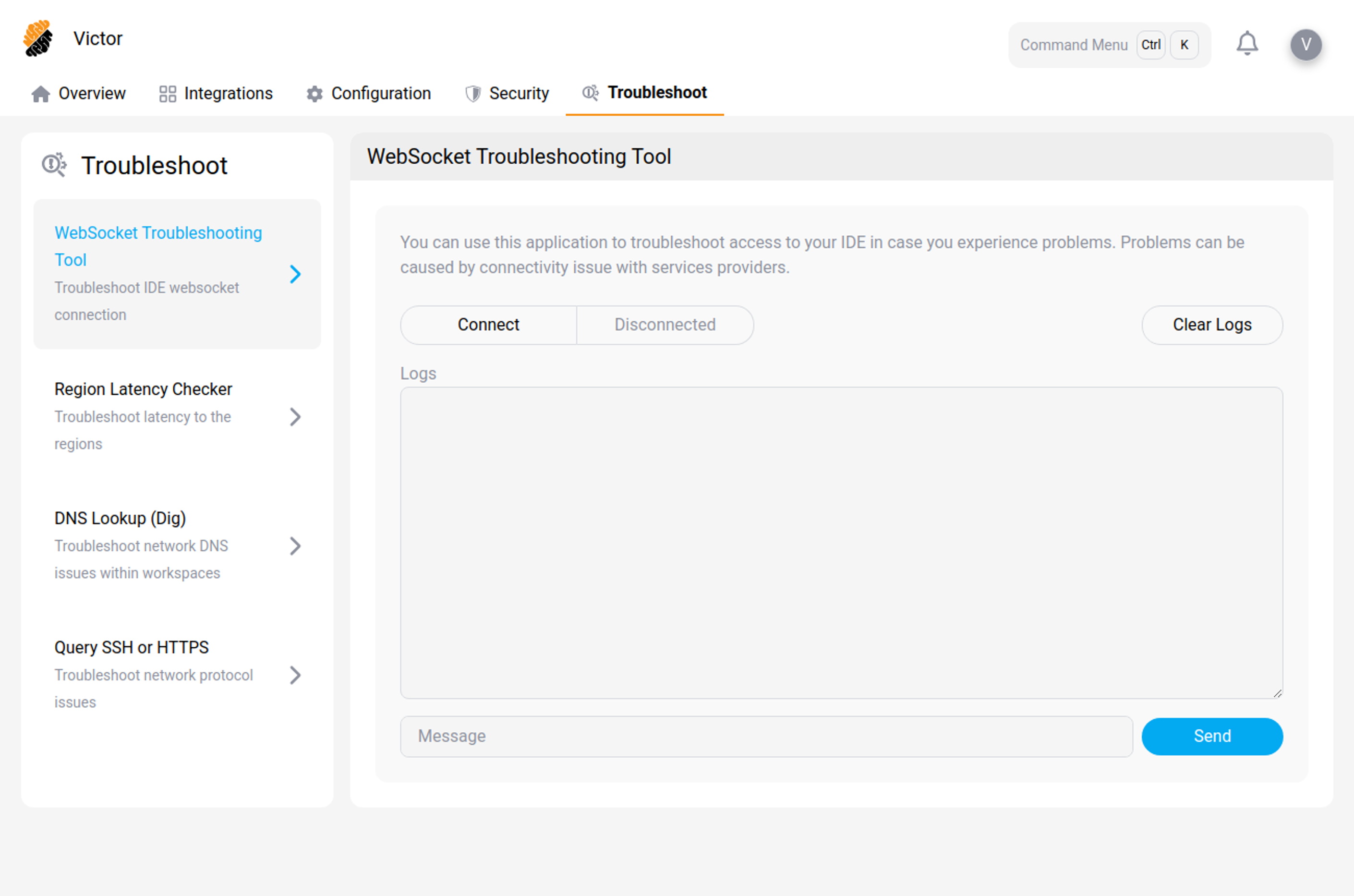
WebSocket Troubleshooting Tool
Tests the websocket connection the Cloud IDE depends on. Select Connect, and the tool reports whether the connection is established and logs what happens. You can send a message to confirm traffic passes in both directions.
Use it when the IDE will not load, or drops repeatedly, in the browser. A websocket that never connects usually means something between you and the platform is closing the connection — a corporate proxy, a VPN, or a TLS-inspecting gateway. That is information your platform administrator needs.
Region Latency Checker
Reports round trip time to each available region. Use it when the IDE feels sluggish rather than broken.
If a distant region is markedly faster than the one you are using, your workspace may be running in the wrong place. Which regions you can use is set by your administrator.
DNS Lookup (Dig)
Resolves a domain name from inside a workspace. Use it when something is unreachable and you do not know whether the name is failing to resolve or the connection is being refused.
If the name resolves but the connection still fails, the cause is usually network policy rather than DNS.
Query SSH or HTTPS
Tests whether a host is reachable over SSH or HTTPS from the workspace. Use it after DNS Lookup, to separate a name that does not resolve from a port that is blocked.
When to escalate, and what to include
Some problems you cannot fix yourself. Anything involving network policy, workspace resources, templates, attached repositories, privileged mode, or Bypass Schedule is set by a project owner or platform administrator.
Include the following, or the first reply will only ask for it:
- The workspace name, and the project it belongs to.
- The region, if your deployment has more than one.
- What you were doing, and the exact message you saw.
- When it happened, with the time zone.
- Which stage the start sequence reached, if the workspace did not start.
- The output of the relevant diagnostic tool, if you ran one.