
Citrix SecurAccess™ ZTNA service
The Citrix SecurAccess ZTNA service provider for hybrid deployment is installed as part of Citrix Cloud Connector. After Citrix Cloud Connector is installed, the Citrix SecurAccess ZTNA service can be found in the Windows services. The Citrix SecurAccess ZTNA service operates under the network service account.
Important:
-
Once the Cloud Connector is updated, the Citrix SecurAccess ZTNA service is disabled. To enable the feature, customers must contact Citrix Support.
-
Once enabled, the service status changes to Running, and the Citrix SecurAccess ZTNA service automatically starts on the connector machine.
Port Configuration for Citrix SecurAccess ZTNA service
-
Citrix SecurAccess ZTNA uses port 8443 as a plain HTTP service.
-
Ensure that the inbound rule for port 8443 is added to allow access from the data center network. The port 8443 can be opened by manually configuring the firewall rules or by running the Citrix SecurAccess ZTNA config tool.
-
Navigate to the Citrix SecurAccess ZTNA installation folder (default path - C:\Program Files\Citrix\AccessSecurityService).
-
Run the command .\Citrix.AccessSecurityService.exe /ENABLE_SPA_PORTS 8443.
-
After the command is run successfully, the firewall is configured automatically.
-
The internal load balancer for Citrix SecurAccess ZTNA adds the Cloud Connector back-end service using port 8443.
Citrix SecurAccess ZTNA load balancer
The load balancer for the Citrix SecurAccess ZTNA service must be configured with TLS enabled using one of two approaches:
-
SSL offload on the load balancer: The Citrix SecurAccess ZTNA load balancer communicates with the Citrix SecurAccess ZTNA service on Cloud Connector over HTTP on port 8443, and the TLS/SSL certificate is installed on the load balancer. Traffic between the load balancer and the Citrix SecurAccess ZTNA service is plain HTTP and not encrypted. For details, see Configure SSL offloading.
-
SSL bridge: The load balancer forwards encrypted traffic to the Citrix SecurAccess ZTNA service on Cloud Connector. TLS/SSL certificate must be installed for the Citrix SecurAccess ZTNA service on each Cloud Connector host. For details, see See Configure SSL bridging.
Configure TLS/SSL certificates for the Citrix SecurAccess ZTNA service on Cloud Connector
-
Install a valid TLS/SSL certificate on the Cloud Connector’s local machine Personal certificate store. Ensure that the certificate is trusted. Add the issuing CA certificates if necessary.Note:Ensure that the TLS/SSL certificate contains Cloud Connector FQDN as part of Subject Alternative Name (SAN).
-
Grant Network Service account permission to access the installed certificate.
-
Open the Microsoft Management console and add certificate snap-in to your local computer account, follow the wizard, and click OK.
-
In the Microsoft Management Console, go to Console Root > Certificates > Personal > Certificates.
-
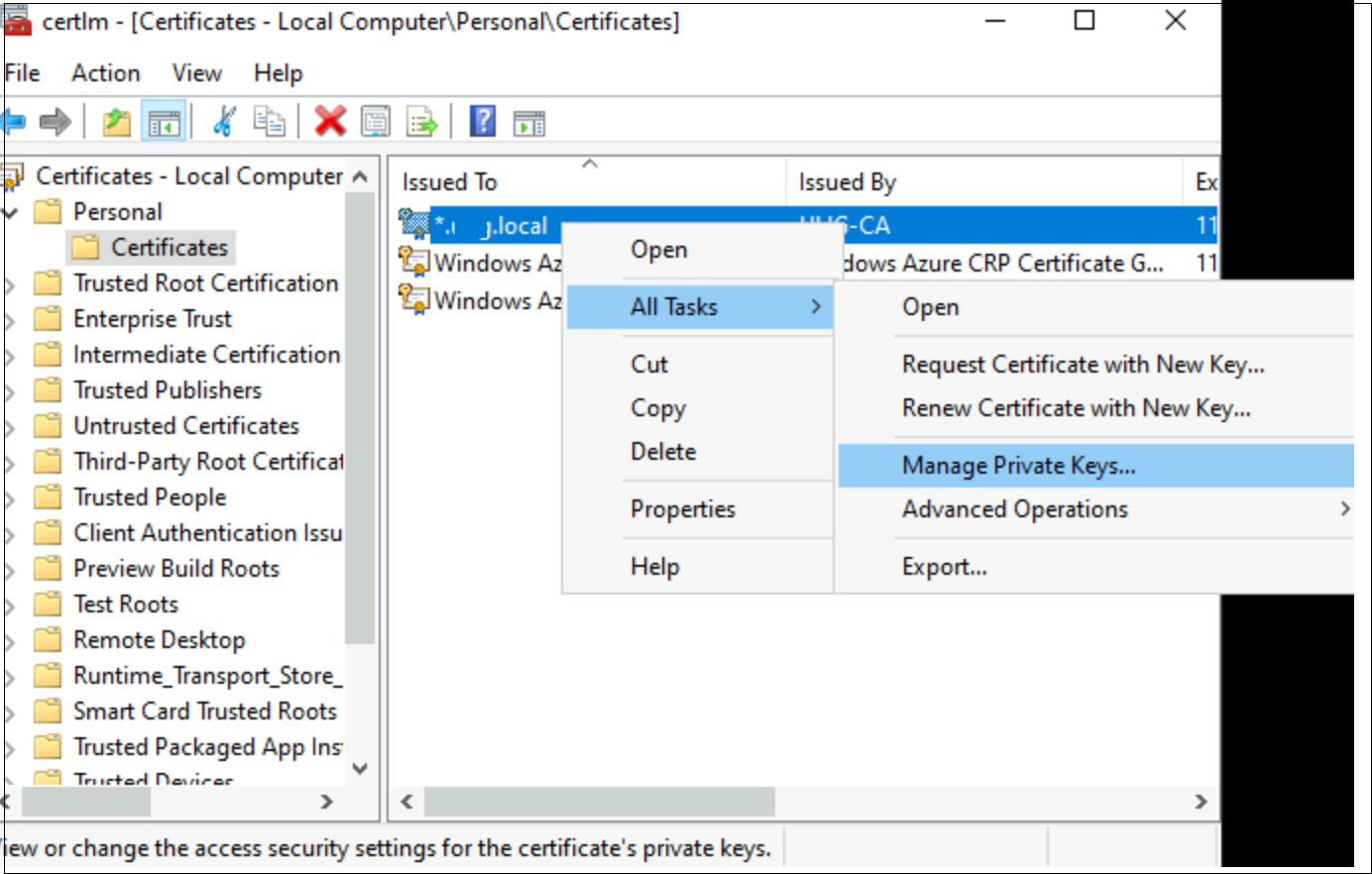
Right-click the certificate that is required to configure Citrix SecurAccess ZTNA and select All Tasks > Manage Private Keys.
-
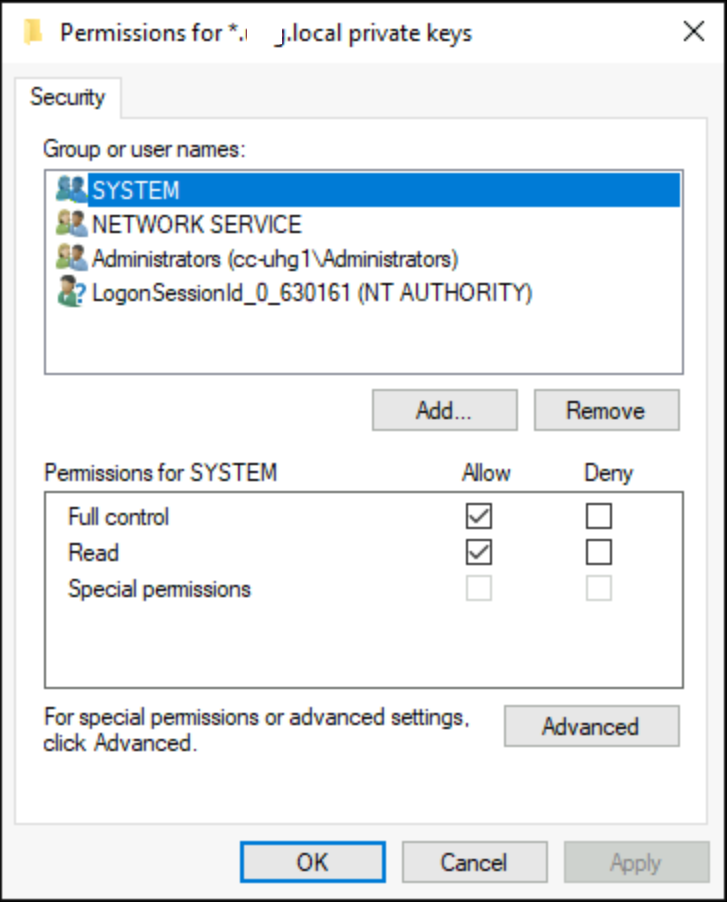
In the Permissions window, click Add and then search for the Network Service account, and select Read only permission.
-
-
Configure the Citrix SecurAccess ZTNA service with TLS/SSL certificate thumbprint.
-
Copy the thumbprint from TLS/SSL Certificate Details.
-
Navigate to the Citrix SecurAccess ZTNA installation folder (default path - C:\Program Files\Citrix\AccessSecurityService) and run .\Citrix.AccessSecurityService.exe /CERTIFICATE_THUMBPRINT
<ThumbprintValue>. -
Restart the Citrix SecurAccess ZTNA service.
-
-
Ensure that the Citrix SecurAccess ZTNA service is running as a TLS service (use browser or cURL):
https://<Cloud connector address>:<port>/secureAccess/health.Expected result:response 200 OK with status “Ok”.