
Collect client logs
The following sections provide more information about collecting client logs.
Chrome Enterprise Premium logs
If you experience issues on the client side with Chrome Enterprise Premium, collect the extension logs for both Secure Enterprise Browser and Citrix SecurAccess™.
Steps to capture logs for the Secure Enterprise Browser extension
-
Open the Chrome browser.
-
Switch to your managed Chrome profile.
-
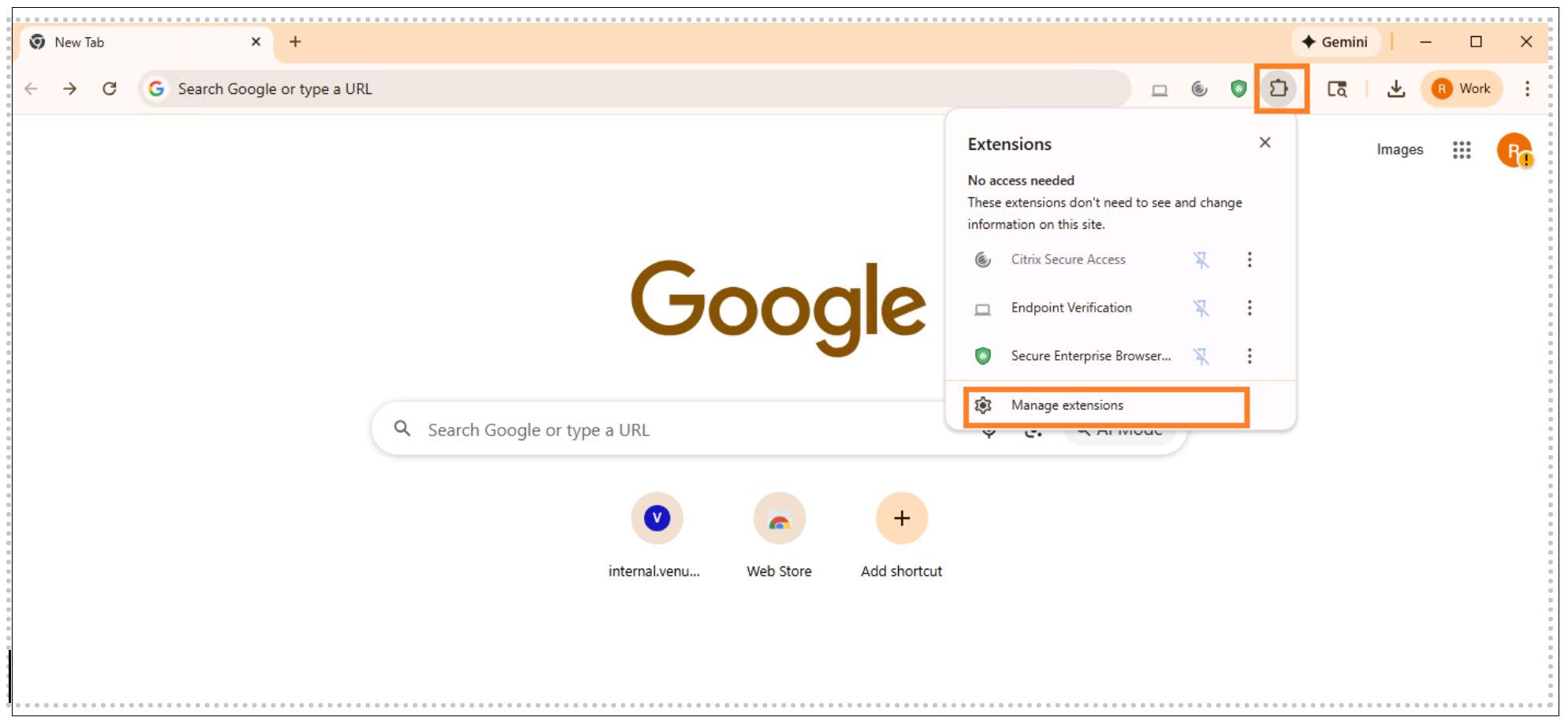
Click the Extensions icon and select Manage extensions.
-
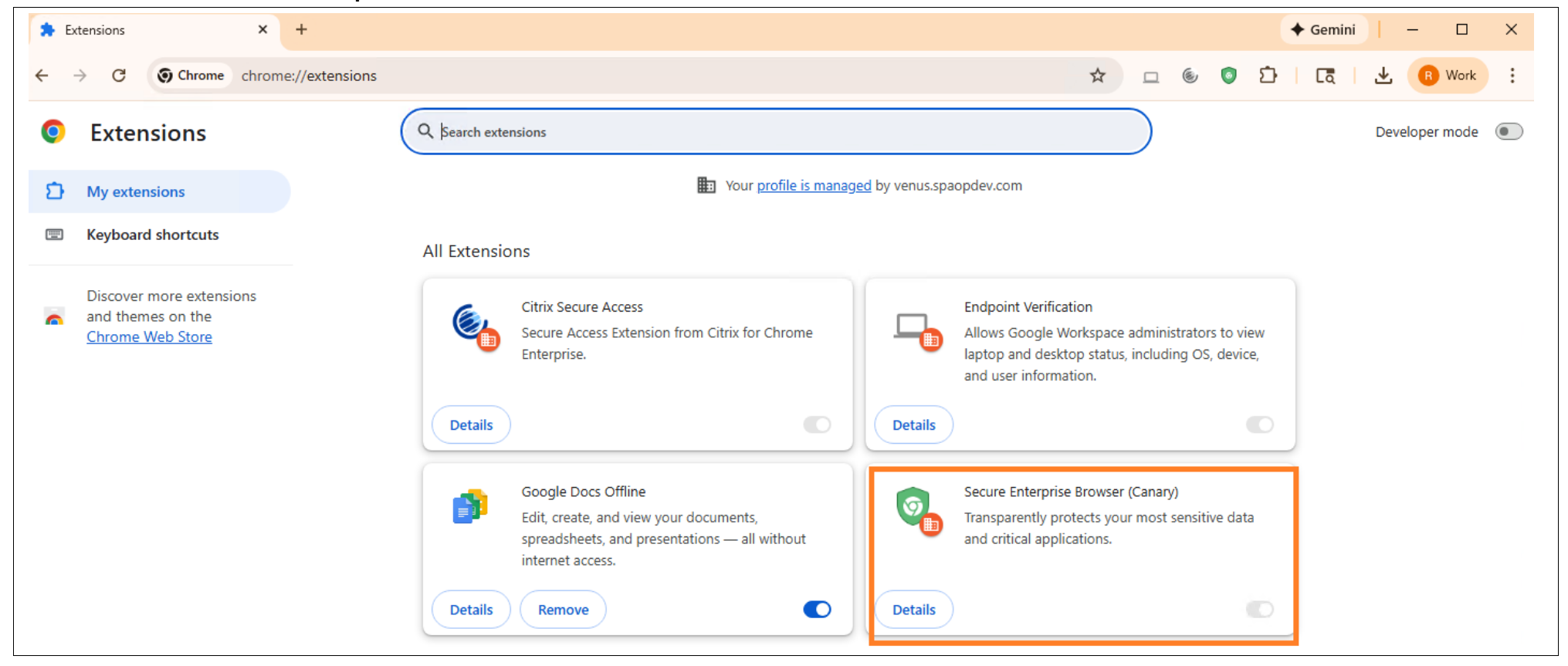
Under Secure Enterprise Browser, click Details.
-
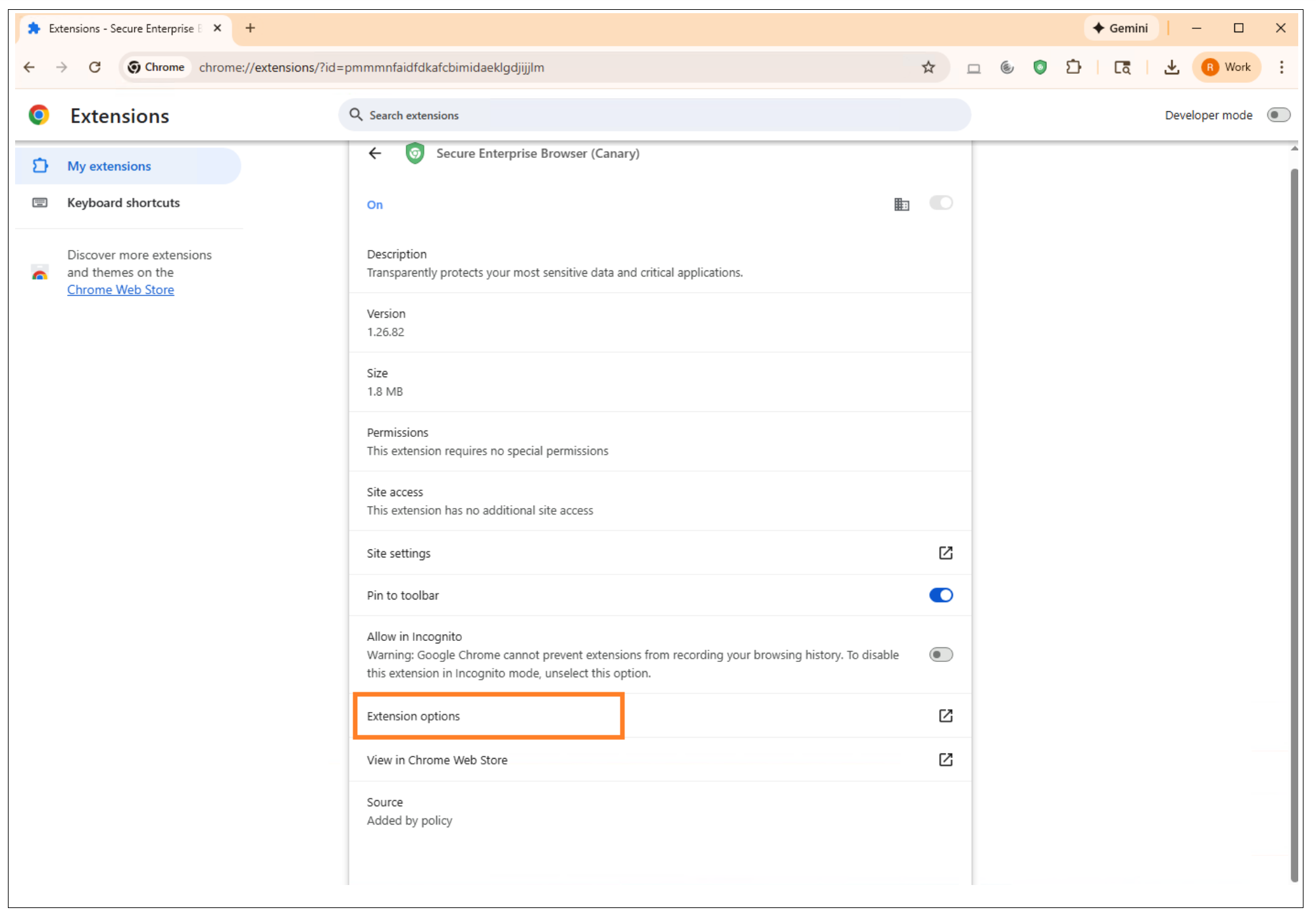
Select Extension options.
-
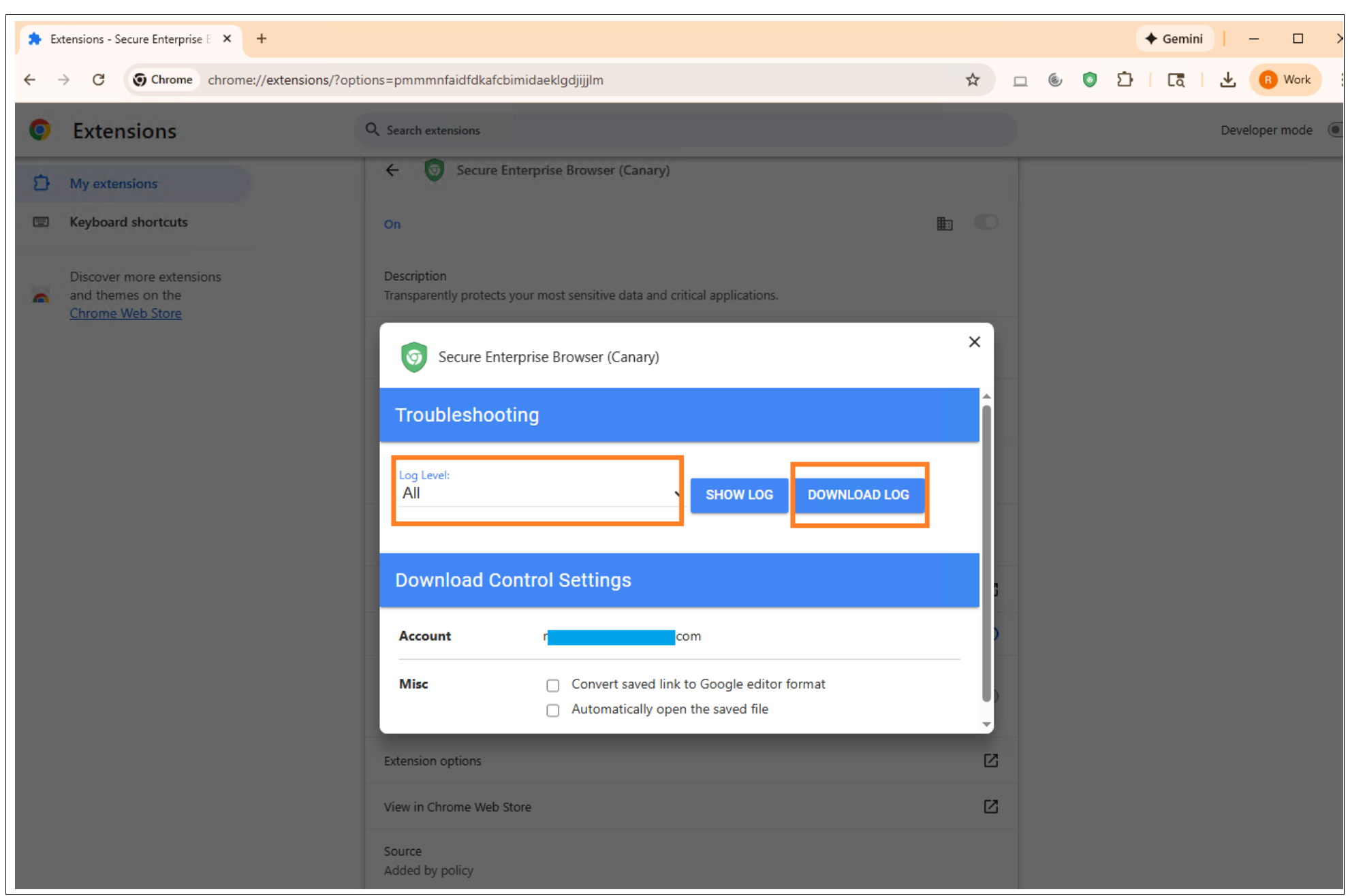
Click DOWNLOAD LOG.
-
Save the downloaded log files to your computer.
Steps to capture logs for Citrix SecurAccess Extension
-
Open the Chrome browser.
-
Switch to your managed Chrome profile.
-
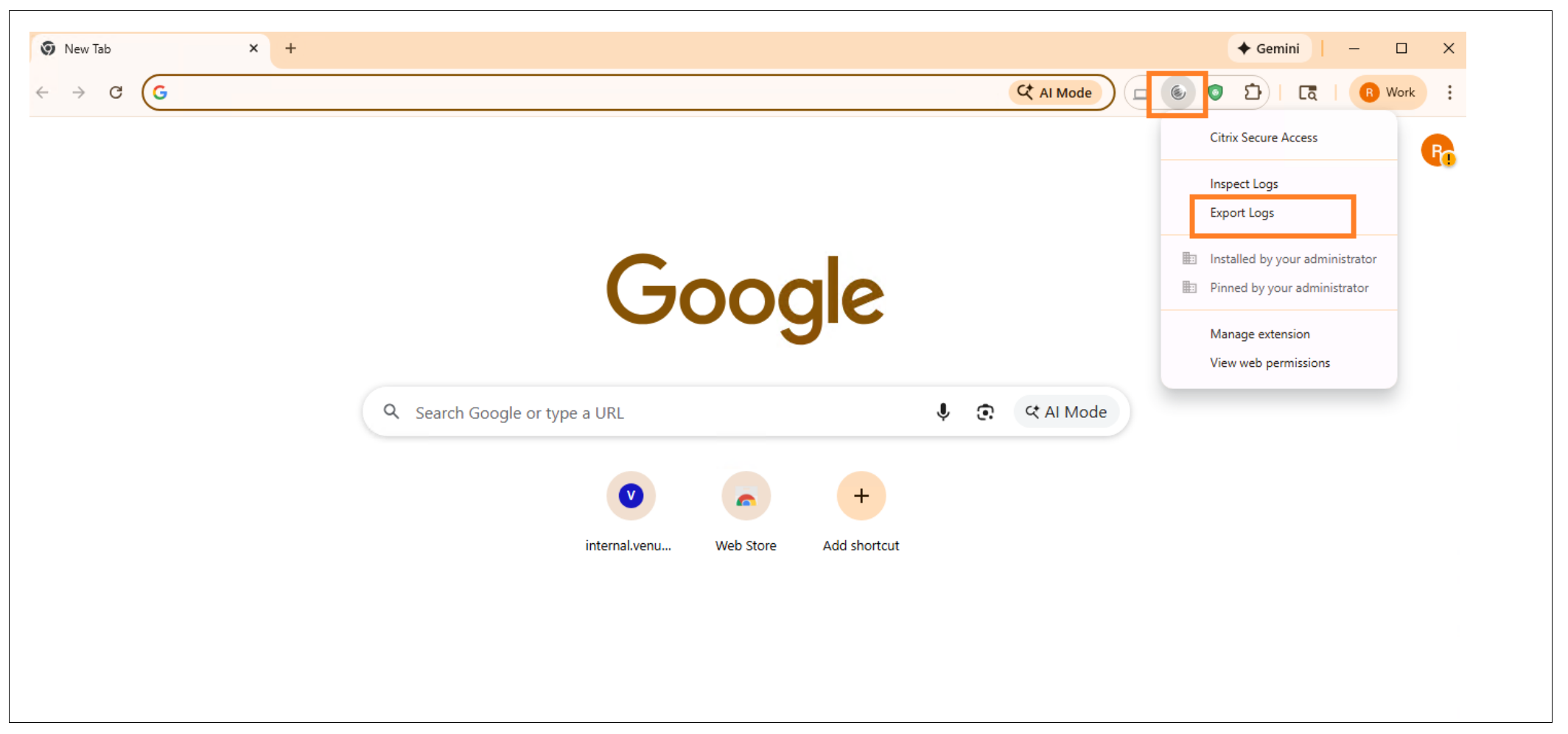
Click the Citrix SecurAccess extension icon next to the address bar.
-
Select Export Logs.
-
Save the exported log files to your computer.