
Triage and troubleshoot
This topic outlines the essential considerations and procedures for effectively troubleshooting and triaging issues related to Citrix SecurAccess™ ZTNA. Admins can use this document as a guide for identifying, diagnosing, and resolving problems, ensuring seamless and secure access for users.
User/client issues in Citrix SecurAccess mode
The following sections provide more information about user/client issues in Citrix SecurAccess mode.
User unable to log in
Things to check:
-
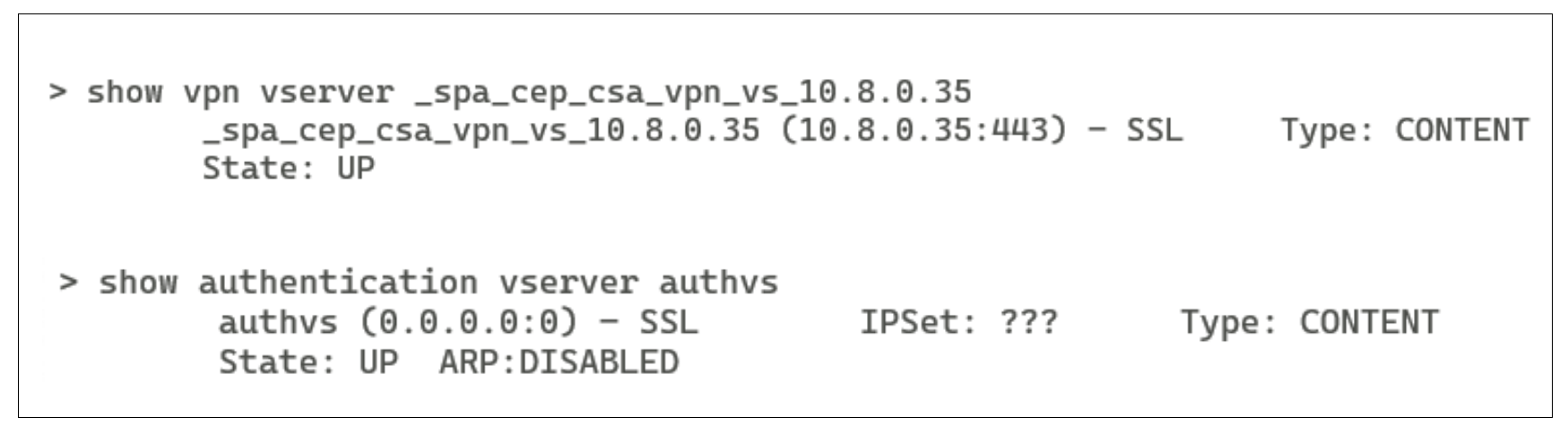
Check if the VPN virtual server and authentication virtual server is UP.
-
Check if the Citrix SecurAccess ZTNA profile URL status is UP.

-
Ensure that the apps and access policies are correctly configured for the user in the Citrix SecurAccess ZTNA admin console. See Apps configuration and management and Configure access policies for the applications.
-
Check the load balancer virtual server status to ensure that all connector servers are added and are UP.
-
To troubleshoot any nFactor authentication issues, see Troubleshoot authentication, authorization, and auditing issues.
After confirming what was mentioned earlier, do the following:
-
Enable debug level logging and collect a support bundle from NetScaler.
-
Enable verbose logging on the CSA client and collect client logs.
-
Contact Citrix Support and provide the collected diagnostics.
User unable to launch an app
Things to check:
-
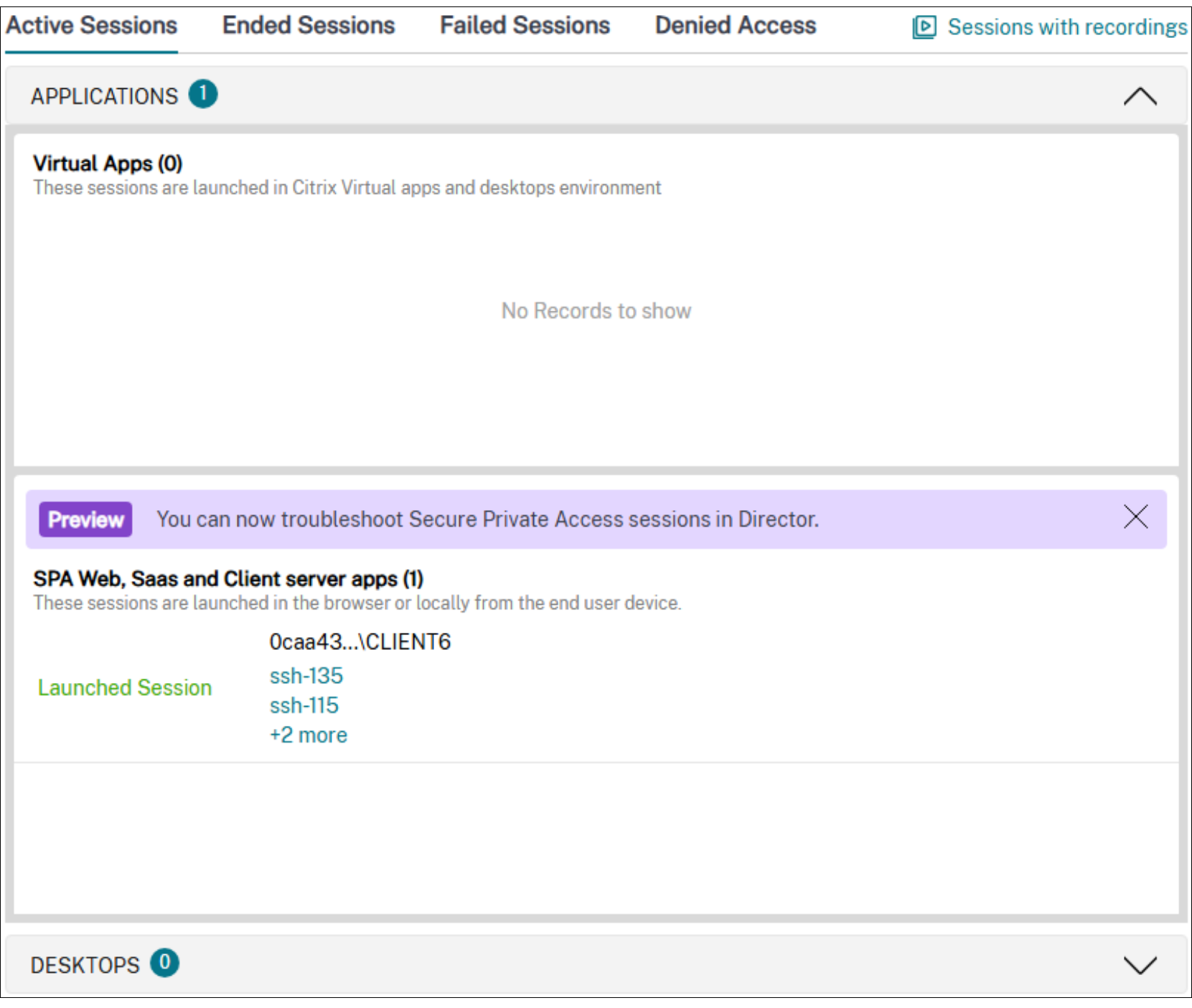
In Citrix Monitor, search for the user UPN and verify that an active Citrix SecurAccess ZTNA session exists.
-
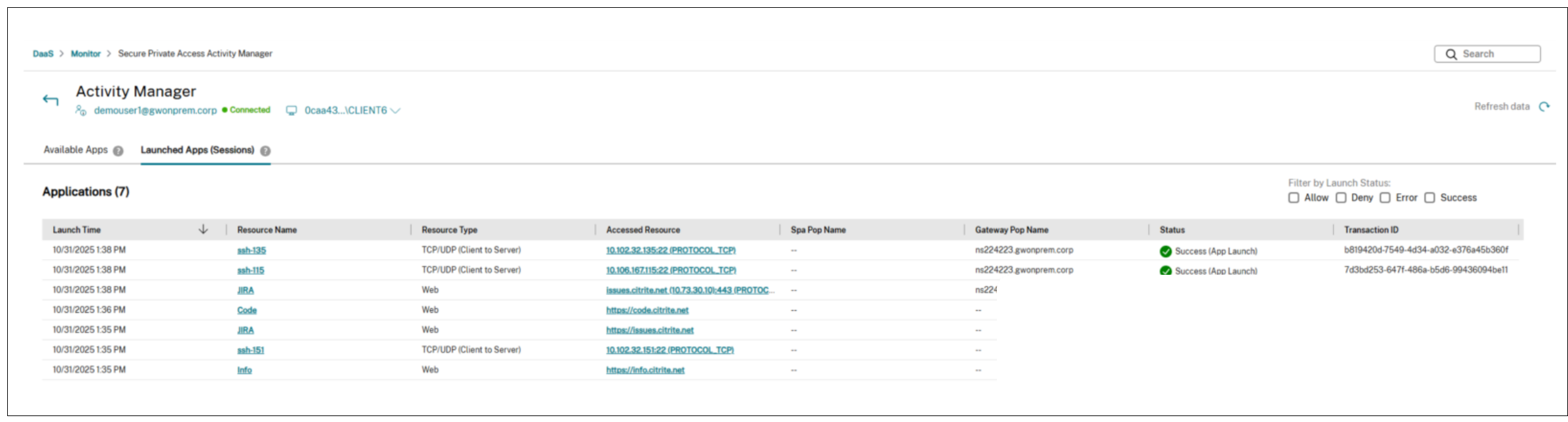
The launched app must appear under Available apps.
-
An App Launch Allow event for the app must be visible under Launched apps.
-
If not present, check that the app and access policies are correctly configured for the user in the Citrix SecurAccess ZTNA admin console.
-
-
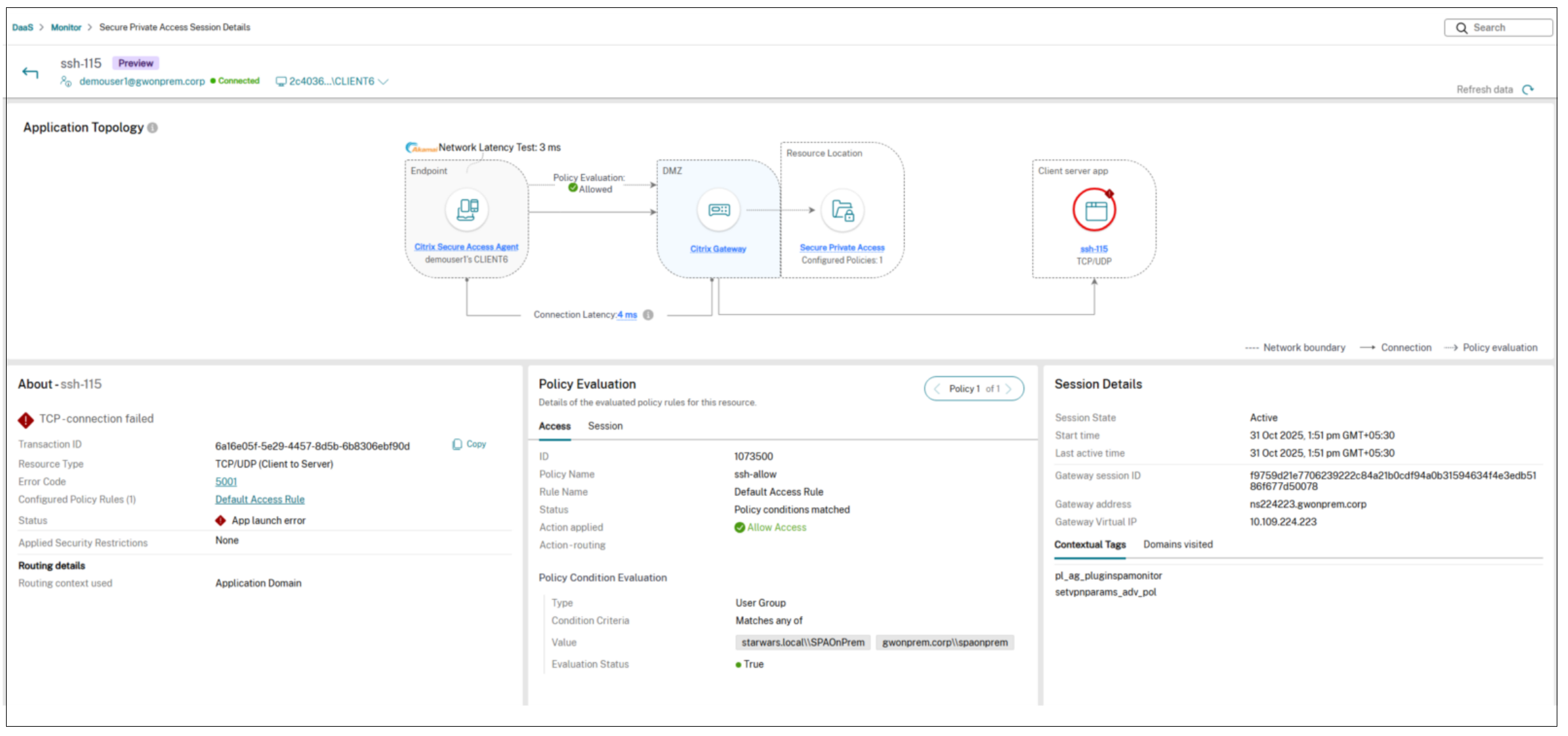
In Citrix Monitor, look for any app launch error event for the app under Launched apps.
-
Common errors: DNS resolution failure/TCP connection failure.
-
From the NetScaler CLI, verify connectivity to the app from the appropriate SNIP.
-
Steps to collect a NetScaler support bundle with debug-level logging
-
Set debug-level syslog from the CLI.
set syslogparams loglevel ALL DEBUG -
Enable Citrix SecurAccess ZTNA specific verbose logging from Shell.
nsapimgr_wr.sh -ys ns_vpn_enable_spa_verbose_logging=1 -
Collect the support bundle (and optional traces)
-
Use your standard method to collect the NetScaler support bundle.
-
Optionally capture additional traces if requested by support.
Important:
Revert verbose logging after collecting the bundle. Leaving verbose logging enabled can generate excessive logs and impact performance. Always revert verbose logging once the collection is complete.
Revert verbose logging
-
Restore syslog level from the CLI.
set syslogparams loglevel ALL -
Disable Citrix SecurAccess ZTNA specific verbose logging from Shell.
nsapimgr_wr.sh -ys ns_vpn_enable_spa_verbose_logging=0
Additional References:
Tools that help to troubleshoot
-
Configuration reports
-
Policy modeling