Policy modeling tool
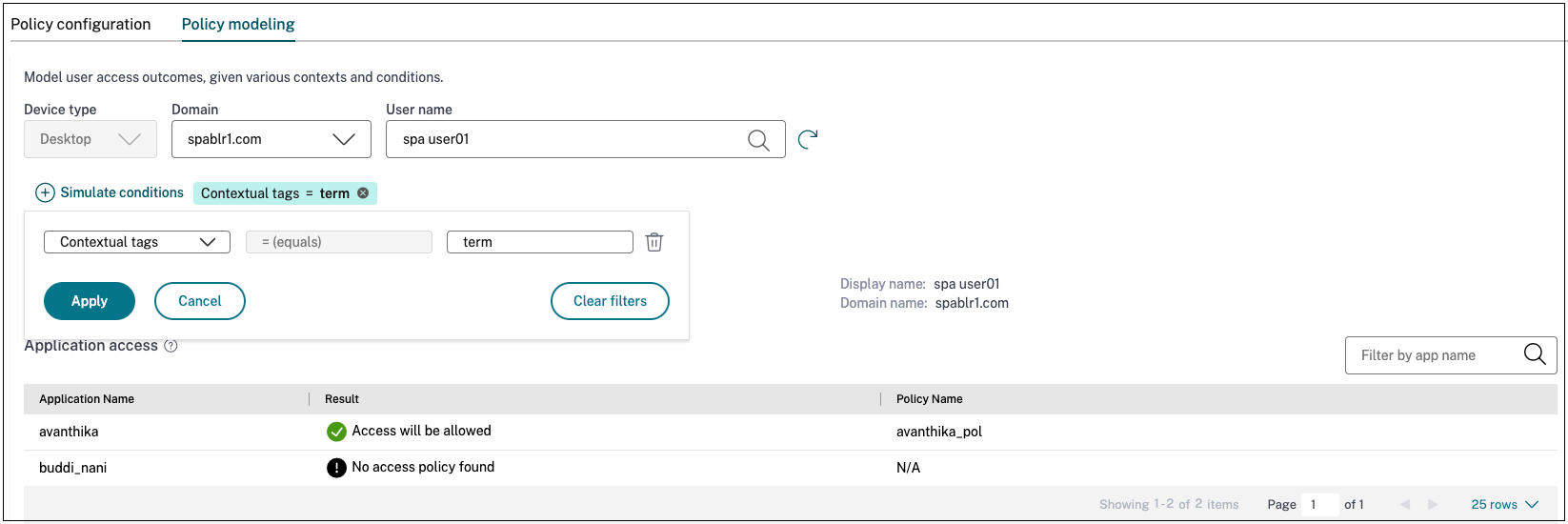
Admins can create multiple policies and assign these policies to multiple applications. As a result, it might become difficult for admins to understand the application access results for their end-users. That is, if the end-user is allowed or denied access based on the application and access policy configurations. The policy modeling tool (Access policies > Policy modeling) helps resolve these issues by giving the administrators full visibility into the expected application access result (allowed/allowed with restriction/denied). Admins can check the access results for specific users and add a user condition for contextual tags. The tool also displays the list of policies associated with the applications.
To analyze the access policy configuration, perform the following steps.
-
In the Secure Private Access console, click Access Policies and then click the Policy modeling tab.
-
Add the following details:
-
Device type: Desktop is selected by default.
-
Domain: Select the domain associated with the user.
-
User: Select the user name for which you want to analyze the applications and associated policies.
-
-
You can also simulate a condition based on contextual tags on the end user and their devices.
-
Click Simulate conditions. The condition Contextual tags is selected by default.
-
Enter the contextual tag in Value.
-
Click the + sign to add other conditions.
-
-
Click Apply.
The applications and associated policies for the selected user are displayed in a tabular format.