
Control Application Visibility with the ShowApp Parameter
Goal
This guide explains how to use the ShowApp parameter in eLux to control whether an application is visible to users based on device properties or environmental conditions. Administrators can define conditional expressions so that applications appear only when specific criteria are met.
This capability helps administrators:
-
Restrict applications to certain devices or hardware models
-
Show applications only for specific OS versions or configurations
-
Hide applications dynamically when device conditions change
The feature was introduced in eLux 7 2601.0.
Prerequisites
Before configuring ShowApp, ensure the following:
-
You have administrative access to Scout.
-
The application is already configured in Scout.
-
You can modify application free parameters.
-
Devices are running eLux 7.2601 or later.
How ShowApp Works
The ShowApp parameter contains a boolean expression that evaluates device properties.
An application will only appear on the user’s desktop if the expression evaluates to true. If the expression evaluates to false, the application is hidden.
Each condition follows this format of
Property(GLOB):
-
PROPERTY – a device attribute such as hostname, OS version, CPU, or memory.
-
GLOB – a pattern used to match the value (supports wildcards like
*).
Multiple conditions can be combined using boolean operators:
-
AND -
OR -
NOT -
Parentheses
()for grouping expressions
Step-by-Step: Configure ShowApp in Scout
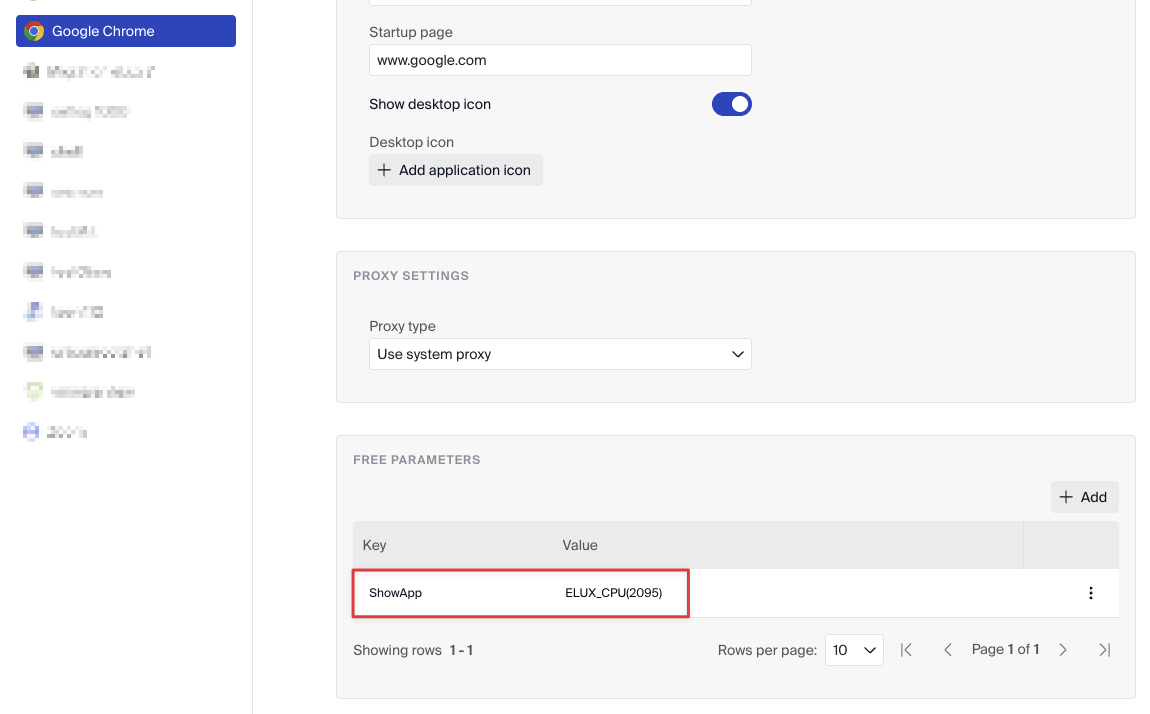
1. Open the Application Configuration
-
Open Scout.
-
Navigate to the desired device profile.
-
Select the application you want to control.
2. Add the ShowApp Parameter
-
Go to Free parameters for the application.
-
Add the parameter:
ShowApp= -
Replace
<expression>with your conditional logic.
Example:
ShowApp=ELUX_HOSTNAME(DellPrecision*)
This configuration shows the application only on devices whose hostname begins with DellPrecision.
3. Deploy the Configuration
-
Save the profile configuration.
-
Apply the profile to the relevant devices.
-
Restart or refresh the device configuration if required.
The application will appear only when the ShowApp expression evaluates to true.
Example Expressions
Match a Specific Hostname
ELUX_HOSTNAME(DellPrecision3260)
Application appears only on a device with this exact hostname.
Match Multiple Devices with a Wildcard
ELUX_HOSTNAME(DellPrecision*)
Application appears on any device whose hostname begins with DellPrecision.
Combine Multiple Conditions
ELUX_OSVERSION(7.2507.0-3) AND ELUX_SERIAL(71T0ZP3) AND ELUX_MEMORY(8192)
Application appears only when:
-
OS version matches
-
Serial number matches
-
Device has exactly 8192 MiB RAM
All conditions must be satisfied because of the AND operator.
Complex Expression Example
ELUX_CPU(3900) OR ELUX_OSNAME(eLux) AND (ELUX_OSVERSION(7.2507.0-3) OR ELUX_SERIAL(71T0ZP3))
This example combines multiple conditions using both AND and OR operators.
Available Device Properties
Common properties that can be used in ShowApp expressions include:
-
ELUX_HOSTNAME -
ELUX_OSNAME -
ELUX_OSVERSION -
ELUX_SERIAL -
ELUX_SUPPLIER -
ELUX_DEVICETYPE -
ELUX_BIOS -
ELUX_CPU -
ELUX_PRODUCT -
ELUX_KERNEL -
ELUX_FLASH -
ELUX_IDF -
ELUX_MAC -
ELUX_IP -
ELUX_NETMASK -
ELUX_BROADCAST -
ELUX_NETADDR -
ELUX_FLASHSIZE -
ELUX_MEMORY -
ELUX_GRAPHICS
These values are collected by the system during boot and configuration updates.
Troubleshooting
The evaluation of ShowApp expressions can be inspected in the following log files.
eluxd Log /tmp/eluxd.log
Search for entries containing:
showapp. This log records how the expression was parsed and whether it evaluated to true or false.
Desktop Log /tmp/ucdesktop.log
This log records when applications are hidden from the desktop because the ShowApp expression evaluated to false.
Important Behavior
-
Device property values are refreshed during boot and configuration changes.
-
If device conditions change while an application is running and the expression evaluates to false, the application may be terminated automatically.
-
The eLux desktop hides application icons when the application is marked as hidden.
Best Practices
-
Start with simple expressions and test them before deploying complex logic.
-
Use wildcards (
*) to simplify hostname or device matching. -
Verify behavior using log files during initial testing.
-
Document expressions used in Scout profiles to simplify maintenance.