
Theming guide for eLux 7
The look and feel of eLux 7 can be modified to realize corporate identity requirements to some extent.
This guide shows,
-
How to create themes for eLux 7,
-
Where to place the required files and configurations,
-
How to activate a theme
Components of a theme
A theme consists of a couple of predefined components. The configuration and the naming of the files follow predefined conventions.
Creating a custom theme
To create a custom theme, follow the following steps:
Create the theme configuration file
Each theme requires a configuration file for the theme, called
config.json.
{
   "name": "my-theme",
   "accentColor": "#CD5767",
   "desktopBackgroundImage": {"type": "jpg", "scaling": "crop"},
   "productImage": {"type": "png", "scaling": "contain"},
   "brandImage": {"type": "png", "scaling": "contain"},
   "welcomeBackgroundImage": {"type": "png", "scaling": "crop"},
   "welcomeBackgroundLayout": "leftImage"
 }
Note:
The name of the theme and the accent color need to be defined by the theme requirements. The config file must be named
config.json by convention.
The
welcomeBackgroundLayout field controls how the welcome background image is displayed on the login screen, lock screen, and welcome screen. The following modes are available:
-
"none"(default) — Standard layout. No background image on the login screen. -
"leftImage"— The welcome background image covers the left half of the screen. The login form remains on the right side.
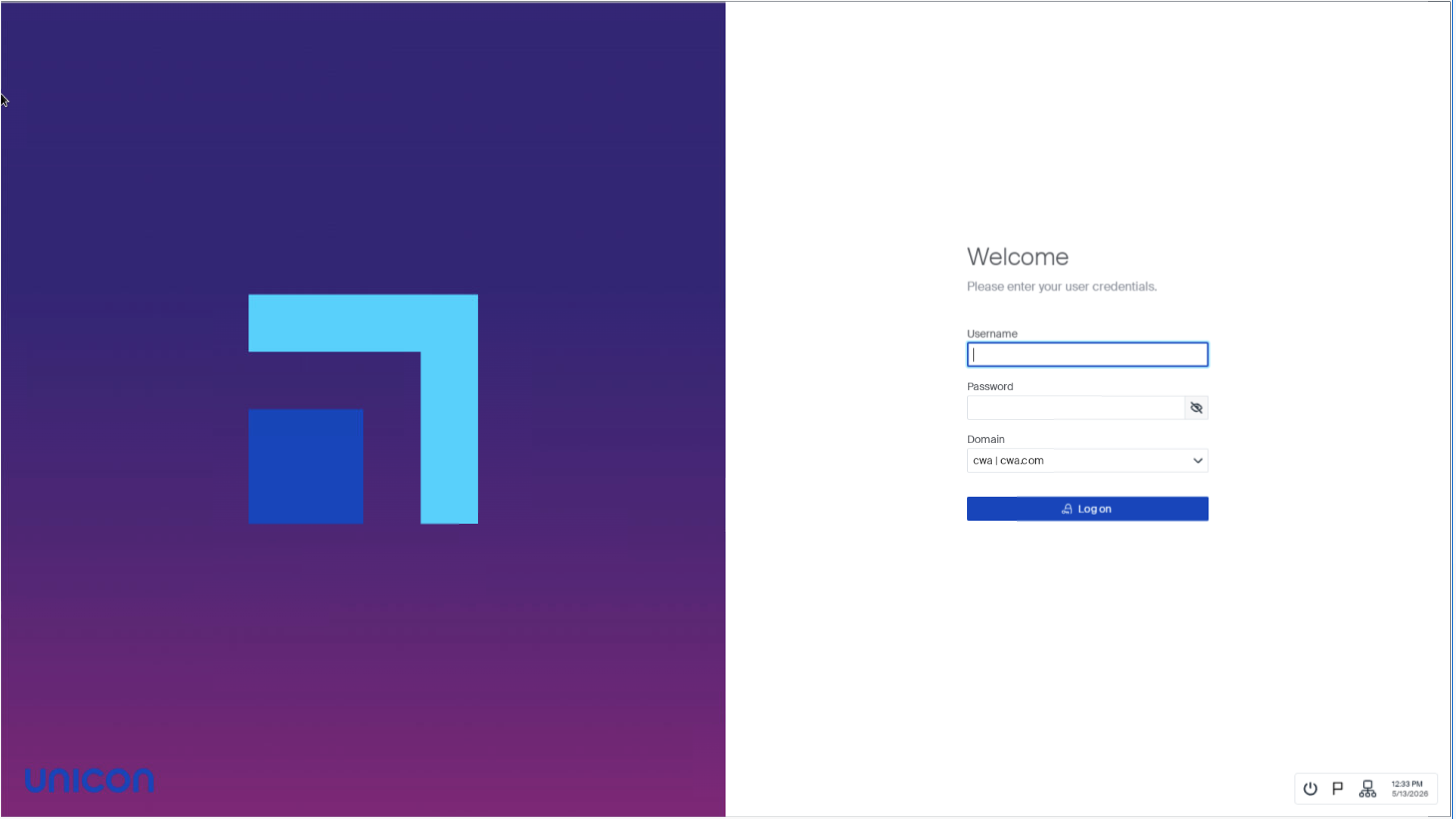
-
"fullImage"— The welcome background image covers the entire screen. The login form appears in a floating card on the right half.
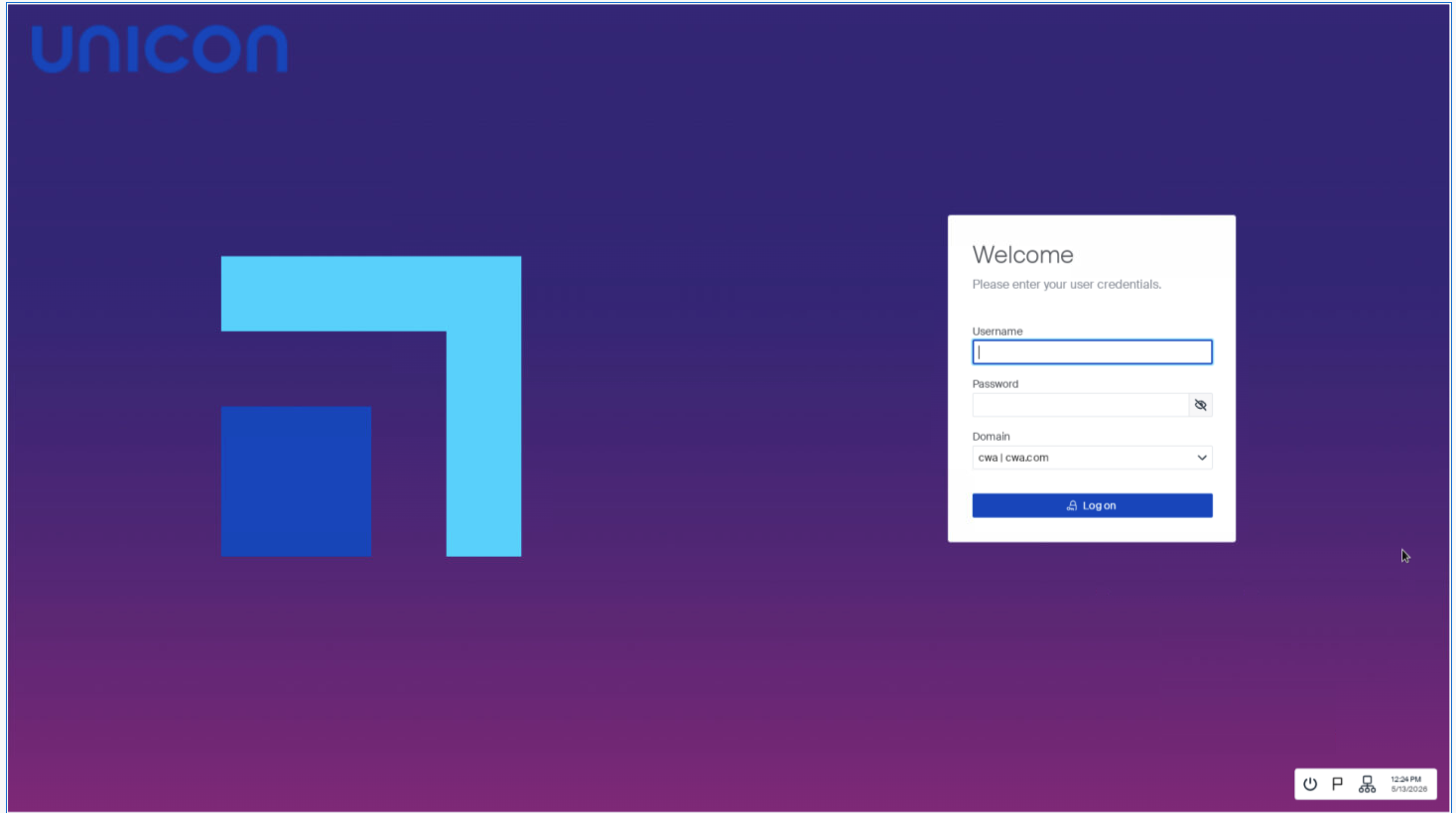
Prepare the theme files
Prepare the image files for the desktop background, product image, brand image, and optionally the welcome background image, according to the requirements.
Note:
The file names for the images must be named
desktopBackgroundImage.jpg, productImage.png, brandImage.png, and welcomeBackgroundImage.png by convention.
Transfer the theme files to eLux 7
Transfer all the theme related files to eLux 7 in Scout Board, using the advanced file entries. The theme files will all go into this theme folder.
| Source file | Destination |
|---|---|
config.json |
/setup/elux/themes/my-theme/config.json |
desktopBackgroundImage.jpg |
/setup/elux/themes/my-theme/desktopBackgroundImage.jpg |
productImage.png |
/setup/elux/themes/my-theme/productImage.png |
brandImage.png |
/setup/elux/themes/my-theme/brandImage.png |
welcomeBackgroundImage.png |
/setup/elux/themes/my-theme/welcomeBackgroundImage.png |
Note:
After applying the configuration, reboot the endpoint, so that all the configuration and theme files are being transferred. The
welcomeBackgroundImage file is only required if welcomeBackgroundLayout is set to "leftImage" or "fullImage".
The eLux default theme with all its files is located at
/setup/elux/themes/unicon_default in case a template is needed. Also, when a device factory reset is performed, eLux will revert to the default theme.
Set the theme
Once you have transferred all the required files to eLux 7, the theme needs to be activated.
The theme can be set via the
terminal.ini configuration file. To do so, use the Scout feature Advanced file entries:
| Field | Value |
|---|---|
| File | /setup/terminal.ini |
| Section | Layout |
| Entry | CurrentTheme |
| Value | my-theme |
After applying the configuration, reboot the endpoint for the theme to take effect.