Configuration
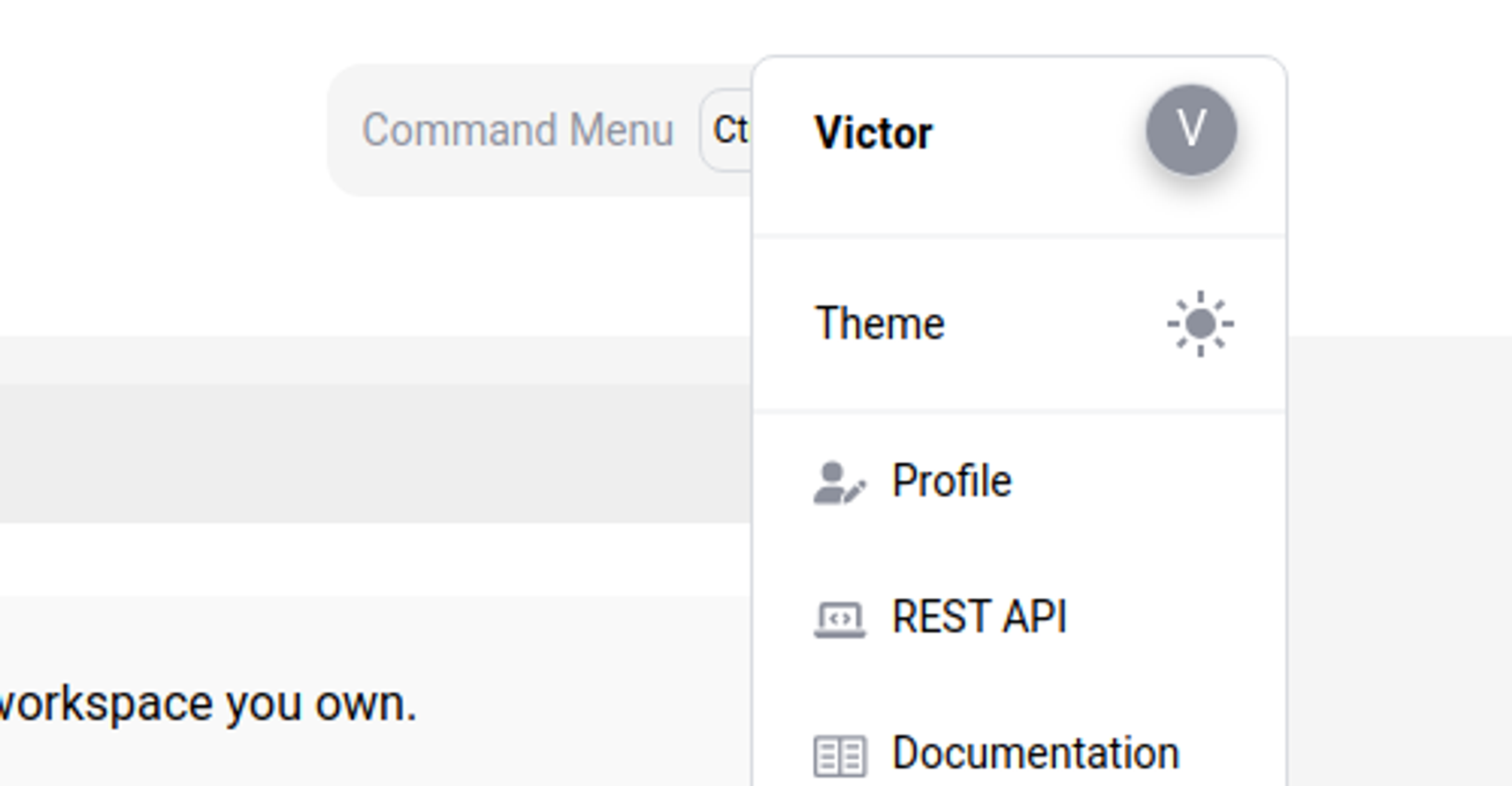
The Configuration Page is used to create and edit custom shell scripts and configuration files, configure your IDE and define personal workspace startup scripts. You can also configure additional settings (e.g. theme) by clicking on the profile picture on the top right of the screen.
Manage Configuration Files
Use the Configuration Files section to personalize your development environment. You can specify your preferred default shell and create custom configuration scripts (such as .bashrc or .zshrc) that automatically apply to your workspaces.
This ensures that every new workspace you create includes your preferred aliases, environment variables, and tool settings without requiring manual setup each time.
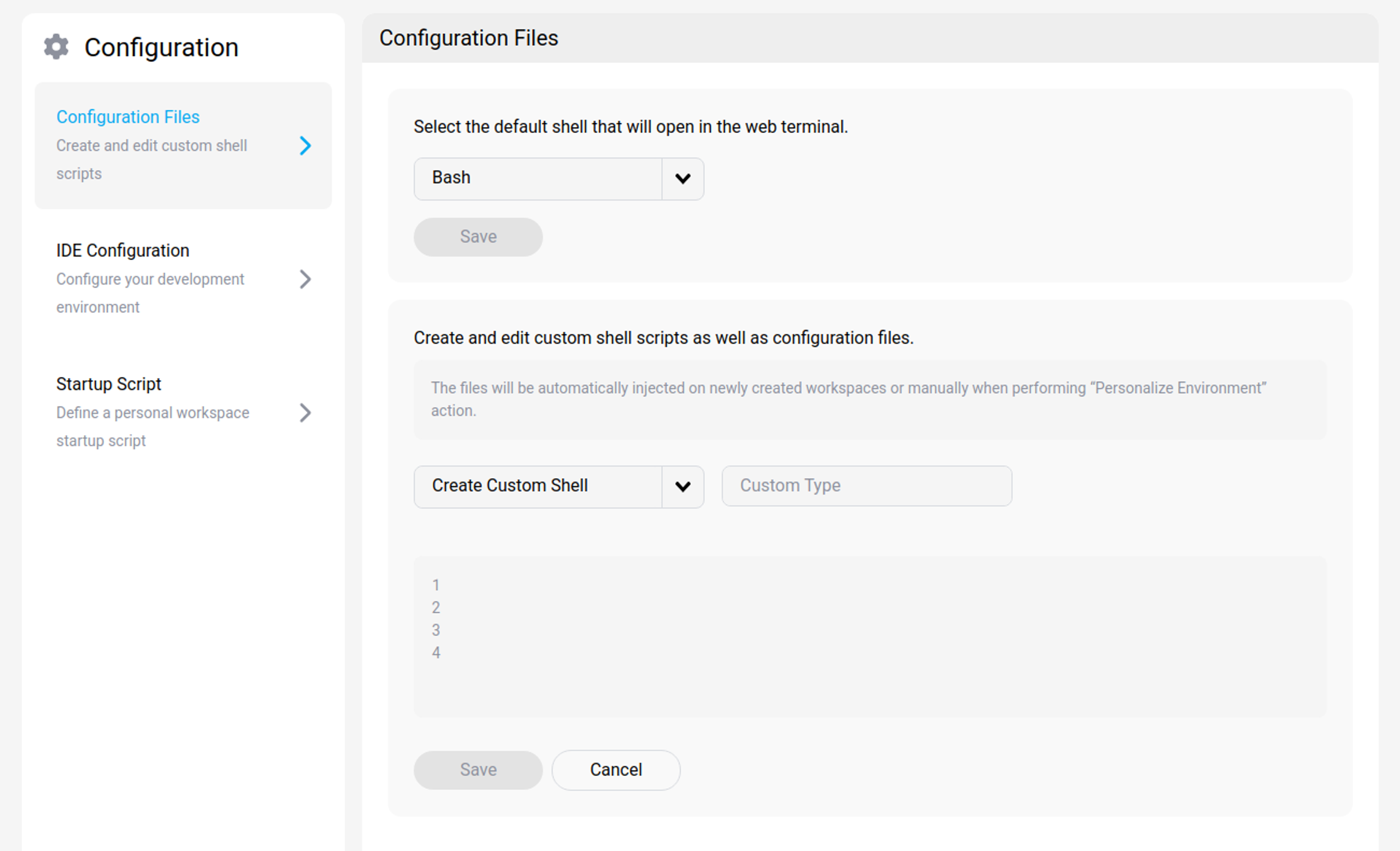
Set the default shell
You can define which shell launches automatically when you open a web terminal in your workspace.
- Go to Configuration > Configuration Files.
- Under Select the default shell that will open in the web terminal, select the dropdown menu.
- Choose your preferred shell (for example, Bash).
- Select Save.
Here is the updated Create and edit custom configuration file section, expanded to include more examples from the previous configuration, such as navigation shortcuts and safety prompts.
Create and edit custom configuration files
You can create custom shell scripts and configuration files to persist your environment settings. These files are automatically injected into:
- Newly created workspaces: The files are applied during the workspace creation process.
- Existing workspaces: You can manually apply updates by selecting the Personalize Environment action within a workspace.
To create a new configuration file
- Go to the Configuration Files section.
- In the Create and edit custom shell scripts area, select theCreate Custom Shell dropdown menu.
- Select the type of file you want to configure (e.g. Bash Shell or Zsh Shell).
- If you select Custom Type, enter the specific filename in the adjacent field.
- Enter your script or configuration code in the editor pane.
- Select Save.
Sample configurations
You can copy and paste the following examples into your .bashrc file to improve productivity and safety.
Improve directory navigation
Use these aliases to list files with more detail (including hidden files and file sizes) and to navigate folders quickly.
```bash
# List all files including hidden ones
alias ll='ls -alF'
alias la='ls -A'

# Go back one or two directories
alias ..='cd ..'
alias ...='cd ../..'
<!--NeedCopy--> ```
Prevent accidental deletions
Add safety prompts to critical commands to ensure you confirm before deleting or overwriting files.
```bash
# Ask for confirmation before executing
alias rm='rm -i'
alias cp='cp -i'
alias mv='mv -i'
<!--NeedCopy--> ```
Configure Git shortcuts
Reduce repetitive typing for common Git operations.
```bash
# Check status
alias gs='git status'

# Add all changes
alias ga='git add .'

# Commit with a message
alias gc='git commit -m'

# Push changes
alias gp='git push'
<!--NeedCopy--> ```
IDE Configuration
IDE configuration files can be managed from the profile settings. A configuration must be initially imported from a running workspace. Then, it can be applied to new or existing workspaces manually or automatically.
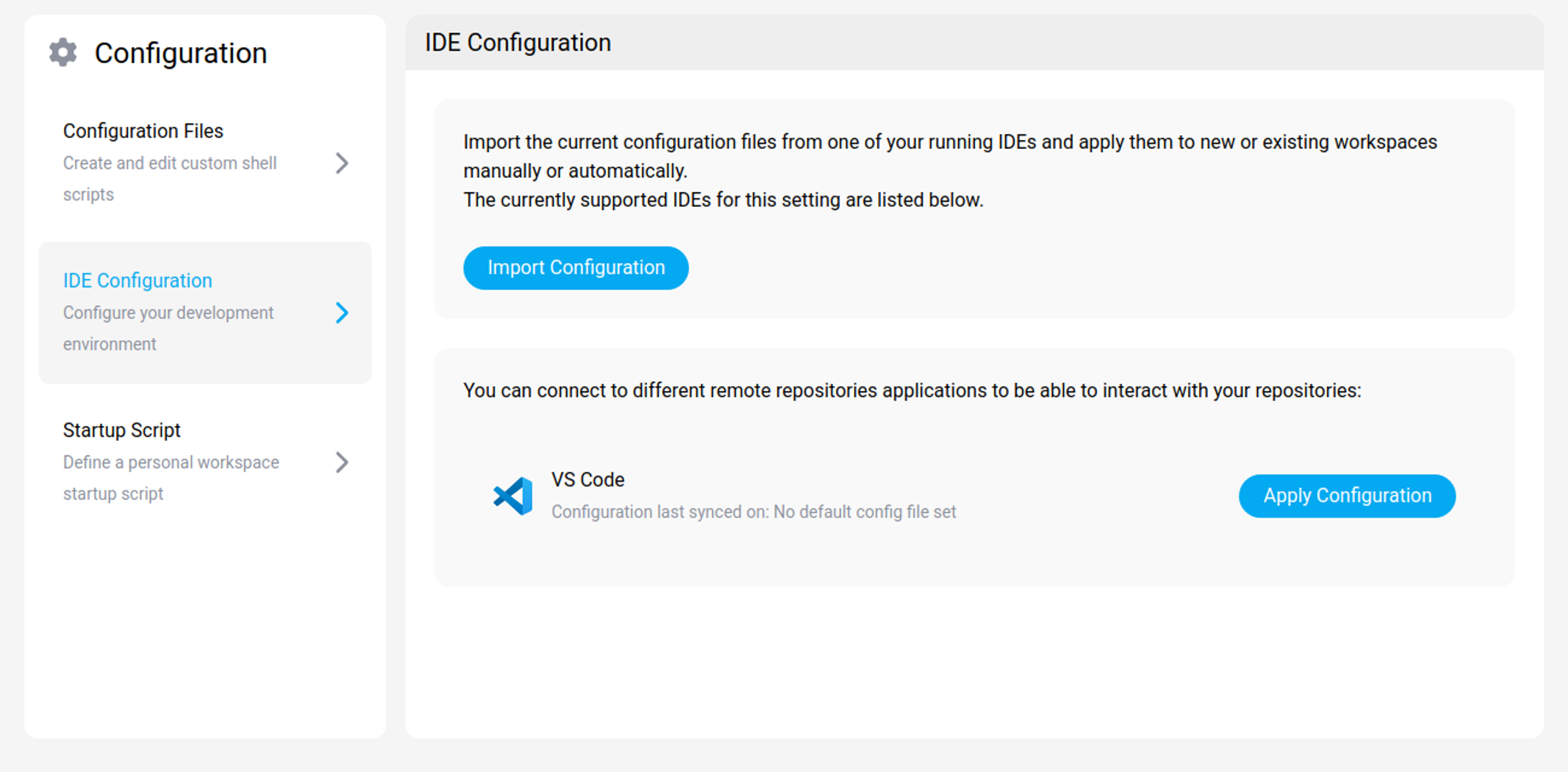
Currently supported IDEs are:
- VSCode,
- any IDEs from Jetbrains.
Startup Script
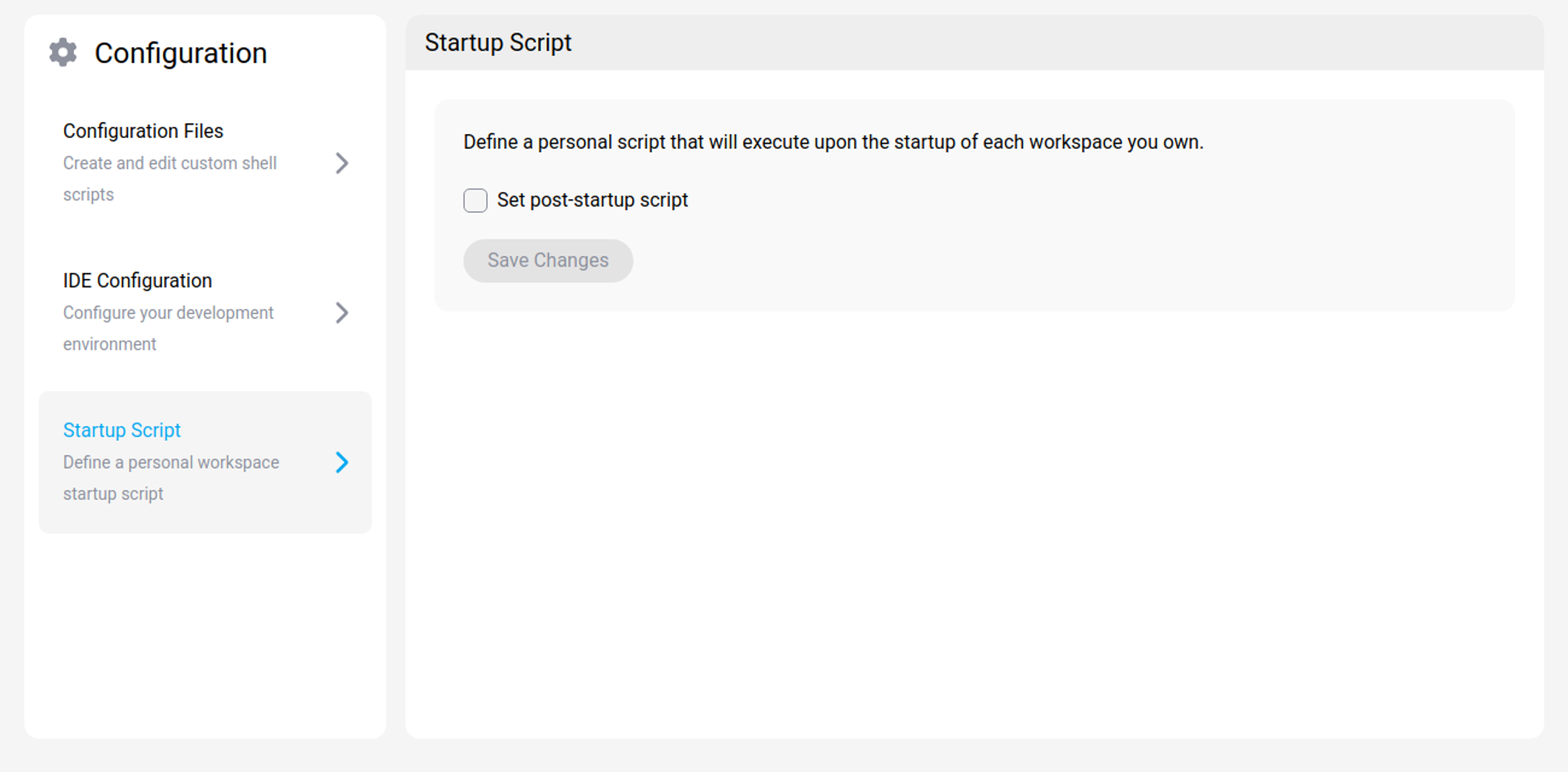
You can define a personal script that will be executed upon each startup of the workspaces that you own
Tip:
Note that if you defined a startup script for a given workspace, then it will override this one
Theme
Two color themes for dashboards are available in the Profile Menu. You can switch between a light and dark theme for the User Interface (UI) display.
Language
A language for the UI can be selected from the footer. Supported languages for the platform UI are:
- English,
- French.