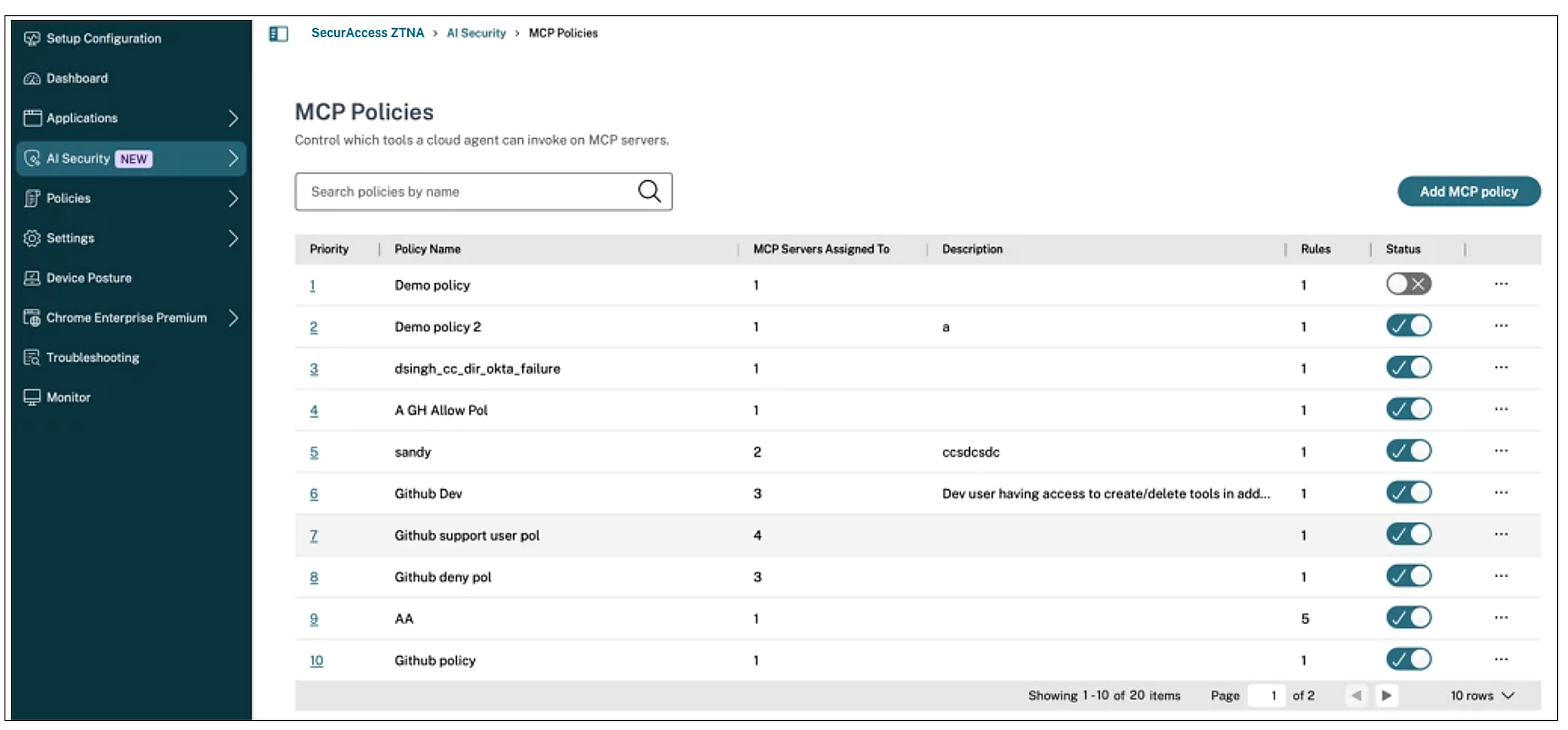
Create an MCP policy
An MCP policy controls which users, groups, or AI agents can invoke specific tools on selected MCP servers. A policy can apply to a maximum of five MCP servers.
Perform the following steps to create an MCP policy:
-
In the SecurAccess ZTNA console, go to AI Security > MCP Policies and select Add MCP Policy.
-
Enter a policy name.
-
Select the MCP servers to which the policy applies. You can select a maximum of five servers.
-
Click Create Rule to add one or more rules. For each rule:
-
Select the users, groups, or AI agent to which the rule applies.
-
Select Allow or Deny.
-
Select the tools covered by the rule.
-
-
Click Save.
Order the policies
Policies are evaluated in priority order. The first matching rule determines the access decision, so the order of policies affects which rules are applied.
To change the order of policies:
-
On the MCP policies list, click the priority number in the Priority column.
-
Enter the desired priority value.
-
Save the policy order.