
Discover tools
Once an MCP server is registered, you must discover its available tools to manage access through security policies. The tool discovery process relies on the permissions defined within the tool discovery policy. You can view or edit these rules by selecting Manage policy.
Citrix SecurAccess ZTNA serves as the authoritative source for the server's tool catalog. Tools can be discovered through two methods:
-
Authenticating via OAuth
-
Uploading a JSON configuration file
-
On the Tools card, select Discover tools.
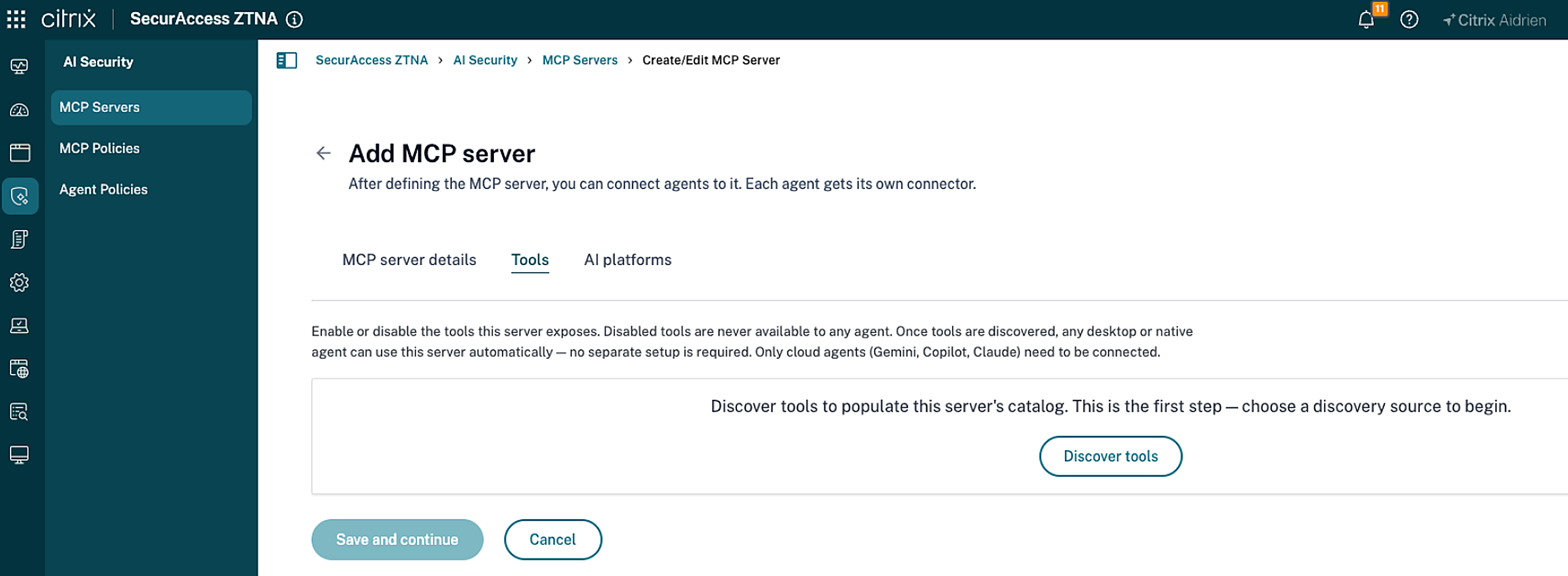
-
In the Discover tools panel, enter the MCP server credentials:
-
Client ID
-
Client secret
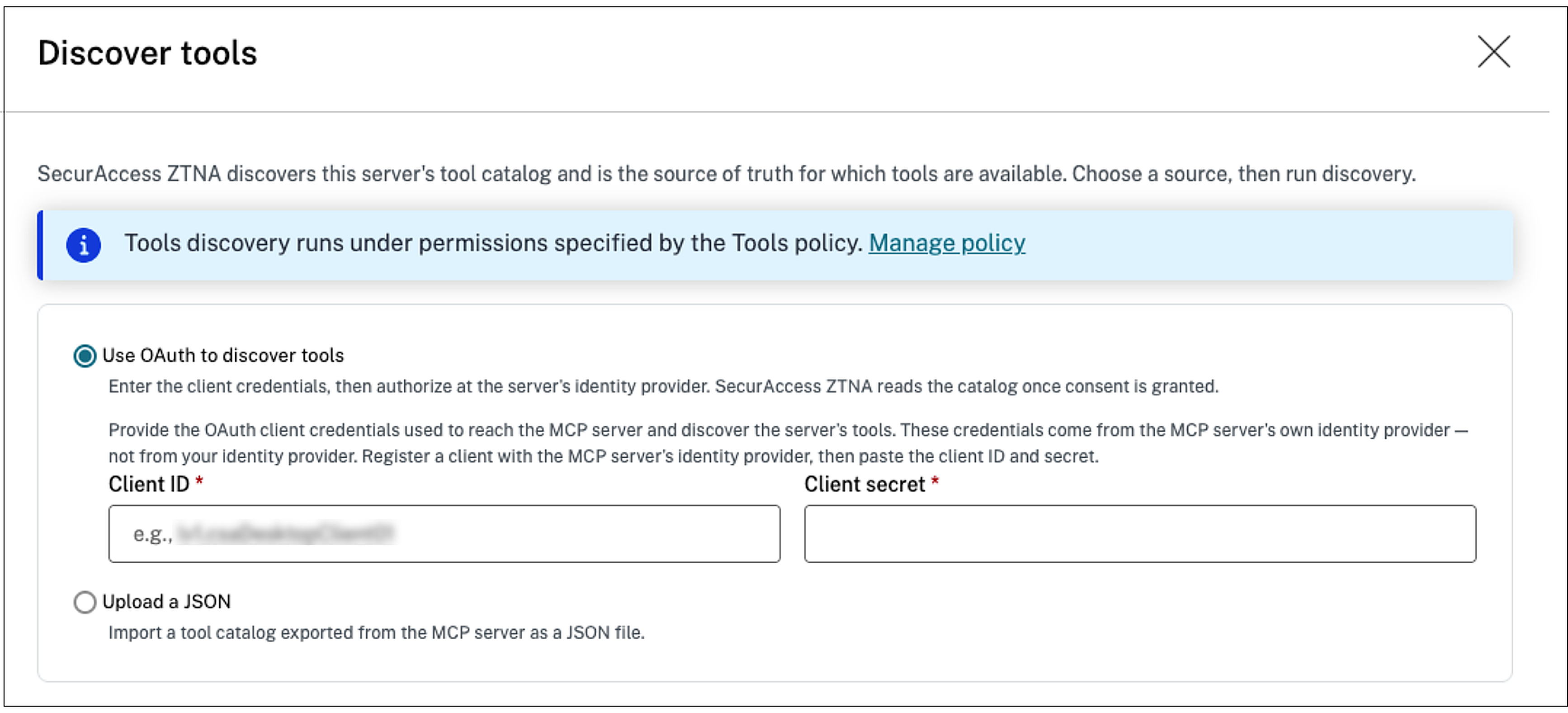
-
-
Use credentials for an oAuth client registered with the MCP server's identity provider. Do not use credentials from your organization's identity provider.
-
Authorize at the server's identity provider and complete the sign-in process.SecurAccess ZTNA obtains the required authorization tokens and uses them to discover the server's tools.When discovery is complete, the panel displays the number of tools discovered.
-
Select Save.If the authorization token must be refreshed, repeat the authorization process.
-
To refresh an existing tool list, select Re-discover tools. You also have the option to disable specific tools. These tools will not be available while creating MCP policies.
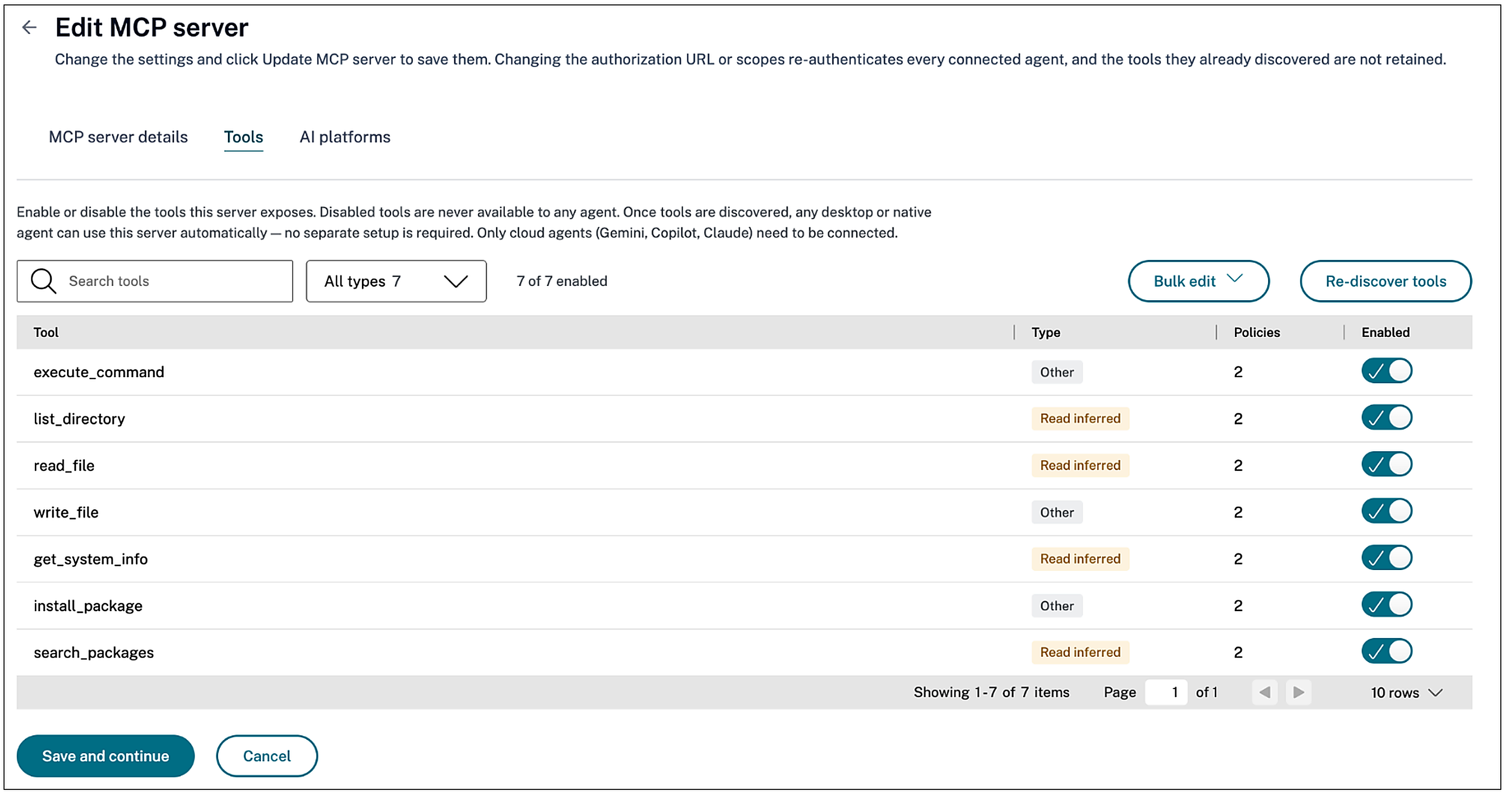
Desktop agents
For desktop agents, SecurAccess ZTNA connects directly to the MCP server once the tools discovery process has been completed successfully.
At runtime, desktop agents connect to the MCP server through the SecurAccess ZTNA reverse-proxy URL displayed in the server configuration. Use the standard endpoint or the Autonomous Agents (mTLS) endpoint when mutual TLS is required.
Note:
Desktop AI agents can connect to MCP servers through the Citrix SecurAccess client, which tunnels MCP traffic through Citrix SecurAccess for policy enforcement.
To enable desktop agents to access MCP servers through the Citrix SecurAccess client:
-
Configure the MCP proxy domain: Add a web app for
*.mcp.netscalergateway.netand allow it in the access policy for Citrix SecurAccess. This allows Citrix SecurAccess to tunnel MCP requests through SecurAccess ZTNA. -
Prevent direct MCP access: Configure a deny policy for other MCP domains to prevent desktop agents from bypassing Citrix SecurAccess and connecting directly to MCP servers.
Cloud AI platforms
Gemini Enterprise
Gemini Enterprise discovers tools within the AI platform using a SecurAccess ZTNA managed service account. You don't need to enter credentials.
MCP AI platform
Prerequisites
Ensure that the following prerequisites are met before for integration with Gemini Enterprise:
-
Identify the GCP project under which you are configuring your Gemini Enterprise Applications.
-
Enable the following Google Cloud APIs on the Gemini project:
-
Discovery Engine API
-
IAM Service Account Credentials API
-
Cloud Resource Manager API
-
Service Usage API.
-
Under the Gemini GCP project, update the organization policy iam.allowedPolicyMemberDomains to allow-list Citrix's organization.
The value that must be used for this org policy is : principalSet://iam.googleapis.com/organizations/597406914072-
Under the Gemini GCP project, disable the custom-MCP connector organization policy.
-
Set discoveryengine.managed.disableCustomMcpServerConnector to enforce:false to permit custom-MCP connectors.
-
Create the least privilege custom role on the Gemini project. The custom role must contain the following 7 permissions:
-
discoveryengine.locations.setUpDataConnector
-
discoveryengine.dataConnectors.get
-
discoveryengine.dataConnectors.update
-
discoveryengine.collections.delete
-
discoveryengine.dataStores.get
-
discoveryengine.dataStores.update
-
serviceusage.services.use
-
The GCP Admin that manages and authenticates the Data Stores must also have the privileges contained in the preceding role.
-
Steps to integrate with Gemini Enterprise
Perform the following steps to integrate with Gemini Enterprise:
-
On the Gemini Enterprise card, select Set up.
-
Before you configure integration with Gemini Enterprise you must ensure that the prerequisites are met. For details, see Prerequisites.
-
Within the discover tools panel for Gemini you are presented with a service account email.
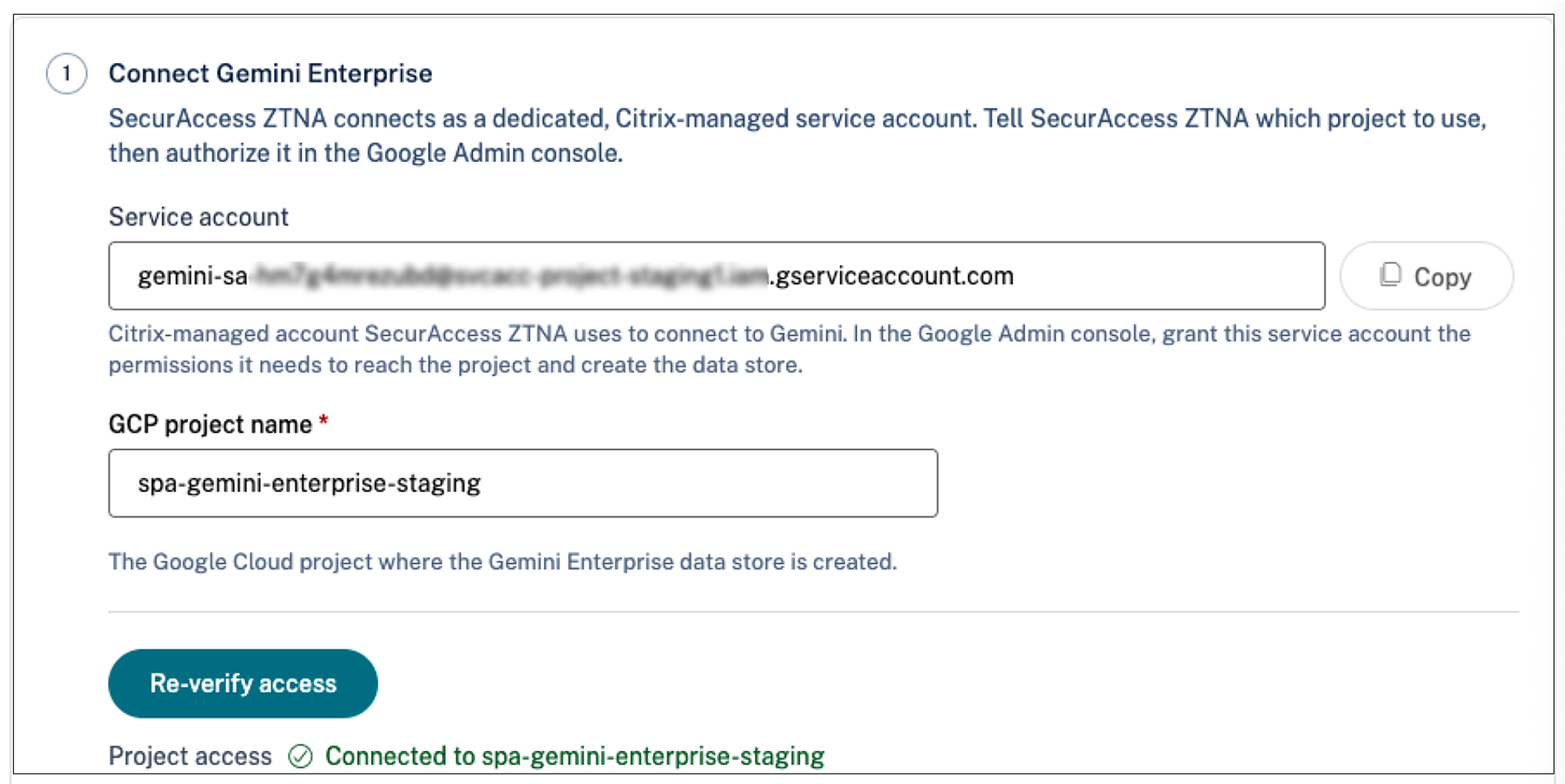
-
Within the IAM configuration of the Gemini GCP project, assign the custom role created above to the Citrix Service Account you are presented with in the preceding form.
-
Fill in GCP project name with the GCP project used so far.
-
Click Verify Access to confirm SecurAccess ZTNA permissions to create and manage Gemini Data Connectors within the selected project.
-
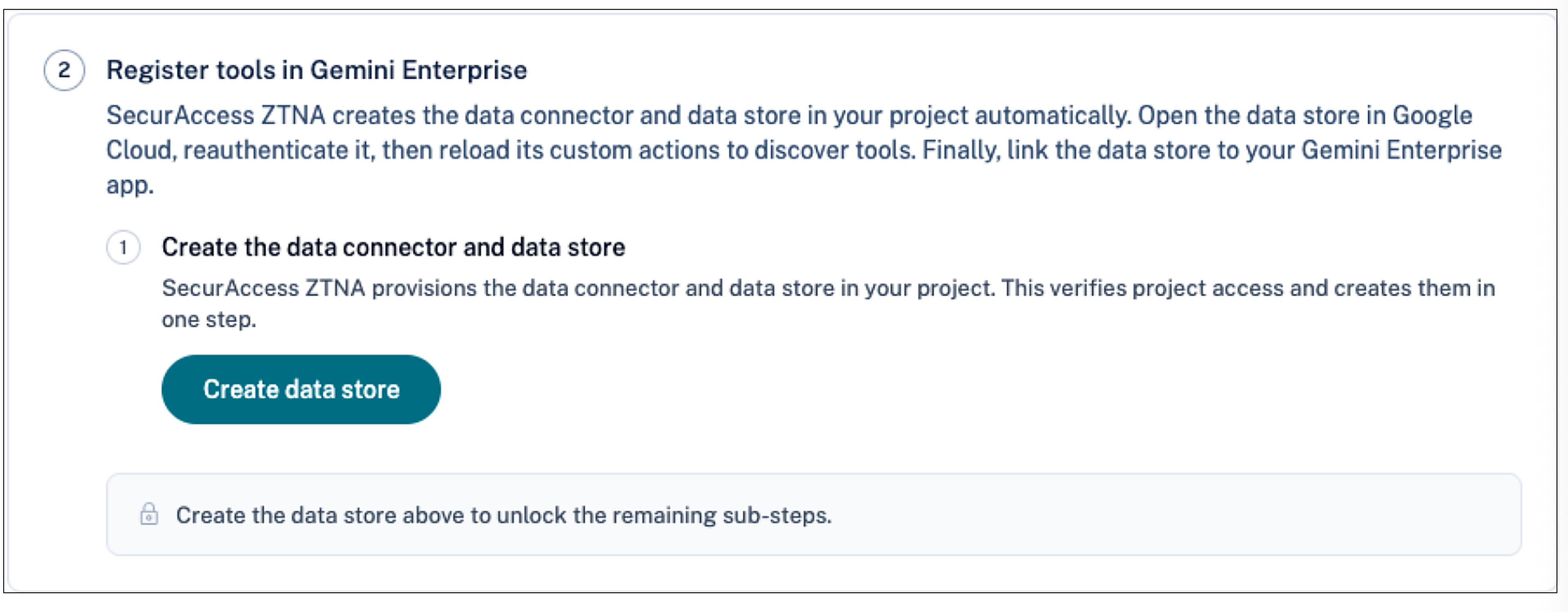
Click Create data store to create a new datastore within the selected GCP Project.
-
Once created click Open data store in Google Cloud to authenticate the data store and discover tools.

-
Within the GCP Data store details page you must run Re-authenticate and fill in your OAuth client ID and secret.
-
For more details on how to configure your data store, see the respective Google Cloud documentation.
-
-
From the Actions page, click Reload Actions so that the Gemini Enterprise performs tool discovery against your MCP server.
-
At this stage you can also link this new data store to the Gemini Apps you want it to be available in.
-
Return to the SecurAccess ZTNA Admin console and complete the integration by hitting Check for discovered tools and then Save.

-
-
After discovery is complete, Citrix SecurAccess ZTNA automatically enables, within Google Gemini, those tools that are also enabled at the MCP server level during the Tools step.
Use the discovered/enabled tools when creating an MCP access policy to allow or deny access to individual tools.
Manage MCP servers
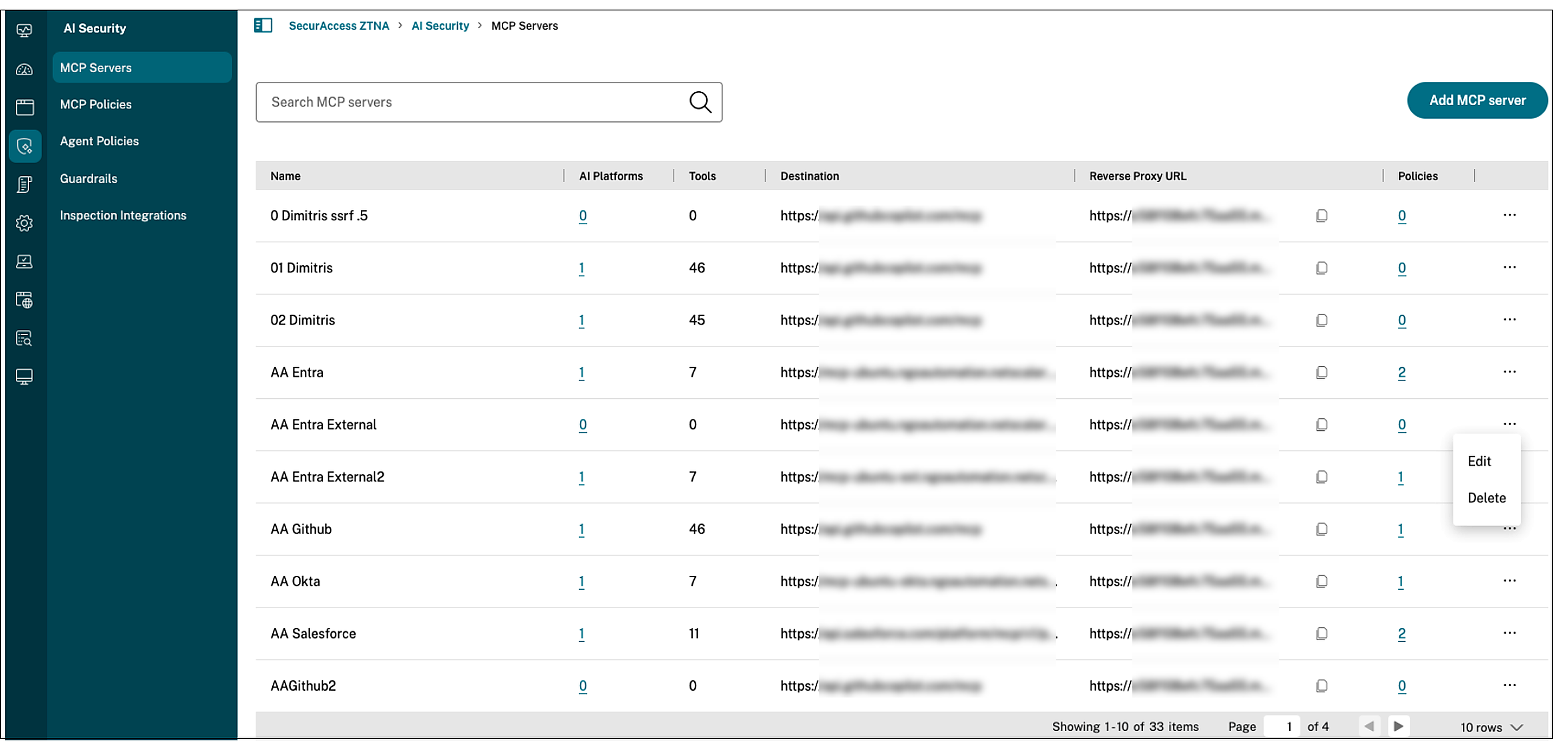
The following figure displays a sample MCP Servers page.
View and edit servers
Use the MCP servers list to view and manage your registered MCP servers.
-
Search, sort, and browse the list of MCP servers.
-
View the number of AI platforms and Policies associated with each server.
-
Select a server to view or edit its configuration. The MCP server URL and the Reverse proxy URL are read-only.
Note:
SecureAccess ZTNA supports two reverse proxy URL types for agents:
-
Standard - For standard agent connections
-
Autonomous Agents (mTLS) - For agents using mutual TLS authentication
Specify the appropriate URL type in your agent's mcp.json configuration file.
Delete an MCP server
Before you delete an MCP server, remove all policies and agent connectors associated with it. You cannot delete a server while policies or agent connectors are still attached.