
Secure access to MCP servers for autonomous AI agents
Citrix SecurAccess™ ZTNA authenticates cloud-hosted autonomous AI agents by their workload identity and enforces MCP access policies against that identity. Agents running on Gemini Enterprise connect over mutual TLS (mTLS) and present a SPIFFE ID, which administrators use to allow or deny access to specific MCP servers and tools.
Autonomous agents act on their own schedule, with no human user signing in at the time of the request. Even when an agent's token carries a user, there is no verifiable way to tell one agent from another, so two agents presenting the same credential are indistinguishable and access can only be granted or withheld in bulk.
SecurAccess ZTNA verifies the agent's workload identity before any MCP server is reached, and evaluates it against administrator-defined policy.
Administrators can control:
-
Which agents can connect - Identify an individual agent, every agent in a Google Cloud project, or every agent in the organization.
-
Who or what the agent is acting as - A human user or group, a claim in the agent's OAuth access token, or an API key.
-
Which tools each agent can use - The same per-tool control available for users.
-
Where the agent may connect from - Optional geolocation and network-location conditions.
Agent activity appears in SecurAccess ZTNA Monitor alongside user activity, with the agent identity recorded on each decision.
Applicability:
-
Autonomous agents hosted on the Google Gemini Enterprise Agent Platform.
-
Desktop AI agents continue to use the standard endpoint and are unaffected.
Prerequisites
Ensure that the following prerequisites are met:
-
An MCP server is already registered in SecurAccess ZTNA, with its tools discovered. For details, see Secure access to MCP servers.
-
An agent deployed on the Gemini Enterprise Agent Platform with agent identity enabled. Google assigns the agent a SPIFFE ID and an X.509 certificate, valid for 24 hours and kept current automatically. No certificate work is required in SecurAccess ZTNA.
-
The agent is configured with an authorization provider for the target MCP server, so it can obtain an access token.
-
Agent traffic must reach SecurAccess ZTNA directly. SecurAccess ZTNA identifies the agent from the client certificate that it presents when it connects. Deploy the agent so that its outbound traffic reaches SecurAccess ZTNA directly. If the agent's traffic is routed through Google's Agent Gateway, Google terminates the mutual TLS (mTLS) connection at the gateway, the agent's certificate does not reach SecurAccess ZTNA, and agent-identity rules do not match.
Note:
Google lists Agent Gateway as a Preview feature, so its behavior and terminology might change.
Register an MCP server
Perform the following steps to register an MCP server.
-
See Register an MCP server for details on registering an MCP server.
-
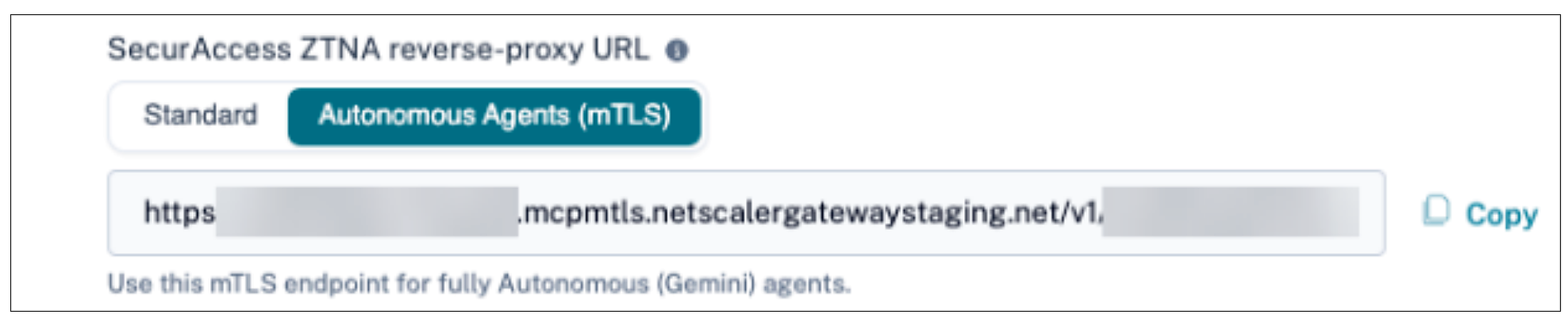
In addition to the steps already mentioned, one additional step is to copy the autonomous-agent endpoint:
-
In the SecurAccess ZTNA console, go to AI Security > MCP Servers and open the server.
-
Copy the Autonomous Agents (mTLS) endpoint.
-
Configure the agent to use this endpoint as its MCP server URL.
The autonomous-agent endpoint is the standard proxy address with a different host label. Use it only for agents that present a client certificate. The standard endpoint does not request one, and there is no fallback between the two.
Configure the tool discovery policy
The tool discovery policy at AI Security > Agent Policies continues to apply tenant-wide and supports user or group conditions only.
Whether an autonomous agent matches this policy depends on the credential it presents. Some credentials carry a human user. For example, a 2LO token that the provider issues on behalf of a named user, or, for some providers, a personal access token that belongs to the user who created it. An agent presenting one of these matches the tool discovery policy in the same way that a desktop agent does. Most 2LO tokens and API keys identify only the application and carry no user.
Note:
An agent whose token carries no user info will not match the tool discovery policy and does not receive the full tool list. Grant that agent its tools through an MCP access policy instead.
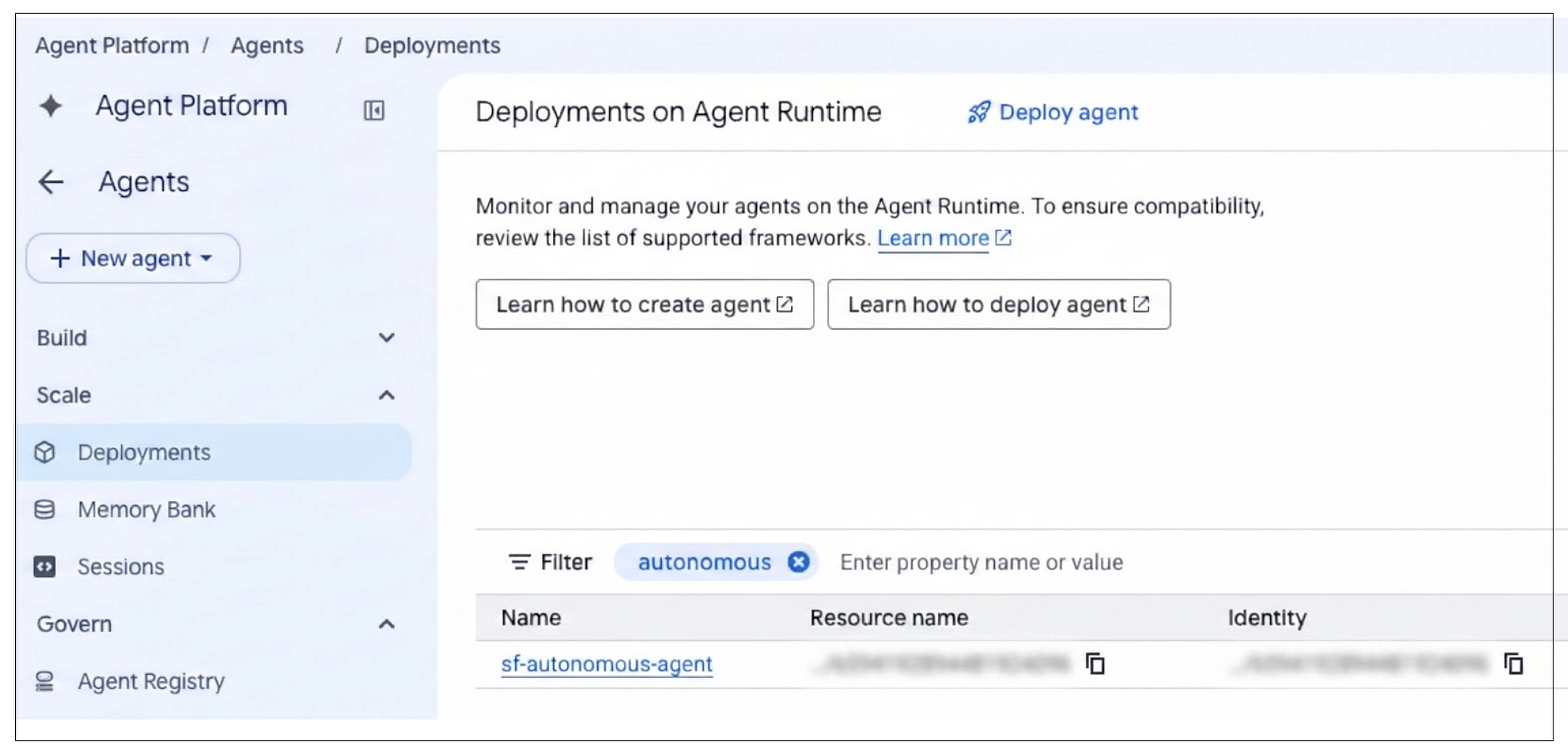
Find the agent's SPIFFE ID
The agent must be deployed with agent identity enabled. Without it, the agent uses a service account and has no SPIFFE ID.
-
In the Google Cloud console, go to the Agent Platform Deployments page (console.cloud.google.com/agent-platform/runtimes).
-
Select the project that hosts the agent. To find a specific agent, use the Filter field.
-
Copy the value in the agent's Identity column.
If you redeploy the agent as a new resource, it gets a new ID, and rules scoped to this agent only stop matching it. Update those rules after a redeployment.
Create an MCP access policy for an agent
Perform the following steps to create an MCP access policy for an agent.
-
In the SecurAccess ZTNA console, go to AI Security > MCP Policies and click Add MCP policy.
-
Enter the policy name and under Policy scope, select the MCP servers the agent calls.
-
Under Policy rules, click Create rule. In Rule details, enter a Rule Name and keep Enable rule selected. Click Next.
-
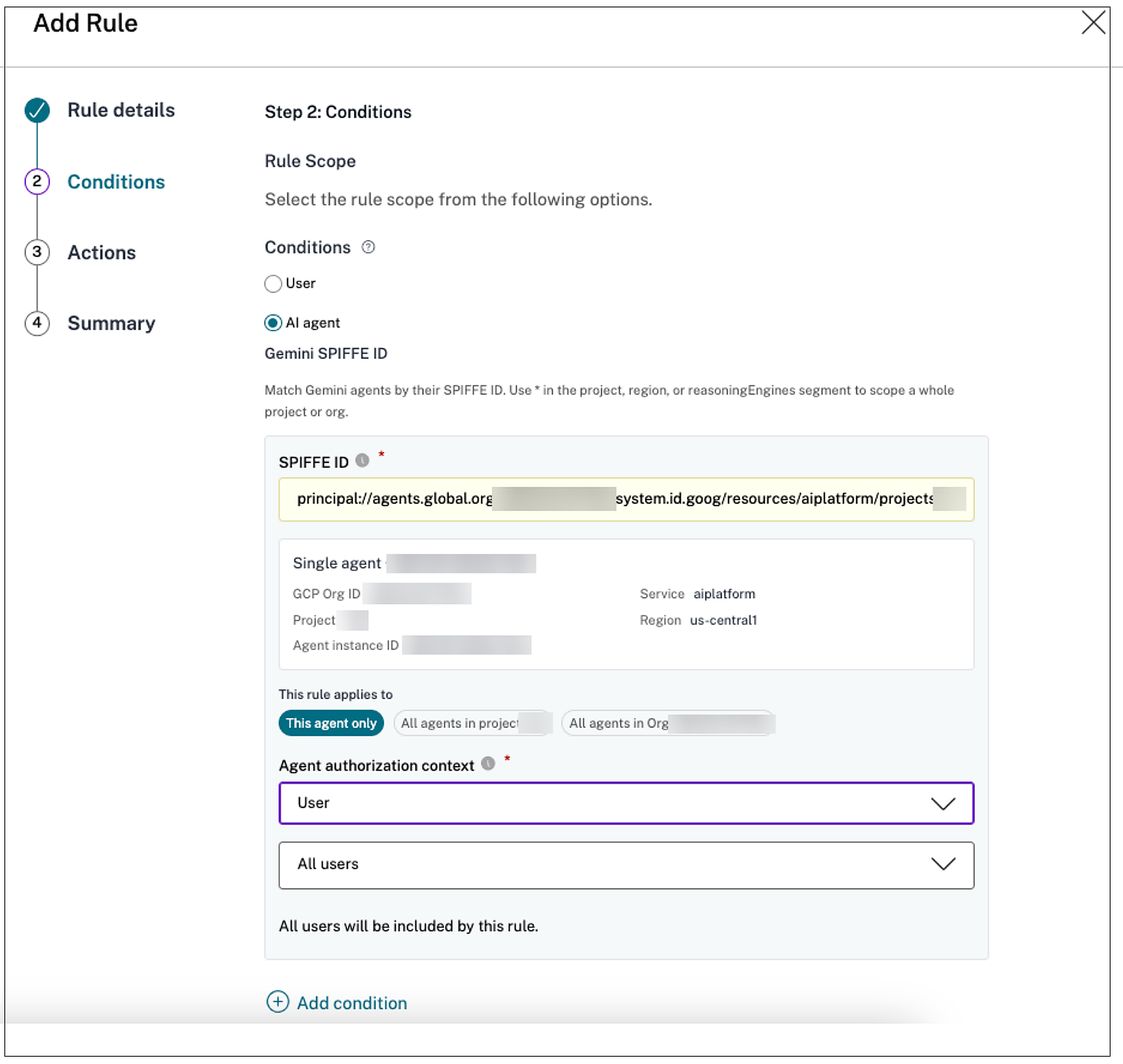
In Conditions, under Applies to, select AI agent.
-
In Gemini SPIFFE ID, paste the agent's ID in SPIFFE ID. You can paste the principal:// or the spiffe:// form. It is saved as spiffe://.The path is case-sensitive.Discovery Engine agents are not supported.
-
In This rule applies to, choose how widely the rule matches:
Option Matches Saved ID ends with This agent only The agent you pasted .../projects/<project-number>/locations/<region>/reasoningEngines/<engine-id> All agents in project Every agent in that project, in any region .../projects/<project-number>/locations//reasoningEngines/ All agents in Org Every agent in your Google Cloud organization .../projects//locations//reasoningEngines/* If the ID you paste already contains *, you can only widen it. Other wildcard combinations, such as *, for the engine ID with a specific region, are rejected. -
In Agent authorization context, select one of the following options:
-
User - Select the human users or groups that this agent is authorized to represent. The default is All users.
-
Access token - Select a Claim (for example, OAuth Client ID (client_id) or Subject (sub)) and enter its Claim value.
-
API key - Enter a Key name and paste the key in API key. The key is hashed in your browser. Only the hash and the key name are saved. You can see and control which agents still use static keys, but not recommended.
-
-
Optionally, click Add condition and select Geo-location or Network location. Click Next.
-
In Actions, select Allow and choose the tools under Tool access, or select Deny. Click Next.
-
In the Summary page, review the rule and click Save. Then click Save on the policy page.
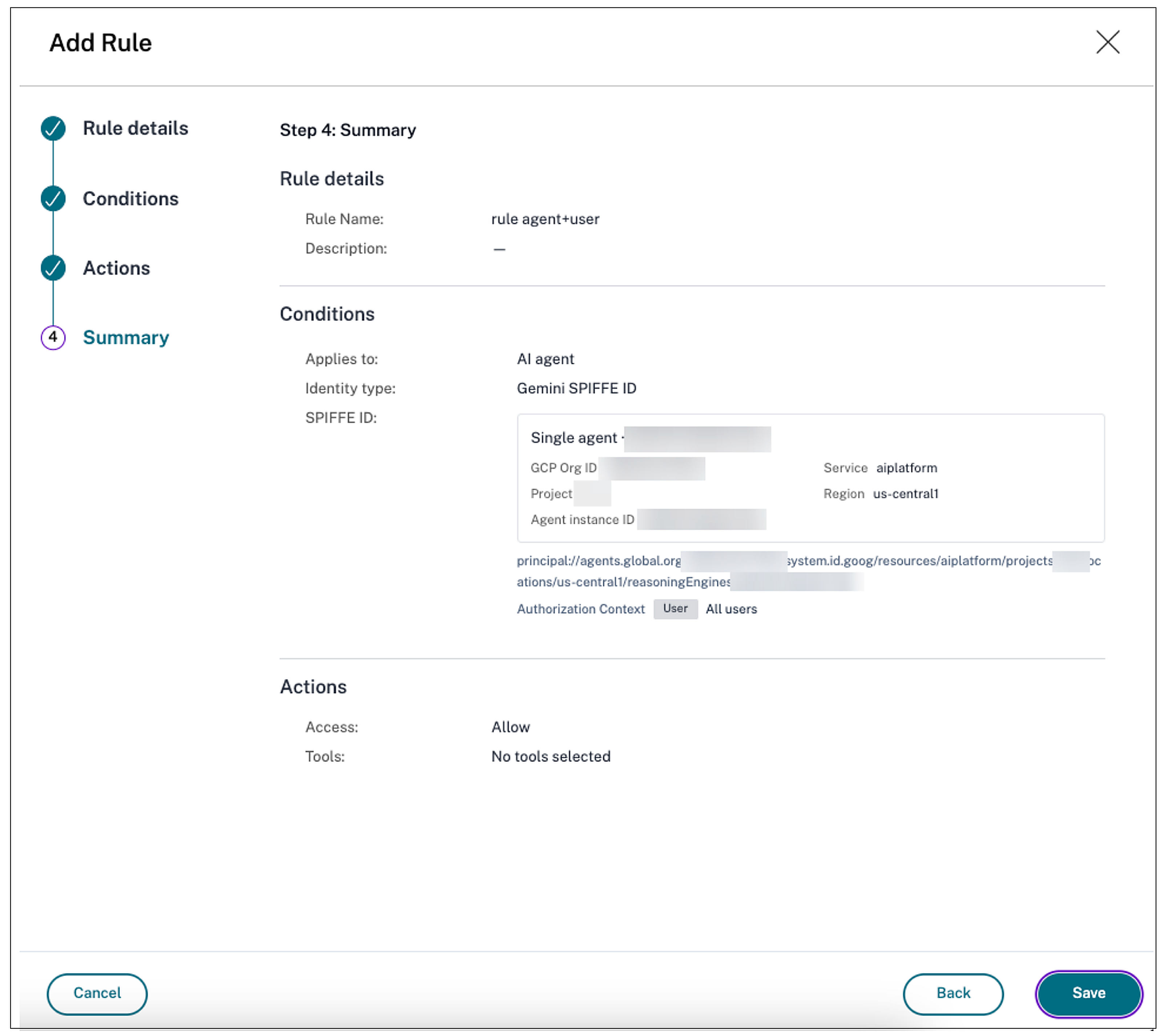
Policies are evaluated in an order and the first matching rule decides the result, similar to user policy evaluation. Reorder them on the MCP Policies list.
Important considerations
-
An agent rule needs both an identity and an authorization context. The agent identity on its own does not grant access.
-
An agent is not required to be matched by an agent rule. If the agent's token carries a user, it can match an ordinary user or group rule with no agent identity involved, exactly as a desktop agent does. Use an agent-scoped rule when you want the decision tied to the agent's identity as well.
-
Identity matching is exact and case-sensitive. Copy the identity from the Google Cloud console rather than typing it. A rule with a mistyped identity saves successfully and then never matches.
-
Token claims differ between identity providers. A rule written against one provider's claim does not match an agent issued a token by another. Confirm the claim your provider issues before you author the rule.
-
Location conditions resolve against the agent's source address. Location conditions resolve against the agent's source address, which for a cloud-hosted agent is the cloud provider's egress address and not the location of the human user who owns the agent.
-
The two endpoints are independent. Adding an agent rule does not change behavior for desktop agents on the standard endpoint.
Limitations
-
Supported for agents on the Google Gemini Enterprise Agent Platform only.
-
Currently, SPIFFE ID is the only supported agent identity type.
-
Only agents deployed to Agent Runtime are supported. Discovery Engine agents are not supported.
-
The agent's Google Cloud project must belong to an organization.
-
Agent identity scopes are a single agent, project, or organization. Narrower scopes, such as a single region, are not supported.