-
-
How to install and use JetBrains IntelliJ Gateway as a Citrix published application
-
Use Citrix Secure Access and Citrix Secure Developer Spaces with VS Code
-
Configure AI Gateway routing in Citrix Secure Developer Spaces
-
Configure external MongoDB with X.509 authentication in Citrix Secure Developer Spaces
-
This content has been machine translated dynamically.
Dieser Inhalt ist eine maschinelle Übersetzung, die dynamisch erstellt wurde. (Haftungsausschluss)
Cet article a été traduit automatiquement de manière dynamique. (Clause de non responsabilité)
Este artículo lo ha traducido una máquina de forma dinámica. (Aviso legal)
此内容已经过机器动态翻译。 放弃
このコンテンツは動的に機械翻訳されています。免責事項
이 콘텐츠는 동적으로 기계 번역되었습니다. 책임 부인
Este texto foi traduzido automaticamente. (Aviso legal)
Questo contenuto è stato tradotto dinamicamente con traduzione automatica.(Esclusione di responsabilità))
This article has been machine translated.
Dieser Artikel wurde maschinell übersetzt. (Haftungsausschluss)
Ce article a été traduit automatiquement. (Clause de non responsabilité)
Este artículo ha sido traducido automáticamente. (Aviso legal)
この記事は機械翻訳されています.免責事項
이 기사는 기계 번역되었습니다.책임 부인
Este artigo foi traduzido automaticamente.(Aviso legal)
这篇文章已经过机器翻译.放弃
Questo articolo è stato tradotto automaticamente.(Esclusione di responsabilità))
Translation failed!
SCIM Configuration
The Citrix Secure Developer Spaces™ (SDS) platform adheres to the SCIM 2.0 specification. It is used for the automatic provisioning, synchronization, and deprovisioning of users. The SDS platform supports both the /Users and /Groups endpoints.
- The Users endpoint is used to create, update, and delete users in the SDS platform. User responses include the user’s direct group memberships in the read-only
groupsattribute when the user belongs to one or more groups. - The Groups endpoint is used to create, update, and delete groups in the SDS platform. You can then map these groups to organization(s) and/or project(s) within the SDS platform. Listing groups returns each group’s members, so identity providers can validate memberships without requesting each group separately.
Configure the SCIM Provider
A token is required to authorize requests between your SCIM provider of choice and the SDS platform. As an admin, you can obtain the token at: System Configuration → Identity Providers → SCIM Configuration
https://example.strong.network/system_configuration/identity_providers/scim
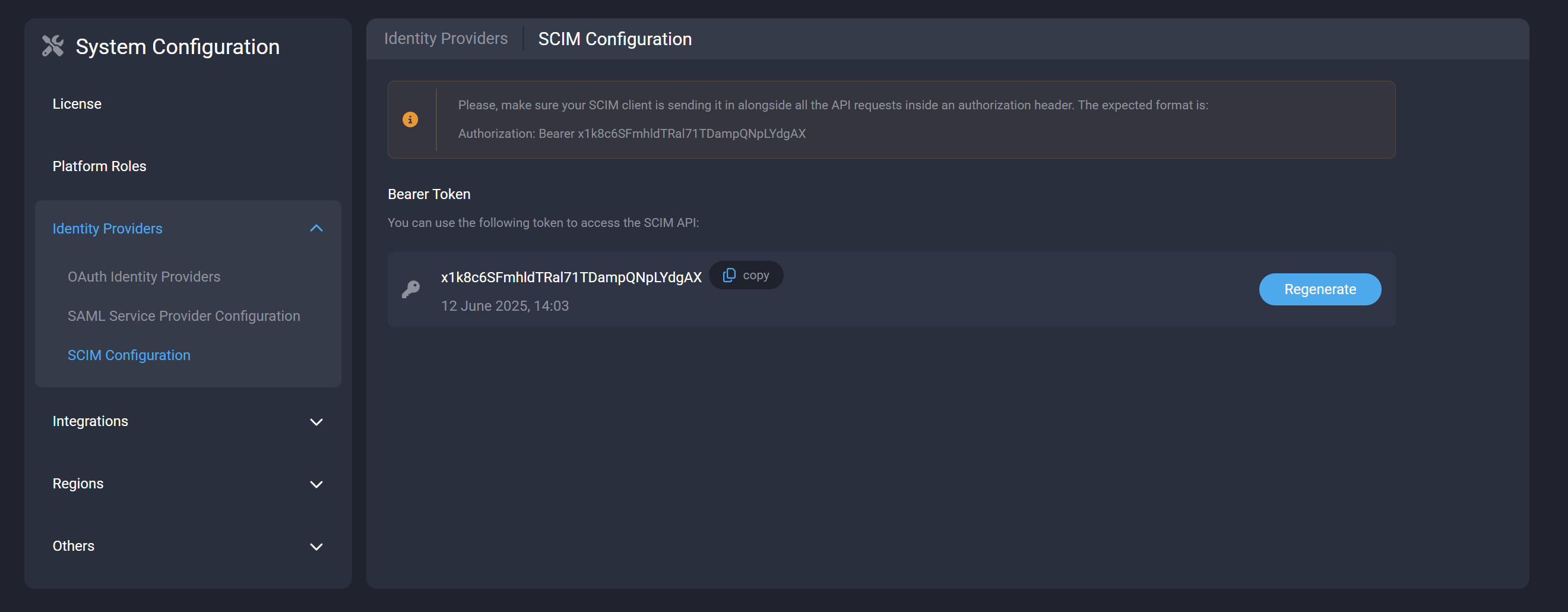
Please ensure that your SCIM provider of choice—such as Microsoft Entra, Okta, or any other SCIM 2.0-compliant provider—includes this token in all API requests, using the following authorization header format:
Authorization: Bearer <token>
Okta
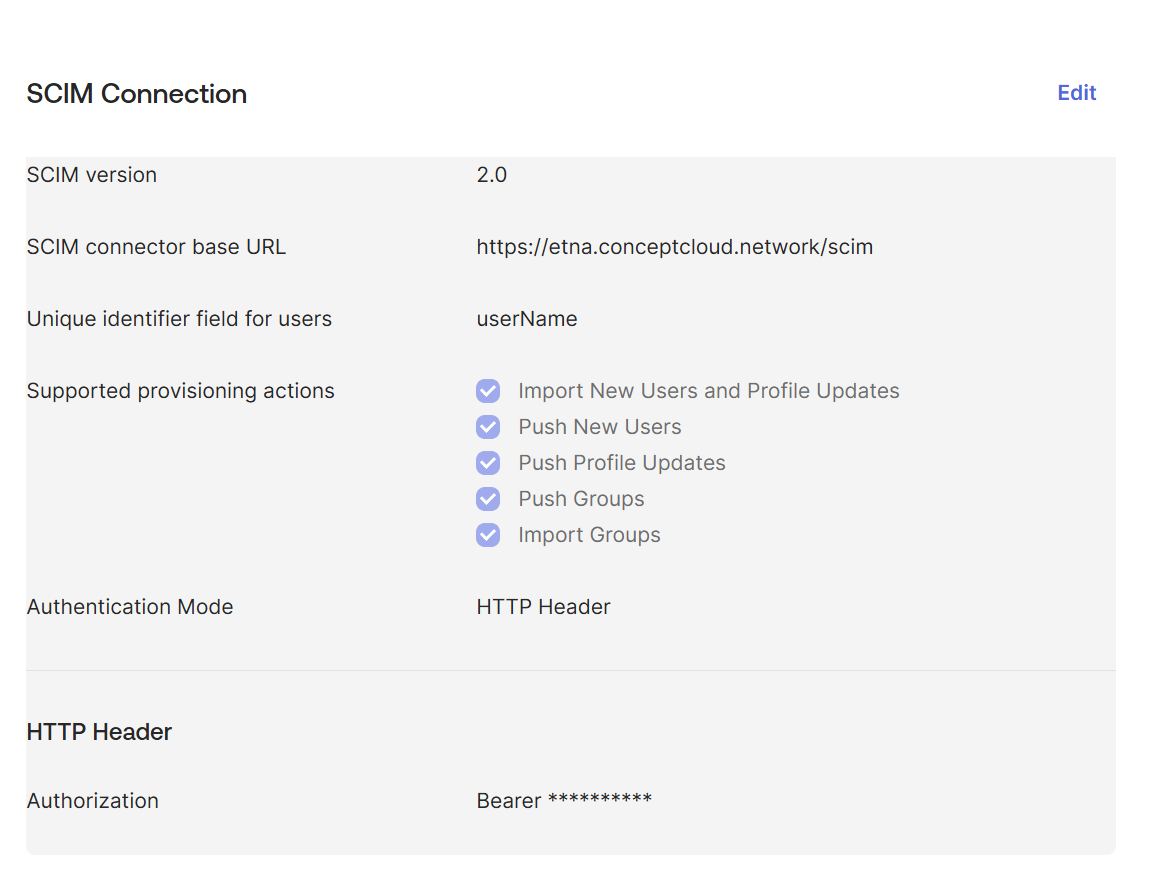
To use Okta, you will need to set these two fields:
-
SCIM connector base URL:
https://example.strong.network/scim -
Unique identifier field for users:
userName
It will look similar to:
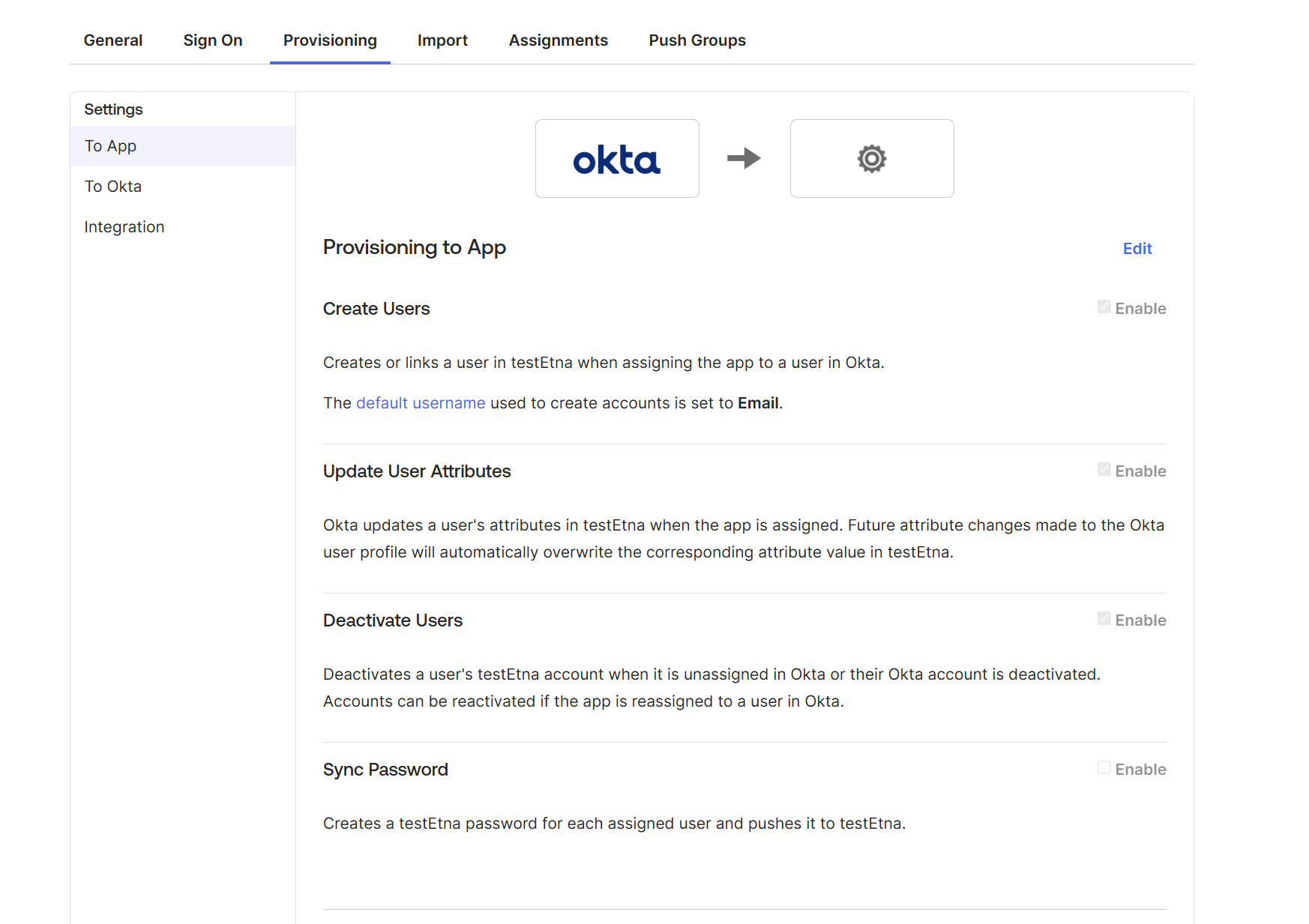
Under users you can enable the following options, as desired:
Microsoft Entra
To use Microsoft Entra, you must first congfigure a custom Enterprise Application within your Microsoft Entra tenant.
Add an Enterprise Application
- Sign in to the Microsoft Entra admin center with at least Cloud Application Administrator permissions.
- Navigate to Identity > Applications > Enterprise applications > All applications.
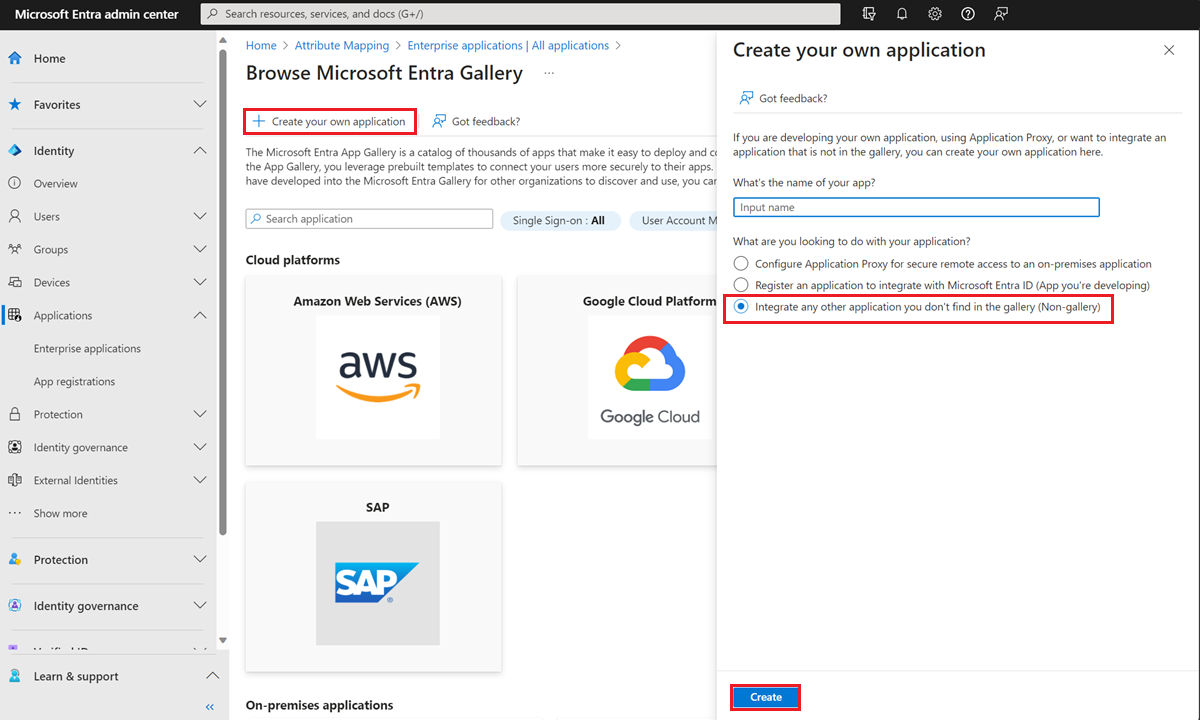
- Select + New application.
- Select Create your own application.
- Name: Enter a unique name to identify this application instance.
- Integration: Select Integrate any other application you don’t find in the gallary (non-gallary)
-
Select Create at the bottom of the pane.
Configure provisioning
Once the application is created, follow these steps to set up the SCIM connection:
- Navigate to *Identity > Applications > Enterprise applications and select your newly created application.
- Under the Manage section in the left sidebar, select Provisioning.
- Click + New configuration
- Select authenication method: Select Bearer authenication.
-
Tenant URL: Enter your SCIM endpoint URL. For example,
https://example.strong.network/scim - Secret token: Enter the bearer token provided by your service.
- Select Test Connection.
Note:
A successful test connection may be required to proceed.
- Select Save
PingOne
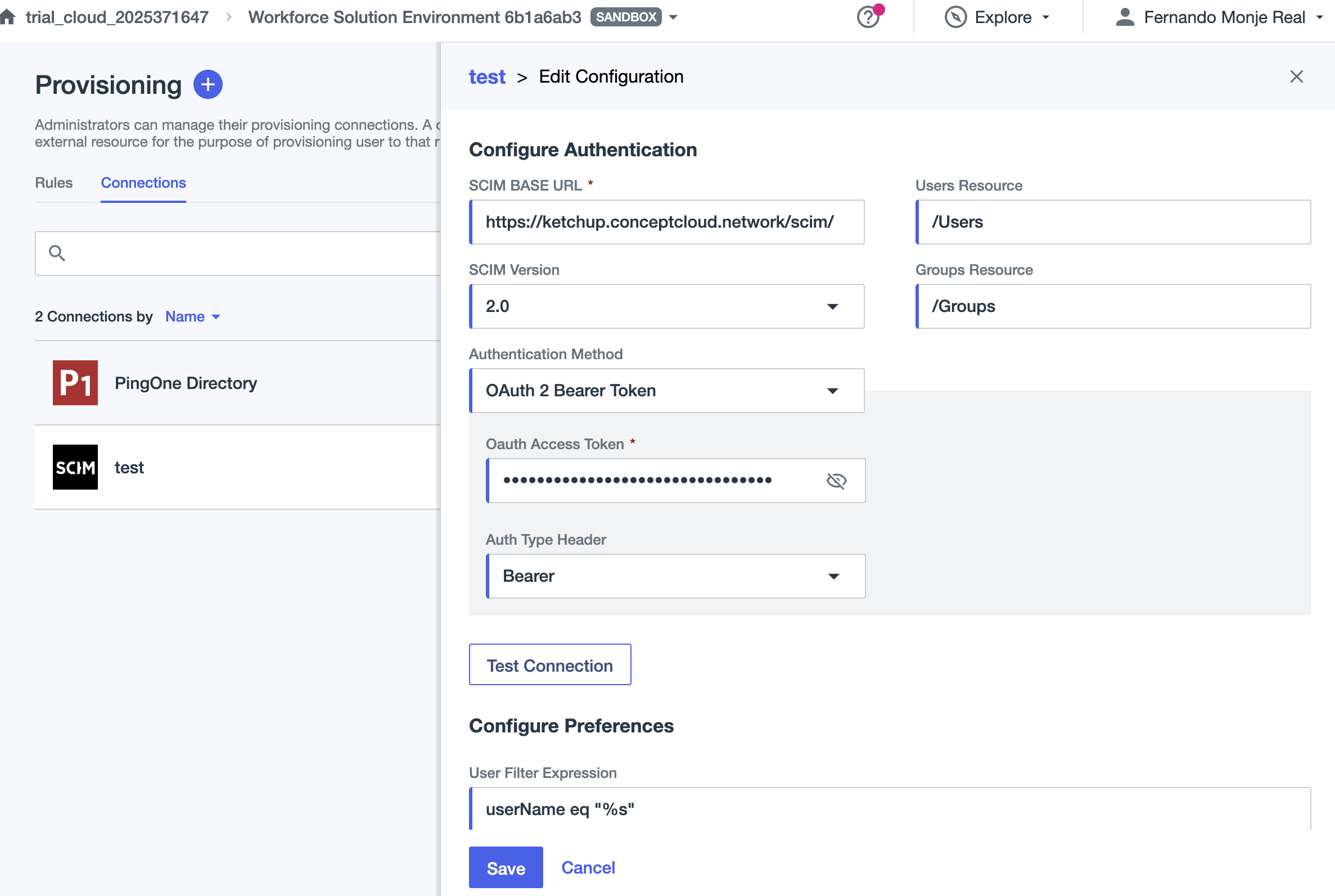
To use PingOne, you will need to set the following fields:
-
SCIM base URL:
https://example.strong.network/scim - User Filter Expression: Modify “username” by “userName” as well as “Eq” to “eq”
When configuring it should look like:
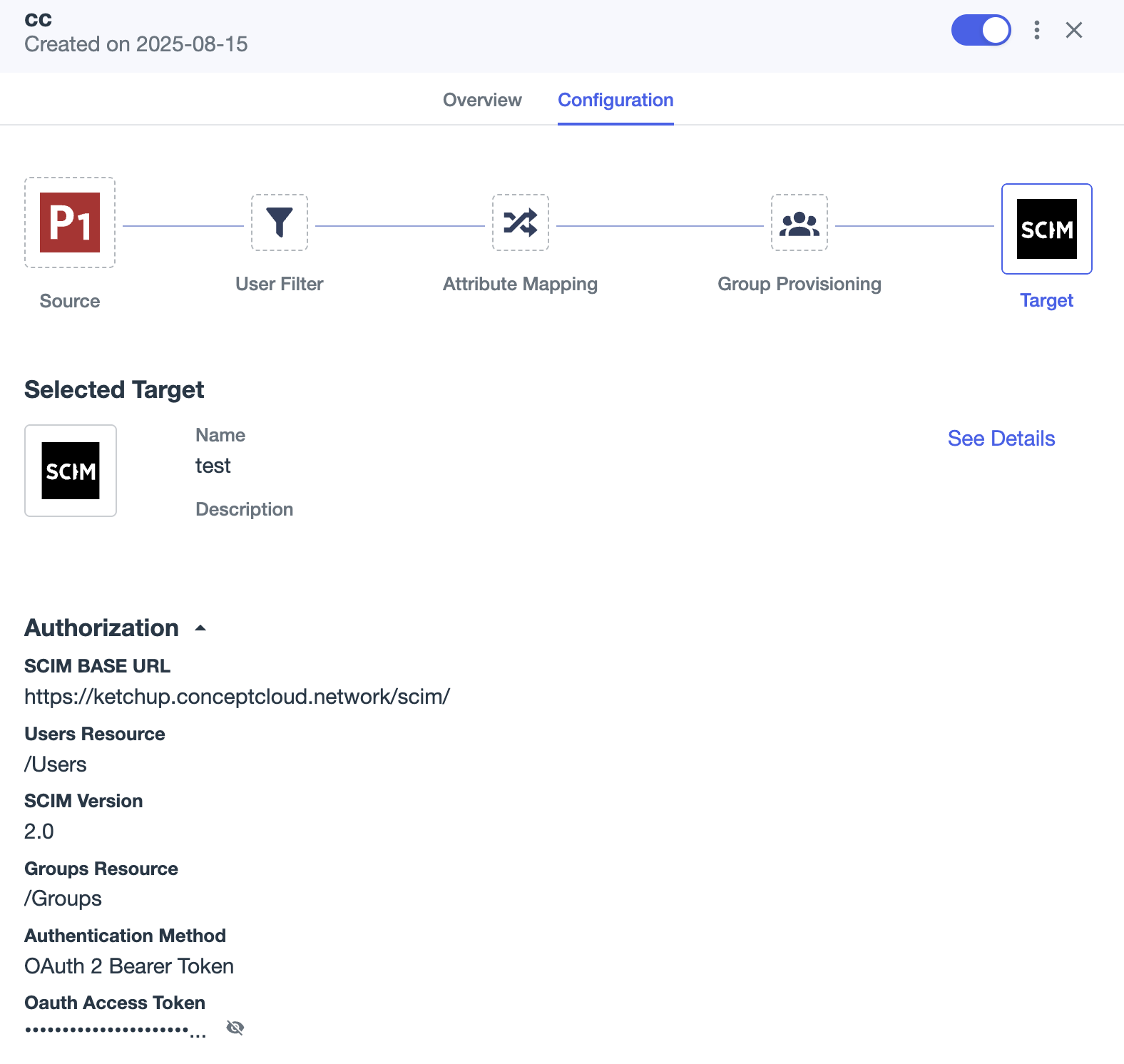
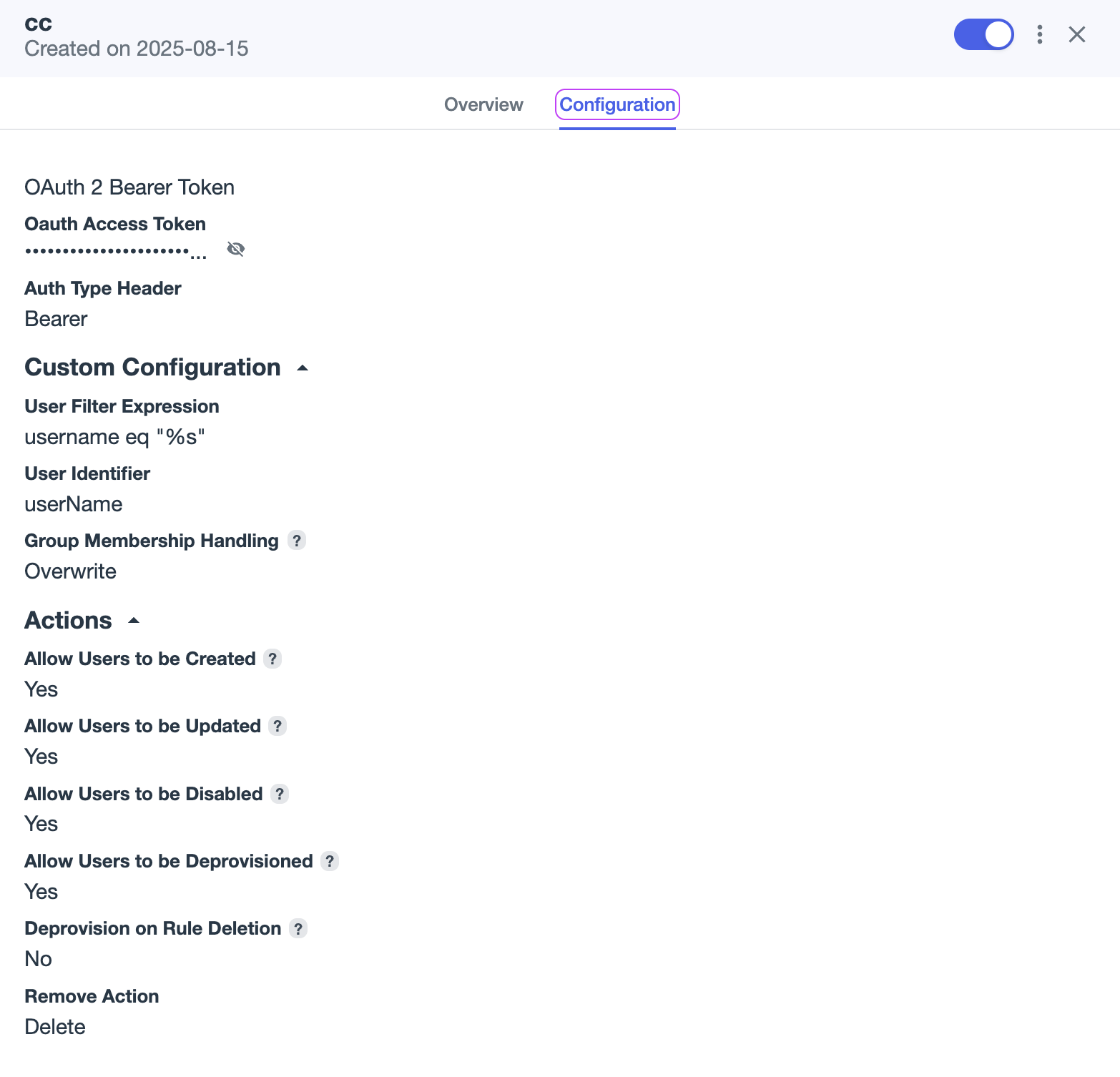
When configured the result should be like:
Using OneLogin
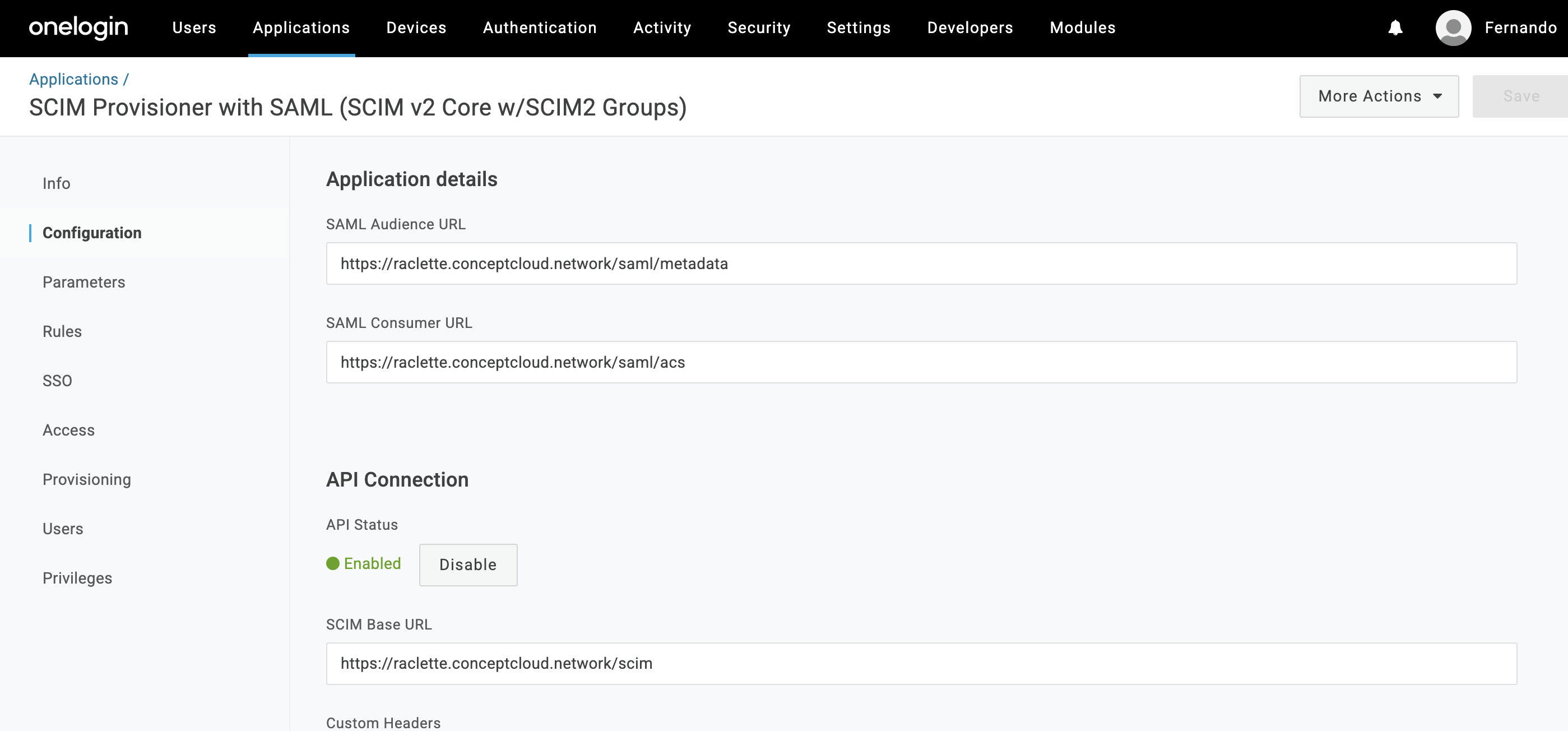
To use OneLogin, you will need to set the following fields:
-
SCIM base URL:
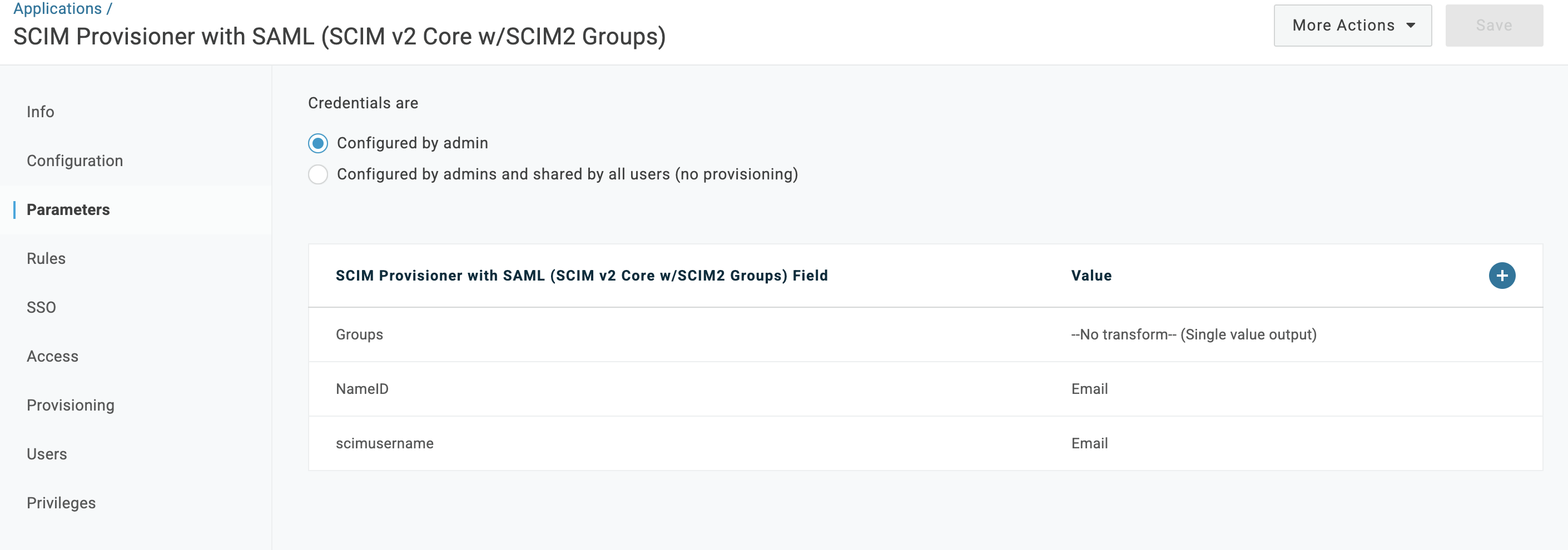
https://example.strong.network/scim - scimusername: Set its value to Email
The configuration should look like:
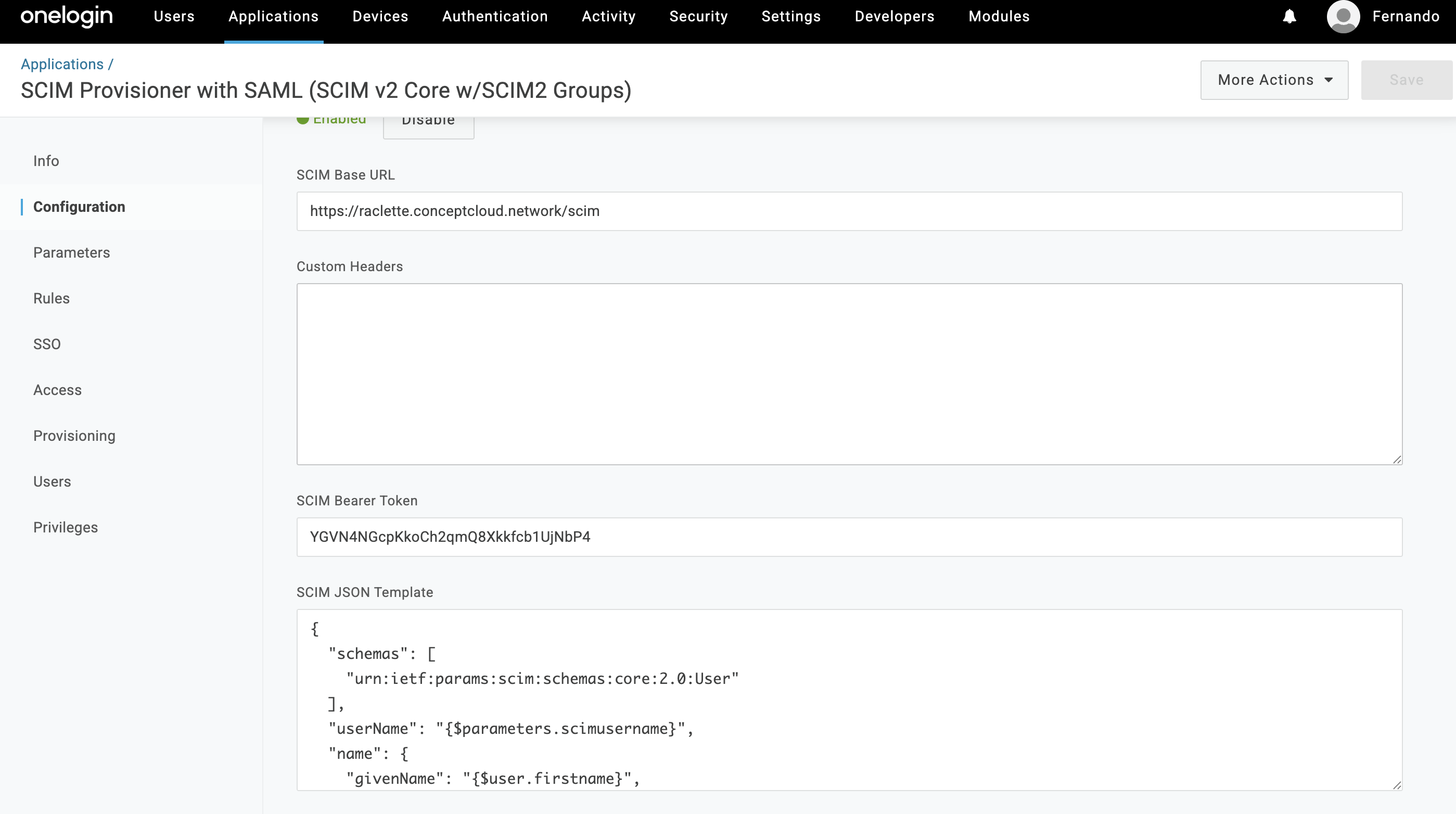
The parameters section should look like:
Using Xecurify (miniOrange)
To use Xecurify, you will need to set the following fields:
-
SCIM Base URL:
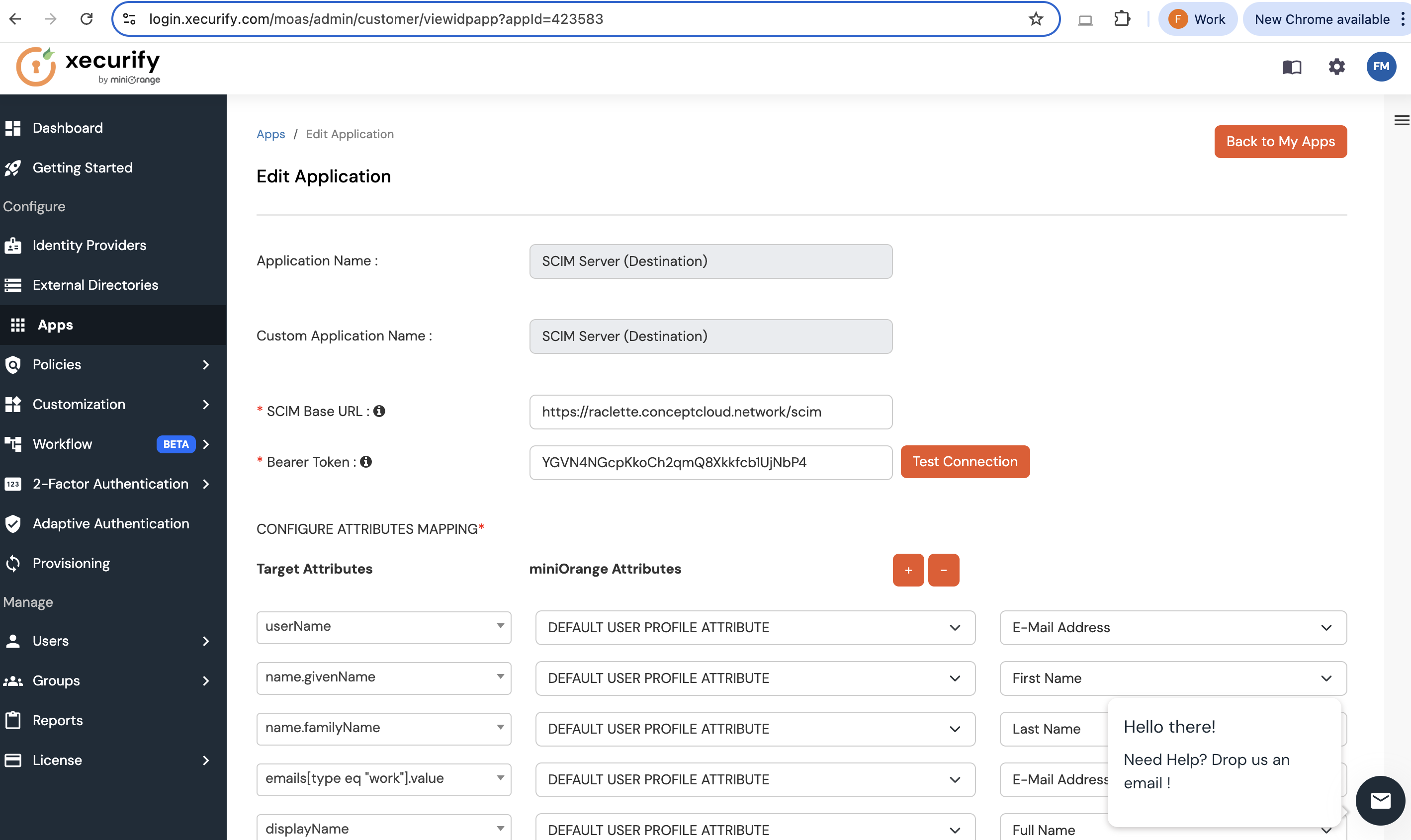
https://example.strong.network/scim - userName: Set its value to E-Mail Address
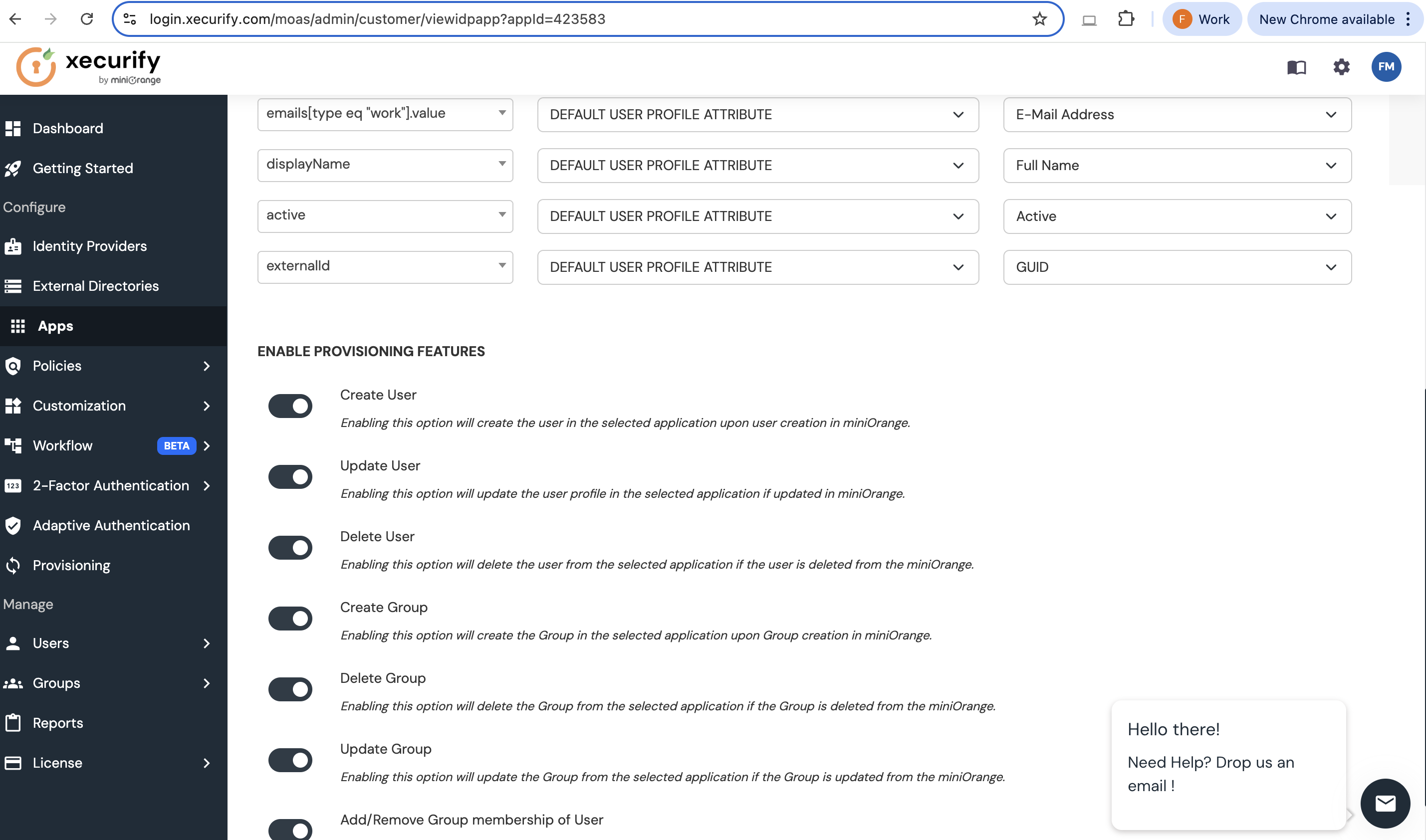
The configuration should look like:
Configure the SDS Platform
No additional configuration is needed on the SDS platform. SCIM is enabled by default.
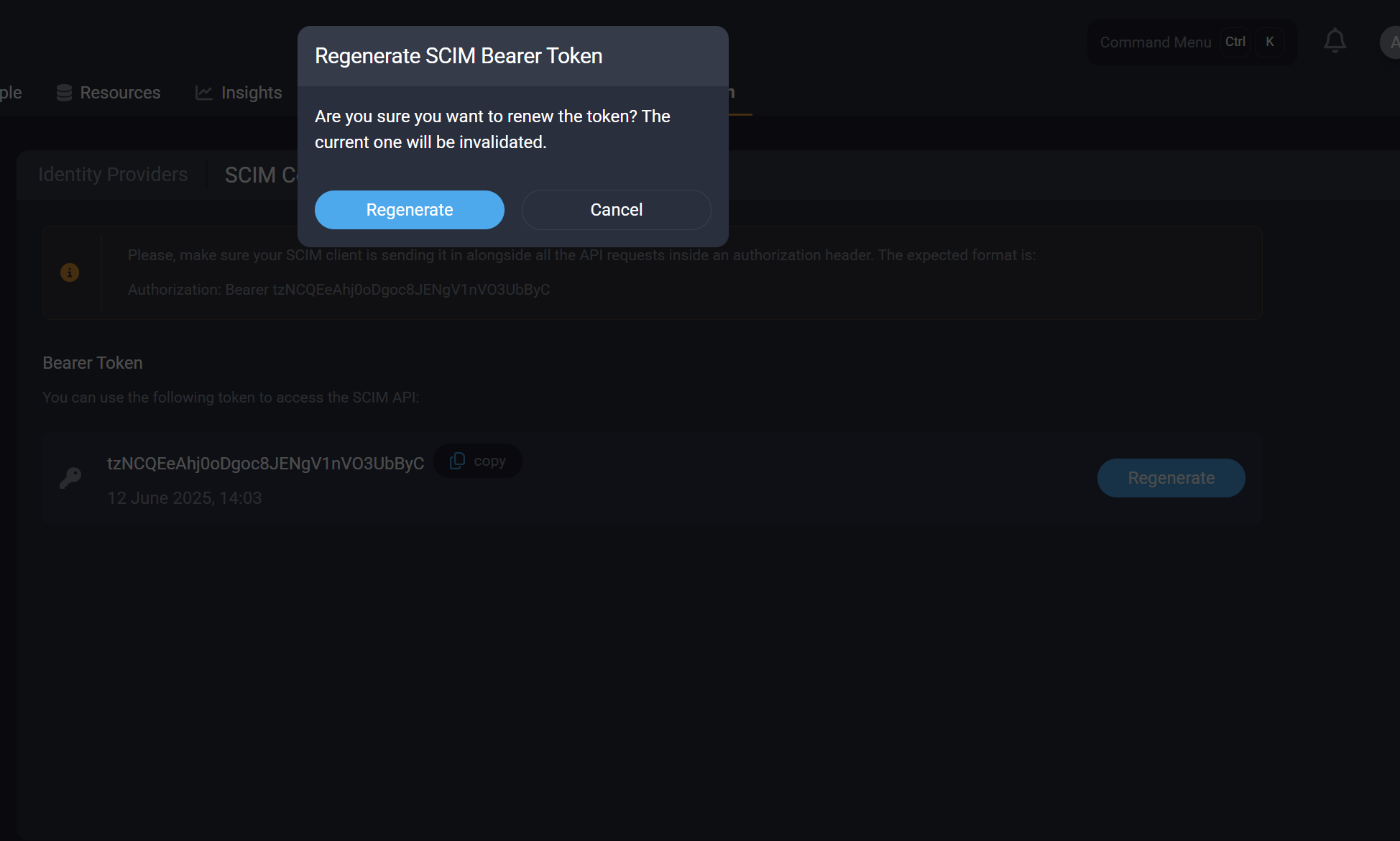
You can renew the token at any time. Please note that renewing the token will invalidate any previously issued tokens.
Share
Share
This Preview product documentation is Citrix Confidential.
You agree to hold this documentation confidential pursuant to the terms of your Citrix Beta/Tech Preview Agreement.
The development, release and timing of any features or functionality described in the Preview documentation remains at our sole discretion and are subject to change without notice or consultation.
The documentation is for informational purposes only and is not a commitment, promise or legal obligation to deliver any material, code or functionality and should not be relied upon in making Citrix product purchase decisions.
If you do not agree, select I DO NOT AGREE to exit.