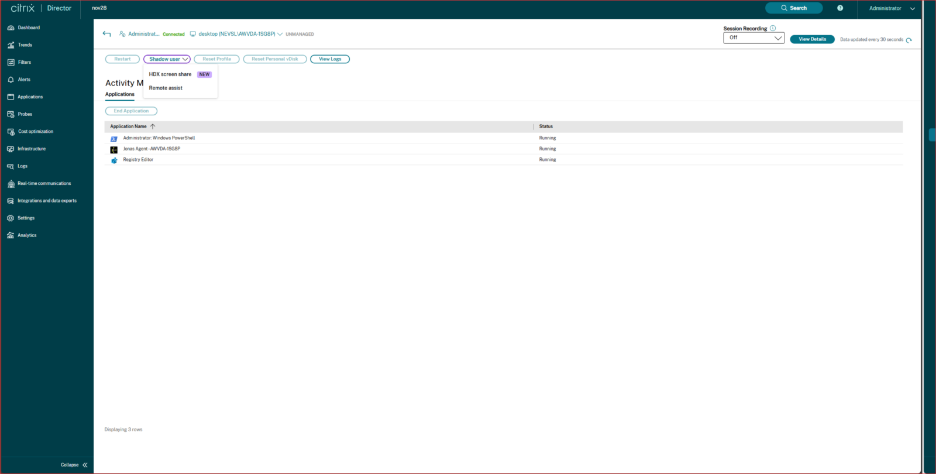
Shadow users
From Director, use the shadow user feature to view or work directly on a user’s virtual machine or session. You can shadow both Windows or and Linux VDAs. The user must be connected to the machine that you want to shadow. Verify this by checking the machine name listed in the user title bar.
Director launches shadowing in a new tab, update your browser settings to allow pop-ups from the Director URL.
Access the shadowing feature from the User Details view. Select the user session, and click Shadow in the Activity Manager view or the Session Details panel.
Using Remote Assist
Shadowing Linux VDAs
Shadowing is available for Linux VDAs Version 7.16 or and later running the RHEL7.3 or Ubuntu Version 16.04 Linux distributions.
Note:
- The VDA must be accessible from the Director UI for shadowing to work. Hence, shadowing is possible only for Linux VDAs in the same intranet as the Director client.
- Director uses FQDN to connect to the target Linux VDA. Ensure that the Director client can resolve the FQDN of the Linux VDA.
- The VDA must have the python websockify and x11vnc packages installed.
- noVNC connection to the VDA uses the WebSocket protocol. By default, ws:// WebSocket protocol is used. For security reasons, Citrix recommends that you use the secure wss:// protocol. Install SSL certificates on each Director client and Linux VDA.
Follow the instructions in Session Shadowing to configure your VDA for shadowing.
- After you click Shadow, the shadowing connection initializes and a confirmation prompt appears on the user device.
- Instruct the user to click Yes to start the machine or session sharing.
- The administrator can only view the shadowed session.
Shadowing Windows VDAs
Windows VDA sessions are shadowed using Windows Remote Assistance. Enable the User Windows Remote Assistance feature while installing the VDA. For more information, see Enable or Disable features.
- After you click Shadow, the shadowing connection initializes and a dialog box prompts you to open or save the .msrc incident file.
- Open the incident file with the Remote Assistance Viewer, if not already selected by default. A confirmation prompt appears on the user device.
- Instruct the user to click Yes to start the machine or session sharing.
- For more control, ask the user to share keyboard and mouse control.
Streamline Microsoft Internet Explorer browsers for shadowing
Configure your Microsoft Internet Explorer browser to automatically open the downloaded Microsoft Remote Assistance (.msra) file with the Remote Assistance client.
To do this, you must enable the Automatic prompting for file downloads setting in the Group Policy editor:
Computer Configuration > Administrative Templates > Windows Components > Internet Explorer > Internet Control Panel > Security Page > Internet Zone > Automatic prompting for file downloads.
By default, this option is enabled for sites in the Local intranet zone. If the Director site is not in the Local intranet zone, consider manually adding the site to this zone.
Using HDX Screen Share
Director supports remote assistance that enables IT administrators and helpdesk personnel to provide remote support to end users through HDX screen sharing technology. This feature leverages Citrix’s native HDX protocol to deliver secure, high-performance screen sharing capabilities for troubleshooting and user assistance scenarios.
Prerequisites
| Component | Supported Environments or Versions |
|---|---|
| Operating Systems | Windows, Linux for Single Session OS or Multi Session OS |
| Virtual Delivery Agent (VDA) | CR 2511 or above |
| Director | CR 2511 or above |
| Delivery Controller | CR 2511 or above |
| TWPlayer (ThinWire Player) | A link to download the player is available on the Director UI when initiating a shadow session |
Group Policy Configuration
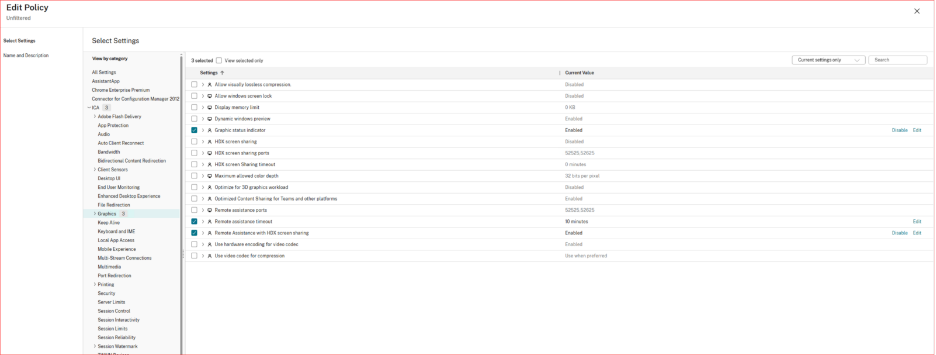
To enable Remote Assistance using Director and HDX Screen Share, configure the following Group Policies on the VDA:
- Remote Assistance with HDX screen sharing
- Remote assistance timeout
- Graphics Status Indicator
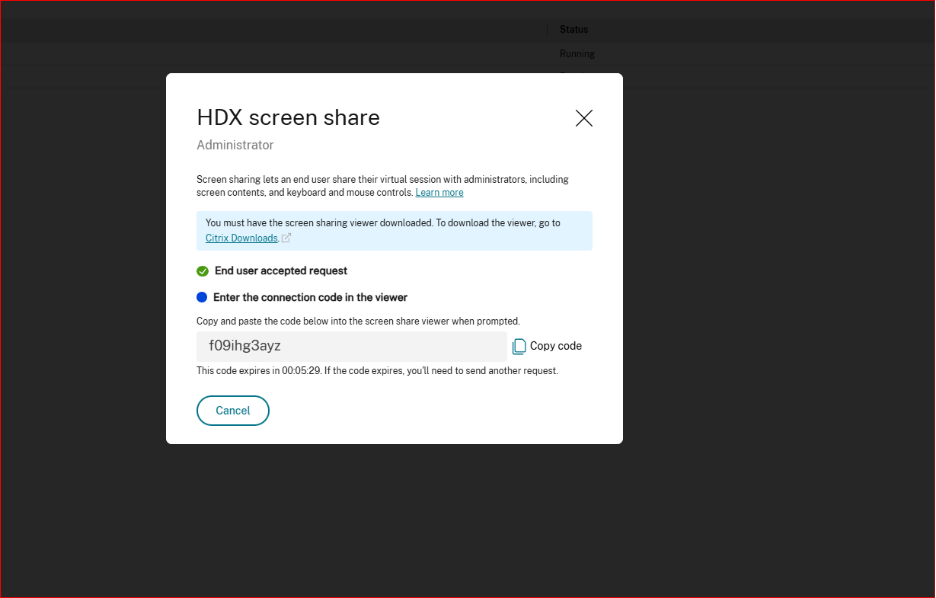
TWPlayer (ThinWire Player) is a required component that must be downloaded once to enable HDX screen sharing functionality. A link to download the player is available on the Director UI when initiating a shadow session.
Limitations
- Published applications (app sessions) cannot be shadowed – desktop sessions only.
Workflow using Director and HDX Screen Share
The steps below outline the process for an administrator to initiate an HDX screen share session:
-
Initiate Shadow Session
- Log in to Citrix Director
- Navigate to user session requiring assistance
- Click the “Shadow “ button
- Choose HDX Screen share
-
Launch Viewer
- Open the generated incident file with TWPlayer/Remote Assistance Viewer
- Wait for user to accept the connection request
-
View Session
- Session screen appears in the viewer window
- Administrator can observe user actions in real-time