SIEM Integration
Citrix Secure Developer Spaces can forward platform audit events to an external Security Information and Event Management (SIEM) system using the Common Event Format (CEF). You can use any log-shipping tool that supports CEF to collect and forward these events. The walkthrough below uses Filebeat deployed as a Kubernetes DaemonSet as an example.
Setting up the SIEM integration requires two phases: a backend deployment performed by the platform operator, followed by activation in the management console by a Platform Administrator.
Prerequisites
- Access to the SDS Helm chart and
values.yamlconfiguration file - Permission to deploy updates to the Kubernetes cluster hosting SDS
- Platform Administrator or Security Officer role in the SDS management console
- A target SIEM system that accepts CEF-formatted events (for example, Elastic SIEM)
Phase 1: Configure the backend
Complete these steps in your deployment environment before activating the integration in the management console.
Step 1 — Enable syslog in the Helm values
Open the values.yaml file for your SDS deployment and uncomment the configuration block under ninja.clusterConfig.syslog. Update the values to match your environment:
syslog:
  volumeName: "syslog-volume"
  volume:
    name: "syslog-volume"
    hostPath:
      path: "/strong-network/siem"
      type: DirectoryOrCreate
  mountPath: "/var/strong-network/"
  hostPath: "/strong-network/siem"
<!--NeedCopy-->
| Parameter | Description |
|---|---|
volumeName |
Name identifier for the Kubernetes volume. |
volume |
Kubernetes volume definition. The hostPath type maps a directory on the node’s filesystem into the pod. DirectoryOrCreate tells Kubernetes to create the directory if it does not already exist. |
mountPath |
Path inside the platform service containers where the volume is mounted. The application writes .log files here (for example, /var/strong-network/<name>.log). |
hostPath |
Path on the host node where log files are persisted. Your log-shipping tool (for example, Filebeat) reads from this same path. |
The net effect: platform pods mount the host directory /strong-network/siem at /var/strong-network/ inside the container and write .log files there. Filebeat (or your chosen tool) reads those same files via the host path.
Step 2 — Prepare the Filebeat YAML
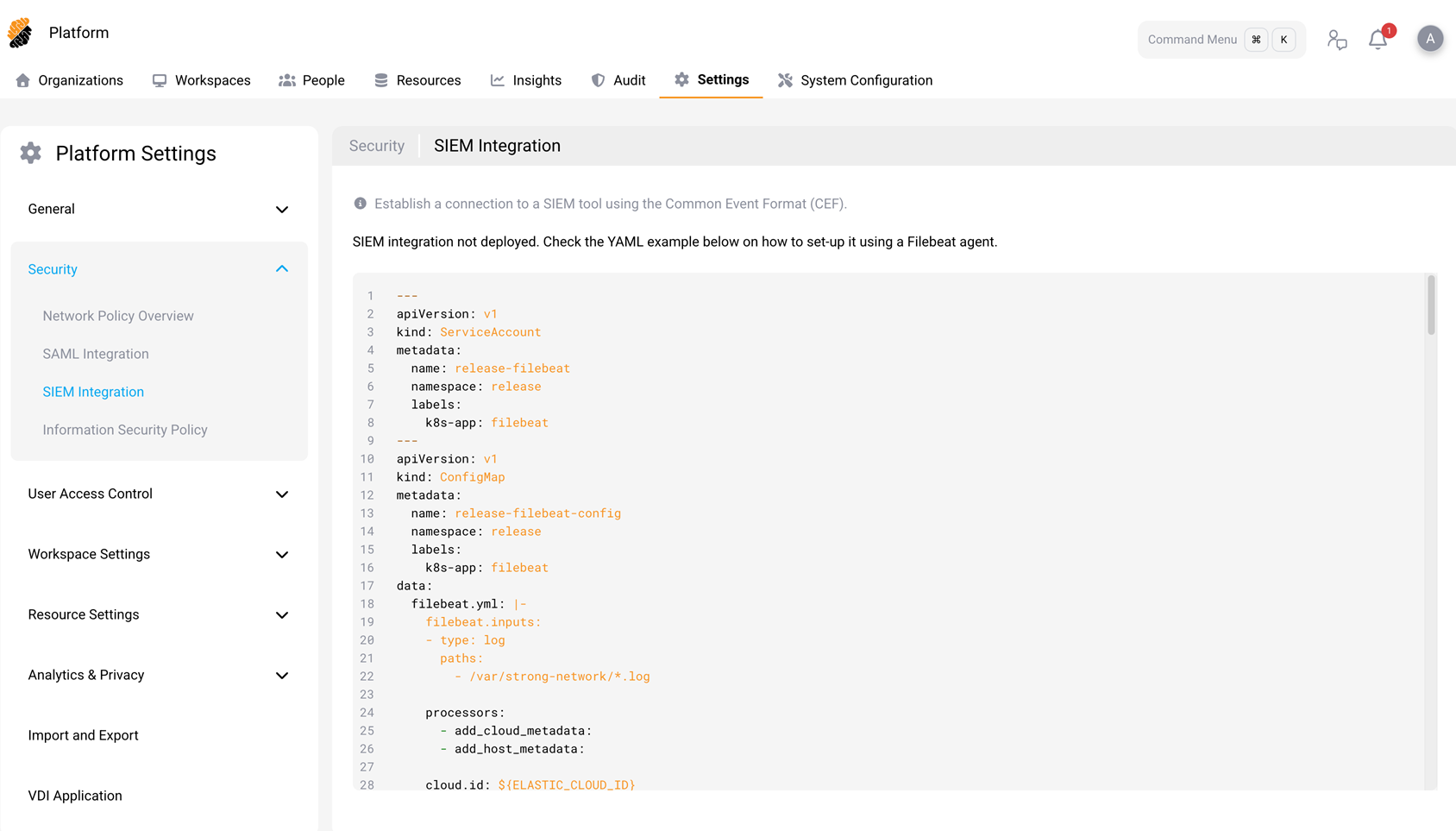
- In the SDS management console, go to Platform > Settings > Security > SIEM Integration.
- Copy the YAML example displayed on the page. This YAML defines a Filebeat deployment comprising a
ServiceAccount, aConfigMap(containing the Filebeat pipeline configuration), and aDaemonSet. - In the copied YAML, replace every instance of
releasewith your actual deployment namespace. - Fill in the Elasticsearch connection credentials in the environment variables section of the DaemonSet spec. For production deployments, store these credentials in a Kubernetes Secret and reference the Secret in the env vars rather than placing plain-text values in the YAML.
Step 3 — Deploy
Place the updated YAML into your Helm charts and run a fresh deployment to apply the updated Helm configuration and the Filebeat DaemonSet to the cluster.
Phase 2: Activate in the management console
- Sign in to the SDS management console as a Platform Administrator or Security Officer.
- Go to Platform > Settings > Security > SIEM Integration.
- If the DaemonSet is healthy and the volume is correctly mounted, a toggle appears to activate the integration. Enable the toggle.
Once activated, the platform begins forwarding audit events to the configured SIEM target.
How it works
- SDS platform services write audit events as
.logfiles in CEF format to the container mount path (/var/strong-network/), which maps to/strong-network/siemon the host node. - The Filebeat DaemonSet running on each cluster node reads log files from the host path (
/strong-network/siem). - Filebeat ships the events to the configured SIEM target (for example, Elasticsearch).
Audit events
The platform forwards events across eight categories. Every event is assigned a ClassID that identifies its category in the CEF payload.
Common extensions
All events include the following CEF extensions:
| Extension | Description |
|---|---|
timestamp |
Time the event was generated. |
suid |
User ID of the actor. |
suser |
Username of the actor. |
wsid |
Workspace ID (when applicable). |
wsname |
Workspace name (when applicable). |
projectId |
Project ID. |
projectName |
Project name. |
eventId |
Unique identifier for the event. |
Event categories
Authentication (ClassID 1)
Login, Logout, SessionStart, SessionEnd, SessionInterrupt
Authorization (ClassID 2)
- User: UserBlocked, UserUnblocked, ProjectManagerSeat
- Workspace: SharedWithUser, UnsharedWithUser
Data Security (ClassID 3)
Copy, Paste, Cut, Upload, UploadLargeFile, Download, DownloadLargeFile, SupervisedCopy
Data security events include additional extensions: data, isSecret, isCode.
System (ClassID 4)
WorkspaceSpecsUpdated
User Activity (ClassID 5)
VSCodeExtensionInstalled
Extension-install events include additional extensions: extensionName, extensionId, extensionUUID.
Account Management (ClassID 6)
UserAddedToProject, UserRemovedFromProject, RoleChanged, UserCreated, UserDeleted, UserAddedAsSecurityOfficer, UserRemovedAsSecurityOfficer, UserAddedAsOrganizationOwner, UserRemovedAsOrganizationOwner, UserPasswordUpdated
Network Traffic (ClassID 7)
SSH Commands, External SSH Commands, HTTP Requests, Git-over-HTTP, TCP Forwarding, DNS Resolution
Resource Access (ClassID 8)
Actions: Created, Imported, ManuallyImported, Updated, SharedWithUsers, SharedPublicly, WorkspaceAttached, WorkspaceDetached, Deleted
Resources: repos, buckets, secrets, connectedServices, securityPolicy, images, credentials, mountPoints, workspaceApp, startupScript, workspaces, apiToken, personalSSH, vscodeVersions
Severity mapping
Each event carries a CEF severity value (0–10). The platform maps severity to syslog priority as follows:
| CEF severity | Syslog priority |
|---|---|
| 0–3 | LOG_INFO |
| 4–6 | LOG_ALERT |
| 7–10 | LOG_CRIT |
Event filtering
You can control which events the platform forwards using two filters on the SIEM Integration settings page:
- Severity filter — Sets a minimum severity threshold. Events below the threshold are not forwarded.
- Event type filter — Selects specific event categories or individual event types to forward.
Verify the integration
After deployment, confirm that the pipeline is working end-to-end:
- Verify that the Filebeat pods are running:
   kubectl get pods -n <namespace>
   <!--NeedCopy-->
- Confirm that
.logfiles exist on the host path:
   ls /strong-network/siem/
   <!--NeedCopy-->
- Check the SIEM Integration page in the management console — the status should indicate that the integration is active.
- Perform an auditable action in SDS (for example, sign in or create a workspace) and verify that the corresponding event appears in your SIEM tool.