
Email gateway
Others brings together a handful of platform-wide settings that don't fit the other areas.
Find these settings at System Configuration > Others.
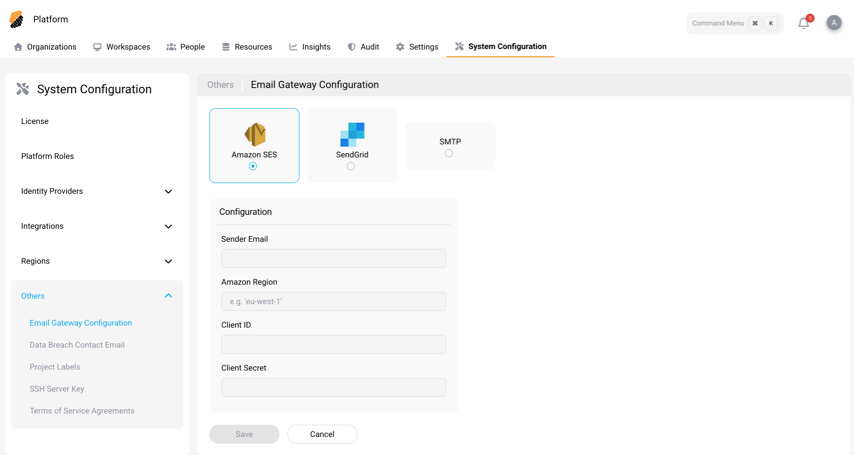
Here's what you'll find:
Email Gateway Configuration
Set up the gateway the platform uses to send email notifications, such as onboarding invitations. Choose a provider, enter its details, add the Sender Email address that recipients see, and send a test email to check that it works.
Choose one of the following providers:
-
Amazon SES
-
SendGrid
-
SMTP
The Sender Email field applies to every provider. The remaining fields depend on the provider you select.
Amazon SES
| Field | Description |
|---|---|
| Sender Email | The address that appears as the sender of each email. |
| Amazon Region | The AWS Region for your Amazon SES setup (for example, eu-west-1). |
| Client ID | Your Amazon SES access key ID. |
| Client Secret | Your Amazon SES secret access key. |
SendGrid
| Field | Description |
|---|---|
| Sender Email | The address that appears as the sender of each email. |
| API Key | Your SendGrid API key. |
SMTP
| Field | Description |
|---|---|
| Sender Email | The address that appears as the sender of each email. |
| Host | Your SMTP server hostname (for example, smtp.example.com). |
| Port | Your SMTP server port. |
| Username | The SMTP username. Optional. |
| Password | The SMTP password. Optional. |
To confirm the gateway works, send a test email. Until a gateway is configured, the platform sends no email notifications. For details on the emails the platform sends, see Onboarding email notifications.
Data Breach Contact Email
Give users an easy way to report a suspected data breach. Add a contact email, then select Enable Display of Reporting Information to show it across the platform.
SSH Server Key
Manage the server SSH key used for traffic outside the Citrix SecurSpaces™ ecosystem. Upload a new SSH server private key whenever you need to rotate it.
Terms of Service Agreements
Add the terms of service that users accept before they use the platform. You can upload more than one document, remove a document, or reset all acceptances so users accept it again.
For details on what users see, whether acceptance is required, and how to reset acceptances, see Terms of Service Agreements.
Project Labels
Manage the labels that help you sort and organize projects across the platform. You define the labels by uploading a CSV file that describes a hierarchy, and users then choose from that hierarchy when they create or edit a project.
For the CSV format, an example, and upload steps, see Project Labels.