
Administrator rights in UniconOS Management Board
UniconOS Management Board uses the same administrator records as the legacy Scout Console, but it adds its own base rights and object rights for functions that only exist in UniconOS Management Board. Go to Security & permissions > Manage administrators, select an administrator, then Rights management.
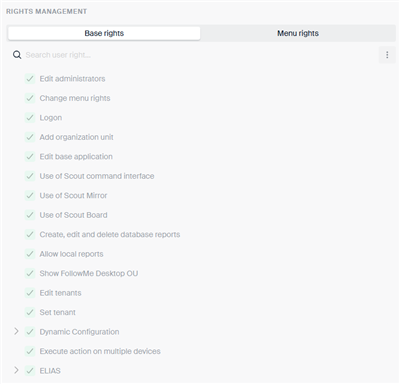
In Base rights, Menu rights and Base object rights, you can change only rights that you hold yourself — this already applied when editing an existing administrator, and Duplicate admin gives the new administrator only the rights you hold. An administrator created in the Scout Console with minimum access, and never edited since, is denied the Rules rights and the four rights for running actions described below.
Dynamic Configuration rights
Dynamic Configuration in Base rights gates any access to Configuration labels, Configuration templates and Configuration rules. Expand it for the individual rights:
| Right | Controls |
|---|---|
| View labels | Seeing the labels list and the configuration templates, and exporting templates |
| Create labels / Edit labels / Delete labels | Adding and duplicating, editing, deleting labels and configuration templates. Importing a template needs Create labels. |
| View rules | Seeing the rules list |
| Create rules / Edit rules / Delete rules | Adding, editing, deleting rules |
| Activate / deactivate rules | The Active switch in the rules list; saving the change also needs Edit rules |
| Reorder rules | Dragging rules and Send to Top / Send to Bottom; saving the new order also needs Edit rules |
To give an administrator read-only access to labels or rules, allow Dynamic Configuration and View labels (or View rules), and deny the rest. Denying Dynamic Configuration hides all three pages.
Rights for running actions
Four rights control how an administrator runs Scout commands:
| Right | Where | Controls |
|---|---|---|
| Execute action on multiple devices | Base rights | Execute action on an OU, a Dynamic Device Group, or more than one selected device — even when only one device is selected in that view |
| Execute action immediately | Base object rights > Schedule action | The schedule type Now |
| Schedule action (once) | Base object rights > Schedule action | The types Once and On Next System Start |
| Schedule action (recurring) | Base object rights > Schedule action | The type Repeat every |
Running an action also needs the command right for the target action itself (for example Restart, under Execute action). Only Base object rights count for the three schedule rights — customizing an OU's or a device's own object rights has no effect on them.
Without Execute action on multiple devices, Execute action is greyed out for OUs, Dynamic Device Groups and multi-device selections, with the tooltip You cannot execute actions on more than one device at once. The administrator can still act on a single device from that device's own menu.
Software rights
The Software section of the Navigation menu has its own group in Base rights. Software gates the whole section: without Software or View software, an administrator doesn't see Software in the Navigation menu. Expand Software for the individual rights:
| Right | Controls |
|---|---|
| View software | Seeing containers, packages, images and certificates, exporting images and packages, showing the firmware settings of images, and downloading files from a container |
| Upload and edit content | Adding packages, and creating, importing, duplicating, changing and saving images |
| Delete images and packages | Deleting packages, files, images and certificates. Deleting a container also needs Manage containers, and deleting the signing certificate of a container also needs Sign images and import certificates. |
| Manage containers | Creating, renaming and deleting containers, adding, replacing or deleting the file container.ini of a container, and changing the preselected features of packages. Importing a container also needs Upload and edit content. |
| Run solver | Solve dependencies in the image editor and Generate rules for a container |
| Sign images and import certificates | Signing images, importing certificates, restoring the default certificates, adding or replacing the signing certificate of a container, and accepting changed packages. While an image is held back after a package change, only administrators with this right can publish, rename, export or delete it, see Images held back after a package change. |
An action that the administrator's rights don't allow stays visible on the Software pages, but it is greyed out. Pointing to it shows You do not have the rights for this. Ask an administrator.
Changes that can give an administrator more Software rights need a sign-in from the last 5 minutes:
-
Allowing a Software right under Rights management
-
Adding or duplicating an administrator who gets Software rights
-
Choosing a container role with more rights than before, or None
-
Changing Rights consolidation
-
If the rights of AD groups are consolidated: deleting the object rights of an OU or a device, and changing the root OU of an administrator
If you signed in earlier, UniconOS Management Board doesn't save the change and shows This change can give administrators more Software rights, so it needs a sign-in from the last 5 minutes. Sign in again, then repeat the change. Click Sign in again, sign in, and repeat the change. Changes that only take rights away, and deleting an administrator, don't need a new sign-in. With Microsoft Entra ID and OpenID Connect, this works only if the app registration of Scout Board includes the optional claim
auth_time, see Configuring authentication options for UniconOS Management Board.
For what the Software section does, see Software.
Roles per container
With the rights above, an administrator has the same access to every container. To give an administrator less access to a single container, assign a container role. A role can only narrow the administrator's Software rights, never extend them.
-
Go to Security & permissions > Manage administrators, select the administrator, and then click ELIAS containers.This section appears only while the Software section is available to you.
-
Click Edit.
-
For each container, select a role.UniconOS Management Board saves the role at once and shows Container role saved. The administrator gets the changed rights within about a minute, also on pages that are open already.
These roles are available for a container:
| Role | Rights on the container |
|---|---|
| None | No role: the administrator's Software rights from Rights management apply. |
| Info | View software only. The administrator can see the container but can't change anything in it. |
| User | View software, Upload and edit content and Run solver. The administrator can add packages and build images, but can't delete anything, manage the container or sign. |
| Admin | All Software rights |
These rules apply to container roles:
-
A role takes effect only for administrators who hold Software and View software under Rights management. For other administrators, you can't select a role.
-
In the role list, a role that goes beyond the administrator's Software rights is marked (exceeds the ELIAS permissions).
-
You can assign roles only for containers on which you hold Manage containers yourself, and you can't hand out a right that you don't hold on that container. Such roles are greyed out and marked (beyond your own permissions on this container).
-
You can't remove a role with None if the administrator would then get rights on the container that you don't hold there yourself. None is then greyed out and marked (clearing would hand back permissions you lack on this container).
-
A container entry that matches none of the roles is shown as Custom. You can replace it with a role, or remove it with None.
-
If an administrator signs in through AD groups, the container roles of the groups are combined in the same way as their other rights, as set in Rights consolidation.
-
Creating and importing a container depend only on Rights management, because the container doesn't exist yet.
-
If a container role narrows your own Software rights on a container, you can't give another administrator Software rights that let them do more on this container than you can, unless their own container role keeps them out. This applies when you add, duplicate or change an administrator. The rights editor offers only the Software rights that you may grant, and it shows the others as locked. If UniconOS Management Board can't read the rights that it needs for this check, it refuses the change.
Existing rights UniconOS Management Board now enforces
UniconOS Management Board also honours several rights that previously had no effect in UniconOS Management Board:
| Function | Right needed |
|---|---|
| Download log files (system menu) | Menu rights Menu : View -> System diagnostic and Menu : View -> System diagnostics -> Server log |
| Command History | Menu right Menu : View -> Update history. Purging the command history also needs the base right Execute action on multiple devices. |
| Go to origin, for an inherited base application | Base right Edit base application |
| Export / Import in the OU menu | Object rights Export + Export of the OU tree; Import + Import of an OU tree |
| Export devices / Import devices | Menu rights Menu : File -> Export -> Devices; Menu : File -> Import -> Devices |
| Reactivate OU filter | Menu right Devices under Menu : Options -> Advanced options |
| Import a base configuration or an advanced configuration | Rights on the import's target, plus the right for every section of the imported file that applies to this target. Sections that don't apply, for example keyboard settings in an import into the base configuration, are skipped and need no right. If any section is denied, nothing is imported, and the dialog shows You do not have permission to import configurations. |
| Changing predefined commands | Administration of predefined commands — the same right that shows predefined commands in UniconOS Management Board |
| Changing the predefined image files, update paths and UEFI files under Preferences > Predefined firmware configuration | Administration of predefined IDF, Administration of predefined update paths or Administration of predefined UEFI files, for the list that you change |
| Recovery settings under Preferences | Menu right Menu : Options -> Recovery settings |
| UniconOS Management instances under Preferences | Menu right Menu : View -> Scout entities... |
Changing the device settings under Preferences > Devices, for example the device names and the options for new devices, and reading or changing them through the REST API (/api/v1/settings/devices) |
Menu right Devices under Menu : Options -> Advanced options |
| The Activity log and Rights consolidation under Security & permissions > Manage administrators | Edit administrators |
| Choosing the diagnostic templates when you request the diagnostic files of a device | Object right Select diagnostic templates on the device. Without it, the device sends the default diagnostic files. |
| Using the UniconOS Command Scheduler through the REST API | Device scheduler |
| Setting INI file entries through the REST API | Advanced file entries |
| Exporting the OU structure through the REST API | Object rights Export + Export of the OU tree |
| Importing an OU structure through the REST API | Object rights Import + Import of an OU tree |
If an administrator's existing rights already deny one of these functions, UniconOS Management Board now hides or blocks it, where it previously allowed it. Through the REST API, a request that the administrator's rights don't allow gets HTTP 405, see Using the REST API.
An administrator can delete only the Dynamic Device Groups they created themselves, not ones created by another administrator.
A user-defined command saved in the UniconOS Command Scheduler needs the device password, wherever it is saved from. In UniconOS Management Board, the Import dialog for a configuration or an OU asks for it when the imported file contains such a command: This file contains a user-defined command. Confirm the device password to import it. Through the REST API, the write needs a
devicePassword field; a missing or wrong password gets HTTP 403.
Rights on the devices and configurations that an action reaches
UniconOS Management Board checks the rights on each device and each configuration that an action actually reaches:
-
A command, and a request for support files or diagnostic files, needs your rights on the device that it reaches. If you send a command to several selected devices and you don't have the right for it on one of them, UniconOS Management Board refuses the command for all of them.
-
A command to a Dynamic Device Group needs your right for this command on every device in the group. If the group contains a device that you can't see, or on which you don't have this right, UniconOS Management Board refuses the command for the whole group. You can send commands only to your own Dynamic Device Groups.
-
You can read and save the configuration of an OU or a device only if you have the needed rights on this OU or device. The save changes only this configuration, never the base configuration or the configuration of another OU or device. This also applies to the sections of the advanced device configuration in the REST API.
-
With the right Advanced file entries on an OU or a device, you can change only the INI file entries of this OU or device.
If you change the rights of an administrator who is signed in, the change applies to their next action. They don't need to sign in again.
Granting rights
From UniconOS Management 2611, the rule at the top of this page applies wherever you change rights: you can't give an administrator a right that you don't hold yourself. In detail:
-
At an OU or a device, you can grant only the rights that you hold at this OU or device, and at every OU and device below it where your own rights are restricted.
-
Reset object rights is refused if the OU or the device would then inherit a right that you don't hold there.
-
If an OU or a device inherits rights that you can't grant, UniconOS Management Board refuses to create object rights for it, instead of silently removing these rights.
-
Only administrators with Change menu rights can change menu rights.
-
If your rights are limited to a root OU, you can set the root OU of an administrator, your own included, only to this OU or an OU below it. You also can't duplicate an administrator who has no root OU, or whose root OU is outside yours.
-
Add administrator and Duplicate admin follow the same rules. The new administrator never gets more than you may grant at each OU or device. Without Change menu rights, the new administrator gets no menu rights that you couldn't set yourself.
-
If you sign in through several AD groups, the limit is your combined rights from these groups.
-
If you save a rights template with rights that you don't hold, UniconOS Management Board saves the template without these rights and names them in a warning.
Because of these limits, UniconOS Management Board can refuse a change of rights that earlier versions accepted.
Upgrade
Existing administrators are granted all of the rights above, so they keep their current access after upgrading. Review and restrict them where you want narrower access, for example to set up a "now only" administrator (allow Execute action immediately, deny both Schedule action rights) or a "one device at a time" administrator (deny Execute action on multiple devices).
The Software rights and Enrollment settings are an exception. Until now, a right that a newer release added counted as allowed for administrators whose rights had been saved by an older release. For these rights, this is no longer the case. When you upgrade to UniconOS Management 2611, Scout converts the stored rights of every administrator:
-
Administrators with Edit administrators keep every new right, so that they can grant these rights to others.
-
All other administrators get the Software rights and Enrollment settings denied. Grant these rights to the administrators who need them.
The ELIAS menu rights of the legacy Scout Console don't carry over to the Software rights. After the upgrade, administrators may be refused actions that they could use before.
Scout Console
UniconOS Management Board uses the administrator records of the legacy Scout Console, which is end of life and not available for UniconOS Management 2611.
For the rights common to both the Console and UniconOS Management Board, see Administrator policy.