
Browser SSO
Browser SSO extends Imprivata single sign-on into web applications opened in Google Chrome. After a user authenticates through Imprivata, Chrome signs them into supported web applications (SAML or OIDC) automatically, without asking for a password again.
Starting in eLux® 7.2611.0, Chrome can also open each user's web applications by itself right after the Imprivata sign-in, see Opening web applications automatically.
Note:
Browser SSO is supported in Google Chrome only. It doesn't work in Chromium.
Prerequisites
-
The eLux device is configured for Imprivata authentication.
-
On the Imprivata appliance, the user policy allows single sign-on: on its Single Sign-On tab, Allow users single sign-on access to applications is selected. Imprivata Cloud Connect is used to create an OpenID Connect (OIDC) application. Both are covered step-by-step in Imprivata's own documentation: OneSign SSO (OIDC).
-
The device can reach the Chrome Web Store (
clients2.google.com), because Chrome installs the Imprivata browser extension from there.
Enabling Browser SSO in the IDF
-
In the Navigation menu of UniconOS Management Board, click Software, and then click Images in the Software menu.
-
Open the image of the devices that you want to change.For how to change an image, see Changing an image.
-
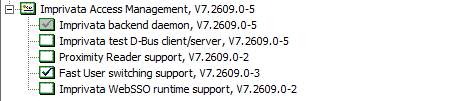
In Defined packages, click Imprivata Access Management to show its features.
-
Tick Imprivata WebSSO runtime support.
-
Click Google Chrome Web browser to show its features.
-
Tick the Google Chrome option, if it isn't already enabled.
-
Click Solve dependencies, and then click Save image.
-
In Scout, assign the updated image to the device or OU and start the update.
Important:
Imprivata WebSSO runtime support depends on Google Chrome. If Google Chrome isn't also enabled in the same IDF, the update fails.
Starting Chrome automatically (optional)
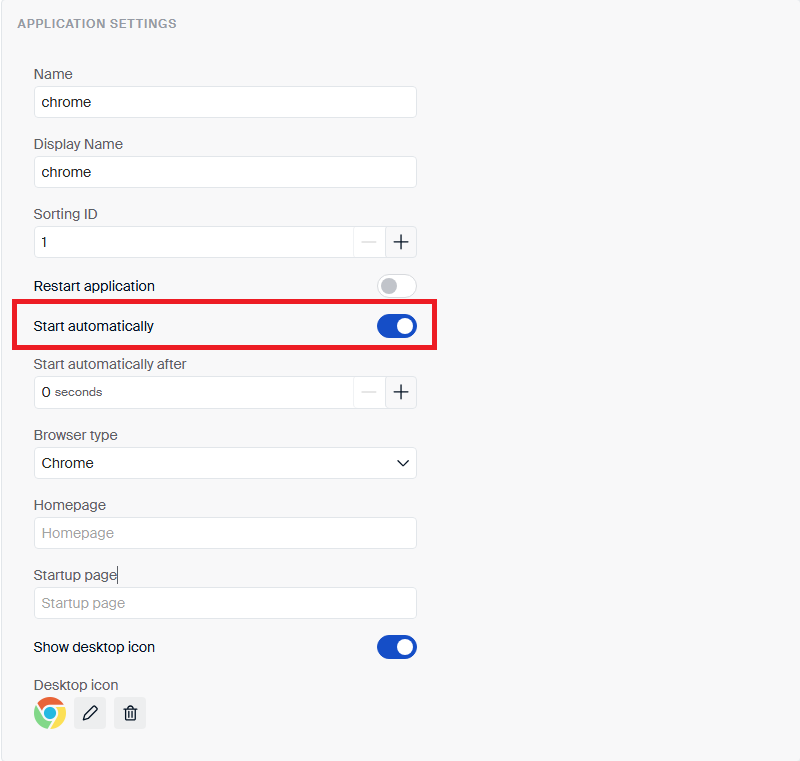
This step is optional — a user can also open Chrome themselves. To have Chrome open on its own right after login, enable Start automatically in the Chrome application settings in Scout (Browser type: Chrome):
-
In Scout, open the application settings for the Chrome application.
-
Turn on Start automatically.
-
Click Apply/OK to confirm the changes.
To open each user's own web applications instead, use the Imprivata policies, see Opening web applications automatically.
Verifying Browser SSO
-
Log in on the device with Imprivata.
-
Open Chrome (automatically, if you enabled Start automatically, or launch it yourself). The Imprivata browser extension is already installed — the user never installs it.
-
Open the target web application.
The web application signs the user in automatically, without asking for a password.
Opening web applications automatically
Chrome can open a user's web applications right after the Imprivata sign-in, and the Imprivata browser extension signs the user in to them. So the user can start working without opening Chrome or typing an address. Each user gets their own web applications, also on a device that several users share.
You choose the web applications in the Imprivata Admin Console, in a computer policy and a user policy. There are no settings for this in Scout. Web applications open only if both policies allow it.
Requirements
-
Imprivata EAM 26.3 or later. In older versions, the Imprivata Admin Console doesn't have the settings for web applications. Users sign in as before, but no web applications open.
-
eLux 7.2611.0 or later.
-
Browser SSO is set up, see Prerequisites and Enabling Browser SSO in the IDF. Without Imprivata WebSSO runtime support in the image, eLux doesn't read the policies for web applications.
Setting up the computer policy
The computer policy allows web applications to open automatically on the devices that it applies to. It also decides which browser opens them, and with which Chrome options.
-
In the Imprivata Admin Console, click Computers > Computer policies.
-
Click the computer policy for the devices.
-
Click the Workspace Access tab.
-
Under Local Web Applications, select Local web applications will be automatically launched when the user logs in.
-
In Application browser, select Default or Chrome. On eLux, both open Google Chrome.If you select another browser, for example Edge, eLux opens no web applications at all, not even in Chrome.
-
If Chrome should start with particular options, enter its switches in Command line parameters (optional), for example
--start-fullscreenfor a full-screen window. Separate several switches with spaces. A switch itself can't contain a space.eLux passes only switches to Chrome, that is, words that begin with a hyphen. It drops any other word, for example a URL: enter URLs in the user policy instead. It also drops switches that would turn off the Imprivata browser extension or weaken the security of the browser, for example--incognito,--guest,--disable-extensions,--remote-debugging-port,--user-data-diror--no-sandbox.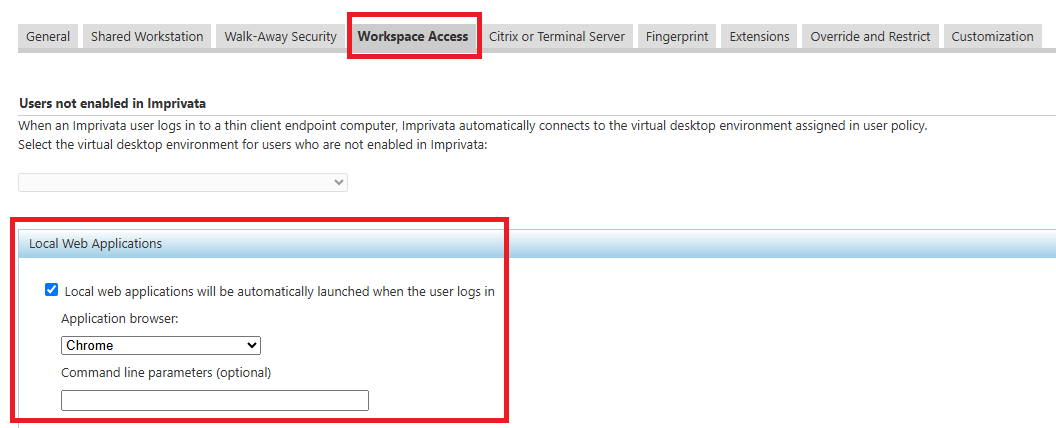
-
Save the policy.
-
If the computer policy doesn't apply to the devices yet, assign it: under Computers > All Computers, open each device, select the policy in Apply Computer Policy, and save.
Setting up the user policy
The user policy decides for each user whether web applications open, and which ones.
-
In the Imprivata Admin Console, click Users > User policies.
-
Click the user policy for the users.
-
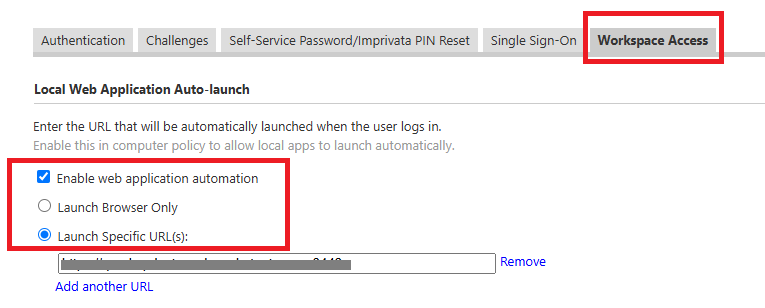
Click the Workspace Access tab.
-
Under Local Web Application Auto-launch, select Enable web application automation.
-
Select what Chrome opens:
-
Launch Specific URL(s): Chrome opens the URLs that you enter, each in its own tab of one window, in the order of the list. To add more URLs, click Add another URL.
-
Launch Browser Only: Chrome opens on its start page, without a web application.
-
-
Save the policy.
-
Make sure that the user policy applies to the users who should get web applications.
What happens on the device
The table follows a user from the sign-in to the logoff and shows what eLux does with the web applications along the way:
| Situation | What eLux does |
|---|---|
| The user signs in with Imprivata, for example with a card tap | The desktop appears first. Then Chrome opens the web applications, and the Imprivata browser extension signs the user in to them. This can take up to about half a minute. At the first sign-in after the device starts, Chrome first installs the extension, which can take up to about a minute. |
| The user locks the device, for example with another tap of the same card | Chrome keeps running behind the lock screen. After unlocking, the user continues in the same window. |
| The user closes Chrome | Chrome stays closed, also after a lock and unlock. It opens again at the user's next sign-in. |
| Another user taps their card | eLux closes the previous user's Chrome with all its windows, even if the Imprivata policy is set to keep applications open on a user switch. Then it opens the web applications of the new user. If the policies of the new user don't open web applications, no browser opens. |
| The user logs off | eLux closes Chrome with all its windows. |
Good to know
-
eLux reads both policies at every sign-in. If you change a policy, the change applies at the user's next sign-in, not in a running session.
-
With
--start-fullscreen, Chrome doesn't show its tabs. Users switch between the web applications with Ctrl+Tab. -
The desktop shows an icon for the web applications. It's named after the host of the first URL, for example intranet.example.com (+1) for two URLs. With Launch Browser Only, it's named Web Application.
-
A Chrome application from Scout that starts automatically in the same session opens in the same Chrome browser as the web applications. Its page stays open, but the command line parameters of the computer policy, for example
--start-fullscreen, then may not apply. The same happens if the user opens Chrome while eLux prepares the web applications. To make sure that the command line parameters apply, turn off Start automatically for the Chrome application in Scout.
Troubleshooting
If the web applications don't open as expected, check the possible causes for what the user sees:
| What the user sees | Possible cause |
|---|---|
| No web applications open after the sign-in | The computer policy or the user policy doesn't allow web applications, or it doesn't apply to this device or user. |
| No web applications open after the sign-in | The image doesn't contain Imprivata WebSSO runtime support or Google Chrome. |
| No web applications open after the sign-in | The Imprivata appliance is older than EAM 26.3. |
| The web applications open, but they ask the user to sign in | The Imprivata browser extension wasn't ready within 60 seconds after the sign-in. Check that the device can reach the Chrome Web Store, see Prerequisites. |
If no web applications open, the device logs the reason in
/var/log/unicon/ucimprivatad.log or /var/log/unicon/ucsettingsd.log. You find both files in the diagnostic files of the device.