
Licensing
Scout gets its license from a Citrix® License Server. The License Server holds your Scout licenses, and Scout Server checks with it regularly whether your entitlement is valid. In UniconOS Management Board, you see the result in the License information widget on the dashboard and in the License information dialog. To open the dialog, click the help icon (question mark) at the top right of UniconOS Management Board, and then click License information.
Scout needs Citrix License Server 2607 (build 56200) or later.
Messages in UniconOS Management Board name build 56100, the oldest build that Scout accepts. Use build 56200, which replaced it on the Citrix download page.
Important:
If you upgrade Scout from an earlier version and your License Server is older, upgrade the License Server first. Otherwise, Scout runs on its grace period after the upgrade, and devices can no longer connect to Scout Server when the grace period ends. For how setup checks the version of the License Server, see Upgrading to newer versions.
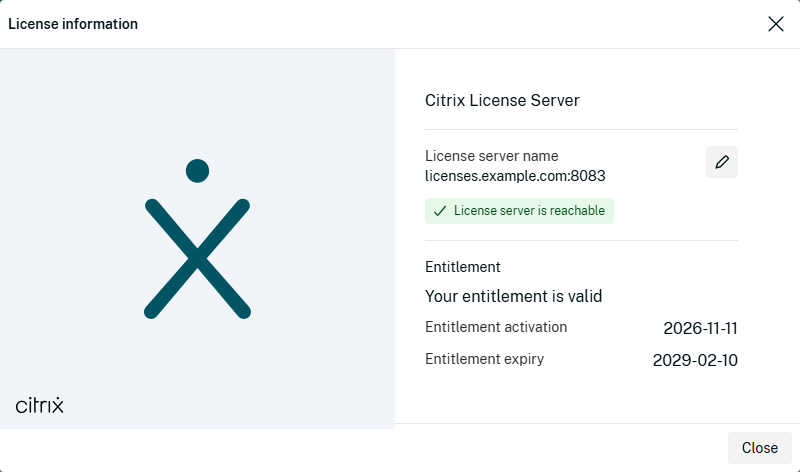
The dialog and the widget show the License Server and your entitlement:
-
License server name: the configured License Server. UniconOS Management Board shows the name whether or not the server is currently reachable, together with the status of the server.
-
Entitlement: Your entitlement is valid or No valid entitlement has been found, followed by Entitlement activation and Entitlement expiry dates. While a grace period runs, a Grace period: N days remaining line appears; click its information icon to open this dialog.
The status below the License Server name tells you whether Scout gets its license, and what to do if it doesn't:
| Status | Meaning |
|---|---|
| License server is reachable | Scout Server reached the License Server at the last check. |
| License server is not reachable | Scout Server can't reach the License Server. Another line states when the connection last worked and when the last connection attempt was made. Check the configured name and port of the License Server. |
| License Server too old — upgrade to 2607 (build 56100) or later | The License Server is older than Scout needs. Upgrade the License Server, and then confirm its name again, see Configuring the License Server. Scout then gets its license without a restart. |
| License Server gives UniconOS Management no license — check its UniconOS Management licenses and its registration | Scout Server reaches the License Server, but the License Server holds no Scout licenses, or it isn't registered. |
| License Server certificate refused — configure the License Server again to accept its new certificate | Windows doesn't trust the certificate that the License Server presents, and it isn't the certificate that Scout accepted when the License Server was configured. |
If UniconOS Management Board can't read the license state, the License information dialog shows The license state is not known because the database layer did not answer. UniconOS Management checks again shortly. and System Status shows License state unknown. UniconOS Management Board doesn't treat this as a missing license, and it checks again by itself.
Scout Server checks the License Server when the Scout Server service starts, every 12 hours, and right after the License Server configuration is saved. The dialog and the widget always show the result of the last check.
System Status, the status icon next to the help icon, shows the same information in two rows: one row for the License Server connection, one for the entitlement. A failing row shows as a warning, not an error.
Your devices get their licenses from Scout as well: every device gets the licenses for Fluendo Basic and Fluendo System. You don't need to assign or request these licenses.
Scout also gives each device the end date of its software maintenance, which the device shows as Subscription valid until. With a License Server, this date is 12 months after the last license request of the device. A device requests its licenses when it starts, about every 7 days, and when Scout starts an update job for it. Devices refuse firmware that was built after this date. For the upgrade from an earlier version, see Upgrading Scout before the devices.
Configuring the License Server
You enter the License Server when you install Scout. To change it later, use the pen icon next to the License Server name, in the License information dialog or in the widget on the dashboard:
-
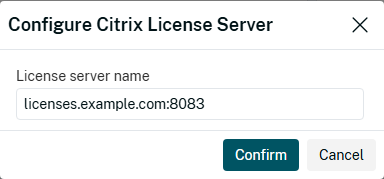
Click the pen icon.The Configure Citrix License Server dialog opens.
-
In License server name, enter the host name or IP address of the License Server and, if needed, its port. Leave out a protocol prefix such as
https://, for examplelicenses.example.com:8083. -
Click Confirm.
Scout Server then checks the License Server, and UniconOS Management Board shows the result:
-
If the License Server is older than 2607, Scout keeps the previous configuration, and UniconOS Management Board shows The License Server is too old. Upgrade it to License Server 2607 (build 56100) or later. The license configuration was not changed.
-
If Scout Server can't reach the License Server, Scout saves the configuration and starts its grace period. Scout Board shows The license server is not reachable. The configuration has been saved. You are now in the grace period.
-
If the License Server holds no Scout licenses or isn't registered, Scout saves the configuration and starts its grace period. UniconOS Management Board shows License Server gives UniconOS Management no license — check its UniconOS Management licenses and its registration.
When you install Scout or configure the License Server in UniconOS Management Board, Scout remembers the certificate of the License Server. If the License Server later presents another certificate that Windows doesn't trust, Scout Server refuses it: the License Server counts as not reachable, Scout runs on its grace period, and UniconOS Management Board shows License Server certificate refused — configure the License Server again to accept its new certificate. A certificate that Windows trusts is always accepted.
The certificate of the License Server changes, for example, when it's renewed or replaced, when the License Server is rebuilt or moved, or when a TLS proxy is put in front of it. To accept the new certificate, configure the License Server again in UniconOS Management Board. You don't need to restart Scout Server.
If several Scout Servers share the Scout database, UniconOS Management Board saves the new certificate on one of them only. On each other Scout Server, enter the thumbprint of the new certificate, 40 hexadecimal characters, as
LSCertHash in the [LS] section of eluxd.ini, and restart the Scout Server service. eluxd.log names the thumbprint of the certificate that the License Server presents. Open eluxd.ini in an editor that runs as administrator.
To only log such a certificate instead of refusing it, set
LSCertCheck=0 in the [LS] section of eluxd.ini, and restart the Scout Server service. We don't recommend it. Any other value, and no value, refuses the certificate.
While Scout Server refuses such certificates, it doesn't follow a redirect from the address of the License Server. Enter the address at which the License Server answers itself.
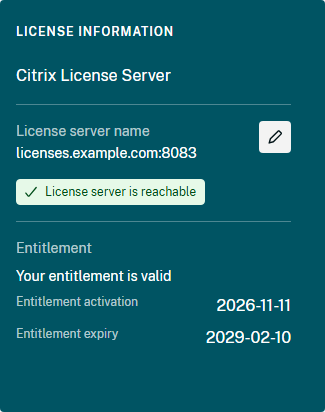
The License information widget on the dashboard shows the same information as the dialog:
Operation and grace period
If Scout doesn't get a valid license from the License Server, Scout Server starts a grace period. This happens when the License Server isn't reachable, is too old, or gives Scout no license. During the grace period, Scout works as usual. Use this time to correct the License Server or its configuration.
The grace period lasts 14 days if Scout had a connection to the License Server and a valid entitlement within the last 5 days. Otherwise, it lasts 5 days.
When the grace period ends, devices can no longer connect to Scout Server, so you can't manage them. UniconOS Management Board then opens only a license page, where you can configure the License Server. Requests to the UniconOS Management Board REST API get HTTP status 402 until Scout has a valid license again. UniconOS Management Board shows the same page if Scout isn't licensed through a License Server at all. As soon as Scout has a valid license again, UniconOS Management Board and the devices work as usual.
Restoring or copying the Scout database
Scout keeps its license data in the Scout database. You can restore a backup of this database or copy it, for example to move Scout to another SQL Server or to test an update with a copy of your production database.
When Scout Server starts with the restored or copied database, it binds the license data to this database by itself and starts normally. You don't need to unlock the database with a validation code. Scout then checks your entitlement through the Citrix License Server as usual.
The stored passwords need the data key of the database. If you keep this key in a key file, copy the key file to the new server as well, see Data key for stored passwords.
Note:
Some installations use a license file instead of a License Server, by exception. Such a license file is bound to the database that it was issued for. It isn't valid for a restored or copied database, and it isn't meant for SQL Server AlwaysOn. If Scout doesn't accept a license file, UniconOS Management Board shows the reason and the database ID for which you request a new license file.
Additional information
For more information about the Citrix License Server and the licensing process, see: