eLux Usage
Login Manager
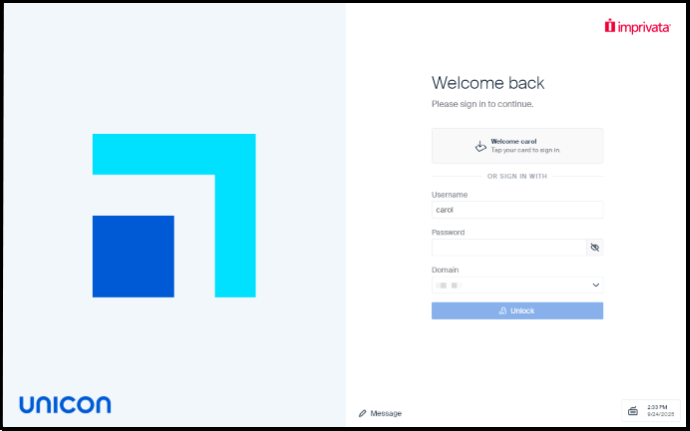
When an eLux device is configured to use Imprivata as the authentication backend, the Login Manager displays the Imprivata logo after startup.
If a supported card reader is connected, the interface will present a Proximity Card field, indicating that Tap & Go authentication is available.
The specific login methods offered to the user depend on the configuration defined in the Imprivata backend and may include:
-
Username and Password
-
Proximity Card with Password
-
Proximity Card with PIN
-
Proximity Card only
Lock Screen
An eLux device can be locked securely using different methods, depending on the system configuration:
-
Card tap – Quickly lock the system by tapping the proximity card.
-
Start Menu – Select Lock from the eLux Start Menu.
-
Keyboard shortcut – Use the configured key combination.
-
Inactivity timeout – The device locks automatically after a defined period of no user interaction.
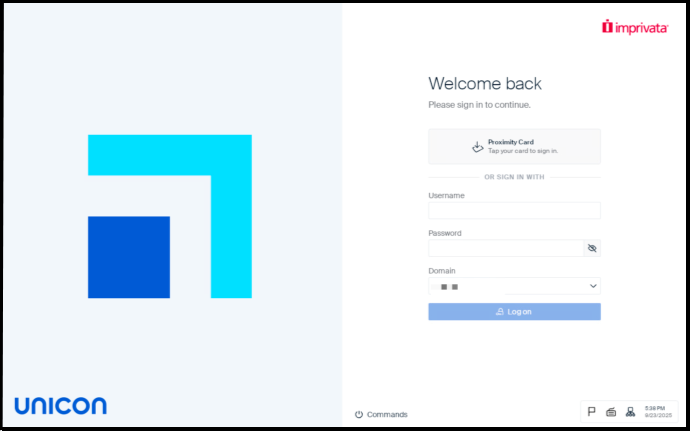
Once the lock screen is active:
-
The currently signed-in user can unlock the session using one of the configured authentication methods.
-
Alternatively, another user may log in, which will end the active session of the first user.
From eLux 7.2611.0, the Imprivata policy can log the user off instead of locking the device. A card tap, the keyboard shortcut and the inactivity timeout then log the user off, and only Lock in the Start menu locks the device. The Imprivata policy also sets the hot key and the inactivity time. See Lock or Log Off When Users Leave the Device.