
Software
In Software, you build the images for your UniconOS devices. An image lists the software packages that a device installs, from the operating system to the applications. You keep the packages in containers, put images together from them and sign the images, all in UniconOS Management Board. Software takes over the tasks of ELIAS, so you work with the same kinds of objects as before: containers, packages, images and certificates.
To open it, click Software in the Navigation menu on the left.
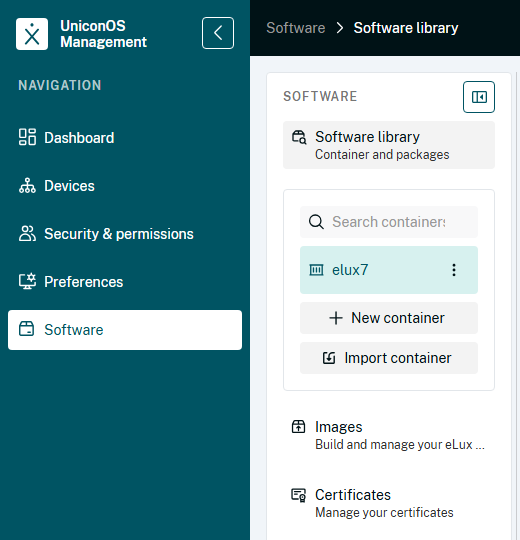
Next to the Navigation menu, the Software menu opens. Its three entries lead to the pages where you do the work:
| Entry | What you do there |
|---|---|
| Software library | Create and import containers, add software packages to them, and export packages. You also choose which features of a package new images get. Below this entry, the menu lists your containers. |
| Images | Build images from the packages of a container, let Scout add the packages that they depend on, and sign, export or delete the images. |
| Certificates | Manage the certificates of a container: the certificates that confirm the signatures of the packages, and the certificate that signs your images. |
To give the pages more room, you can hide the Software menu, see Interface.
Your devices don't download their software from UniconOS Management Board, but from a web server or an FTP server that publishes the container folders. You set up this server yourself, see Publishing a container to devices.
Software appears in the Navigation menu only if both of these conditions are met:
-
The components Software Management and Software Management backend are installed. A new installation of Scout includes both by default. An update from an earlier version adds them only if you select them, see Installing Software Management.
-
You hold the rights Software and View software, see Software rights.
Your rights also decide which actions you can use in Software. An action that your rights don't allow stays visible but is greyed out. Pointing to it shows You do not have the rights for this. Ask an administrator.
Containers, packages and images
These are the objects that you work with in Software:
| Term | Meaning |
|---|---|
| Container | A folder that holds software packages and the images built from them. Each container has its own certificates. |
| Package | A software package in an .epm file, for example an application or a driver |
| Feature | A part of a package in an .fpm file. An image can include a feature or leave it out, unless the feature is required. |
| Image | An image definition file (.idf). It lists the packages and features that a device installs. |
| Signature | A .sig file next to a package or an image file. A device can check it before it installs an update. |
If you have worked with ELIAS 18, you find its libraries here:
| ELIAS 18 | Software |
|---|---|
| Container Library | The container list in the Software menu, below Software library |
| Package Library | Software library, tab Package overview |
| Container Explorer | Software library, tab Container explorer |
| Image Library | Images |
| Certificate Library | Certificates |
| Access rights with the roles Info, User and Admin | The Software rights and the container roles of each administrator |
To take a container over from ELIAS 18, export it in ELIAS 18, and import it with Import container in the Software library. Its packages and complete images come over, but not its templates, certificates and access rights, see Importing a container.
From packages to devices
To give your devices a new image, you usually take these steps:
-
In the Software library, create a container, or use the container that the installation created.
-
Add the software packages to the container, for example the AllPackages archive of a UniconOS version.
-
Under Certificates, check that the container trusts the signers of the packages. To sign images, add a signing certificate.
-
Under Images, create an image and select its packages.
-
Click Solve dependencies.
-
Click Save image.
-
If your devices check image signatures, sign the image.
-
Publish the container folder with a web server or an FTP server, for example with IIS, see Example of publishing the containers with IIS.
-
In the Firmware section of the device configuration, enter the values that Firmware settings shows for the image, see Configuring the devices.
The devices get the changed configuration when they restart, and they install the new image with their next firmware update.
Activity log and system status
Scout records the changes made in Software in the activity log, with the administrator and the object. You find the log under Security & permissions > Manage administrators > Activity log.
The entries of Software have types that start with ELIAS:. For example, creating a container writes an entry of the type ELIAS: Add with the object
Add container "<name>", and deleting it writes ELIAS: Delete with Delete container "<name>". Signing an image and importing certificates write entries of the type ELIAS: Sign. Solving dependencies and exporting a package write no entry. To list only the entries of Software, click Filter, select All ELIAS actions under Value, and click Apply.
Entries of the type ELIAS: Sign are recorded at every Monitoring level, all other entries only at level 2 or higher. You set the level under Settings on the same page.
If the Software pages show an error, for example Cannot reach the Scout ELIAS service, open System Status with the colored checkmark icon at the top right. Its ELIAS backend entry shows whether UniconOS Management Board reaches the Software Management backend. When the cause is fixed, click Retry on the Software page.