
Interface
Logging in
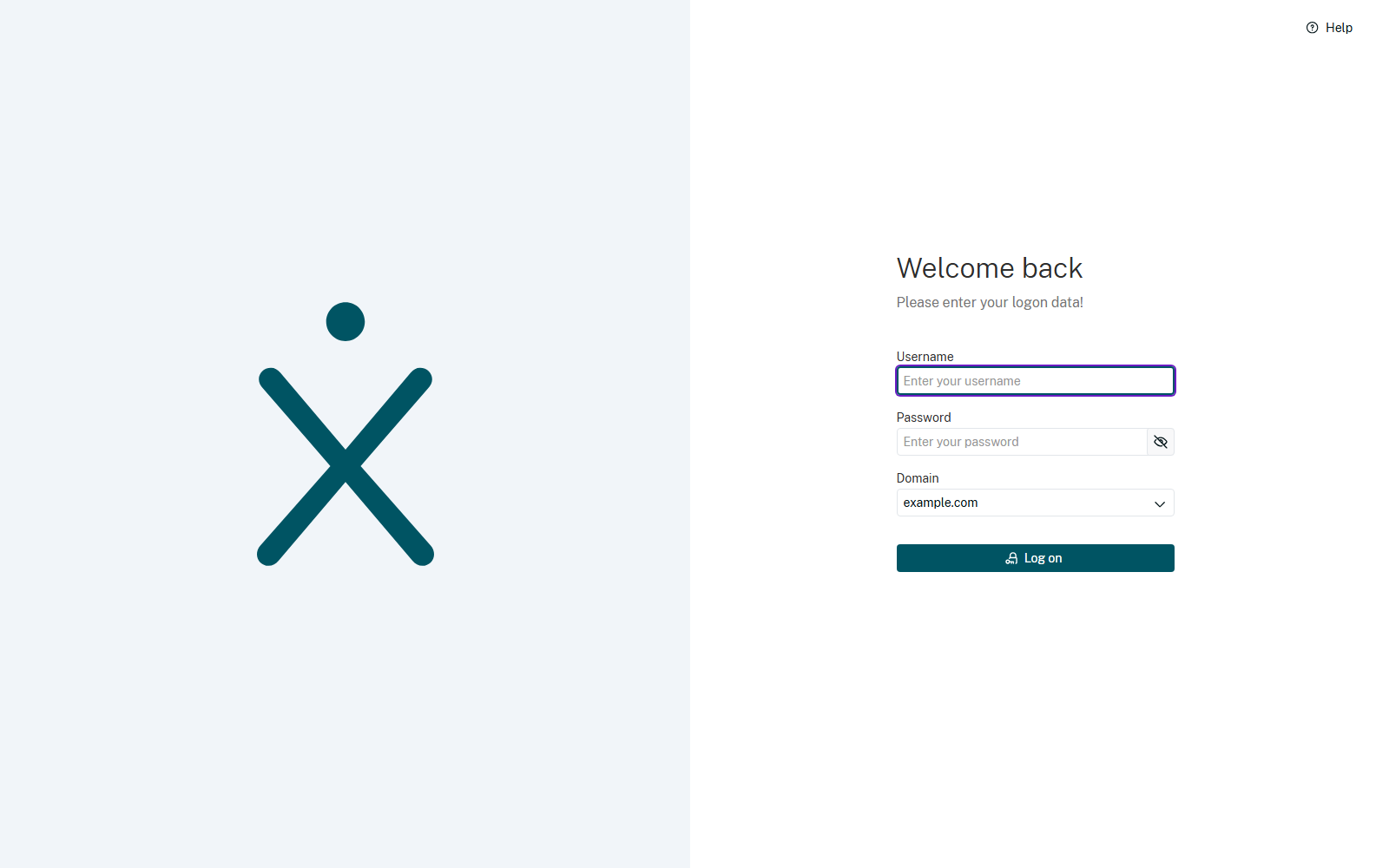
Open the UniconOS Management Board URL in your browser to reach the logon screen. The browser tab shows the Citrix® logo and the product name UniconOS Management. On the logon screen, the Citrix logo is on the left. The logon form on the right starts with Welcome back. Help at the top right opens the UniconOS Management Board documentation on docs.citrix.com in a new tab.
-
Enter your Username and Password.
-
If more than one domain is configured for this Scout Server, select the correct Domain from the list. If only one domain is configured, it is selected automatically.
-
Click Log on.
Note:
Logon via Active Directory is supported. Click the eye icon next to the password field to show or hide the characters you typed.
If UniconOS Management Board is set up for sign-in through an identity provider, for example Microsoft Entra ID or Okta, the browser opens the sign-in page of the identity provider instead of this logon screen.
Session limits
UniconOS Management Board ends your session after 30 minutes without activity, and 12 hours after you signed in at the latest. It then shows Your session has ended with Sign in again. While you upload a file to Software, the session stays active, but not longer than 12 hours. To change the limits, see Configuring session limits for UniconOS Management Board.
Main window
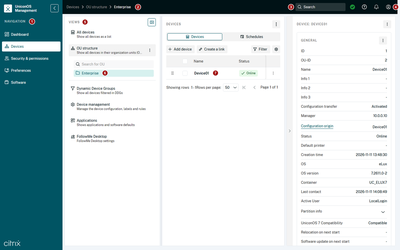
The UniconOS Management Board main window after logon shows the Dashboard with status information and an overview on different aspects of the managed devices.
From UniconOS Management 2611, UniconOS Management Board uses the Citrix colors, fonts and logos. At the top of the Navigation Panel, next to the Citrix logo, it shows the product name UniconOS Management. Most labels and messages that said eLux® or Scout before now say UniconOS or UniconOS Management, for example UniconOS Command Scheduler. The Scout components keep their names, for example Scout Server and Scout Board Database Layer in System Status. The pages of Software and some labels about it still say ELIAS, for example ELIAS backend in System Status.
UniconOS Management Board display languages: English, German and Japanese. UniconOS Management Board uses the browser's preferred language — the language at the top of the browser's language list — and reads it again each time UniconOS Management Board loads; it has no language menu of its own. If that preferred language is anything other than English, German or Japanese, UniconOS Management Board is shown in English, even if German or Japanese appears lower in the browser's list. With some browser languages, some common buttons, field labels and table controls appear in the browser's own language instead.
Some text stays in English in the Japanese interface, for example some server-side error messages and a few built-in list and table controls. UniconOS Management Board does not translate names and values that administrators enter, such as OU, device, application and command names. Device states, such as Online, are translated. The Scout installation program is not affected: it remains available in English and German only.
| Information | |
|---|---|
| 1 | Navigation Panel |
| 2 | The section selected on the Navigation Panel is displayed. |
| 3 | Global search for data and navigation elements |
| 4 | Help, system status, notifications, and user profile. See Help, notifications, and profile below. |
| 5 | The Views panel of the Devices section. Its first three entries show your devices in different ways. |
| 6 | For the selected OU, the contained devices are displayed on the right. |
| 7 | For the selected device, the details are displayed on the right. |
| Use the Navigation Panel on the left to choose the section you want to work with. Next to Dashboard and Devices, the Navigation Panel offers Security & permissions, Preferences and Software. |
Note:
Close the Navigation Panel with  to save space. Then only the section icons will be displayed.
To give a page more room, you can also hide the panel between the Navigation Panel and the page, for example the Views panel in Devices. This works in Devices, Security & permissions, Preferences and Software. Click  (Hide sidebar) at the right of the panel title. While the panel is hidden, the same icon (Show sidebar) is at the left of the page title. Pointing to it opens the panel over the page, and the panel closes again when you move the pointer away. To show the panel next to the page again, click the icon. UniconOS Management Board remembers your choice for each section, also at your next logon.
Help, notifications, and profile
On the right of the title bar, four icons give you quick access to help, system status, notifications, and your own account:
-
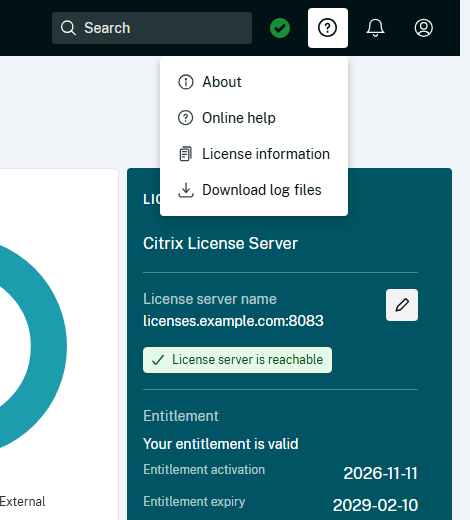
 Help opens About, Online help, License information, and Download log files. About shows the product name Citrix UniconOS Management and the version, for example Version 15 2611. In UniconOS Management Cloud, the product name is Citrix UniconOS Management Cloud.
-
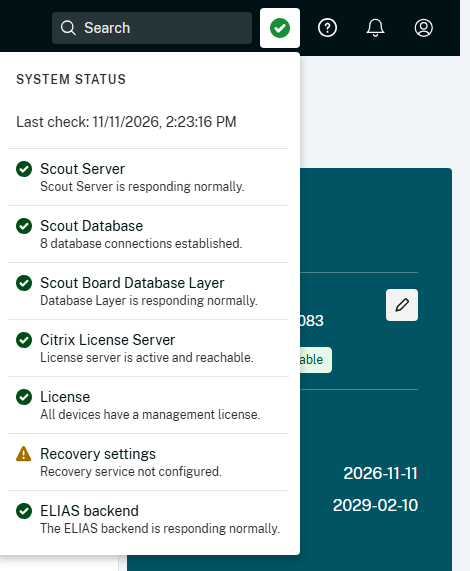
The colored checkmark icon opens System Status, a live health check of the Scout Server, the Scout database, the Scout Board database layer, the Citrix License Server, device licensing, recovery settings and, if Software Management is installed, the Software Management backend (ELIAS backend). Each check shows a green checkmark when healthy, or a warning triangle with a short explanation when it needs attention. Click the refresh icon to run the checks again.
-
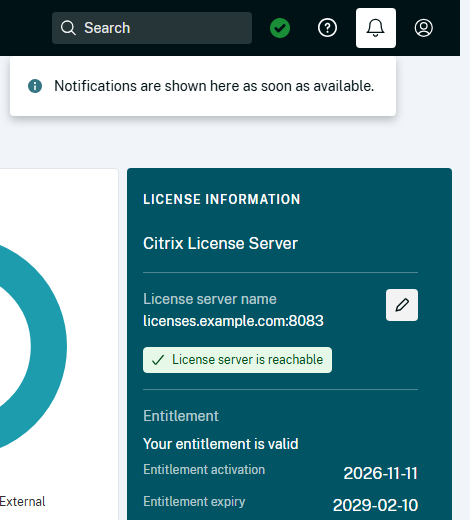
The bell icon opens Notifications. If nothing needs your attention, it tells you that notifications are shown here as soon as they become available.
-
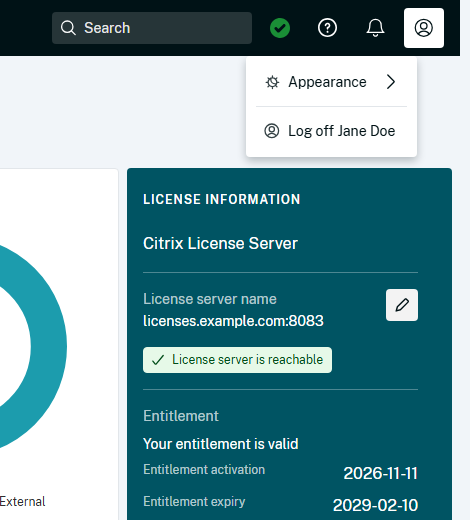
The profile icon opens a menu with Appearance and with Log off followed by your name, which logs you off.
Devices
The Devices section offers three different views to show your devices:
-
All devices: All devices are displayed in a list regardless of their organizational unit. The list can be sorted and filtered as desired.
-
OU structure: The hierarchical OU structure is displayed as a tree view. All organizational units (in the following OUs) can be expanded and displayed.
-
Dynamic Device Groups: Defined Dynamic Device Groups are displayed with the devices currently matching.
For a selected OU or Dynamic Device Group, on the right under Devices, the assigned devices and schedules are shown. To the right, the details of an OU, a Dynamic Device Group or a device may be displayed.
Software
If Software Management is installed and you hold the Software rights, the Navigation Panel also offers Software. There you keep the software packages of your devices in containers, and you build and sign the images that the devices install, see Software.