
Mirroring a device
-- from eLux® RP 6 2302 --
Individual devices can be mirrored if they are switched on and the following requirements are met.
| Requires |
|---|
| The target device must have installed eLux RP 6 2209 or later. |
| A VNC server must be installed on the target device. For this, the VNC Server extension feature package included in the eLux package XOrg must be installed. |
| Mirroring must be enabled and configured for the target device in the Mirroring section of the device configuration. |
| Encrypt transmission must be off in the Mirroring section. UniconOS Management Board encrypts its mirror sessions itself, and it can't mirror a device while this option is on. |
-
Select a device on a device list (all three views).
-
Click
 to open the device's Actions menu and choose Mirror.
Note:Your browser must allow pop-ups.The mirrored device is displayed in a new browser tab.
-
If a mirroring password is set in the Mirroring section of the device configuration, enter the password on the new tab.
Depending on the device configuration, users must confirm the mirroring request within a defined time span before a session can be initiated.
To let the device show and log which administrator requested the session, turn on Allow from UniconOS Management only in the Mirroring section of the device configuration. Without it, the device records the requester as "unknown". While the setting is on, the device refuses VNC viewers that connect to it directly. On devices with UniconOS 2609 or later, the system message then shows the name of the administrator, together with the address
127.0.0.1.
If UniconOS Management Board can't set up the session within about 30 seconds, the mirror tab shows The mirror connection could not be set up in time. Check that the device is online and try again. If this keeps happening, ask your administrator to check the Scout server connections. If several Scout Servers share one Scout database, check Node health, see Checking the health of the servers.
For further information, see Configuring mirroring in the Scout guide.
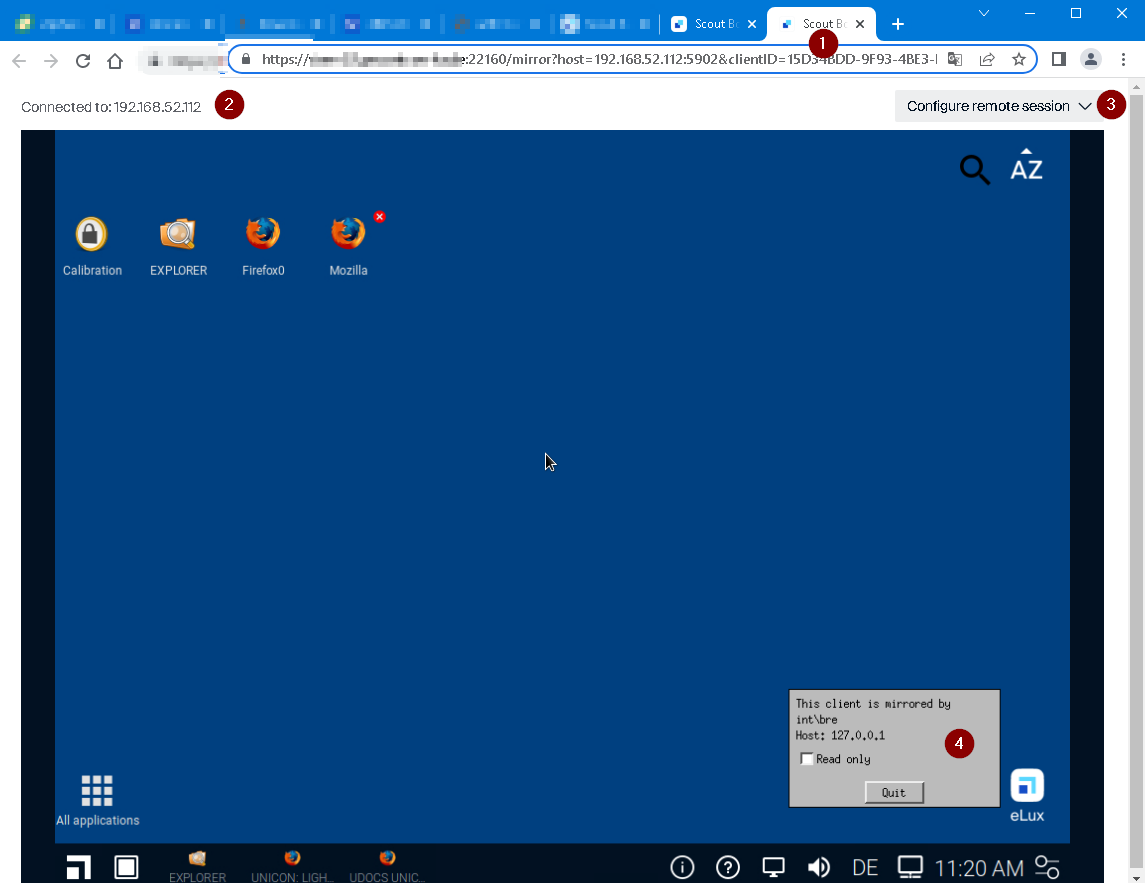 |
|
|---|---|
| 1 | New browser tab for the mirror session |
| 2 | IP address of the mirrored device |
| 3 | Options for the mirror session |
| 4 | Permanent system message |
Role of the system message
Throughout a mirror session, a system message (4) will be displayed on the screens of the user (mirrored) and administrator (mirroring):
-
The message remains permanently in the foreground and indicates that mirroring is active.
-
The mirrored user can end the session at any time (Quit button).
-
The mirrored user can specify that the administrator may only read, which means that he is not allowed to take control of the mirrored device (Read only option).
Configuring a remote session
During a mirror session, there are several options available.
-
At top right, click Configure remote session:
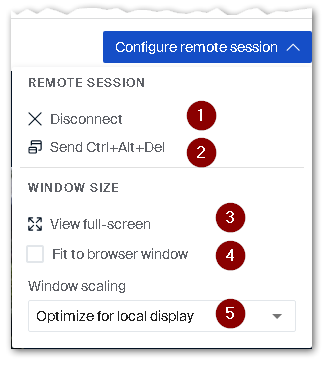 |
|
|---|---|
| 1 | Disconnect mirror session. The session window and tab are closed. |
| 2 | Send Ctrl+Alt+Del into the session, for example to make a logon |
| 3 | Show session window in full screen mode. To return to window mode, press Esc |
| 4 | Fit session window to browser window.Depending on the aspect ratio, the entire screen of the mirrored device may not be displayed. |
| 5 | Adjust session window in maximum size to the local situation (default) |
The set options for the session window size are saved in the browser for the current user.