
Using the REST API
UniconOS Management Board has a REST API, so that scripts and other applications can work with Scout without the UniconOS Management Board user interface. For example, a script can create OUs and devices, move devices to another OU or send commands to devices. You reach the REST API at the same address as UniconOS Management Board, and scripts sign in with UniconOS Management Board administrator accounts.
API reference
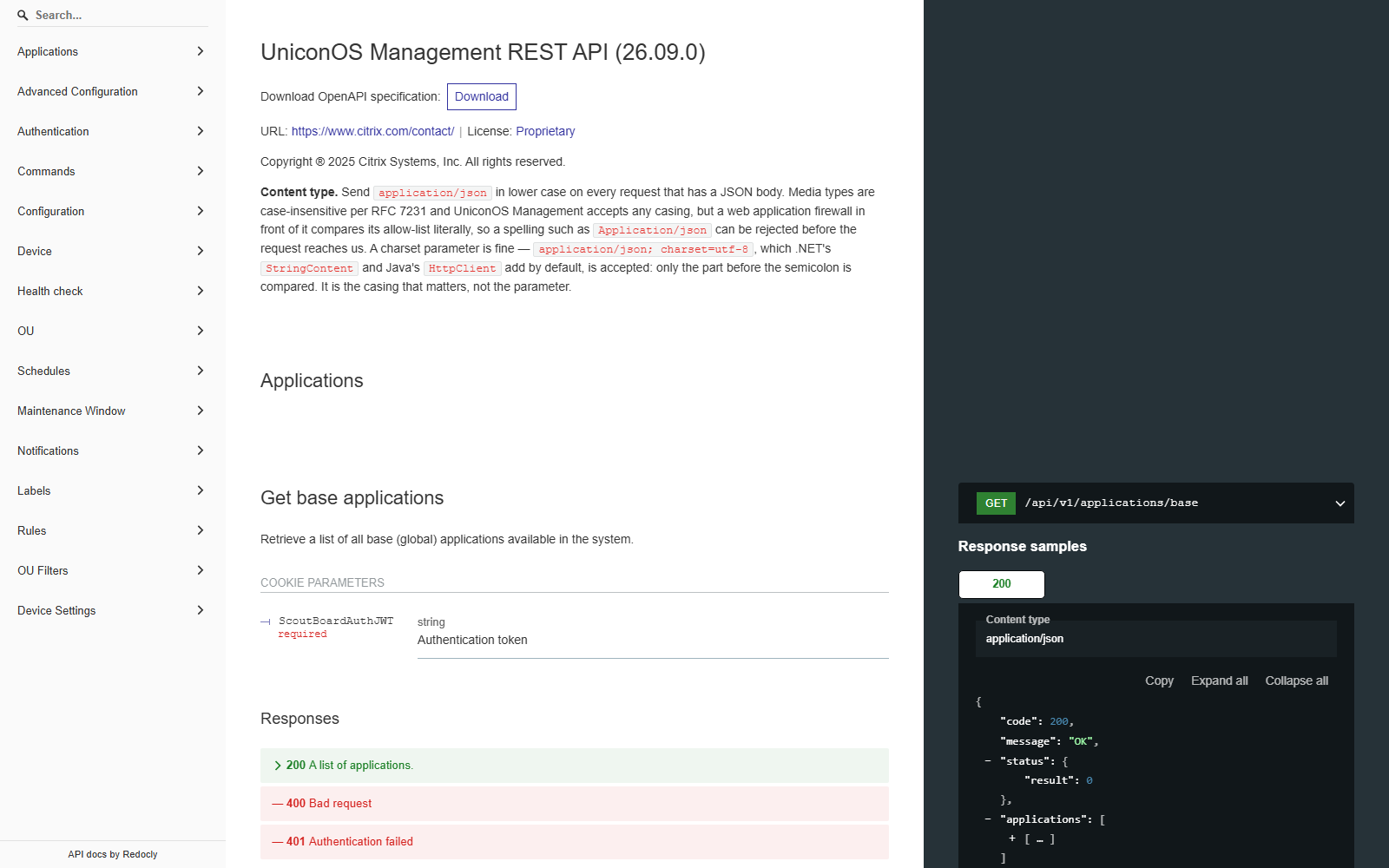
UniconOS Management Board includes a reference of all REST API endpoints, generated from its OpenAPI specification. It lists every endpoint with its parameters and possible answers, and many endpoints with examples. To open the reference, go to
https://<scout-board-host>:<port>/html/api-docs.html in your browser. The address https://<scout-board-host>:<port>/rest/api/v1/api-docs leads to the same page. You don't need to sign in to read the reference, and it also works without internet access.
In the reference, the paths of the endpoints start with
/api/v1. When you call an endpoint, put /rest in front of its path, for example https://<scout-board-host>:<port>/rest/api/v1/devices.
Signing in
A script signs in once with the user name and password of an administrator and gets a token. It then sends the token with every request. To sign in:
-
Write the user name and the password as JSON. Give the user name with its domain, either as
user@domainor asDOMAIN\user. In JSON, the backslash must be doubled:DOMAIN\\user.{"username": "<user>@<domain>", "password": "<password>"} -
Encode this JSON text in Base64.
-
Send the Base64 text as
loginData64in aPOSTrequest to/rest/auth/v1/login:POST https://<scout-board-host>:<port>/rest/auth/v1/login
Content-Type: application/json
{"loginData64": "<Base64 text>"}The answer contains the token. -
Send the token in the
Authorizationheader of every further request:Authorization: Bearer <token>
Note:
Base64 only encodes the user name and the password. It doesn't encrypt them. Connect to UniconOS Management Board over HTTPS, see Installing UniconOS Management Board.
Signing in with a user name and password needs Active Directory sign-in (
AUTH_TYPE=AD). With another sign-in method, the request gets HTTP 404 with the message AD authentication is not enabled! Use the identity provider sign-in that is configured for this UniconOS Management Board instead. For the sign-in methods, see Configuring authentication options for UniconOS Management Board.
If the user name has no domain, or if UniconOS Management Board can't resolve the domain, the sign-in gets HTTP 412. To add a domain for REST API sign-in without showing it on the sign-in page of UniconOS Management Board, see Configuring AD domains for UniconOS Management Board.
Token lifetime
A token stays valid for 4 hours. UniconOS Management Board doesn't extend it while the script works, so when the token has expired, the script signs in again. To change the lifetime of all tokens, set
REST_TOKEN_LIFETIME in the file .env.custom of UniconOS Management Board, for example REST_TOKEN_LIFETIME=8h, and restart UniconOS Management Board. If JWT_EXPIRATION is longer than 4 hours and REST_TOKEN_LIFETIME isn't set, tokens are valid for the time of JWT_EXPIRATION. A token is never valid longer than SESSION_MAX_LIFETIME, 12 hours by default.
To get a shorter lifetime, add
expirationTime to the JSON of the sign-in, for example "expirationTime": "30m". A longer lifetime isn't possible: UniconOS Management Board reduces it to the token lifetime. The value of expirationTime is a string with a positive whole number and an optional unit: m for minutes, h for hours or d for days. A number without a unit counts as hours. Any other value gets HTTP 400.
Rights
The REST API checks the rights of the administrator account that signed in, in the same way as UniconOS Management Board does. A request that these rights don't allow gets HTTP 405. For example, exporting the OU structure through the REST API needs the object rights Export and Export of the OU tree, like Export in the OU menu of UniconOS Management Board. Importing an OU structure needs Import and Import of an OU tree.
A request that changes the configuration of an OU, a device or the base configuration changes only this configuration. If the request names an entry of another configuration, for example a printer, it gets HTTP 400, or HTTP 404 for a deletion, and nothing changes.
For the other rights that the REST API checks, see Administrator rights in UniconOS Management Board.
Answers and errors
Every answer has an HTTP status code, which tells you whether the request worked. Most answers are JSON, with the status code in
code, a short text in message and the data in response. If a request fails, a msg field usually gives the reason, for example:
{"code":404,"message":"not OK","response":{"status":{"result":3,"msg":"schedule not found"}}}
Not all errors have this form. Some answers to invalid input are plain text, for example
Error validating request body. "Name" is required. So check the status code first, and read the body as text if it isn't JSON.
These are the status codes that you meet most often:
| Code | Meaning |
|---|---|
| 200, 201 | The request worked. Some requests that create an object answer 201. |
| 400 | The request is invalid, for example because a parameter or value is missing, unknown or wrong, or because an OU or a device field doesn't exist. The message usually says what is wrong. |
| 401 | The request has no token. Sign in first. |
| 402 | The grace period of the License Server has ended, so Scout has no valid license. Requests work again as soon as Scout has a valid license, see Operation and grace period. |
| 403 | The request isn't allowed in this form, for example because the device password is missing or wrong. |
| 404 | The requested object, for example a schedule, a device or an application, doesn't exist. |
| 405 | The rights of the administrator account don't allow the request. |
| 409 | Someone else is editing the same configuration, in UniconOS Management Board or through the REST API. The message starts with Someone else is currently editing this configuration. Send the request again later. |
| 412 | Sign-in only: the user name has no domain, or UniconOS Management Board can't resolve the domain. |
| 423 | Scout has no supported license, for example because it has neither a License Server nor a valid license file, or because it rejected its license file. For a rejected license file, the message names the reason. |
| 429 | Too many failed attempts: too many failed sign-ins or too many wrong device passwords, see below. |
The endpoints that look up or search devices accept in
properties only the names of existing device fields. For any other name, the request gets HTTP 400, and the message names it. Earlier versions left such a name out of the answer.
The device and OU lookups compare the values that you send, for example a device name or an OU path, exactly as you send them. If your script escapes characters in these values itself, remove this escaping.
UniconOS Management Board limits failed attempts:
-
After 10 failed sign-ins of one account from one address within 15 minutes, UniconOS Management Board refuses further sign-ins of this account from this address until 15 minutes have passed since the first of them. Successful sign-ins don't count. The limit applies to the sign-in page of UniconOS Management Board and to the REST API together.
-
After 100 failed sign-ins of one account within an hour, from any addresses, UniconOS Management Board refuses sign-ins of this account until an hour has passed since the first of them.
-
After 10 wrong device passwords of one administrator within 15 minutes, UniconOS Management Board refuses further requests of this administrator that need the device password, until 15 minutes have passed since the first of them.
Stored passwords
The REST API never returns a stored password, only whether a password is set: instead of the password, an answer contains
******. This applies, for example, to Wi-Fi keys, application passwords and the passwords in configuration labels. Configuration exports don't contain stored passwords either. When you send a setting back, UniconOS Management Board handles its password fields like this:
-
A password that you leave out, or send as
******(six asterisks), stays as it is. -
A new password is stored encrypted.
-
An empty password clears the stored password.
So a script can read a setting, change other values and send it back without touching the passwords. This also works for a printer and for LAN, WLAN and mobile internet profiles, which you can send back as you read them. The endpoints for configuration labels ignore a kiosk lock password: a label can't set it, and the kiosk lock password of the OU applies.
UniconOS Management 2609 and earlier returned stored passwords in an encrypted form instead of
******. If a script sends back such a value, UniconOS Management Board recognizes it and keeps the stored password. A later version will save such a value as a new password, so change these scripts to send ****** or to leave the password out.
Scout encrypts stored passwords with the data key of the installation, see Data key for stored passwords.
Device password for commands
The device password protects commands that run with root rights on devices. It's the same for all devices that a Scout Server manages, see Local device password in the Scout guide.
When a script saves a user-defined command in the UniconOS Command Scheduler of the base configuration, an OU or a device, the request needs the device password in the
devicePassword field. Without it, or with a wrong one, the request gets HTTP 403 with the message A user-defined scheduler command requires a valid devicePassword. Built-in commands and deleting a scheduler entry don't need the device password.
A custom command that a script sends to devices with root rights needs the device password too. For the field, see the API reference.
Activity log
Changes that a script makes through the REST API are written to the activity log, like changes in UniconOS Management Board, with the administrator account that made them. Requests that only read data, and refused requests, don't create entries.
Some entries start with
REST:, for example REST: Add label "<label name>". Other changes, for example commands for devices, appear in the same way as when you make them in UniconOS Management Board.
You find the activity log under Security & permissions > Manage administrators > Activity log. Scout writes an entry only if the Monitoring level includes the change. You set the monitoring level under Security & permissions > Manage administrators > Settings. For what each level records, see Monitoring levels in the Scout guide.
Loading the devices of an OU
GET /api/v1/devices returns the devices of an OU, and on request also the devices of all its sub-OUs. You choose which device fields the answer contains. This suits regular exports, for example a nightly list of MAC addresses for network access control. In the API reference, you find the endpoint under Device.
The answer is JSON. If you need a CSV file, let your script convert the answer, as in the example below.
The request takes these query parameters:
| Parameter | Description |
|---|---|
ouId or ouPath |
The OU, by its ID or by its path, for example /<OU>/<sub-OU>. Give exactly one of the two. |
includeSubOus |
true adds the devices of all sub-OUs. With false, the default, the list contains only the devices that are directly in the OU. Only true and false in lower case are valid. |
properties |
The device fields that the answer contains, separated by commas, for example Name,Mac_Address,IP_Address. Password fields can't be requested. Without properties, the answer contains the client identifier, name, MAC address, IP address, group ID and device ID. |
limit |
The number of devices per page, from 1 to 10,000. The default is 1,000. |
cursor |
The nextCursor value of the previous page. Leave it out for the first page. |
Any other parameter, an invalid value or a device field that doesn't exist gets HTTP 400. For a device field that doesn't exist, the message names the field.
The list contains only the devices that the administrator account may see. An OU without devices gives an empty list. An OU that doesn't exist, or that the account may not see, gets HTTP 400.
Paging through the list
Each answer contains one page of devices in
response.devices and a cursor in response.nextCursor. To get the next page, send the same request again and add cursor=<nextCursor>. When nextCursor is null, you have all devices.
Follow
nextCursor until it is null, even if a page contains fewer devices than limit, or none at all. Pages can be shorter because the API leaves out the devices that the account may not see.
If devices are added or deleted while a script pages through the list, no other device is skipped or returned twice. A device that is added during the export may or may not be in the list.
This PowerShell example loads the names and MAC addresses of all devices of an OU and its sub-OUs, 10,000 per page, and saves them in a CSV file:
$headers = @{ Authorization = "Bearer <token>" }
 $url = "https://<scout-board-host>:<port>/rest/api/v1/devices" +
     "?ouPath=<ou-path>&includeSubOus=true&properties=Name,Mac_Address&limit=10000"
 $devices = @()
 $cursor = $null
 do {
     $page = Invoke-RestMethod -Uri $(if ($cursor) { "$url&cursor=$cursor" } else { $url }) -Headers $headers
     $devices += $page.response.devices
     $cursor = $page.response.nextCursor
 } while ($cursor)
 $devices | Export-Csv devices.csv -NoTypeInformation
Reading and changing device settings
GET /api/v1/settings/devices returns the device settings that you find in UniconOS Management Board under Preferences > Devices, and POST /api/v1/settings/devices changes them. In the API reference, you find both under Device Settings. For what the settings do, see Preferences.
The settings come as one JSON document with five parts:
| Part | Settings |
|---|---|
ouFilter |
Whether Scout assigns new devices to an OU by OU filter, and with which type of filter |
newDevices |
The default OU and the other options for new devices |
deviceNames |
The template that Scout uses to name devices, and its options |
discover |
The response time for device discovery, in milliseconds |
retainLocalConfig |
Whether devices keep the values that users set in unlocked fields |
In
ouFilter, mode is disabled, subnet or custom. disabled turns off the OU filter, subnet stands for the Subnet filter and custom for the User-defined filter. Rule-based OU filters take effect only when mode is custom. To manage the OU filters themselves, use the endpoints under /api/v1/ouFilters.
With
POST, send only the parts and fields that you want to change. All other settings stay as they are, and the answer contains the complete document. For example, this request sets the response time to 500 milliseconds and turns off retaining the local configuration:
POST https://<scout-board-host>:<port>/rest/api/v1/settings/devices
 Content-Type: application/json
 Authorization: Bearer <token>

 {"discover": {"responseTimeMs": 500}, "retainLocalConfig": false}
Send values with their JSON type, for example
false and not "false". A field that doesn't exist, a value of the wrong type, an invalid value or an empty request gets HTTP 400, and no setting changes. A change that the API accepts applies in the same way as a change that you save in UniconOS Management Board.
Both requests need the menu right Devices under Menu : Options -> Advanced options. Each successful change creates one entry in the activity log that names the changed parts, for example
REST: Device settings are saved (ouFilter, deviceNames, discover).
Monitoring with the health check
GET /api/v1/healthcheck reports the state of Scout for monitoring tools, for example whether the Database Layer answers and whether Scout has a valid license. Like every other request, it needs a token, see Signing in.
To get the license state, add the parameters
license and subscription:
GET https://<scout-board-host>:<port>/rest/api/v1/healthcheck?license&subscription
 Authorization: Bearer <token>
The answer then contains the sections
license and subscription. In each section, result and msg show the license state:
result |
msg |
Meaning |
|---|---|---|
0 |
valid |
Scout has a valid license. With a license file, the license section also shows the number of device licenses in totalLicenses, usedLicenses and availableLicenses. |
1 |
not valid |
Scout has no valid license, for example because the grace period of the License Server has ended, or because Scout rejected its license file. For a rejected license file, reason names the cause, for example other-database for a file that was issued for another database. |
3 |
license state unknown |
UniconOS Management Board can't read the license state, for example because the Database Layer doesn't answer. |
From UniconOS Management 2611, the health check answers with HTTP status 200 also when Scout has no valid license. Earlier versions answered with HTTP status 423 or 402, as other requests still do, see Answers and errors. If your monitoring evaluates these status codes, evaluate the
license section instead.
If several Scout Servers share the Scout database, add the parameter
scoutNodes to check the connections between the servers, see Checking the health of the servers.