
Preferences
On the Navigation Panel, on the bottom section,you will find the Preferences entry with preferences for various functions.
Devices
General device and filter settings, especially with regard to onboarding devices
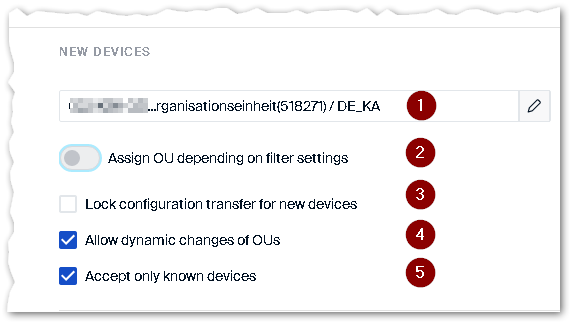 |
|
|---|---|
| 1 | OU new devices are assigned to, by default |
| 2 | Activates the OU filter for new devices. The OU filter has priority over other methods. The OU filter is configured using subnets and masks or using specific asset information of the devices. |
| 3 | Newly added devices are not synchronized with the server's device configuration |
| 4 | Allows dynamic assignment of devices via DHCP |
| 5 | The Scout Server accepts only devices with registered MAC addresses. |
The setting Devices that join a protected or hidden OU without sending its password to Scout Server decides what Scout Server does when a device asks to join an OU that has an access password, or a hidden OU, without the password:
-
Reject (default, also after an upgrade): Scout Server places a new device in the default OU. A device that moves itself to another OU stays in its current OU.
-
Accept and log: The device joins the OU, as in earlier versions, and Scout Server logs each such join.
Scout Server refuses a wrong password with both settings. It checks the password only when a new device joins an OU or when a device moves itself to another OU. Devices that are already in an OU, moves by an administrator and OU filter rules aren't affected. A change of the setting applies without a restart of Scout Server.
The setup wizard of UniconOS 2611 and earlier checks the password on the device, but doesn't send it to Scout Server. Devices that get their OU from DHCP options, from a GroupID in their image or from Scout Cloud Gateway don't send it either. With Reject, such new devices start in the default OU. Place them in the protected OU with an OU filter rule, or move them there after they have joined. To keep the behavior of earlier versions, select Accept and log.
Logging
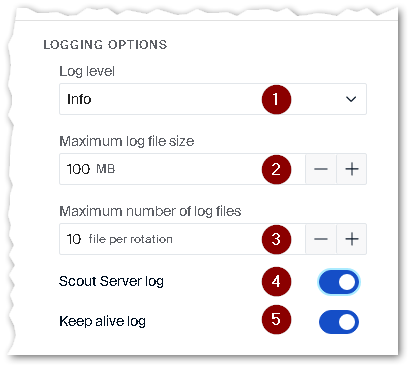
On the Scout Server machine, server activities of the Scout Server and the Scout Keep Alive service are logged.
 |
|
|---|---|
| 1 | Log level Error: Only error messages, Info: Error messages and additional information (default), Debug: Log files with extended content |
| 2 | Configure log file rotation / File size |
| 3 | Configure log file rotation / Number of files |
| 4 | Enable Scout Server logging (eluxd.log) |
| 5 | Enable Keepalive logging (keepAlive.log) |
Predefined commands
User-defined commands can be centrally predefined and provided as ready-to-use commands for administrators managing their devices remotely. All active commands in this list can be applied by administrators to individual devices, to OUs, or to Dynamic Device Groups.
A predefined command is shared with all administrators by default, but can be restricted to specific groups. For the executing administrators, the name of the command is displayed instead of the command.
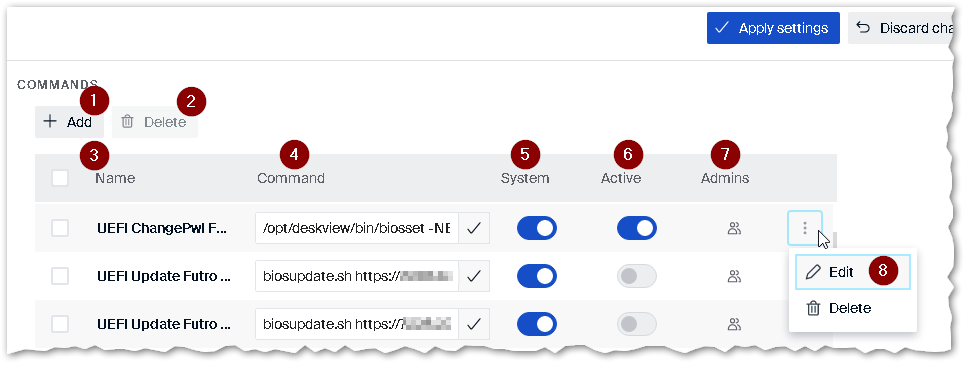 |
|
|---|---|
| 1 | Add new entry |
| 2 | Delete selected entries |
| 3 | Name of a command |
| 4 | Command definition (syntax) |
| 5 | The command requires system rights |
| 6 | The command will be displayed in the list-field for predefined commands. |
| 7 | Restrict command to specific administrators or administrator groups |
| 8 | Edit the name or syntax of an entry |
To create a predefined command, click Add (1), and then in the new entry, specify the Name (3), Command (4) and further options (5, 6, 7).
Firmware preferences
For Device Configuration > Firmware, you may predefine values that operational administrators are allowed to use. If you restrict the administrators' object rights so that only predefined entries can be selected, no custom values can be created. For further information, see Protecting firmware configuration in the Scout guide.
The following values can be predefined:
| Image types | Description and example |
|---|---|
| Image files | Names of images which may be used for firmware updates and upgrades |
Example: recovery_x.idf |
|
| Container for software packages and images | Container paths which may be used to select images |
Example: elias/UC_RC6_X64 |
|
| UEFI files | Names of .udf files which may be used to update the devices UEFI firmware with matching binary data. |
Example: uefi.udf |
To create a predefined firmware value, click Add, and then in the new entry, enter the exact name or path. The entry must correspond in spelling to the existing file and path names. Note the following:
-
File and path names are case-sensitive
-
Do not use spaces.
-
Specify file names with their extensions such as
.idf. -
An image file name can contain only letters, digits and
. _ + ~ -. It must start with a letter, a digit or_, and it can have at most 127 characters.
The Active option allows you to specify for each defined entry whether it will be displayed or hidden in the Firmware dialog.
To change a list, you need its right, for example Administration of predefined IDF for the image files, see Existing rights UniconOS Management Board now enforces.
OU filter
If Assign OU depending on filter settings is on, Filter Type chooses how Scout assigns new and reconnecting devices to an OU: Subnet filter (by device network address) or User-defined filter (by configured asset information).
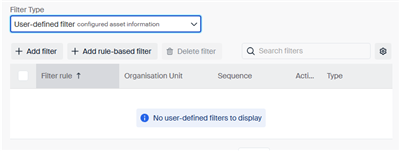
With User-defined filter, the table's toolbar offers two ways to create a filter:
-
Add filter creates a typed filter: an expression such as
ELUX_HOSTNAME=pc-01, matching the syntax used in the legacy Scout Console. For the full syntax and the list ofELUX_variables, see OU filter as a user-defined filter. -
Add rule-based filter opens a visual rule builder. Each condition has Property, Operator and Value; link conditions in a block with AND or OR, and add further blocks with the AND / OR control between them. The dialog shows the generated expression and validates the rule before adding it. A Destination OU is required for each rule-based filter.
-
Property offers the device properties also used by typed filters (such as Hostname, IP Address, Device Type), plus In Subnet (IP Check) (value: a CIDR network, for example
192.168.1.0/24) and Custom Property (a property name your own custom package adds). -
Rule-based filters can only match
ELUX_properties and customer-defined_CUSTOM.properties from a custom eLux package. Server-sideSCOUT_properties are not available at OU-assignment time. -
Operators for ordinary properties are Contains, Equals, Starts With, Ends With and Regex; matching ignores case. Round brackets cannot be used in a value with any operator — for alternatives, write
t640|t740instead of(t640|t740), or add one condition per alternative linked with OR.
-
-
Typed and rule-based filters are listed together and evaluated in one Sequence order, lowest first; the first active filter that matches decides the OU. If a typed and a rule-based filter share the same Sequence and both match, the typed filter wins.
-
Both the Subnet filter and User-defined filter tables have a Search filters field (a plain contains-search, not case-sensitive) and row-per-page options of 25, 50, 75, 100 or All, remembered per table.
Device names
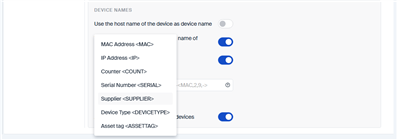
A device gets its name from a name template, applied the first time it contacts Scout. The template can use the device's hardware properties, so names can reflect the serial number, manufacturer, model or asset tag instead of only the MAC address, IP address or a counter.
 |
|
|---|---|
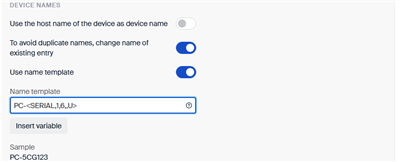
| 1 | Turn on Use name template, then enter a template in Name template |
| 2 | Insert variable adds the selected variable, without arguments, at the cursor position |
| 3 | Sample shows the name the template gives an example device |
Click a variable in the Insert variable menu to add it to the template:
| Variable | Shows |
|---|---|
<MAC> |
The MAC address (12 characters) |
<IP> |
The IP address |
<COUNT> |
The lowest number that no other device name uses |
<SERIAL> |
The serial number |
<SUPPLIER> |
The manufacturer |
<DEVICETYPE> |
The model |
<ASSETTAG> |
The chassis asset tag, or the baseboard asset tag if the chassis has none |
Each variable takes up to four optional, comma-separated arguments:
<VARIABLE,from,to,separator,case>.
-
from / to: the first and last character to use, counting from 1. A value past either end is moved to the nearest valid position, so
<SERIAL,1,255>is the whole serial number. -
separator: inserted after every second character. For
<IP>, this is the character between the parts of the address. -
case:
Ufor upper case,Lfor lower case. -
<COUNT,start,max,fill>uses a different set of arguments: a number from start (default 0) up to max (default 99999), padded with the fill character (default 0). Scout takes the lowest number in this range that no other device name uses, also after Scout Server restarts. A number that becomes free, for example when you delete a device, is used again after Scout Server restarts or after you save the device name settings.
An argument left empty counts as zero, not as its default. For example,
<SERIAL,,,,U> gives only the first character; for the whole serial number in upper case, write <SERIAL,1,255,,U>.
 |
|
|---|---|
Template PC-<SERIAL,1,6,,U> gives the sample device the name PC-5CG123 |
A template can be up to 255 characters long. After the variables are filled in, every character other than a-z, A-Z, 0-9 and the hyphen becomes a hyphen, and a hyphen at the start or end of the name becomes the letter A. A variable whose value the device does not report expands to nothing.
-
Apply name template only to new devices (on by default): a new device is named from the template. With this off, a device is also renamed at its next check-in if its name no longer matches the template, except for templates containing
<COUNT>. -
If the template would give a device a name that another device already has, Scout does not apply it to that device. A registered device keeps its current name.
-
A template can also be set for a single OU, see Advanced device configuration > Management in that OU's context menu. Turn on Use parent to use the template for all devices, or enter a template for that OU only.
UniconOS Management instances
UniconOS Management instances lists the Scout components that are registered in your Scout database, and it shows whether your Scout Servers work together. You need this page mainly when several Scout Servers share one Scout database. In the Navigation menu, click Preferences, and then click UniconOS Management instances. To see this entry, you need the menu right Menu : View -> Scout entities.... UniconOS Management Cloud doesn't offer it.
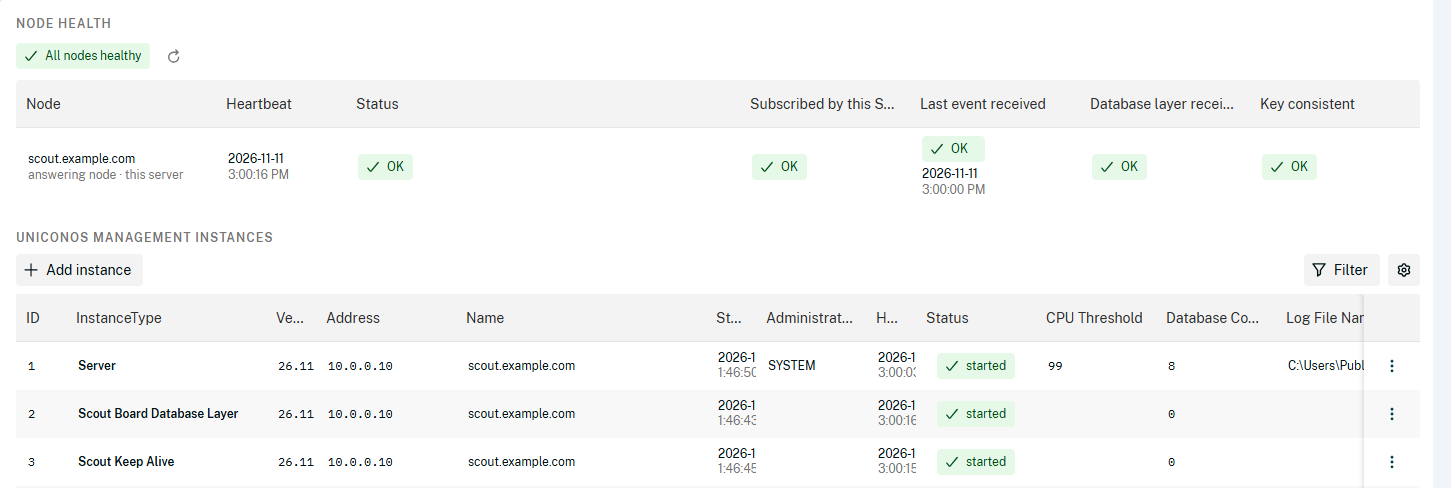
The page has two parts: Node health at the top and the list of instances below it.
Node health
Node health shows each Scout Server that uses the Scout database, and it checks whether the UniconOS Management Board that you're signed in to receives the events of this server. UniconOS Management Board needs these events, for example, to show status changes of devices without a reload and to set up mirroring sessions. With a single Scout Server, the table has one row.
Above the table, a summary shows the overall result: All nodes healthy, Some nodes have warnings, At least one node is failing or Not all information is available. To check again, click the refresh icon next to it.
Each row of the table is a server. The columns show these values and checks:
| Column | Shows |
|---|---|
| Node | The host name of the server. Below it, this server marks the server that this UniconOS Management Board runs on, and answering node marks the server whose Database Layer this UniconOS Management Board uses. |
| Heartbeat | When the Database Layer of the server last reported to the Scout database. |
| Status | The overall result for the server. If a check fails or warns, its hint appears below the result. |
| Subscribed by this Scout Board | Whether this UniconOS Management Board receives the events of the server on port 22151. |
| Last event received | When this UniconOS Management Board last received an event from the server. The Database Layer sends an event at least every 30 minutes, so the check warns after 61 minutes without one. If no event has arrived yet, the check shows Unknown during the first hour after UniconOS Management Board has connected to the server. |
| Database layer receiving from Scout Server | Whether the Database Layer of the server receives the events of its Scout Server. The check fails, for example, if the Database Layer can't reach its Scout Server, if Scout Server has stopped, or if the Database Layer hasn't sent a heartbeat for more than 2 minutes. A Scout Server without device activity sends no events, so a long silence alone doesn't fail the check. |
| Key consistent | Whether the Database Layer of the server uses the current Scout Server key from the Scout database. |
The status and each check show OK, Warning, Failing or Unknown. To see the hint of a check, point to it, or move the keyboard focus to it. The hint tells you what to do, for example which server refuses this UniconOS Management Board and which setting to change.
Each UniconOS Management Board shows only its own connections. Therefore, check Node health in the UniconOS Management Board of every server.
If the Database Layer of a server doesn't run while its Scout Server runs, UniconOS Management Board keeps the server in the table, with a warning that no running database layer is registered for it. To clear the warning, start the Scout Board Database Layer service on this server.
For causes and solutions, see Troubleshooting in Scout Server cluster.
List of instances
Below Node health, the list UniconOS Management instances shows every Scout component that is registered in the Scout database, for example each Scout Server, UniconOS Management Board, Scout Board Database Layer and Scout Keep Alive service. For each instance, the list shows the type, the version, the address and name, the start time, the heartbeat and the status, started or stopped.
To add a load balancer, click Add instance, see ManagerLoadBalancing by dedicated load balancer. With the menu at the end of a row, you can edit or delete an instance. You can delete only a stopped instance. The entries of UniconOS Management Board, the Scout Board Database Layer and the Scout Keep Alive service can't be edited or deleted.
Enrollment settings
Enrollment settings is where you create enrollment tokens and manage device certificates for devices that connect to UniconOS Management Cloud. On-premises installations don't show this entry. For details, see Enrollment settings.