使用 Ansible 安装 VDA
概述
本文介绍了如何使用 Ansible 部署 VDA。有关更多信息,请参阅 Ansible 文档。
注意:
本文仅介绍基于 Citrix® 测试环境的建议。您可以根据自己的需求自定义这些步骤。Citrix 不对为满足客户需求而对本文进行的任何更新或调整负责。
使用 Ansible 部署 VDA 的关键步骤
-
Kerberos 配置
步骤 1:配置虚拟机环境
在 Windows 服务器上运行以下命令。
-
设置 PS RemoteSigned。
Set-ExecutionPolicy RemoteSigned -
将 WinRM 设置为使用未加密连接:
winrm set winrm/config/service '@{AllowUnencrypted="true"}'注意:如果此步骤中发生错误,请使用以下命令:Enable-PSRemoting -Force -
打开防火墙端口 5985。
New-NetFirewallRule -DisplayName "Allow WinRm port 5985" -Direction Inbound -Profile Any -Action Allow -LocalPort 5985 -Protocol tcp
步骤 2:安装 Ansible
要在 Ubuntu 20.4 或更高版本上安装 Ansible,请运行以下命令:
-
sudo apt update -
sudo apt install software-properties-common -
sudo add-apt-repository --yes --update ppa:ansible/ansible -
sudo apt install ansible -
sudo apt install python3-pip
步骤 2i:安装 Kerberos
要安装 Kerberos,请运行以下命令。
sudo apt install python3-dev libkrb5-dev krb5-user
步骤 2ii:配置 Kerberos
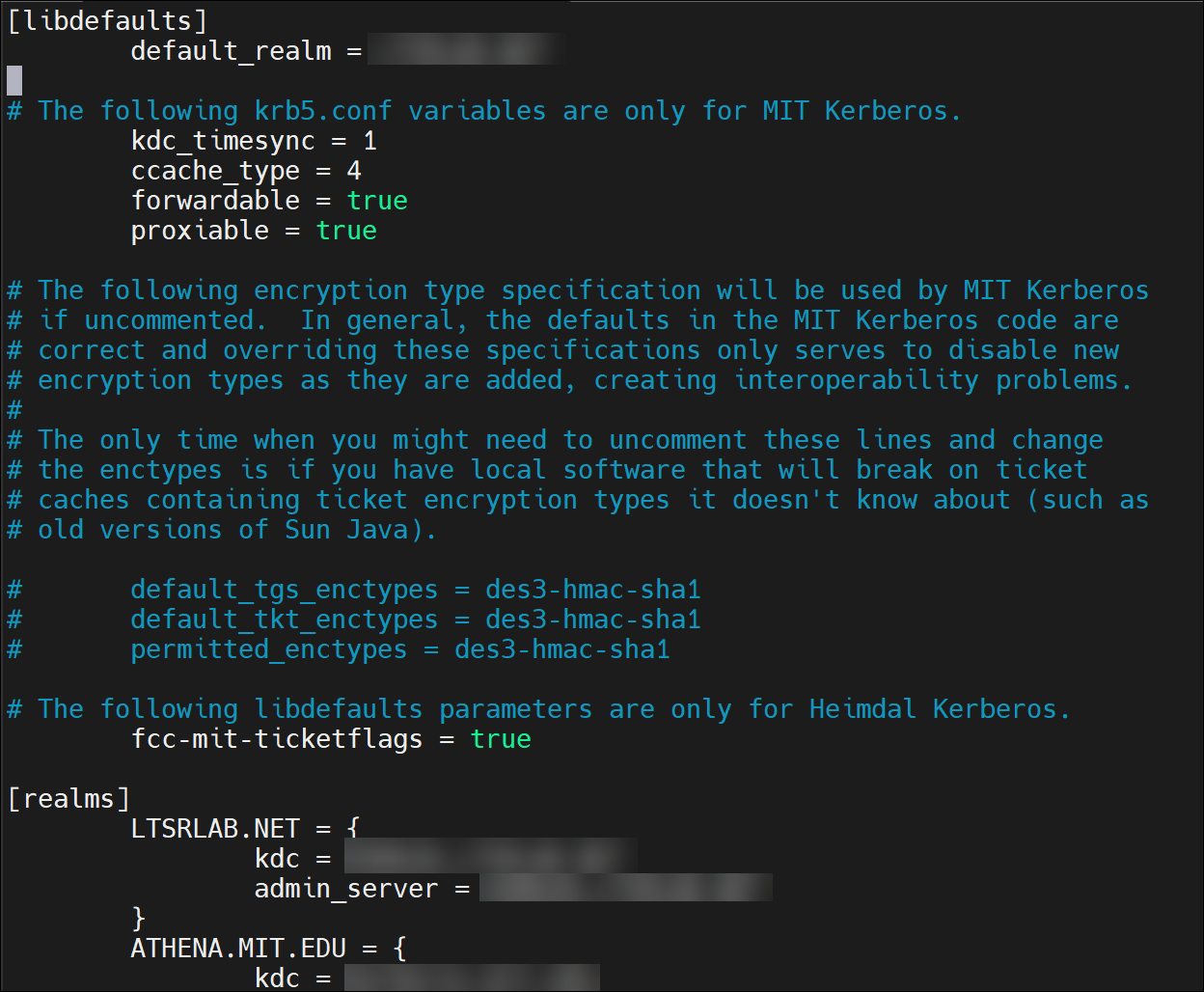
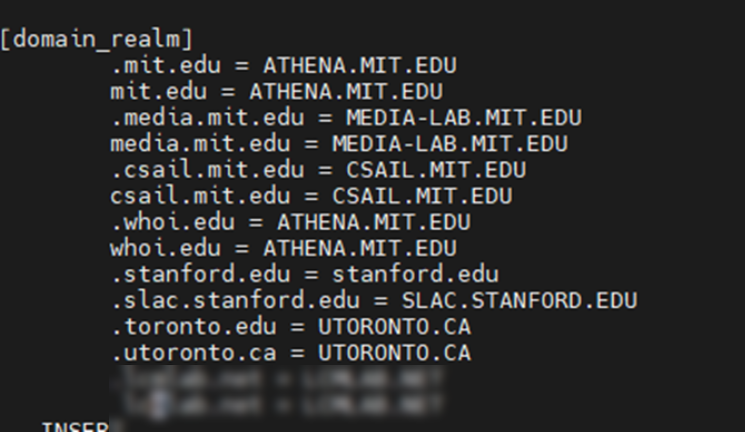
要配置 Kerberos,请运行以下命令:
Edit /etc/krb5.conf
注意:
Kerberos 领域名称请使用大写字母。
步骤 3:配置 Ansible
要配置 Ansible 主机,请完成以下步骤:
-
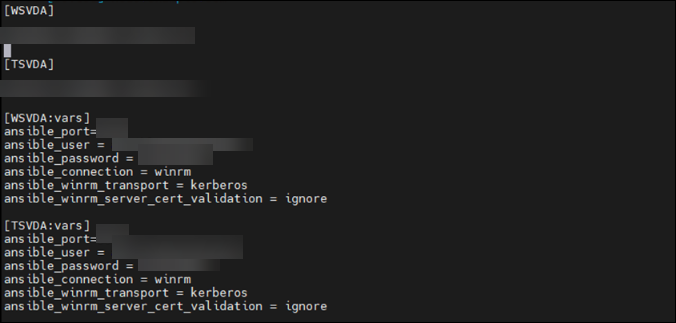
运行以下命令:
Edit /etc/ansible/hosts -
配置 Delivery Controller
Install.yaml文件/QUIET /NOREBOOT /NORESUME /OPTIMIZE /VERBOSELOG /COMPONENTS VDA /CONTROLLERS 'MyDDC.xd.local' /ENABLE_HDX_PORTS /ENABLE_REAL_TIME_TRANSPORT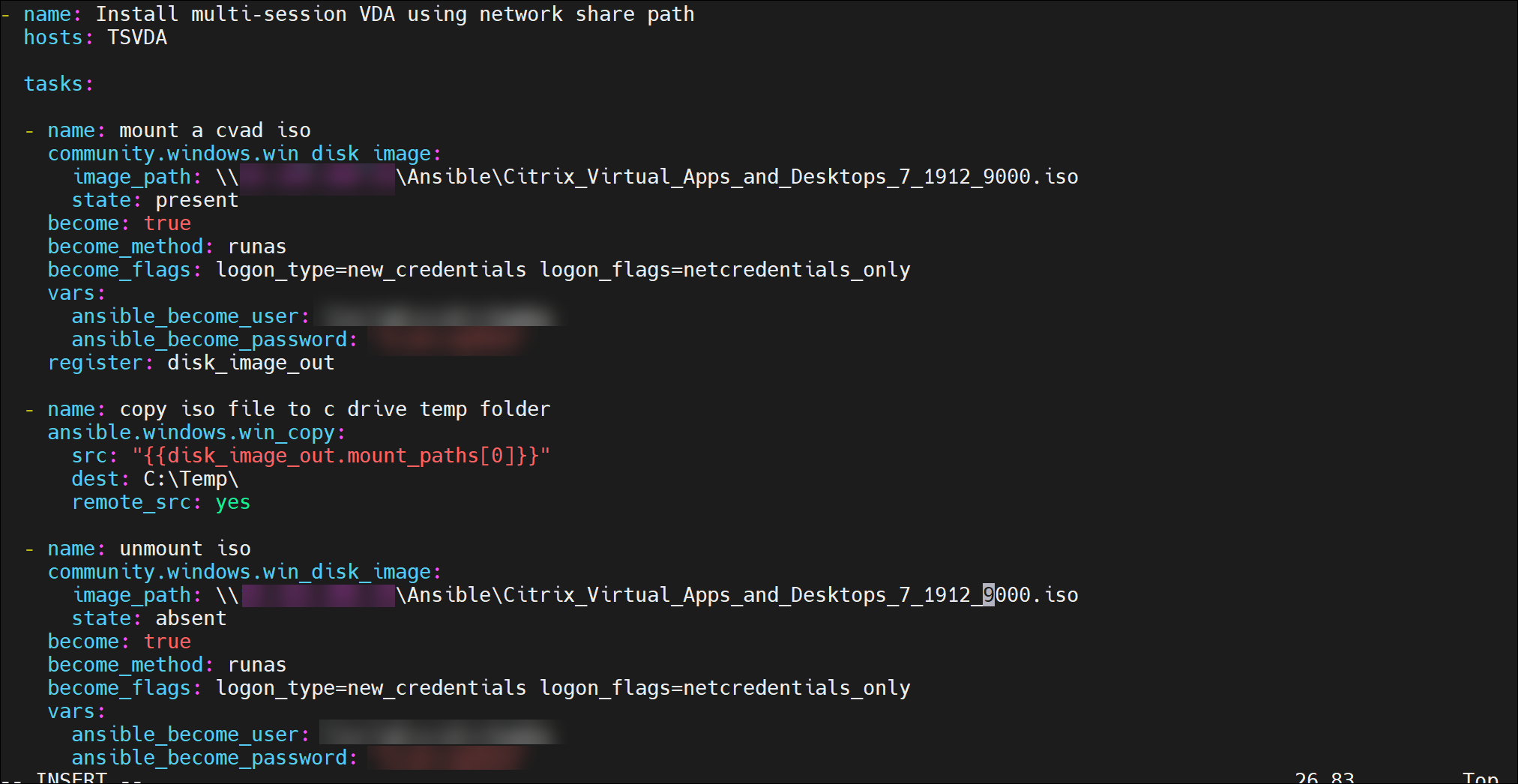
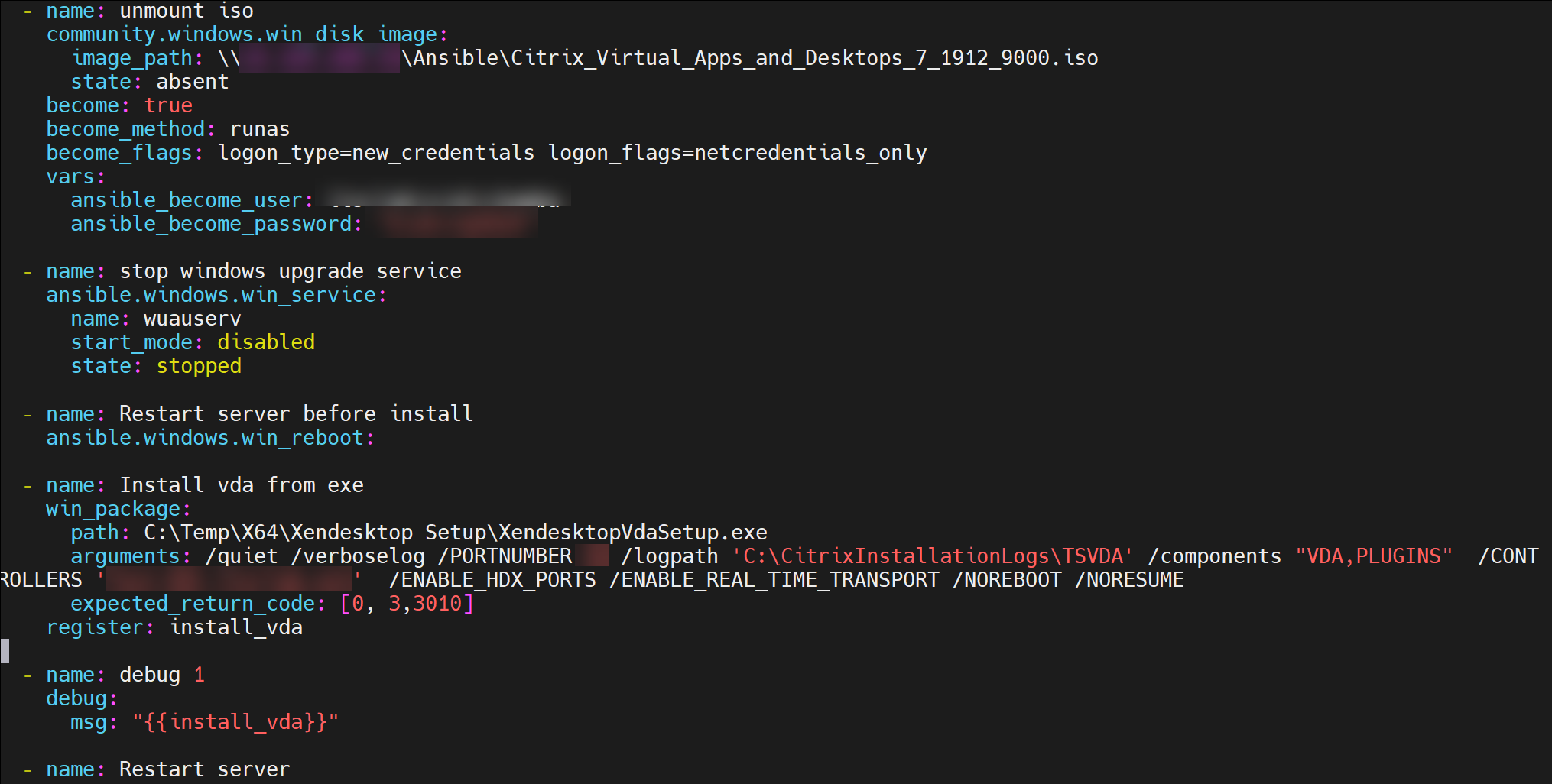
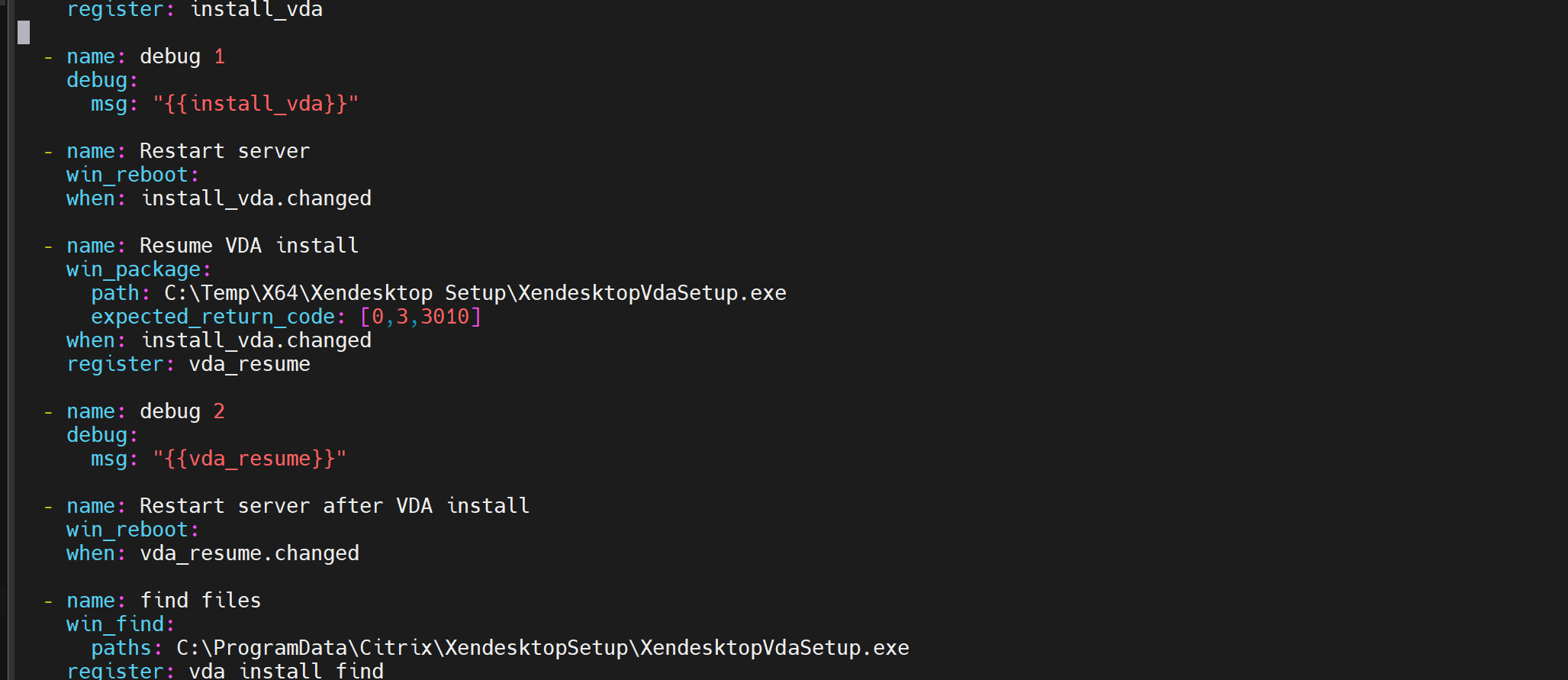
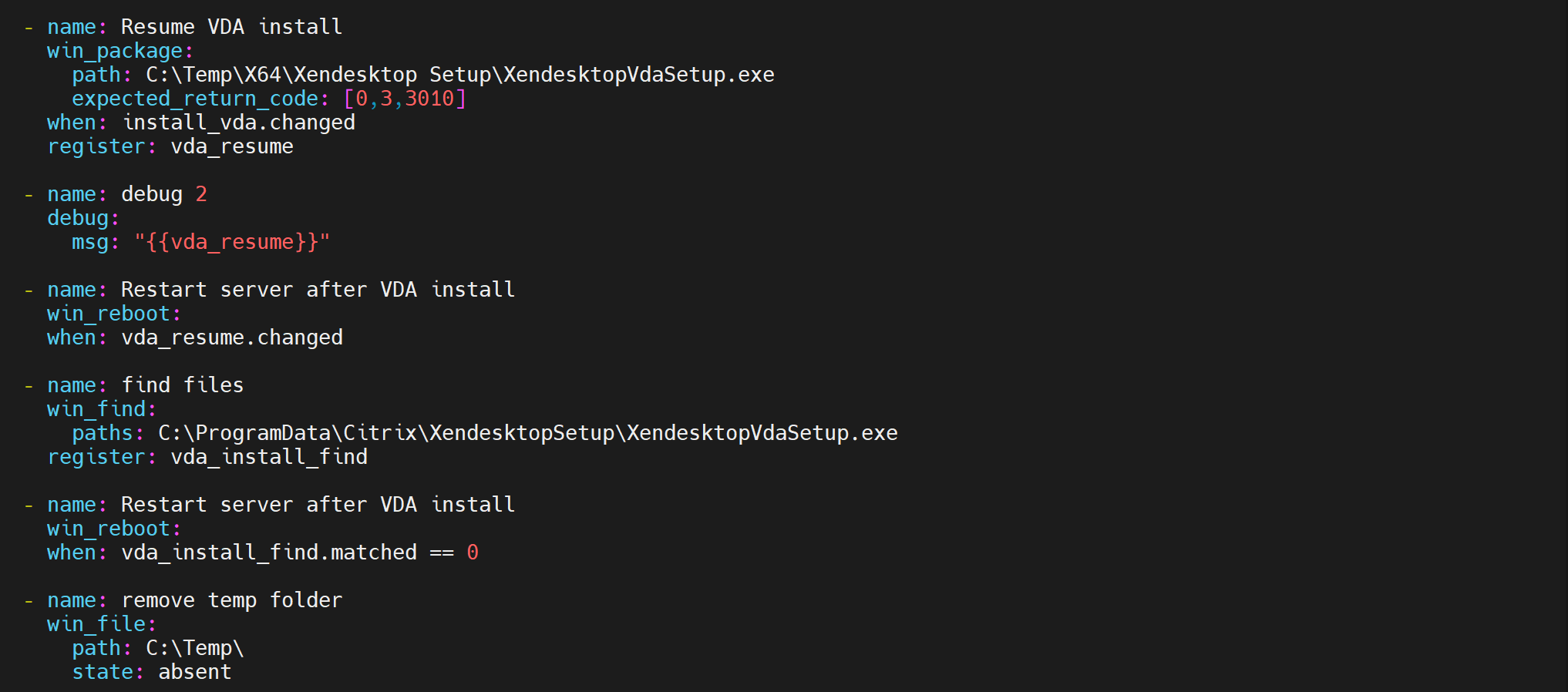
-
使用以下命令运行 yaml 文件:
sudo ansible-playbook install.yml -vvv(详细模式) -
您可以在配置文件中配置多个主机以及其他附加配置。
Edit /etc/ansible/hosts