-
Apps configuration and management
-
Citrix Enterprise Browser to Chrome Enterprise Premium migration
This content has been machine translated dynamically.
Dieser Inhalt ist eine maschinelle Übersetzung, die dynamisch erstellt wurde. (Haftungsausschluss)
Cet article a été traduit automatiquement de manière dynamique. (Clause de non responsabilité)
Este artículo lo ha traducido una máquina de forma dinámica. (Aviso legal)
此内容已经过机器动态翻译。 放弃
このコンテンツは動的に機械翻訳されています。免責事項
이 콘텐츠는 동적으로 기계 번역되었습니다. 책임 부인
Este texto foi traduzido automaticamente. (Aviso legal)
Questo contenuto è stato tradotto dinamicamente con traduzione automatica.(Esclusione di responsabilità))
This article has been machine translated.
Dieser Artikel wurde maschinell übersetzt. (Haftungsausschluss)
Ce article a été traduit automatiquement. (Clause de non responsabilité)
Este artículo ha sido traducido automáticamente. (Aviso legal)
この記事は機械翻訳されています.免責事項
이 기사는 기계 번역되었습니다.책임 부인
Este artigo foi traduzido automaticamente.(Aviso legal)
这篇文章已经过机器翻译.放弃
Questo articolo è stato tradotto automaticamente.(Esclusione di responsabilità))
Translation failed!
Configure ERP Cloud
The following sections provide more information about configuring ERP Cloud.
Citrix Gateway SaaS Application
Users can securely log on to ERP Cloud using their enterprise credentials.
To configure ERP Cloud for SSO through SAML, perform the following:
-
In a browser, type:
https://<organizationid>.identity.oraclecloud.com/ui/v1/adminconsole/?root=security&security=external-idpand press Enter. -
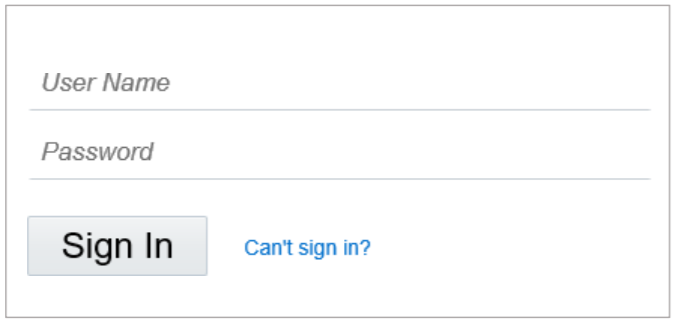
Log on to your ERP Cloud account.
-
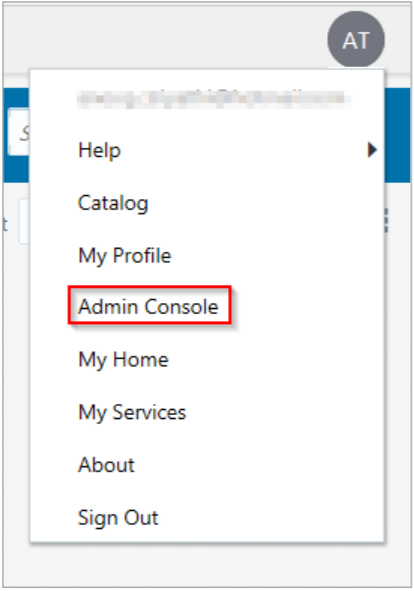
On the home page, in the upper right corner, click your profile initials and click Admin Console.
-
In the upper left corner, click the ellipses.
-
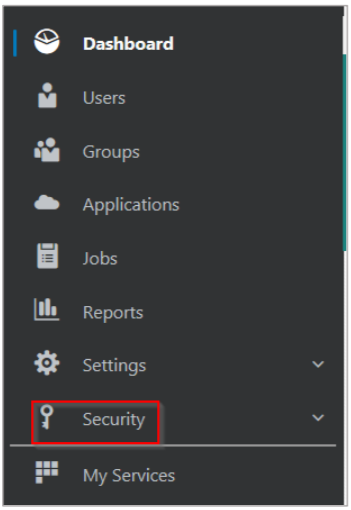
Click Security.
-
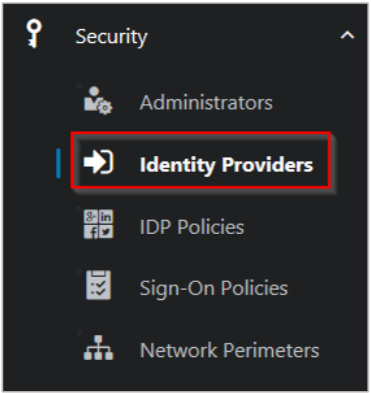
Click Identity Providers.
-
On the Identity Providers page, click Add SAML IdP.

-
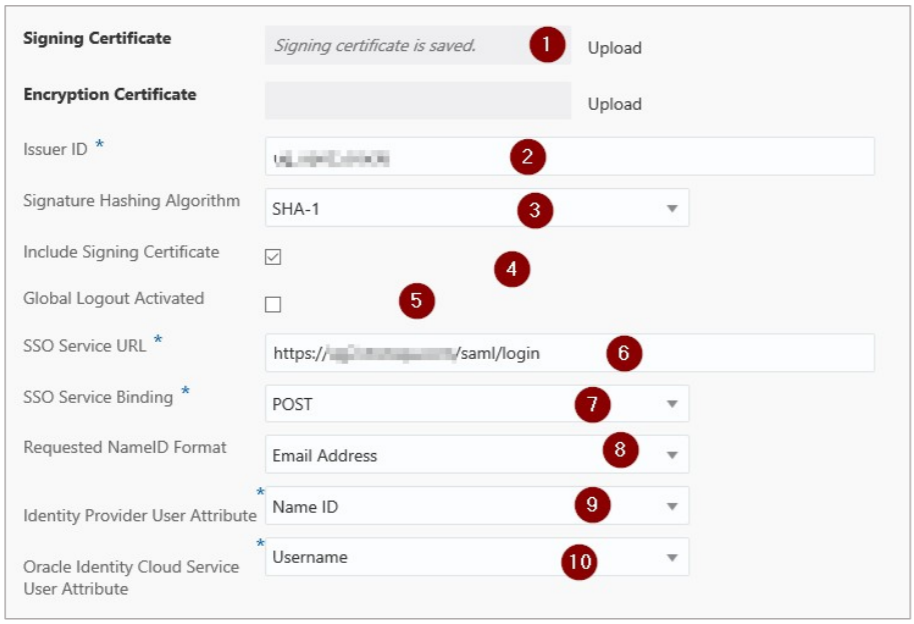
On the Identity Providers page, specify the following information:
-
Signing Certificate– paste the PEM certificate.
To obtain your IdP certificate, perform the following:
-
Remotely access your NetScaler® instance using PuTTY.
-
Navigate to /nsconfig/ssl folder (using shell command
cd/nsconfig/ssl) and press Enter. -
Type cat
<certificate-name>and press Enter. -
Copy the text from —–BEGIN CERTIFICATE—– to —–ENDCERTIFICATE—–
-
Paste the text in a text editor and save the file in an appropriate format such as
your organization name.pem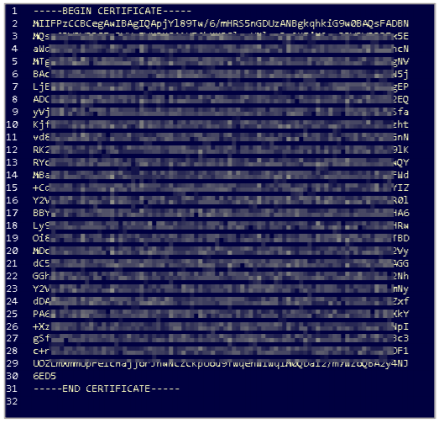
-
-
Issuer ID – type a unique name.
- Signature Hashing Algorithm – select hashing algorithm used to sign SAML messages.
- Include Signing Certificate - select the check box if you want to include signing certificate to verify the signature of the messages for the IdP.
- Global Logout Activated - select the check box if you want to activate SAML global logouts.
-
SSO Service URL – enter the IdP URL followed by /saml/ login. For example:
https://<netscalerinstance>.com/saml/ login -
SSO Service Binding– click the appropriate option to send an authentication request.
-
Requested NameID Format – click the appropriate format for mapping the user’s attribute value in IdP to the corresponding attribute in Oracle Identity CloudService.
-
Identity Provider User Attribute – click the appropriate attribute value received from IdP to uniquely identify the user.
- Oracle Identity Cloud Service User Attribute– click the appropriate attribute that you use to map the attribute received from IdP.
-
-
Click Save Changes.
Share
Share
In this article
This Preview product documentation is Citrix Confidential.
You agree to hold this documentation confidential pursuant to the terms of your Citrix Beta/Tech Preview Agreement.
The development, release and timing of any features or functionality described in the Preview documentation remains at our sole discretion and are subject to change without notice or consultation.
The documentation is for informational purposes only and is not a commitment, promise or legal obligation to deliver any material, code or functionality and should not be relied upon in making Citrix product purchase decisions.
If you do not agree, select I DO NOT AGREE to exit.