Troubleshoot CEP integration issues
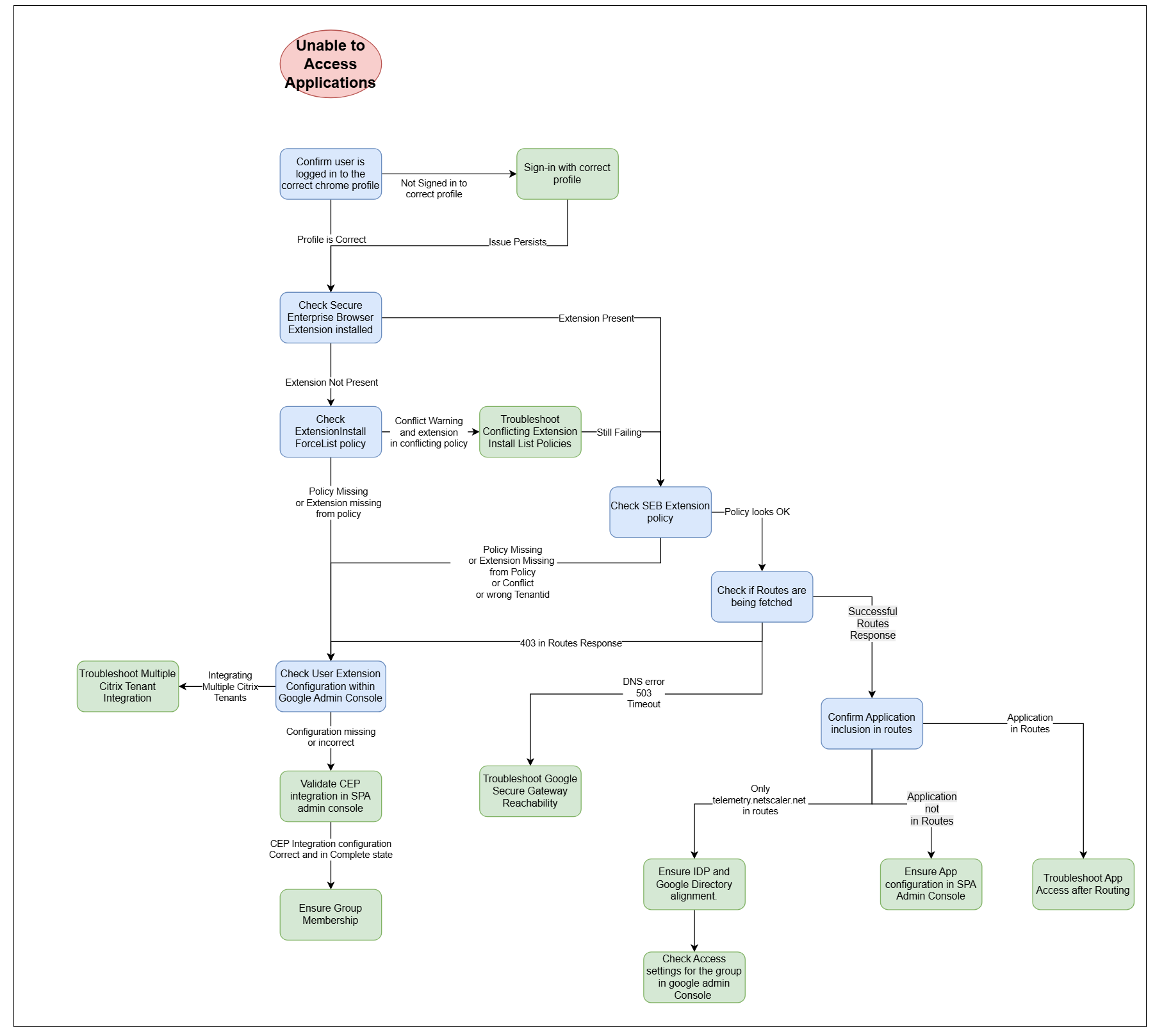
This article provides a troubleshooting workflow for customer admins who have completed Chrome Enterprise Premium (CEP) integration with Citrix Secure Private Access and are unable to access applications.
Basic assumptions:
- The customer administrator has completed directory synchronization with Google Directory.
- The customer has successfully completed Chrome Enterprise onboarding in Secure Private Access.
- Applications and access policies are configured in the Secure Private Access admin console to allow access to the relevant applications for the user or a group the user belongs to.
- The user is logging in to the onboarded domain.
- The browser has internet connectivity.
Diagnostic logs for CEP troubleshooting
To streamline investigation, collect the following diagnostic information before opening a support case and include it with every submission.
-
Export Chrome policies.
- Open Chrome and navigate to chrome://policy/.
- Click More Actions and then select Export to JSON.
- Attach the exported file to your support case.
-
Enable Verbose Logging for the Secure Enterprise Browser extension.
- Click the ellipsis icon next to the Secure Enterprise Browser extension.
- Click the options and then set Log level to All.
- Close and reopen Chrome.
- Go back to the extension options (ellipsis icon), and then click Download the log.
-
Collect the extension Log.
- Close and reopen Chrome.
- Repeat step 2 to access the Extension options, then click Download the log.
- Attach the downloaded file to your support case.
-
Capture a network log.
- In Chrome, navigate to chrome://net-export/ and click Start Logging to Disk (the default file name is chrome-net-export-log.json).
- Access a few SaaS and web applications, then return to chrome://net-export/ and click Stop Logging.
- Attach the resulting file to your support case.
Confirm that user is logged in to the correct Chrome profile
How to check: On the top right corner of the Chrome browser, click the profile icon. It must show the correct user and correct domain for the profile through which you intend to access your applications.
Also, ensure that the profile doesn’t show Paused or Click to Sign-in. If it does, you must re-authenticate.
-
Profile is correct and authenticated: Proceed to Check Secure Enterprise Browser Extension installed.
-
Profile is incorrect or not authenticated: Log in or re-authenticate with the correct profile. Ensure that the domain suffix of the user’s email aligns with the domain of the Google Admin account that is installed with Secure Private Access.
Check Secure Enterprise Browser extension installed
How to check: On the top right corner of the Chrome browser, there must be a green shield icon that corresponds to the Secure Enterprise Browser extension. You might need to click the jigsaw puzzle piece to see all the extensions.
-
Extension present: Proceed to Check Secure Enterprise Browser Extension policy.
-
Extension not present: Proceed to Check ExtensionInstallForcelist policy.
Check ExtensionInstallForcelist policy
How to check: Navigate to chrome://policy and under Chrome Policies look for a policy named ExtensionInstallForcelist. Click show more at the end of the corresponding row to see the details of the policy.
Within this force list, you expect to see an extension with the ID: ekajlcmdfcigmdbphhifahdfjbkciflj. This corresponds to the Secure Enterprise Browser extension.
It is possible that you are presented with a warning suggesting that there are two conflicting policies.
-
Conflict warning and extension in conflicting policy: Proceed to Troubleshoot conflicting extension install list policies.
-
Policy missing: Complete absence of the policy suggests that the user is not configured to use Secure Enterprise Browser and you must Check user extension configuration within Google Admin Console.
-
Extension missing from policy: Proceed to Check user extension configuration within Google Admin Console.
Troubleshoot conflicting extension install list policies
Having conflicting policies isn’t necessarily a blocker for supporting CEP with Secure Private Access. However, the effective policy must force the installation of the following three extensions:
- Secure Enterprise Browser (
ekajlcmdfcigmdbphhifahdfjbkciflj) - Citrix Secure Access (
loifegnemklkgbmonigcdkmniboielgl) - Endpoint Verification (
callobklhcbilhphinckomhgkigmfocg)
To resolve extension policy conflicts for Secure Private Access, follow these steps based on Chrome Policy Hierarchy Guide.
-
Identify the conflict: Navigate to
chrome://policy. Locate ExtensionInstallForcelist and check the Status and Source. -
Analyze precedence: Note that machine-level policies (GPO) generally supersede cloud/user-level policies.
-
Harmonize: Ensure the highest-precedence policy includes all three required extension IDs (it’s OK if additional extensions are included). Alternately, if the browser and the profile are managed by the same Google Workspace organization, you can use the Policy Merging feature.
-
Verify: Click Reload policies. The Applies to and Level columns must confirm that the required extensions are Mandatory and active at the effective level.
If the issue persists even after correcting the extension install list policy, then proceed to Check Secure Enterprise Browser Extension policy.
Check Secure Enterprise Browser Extension policy
How to check: Navigate to chrome://policy and under Secure Enterprise Browser look for a policy named securityGateway. Click Show More to display the full policy configuration. Its value is expected to have the following format:
{
  "authentication": {},
  "context": {
    "resource": "projects/project-<tenant_id>-<random-hex-characters>/locations/global/securityGateways/securitygateway-<tenant_id>-<random-hex-characters>"
  },
  "externalHelper": {
    "id": "com.citrix.device_posture_context_provider",
    "metadata": {
      "action": "device/metadata",
      "input": [
        {
          "key": "tenantId",
          "stringValue": "<tenant_id>"
        }
      ]
    }
  },
  ...
}
<!--NeedCopy-->
Ensure that the tenant_id field has a value that corresponds to your Citrix Cloud Tenant ID. If this value is different, it might be that a second tenant is configured to integrate with this Google Account.
-
Policy missing or empty: Complete absence of the policy suggests that the Secure Enterprise Browser extension is configured not only by Secure Private Access but by the customer as well, and the user is picking up the extension empty configuration from a previous or manual configuration. You must Check user extension configuration within Google Admin Console.
-
Policy is populated with wrong Citrix Tenant ID: If the policy is present but the value doesn’t line up with the example, either the tenant ID is different or there are two conflicting policies. Proceed to Check user extension configuration within Google Admin Console.
-
Policy looks correct: Proceed to Check if routes are being fetched.
Check user extension configuration within Google Admin Console
How to check: Navigate to https://admin.google.com. From here, go to Chrome Browser > Apps & Extensions. Within this view, you must find all policy configurations that are being applied.
Click the Overview tab (assuming it is present) and select the Secure Enterprise Browser app. To the left, under Installation policy it must read Force installed and pinned in <primary domain>, where <primary domain> corresponds to the top-level Organizational Unit of your Google Admin Console.
When clicking through to see the extension Deployment Settings, look for the Policy for extensions configuration. This must look like what is described in the Check Secure Enterprise Browser Extension policy section.
-
Single policy that appears correct: If the policy for the parent OU looks correct, you must ensure the user that you are testing with belongs to the account in question and also that there is no other configuration at a sub-OU or group level that might be overriding the parent OU’s policy. If the membership is confirmed but still the issue persists, reach out to Citrix Support.
-
Policy missing: Complete absence of the policy suggests that this Google account is not configured to use Secure Enterprise Browser and you must Validate CEP integration in the Secure Private Access admin console.
-
Multiple policies - Multiple Citrix accounts: If you see multiple configurations for the Secure Enterprise Browser extension, then this might be a cause for incorrect configuration of the associated policy. Associating multiple Citrix accounts to the same Google account is not prohibited but might cause the integration not to function.
-
Multiple policies - Single Citrix account: If you are integrating only one Citrix tenant, you must ensure that no other admin functions in your organization might be configuring this extension. If you are confident there is no one else providing policy configuration for this extension, you can proceed to remove those policy configurations that don’t correspond to the Citrix tenant against which you have integrated through the Secure Private Access Admin Console.
If you remove the superfluous extension configurations and, after restarting the browser you are still unable to access your applications, reach out to Citrix Support.
Check if routes are being fetched
How to check: Navigate to chrome://extensions/?options=ekajlcmdfcigmdbphhifahdfjbkciflj or right-click the Secure Enterprise Browser extension and select Options.
Set log level to ALL and click SHOW LOG. Once the log shows up, close the browser and repeat the process to go to the log page. This ensures that you have retrieved the full set of logs necessary for troubleshooting.
Within the log, search for a log line containing:
Calling 'https://api.prod.securegateway.goog/api/v1/routes'
This must be followed by a response such as:
[260220 17:07:51.64] [SG.ApiClient] [DEBUG] Response: {expirationTime: '2026-02-20T15:37:51Z', proxyUrl: 'https://api.prod.securegateway.goog',...
-
Contextual Routes show a 403 status code in the logs: This 403 might be returned by an intercepting firewall such as Zscaler, Umbrella, and so on.
- In this case, ensure that the traffic bound for Google Security Gateway is allowed as per Prerequisites for the integrated solution.
- If not, then it is likely an authentication issue with the user profile and might imply incomplete integration of Secure Private Access with CEP. Proceed to Validate CEP integration in the Secure Private Access admin console.
-
Contextual Routes show timeout, a DNS error or 503 error: Proceed to Troubleshoot Google Secure Gateway reachability.
-
Contextual Routes appears successful (200 OK): Proceed to Confirm Application inclusion in routes.
Validate CEP integration in the Secure Private Access admin console
Visit the Browser Settings section within Secure Private Access of the Citrix Cloud console.
In this section, verify the following:
-
Google Chrome integration status must read as Complete. If you find that it has failed, ensure that you have completed the prerequisite steps for CEP integration per the documentation and retry. If the issue persists, reach out to Citrix Support.
-
Customer ID must have a value that corresponds to the Google account you are integrating with. You can find the value in your Google Admin Console under Account > Account settings.
If all the above values are correct but you are still not getting the correct extension configuration in your Chrome browser, reach out to Citrix Support.
Troubleshoot Google Secure Gateway reachability
How to check: Copy the URL https://api.prod.securegateway.goog/api/v1/routes and navigate to this URL in the browser location bar. You must get an HTTP 401 error response. This is an expected behavior and indicates that a network connection to the Google Secure Gateway can be successfully established.
-
DNS Resolution error: This suggests that your company might have some restrictive DNS resolution configuration in place that prevents lookup of the Google Security Gateway FQDN. However, this is a prerequisite for the use of this feature and the respective FQDN must be resolvable.
-
The request hangs or is presented with a timeout error page: This strongly suggests that a firewall between the browser and the internet is dropping traffic bound for Google’s Security Gateway. Follow the Prerequisites for the integrated solution to ensure that the prerequisite internet locations are reachable from your network.
If you are still not receiving the correct routes, reach out to Citrix Support.
Confirm application inclusion in routes
A successful routes response includes FQDNs that correspond to applications configured by your Secure Private Access admin. For example:
[260318 06:42:38.99] [SG.ApiClient] [DEBUG] Response: {expirationTime: '2026-03-18T14:15:05Z', proxyUrl: 'https://via.prod.securegateway.goog', endpointMatchers: [{hostname: 'telemetry.netscalergateway.net'}, {hostname: 'www.workday.com'}, {hostname: '*.workday.com'}, {hostname: 'jira.internal.corp'}, {hostname: '*.jira.internal.corp'}]}.
<!--NeedCopy-->
Does this line include the application you are trying to access?
-
The inaccessible application is included in the routes response: Proceed to Troubleshoot routed application access.
-
Only telemetry.netscalergateway.net is included in the routes response: Try configuring an additional application and inclusive application policy. If you are still not seeing it in the routes, this strongly suggests an issue with group membership or a misalignment of groups between your IdP configured in Citrix and Google Directory. Proceed to Ensure IdP and Google Directory alignment.
-
The inaccessible application is not included in the routes response: This suggests that the application is not correctly configured in the Secure Private Access Admin console. Verify that the application exists and has a policy associated (either to allow or deny access). If you are certain that the application is configured but it is still missing from the preceding routes, contact Citrix Support.
Troubleshoot routed application access
When attempting to access your application (that does show up in the routes list), what is the observed behavior?
-
You are getting a domain resolution error (ERR_NAME_NOT_FOUND)
This most likely suggests that the application is not correctly configured or the contextual routes are not received correctly.
-
A cream-yellow page showing “Access Denied”
This suggests that the policy configuration in the Secure Private Access console is not configured to include the current user.
-
A cream-yellow page showing “Oops! Something went wrong.”
The most common cause for this error page is the Connector being unable to reach the target application. In this case, troubleshoot connector access to internal applications as per Citrix documentation. Common issues include:
- Internal DNS reachability
- Backend service is down
- Firewall rules
-
A white page showing “Service Unavailable” in a large red font
This can be a transient error and might resolve after a few minutes.
If the issue persists, reach out to Citrix Support.
-
Timeout
-
First, verify that
via.prod.securegateway.googis reachable by entering it in Chrome’s address bar. You must receive a 401 response. If it times out, an intermediate firewall or proxy is blocking access and must be resolved before applications can be accessed. -
Another potential cause for an application timeout is a firewall blocking traffic to the internet and to the Google Security Gateway in particular. This is common in scenarios where a customer requires an explicit proxy to reach the internet. The Secure Private Access integration with Chrome Enterprise Premium does not support this proxy configuration.
-
-
Certificate error
Application might be using a private CA certificate and as such the browser might throw an “untrusted certificate error”. Through Chrome Enterprise Premium configuration, the customer can push their trusted root CA to the browser. For details, see Use Chrome Enterprise Premium to manage root certificate configurations.
Ensure IdP and Google Directory alignment
For Secure Private Access integration with Chrome Enterprise Premium, the synchronization of your directory to Google Directory has to follow some specifications covered in Prerequisites for the integrated solution.
If the user and user group emails are correct and line up with what is configured in your source directory, proceed to Check access settings for the group in Google Admin Console.
Check access settings for the group in Google Admin Console
In Google Admin Console, navigate to Directory > Groups and select the group against which you have configured your access policy and against which your application is not loading.
From there, select Access settings and ensure that the row Who can view members has the option Group Members enabled. This configuration must apply to all groups you want to create policies against in Secure Private Access.
If this option is already enabled, reach out to Citrix Support.
In this article
- Diagnostic logs for CEP troubleshooting
- Confirm that user is logged in to the correct Chrome profile
- Check Secure Enterprise Browser extension installed
- Check ExtensionInstallForcelist policy
- Troubleshoot conflicting extension install list policies
- Check Secure Enterprise Browser Extension policy
- Check user extension configuration within Google Admin Console
- Check if routes are being fetched
- Validate CEP integration in the Secure Private Access admin console
- Troubleshoot Google Secure Gateway reachability
- Confirm application inclusion in routes
- Troubleshoot routed application access
- Ensure IdP and Google Directory alignment
- Check access settings for the group in Google Admin Console