-
Integration with Google Chrome Enterprise Premium
-
Apps configuration and management
-
Citrix Enterprise Browser to Chrome Enterprise Premium migration
This content has been machine translated dynamically.
Dieser Inhalt ist eine maschinelle Übersetzung, die dynamisch erstellt wurde. (Haftungsausschluss)
Cet article a été traduit automatiquement de manière dynamique. (Clause de non responsabilité)
Este artículo lo ha traducido una máquina de forma dinámica. (Aviso legal)
此内容已经过机器动态翻译。 放弃
このコンテンツは動的に機械翻訳されています。免責事項
이 콘텐츠는 동적으로 기계 번역되었습니다. 책임 부인
Este texto foi traduzido automaticamente. (Aviso legal)
Questo contenuto è stato tradotto dinamicamente con traduzione automatica.(Esclusione di responsabilità))
This article has been machine translated.
Dieser Artikel wurde maschinell übersetzt. (Haftungsausschluss)
Ce article a été traduit automatiquement. (Clause de non responsabilité)
Este artículo ha sido traducido automáticamente. (Aviso legal)
この記事は機械翻訳されています.免責事項
이 기사는 기계 번역되었습니다.책임 부인
Este artigo foi traduzido automaticamente.(Aviso legal)
这篇文章已经过机器翻译.放弃
Questo articolo è stato tradotto automaticamente.(Esclusione di responsabilità))
Translation failed!
Cloud Gateway connector availability in public cloud
Important:
Citrix Gateway Connector is deprecated. Citrix recommends that you migrate to Connector Appliance. For details on Connector Appliance, see Connector Appliance for Cloud Services.
Applications hosted in an enterprise’s data center are securely accessed and connected to cloud using the CloudGateway connector. The CloudGateway connector is a virtual machine based on the Citrix ADC appliance hosted within the company’s data center. The CloudGateway connector creates a secure connection and registers to Citrix Cloud™ services to form a secure tunnel. The CloudGateway connector is hosted on public cloud for customers to purchase and deploy.
Deploy a gateway connector in Azure
The high-level steps involved in deploying a gateway connector in Azure are as follows:
- Upload VHD to Azure Storage
- Create an image
- Create a virtual machine.
A fixed size VHD image is used as a connector image. These images are published with the regular build artifacts. The following are the steps to create a VHD from an HyperV image.
-
Extract the HyperV zip file CONNECTOR-HyperV-.zip, and copy the dynamic.vhd file to your working folder.
-
Run the following Azure CLI commands.
- Convert-VHD -Path C:\Users\Administrator\Downloads\Dynamic.vhd -DestinationPath C:\Users\Administrator\Downloads\Fixed.vhd -VHDType >Fixed
- Resize-VHD -Path C:\Users\Administrator\Downloads\Fixed.vhd -SizeBytes 20481 MB This step is necessary if the VHD generated is not greater than the whole number size.
Upload VHD to Azure Storage
-
Create a storage account. If you already have a storage account, in the left pane, under Blob Service, click Containers.
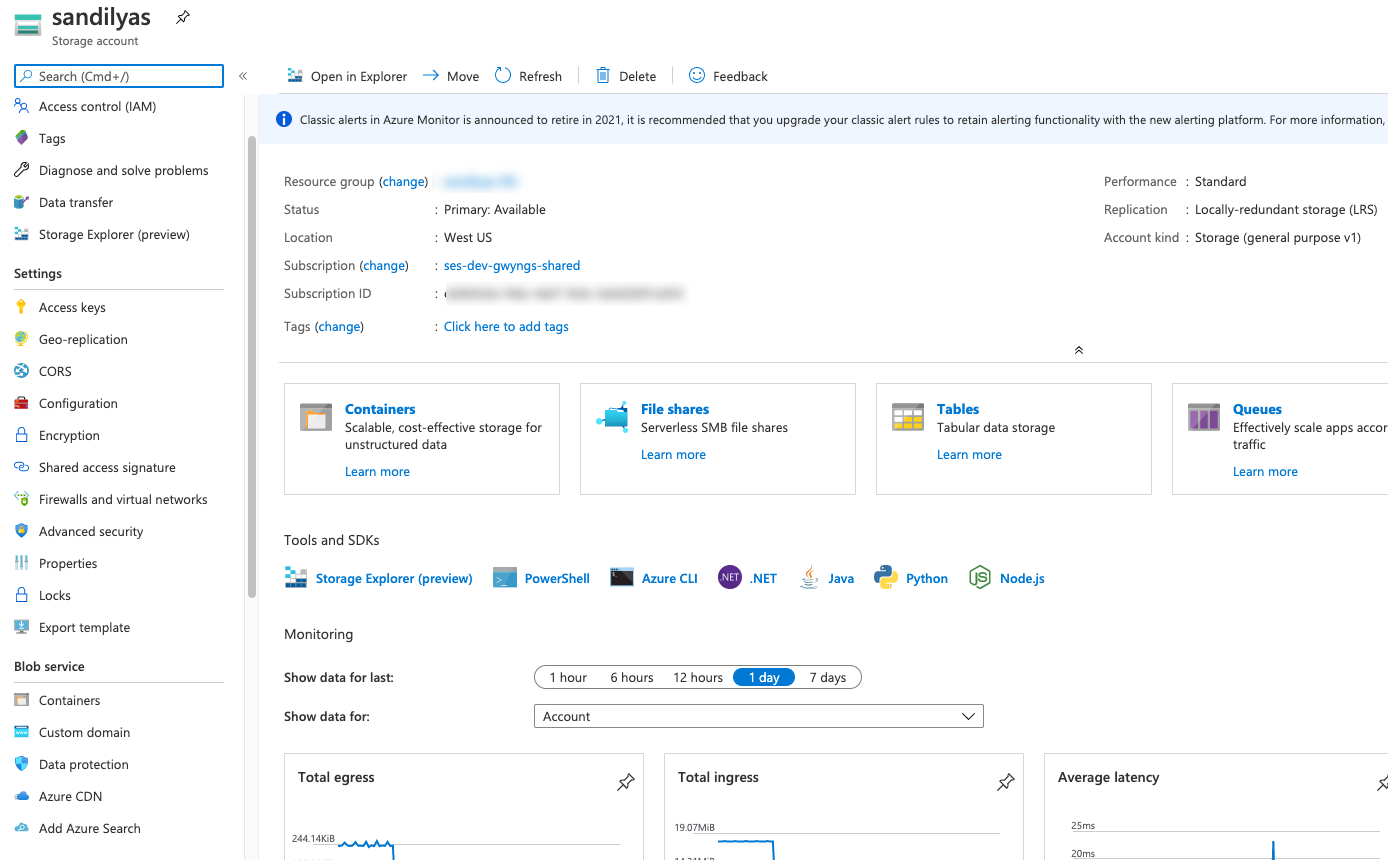
-
Create a container or click an existing container.
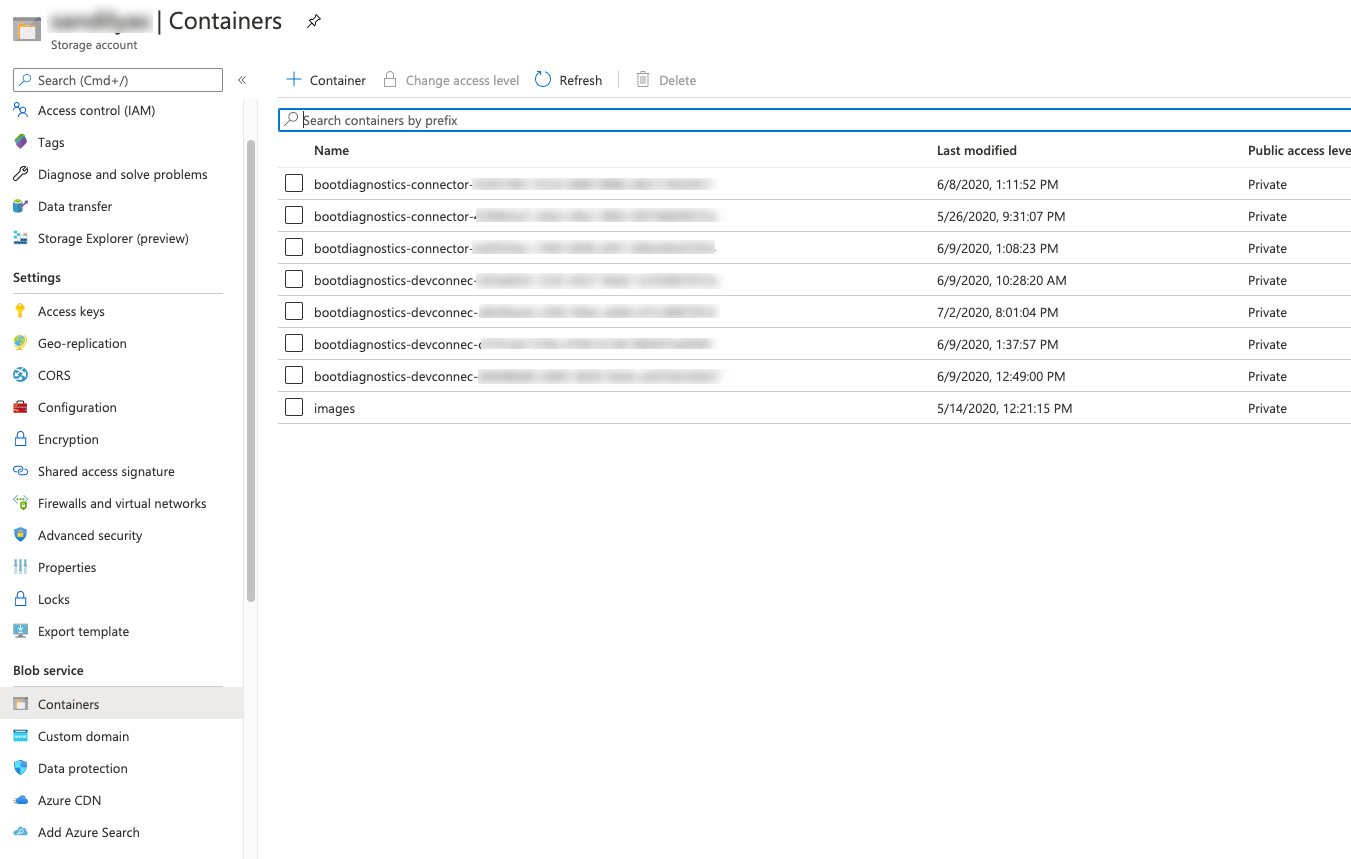
-
On the Container page, click Upload.
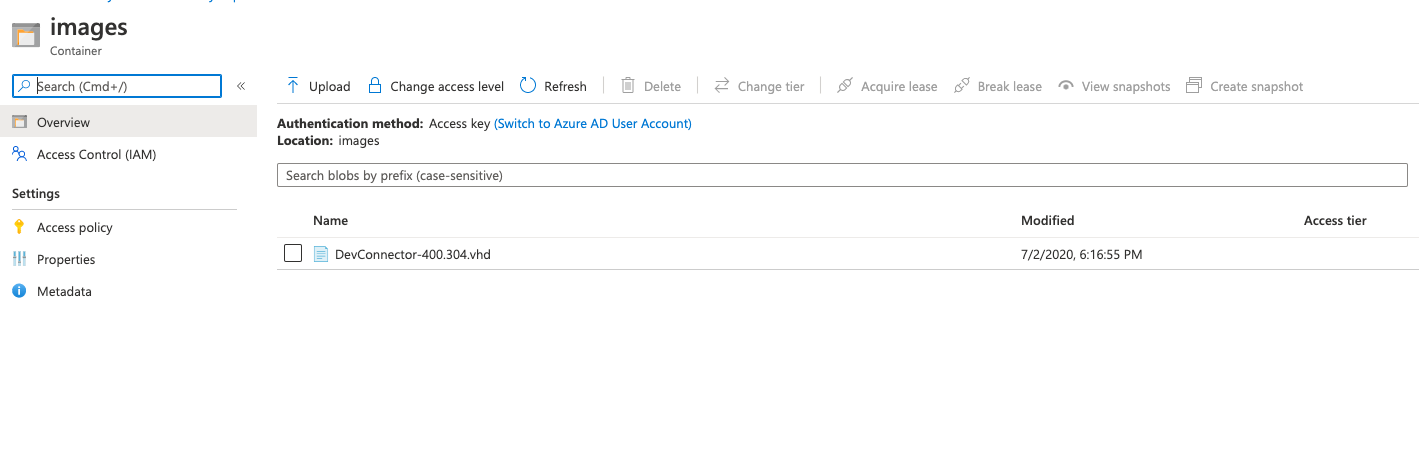
-
Use the Upload form to upload your VHD.
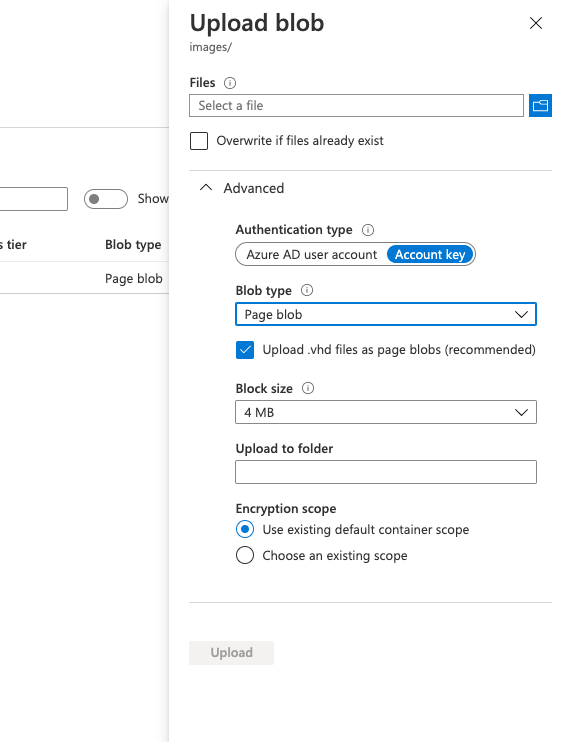
Create an Image
-
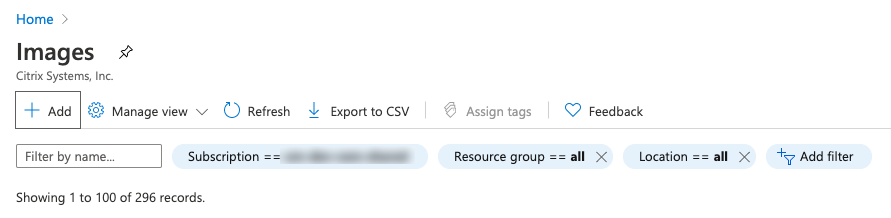
Go to Azure > Images and then click Add.
-
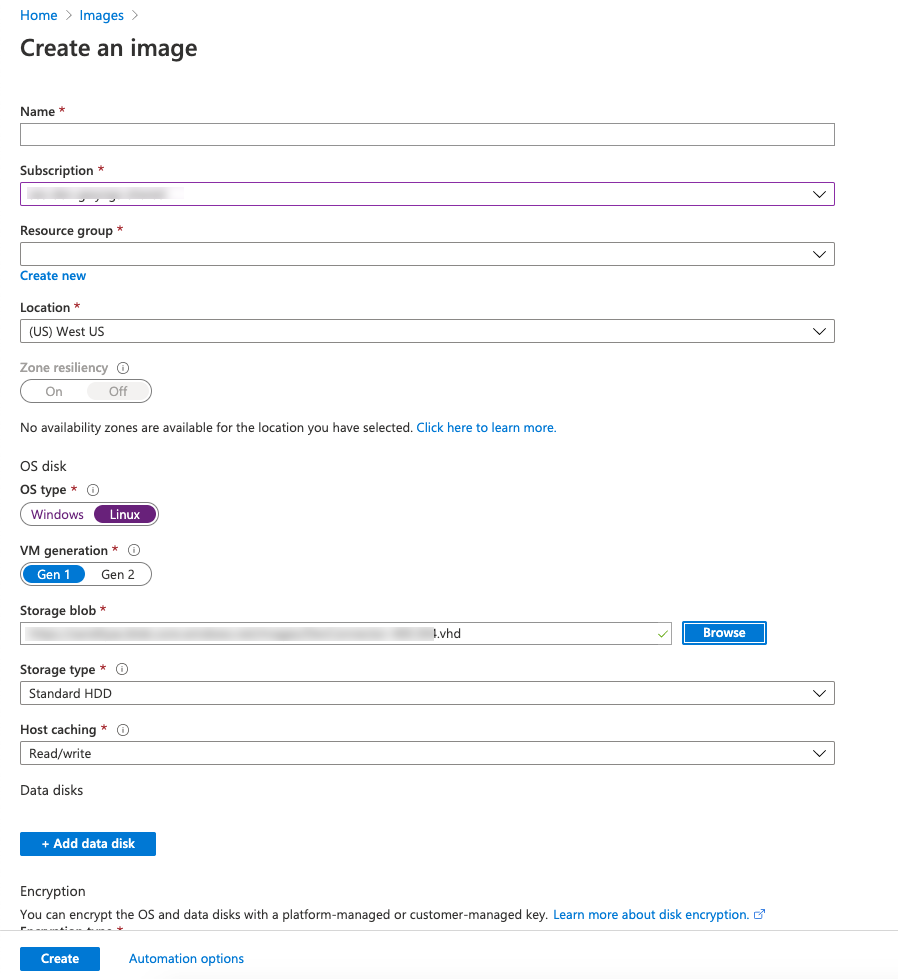
Create an image using the uploaded VHD.
Create a virtual machine
-
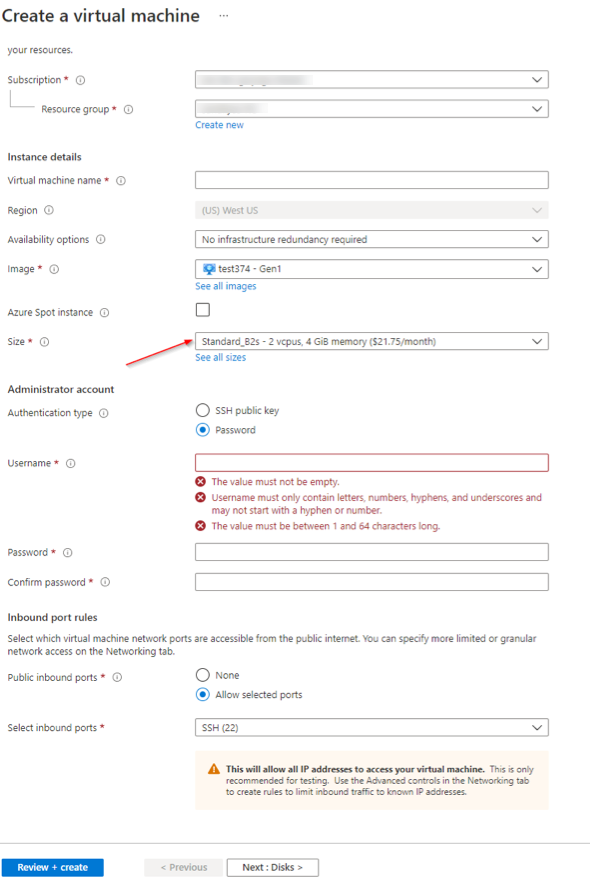
Go to the image you created in the previous step and click Create VM. Choose a size that has 2 vCPUs and 4 GB RAM minimum.
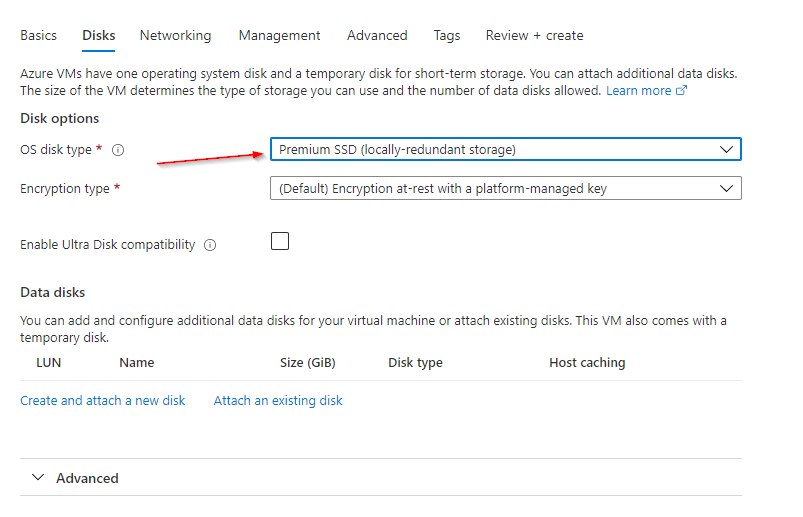
Note: The default OS disk is Premium SSD and minimum storage needed is 20 GB.
- After the VM is created, update the Networking and Inbound Port Rules to allow ports 22 and 8443. You can access the admin UI at
<https://<ip>:8443>. - Log on with default connector credentials and complete the registration.
Share
Share
In this article
This Preview product documentation is Citrix Confidential.
You agree to hold this documentation confidential pursuant to the terms of your Citrix Beta/Tech Preview Agreement.
The development, release and timing of any features or functionality described in the Preview documentation remains at our sole discretion and are subject to change without notice or consultation.
The documentation is for informational purposes only and is not a commitment, promise or legal obligation to deliver any material, code or functionality and should not be relied upon in making Citrix product purchase decisions.
If you do not agree, select I DO NOT AGREE to exit.