Install Citrix Secure Access™ client for Secure Private Access
Install Citrix Secure Access on Windows
Supported OS versions:
Windows – Windows 11, Windows 10, Windows Server 2016, and Windows Server 2019.
Following are the steps to install the Citrix Secure Access client on a Windows machine.
- Download the Citrix Secure Access client from https://www.citrix.com/downloads/citrix-gateway/plug-ins/citrix-secure-access-client-for-windows.html.
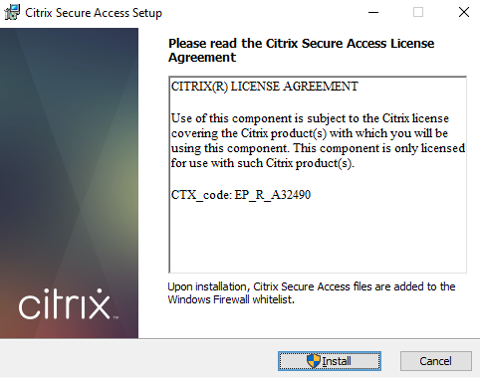
- Click Install to install the client on your Windows machine. If you have an existing Citrix Gateway client, the same gets upgraded.
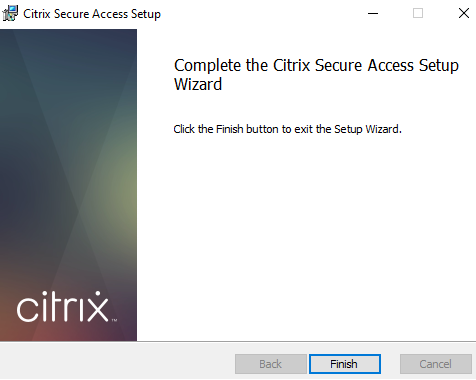
- Click Finish to complete the installation.
Note:
Multi-user sessions in Windows is not supported.
Microsoft Edge Runtime installation steps
Microsoft Edge Runtime is now required for the authentication UI on the Secure Access client. It is installed by default in the latest Windows 10 and Windows 11 machines. For machines on earlier versions, perform the following steps:
- Go to the following link, https://go.microsoft.com/fwlink/p/?LinkId=2124703.
- Download and install Microsoft Edge. If the user system doesn’t have the Microsoft Edge runtime installed, the Citrix Secure Access client prompts you to install when you try to connect to the Workspace URL.
Note:
You can use an automated solution like SCCM software or a group policy to push Citrix Secure Access client or Microsoft Edge Runtime to the client machines.
Install Citrix Secure Access on macOS
Prerequisites:
- Download the Citrix Secure Access app for macOS from the App Store. This app is available from macOS 10.15 (Catalina) and later.
- Preview builds are available in the TestFlight app only for macOS Monterey (12.x).
- If you are switching between the App Store app and the TestFlight preview app, you must recreate the profile you want to use with the Citrix Secure Access app. For example, if you have been using a connection profile with
blr.abc.company.com, delete the VPN profile, and create the same profile again.
Supported OS versions:
-
macOS: 12.x (Monterey). 11.x (Big Sur), and 10.15 (Catalina) are supported.
-
Mobile devices: iOS and Android are not supported.
Citrix Secure Access client management using Citrix Workspace™ app for Windows
Perform the following steps to manage Citrix Secure Access client using Citrix Workspace app for Windows:
- Log on to Citrix Cloud.
- Click the hamburger menu and navigate to Workspace Configuration > App Configuration.
- Select the Updates and Plug-ins section and navigate to Secure Access Plug-in.
- Enable the Windows checkbox. This step installs Citrix Secure Access for Windows and automatically updates to the latest version.
- Click Edit to configure the Windows plug-in settings.
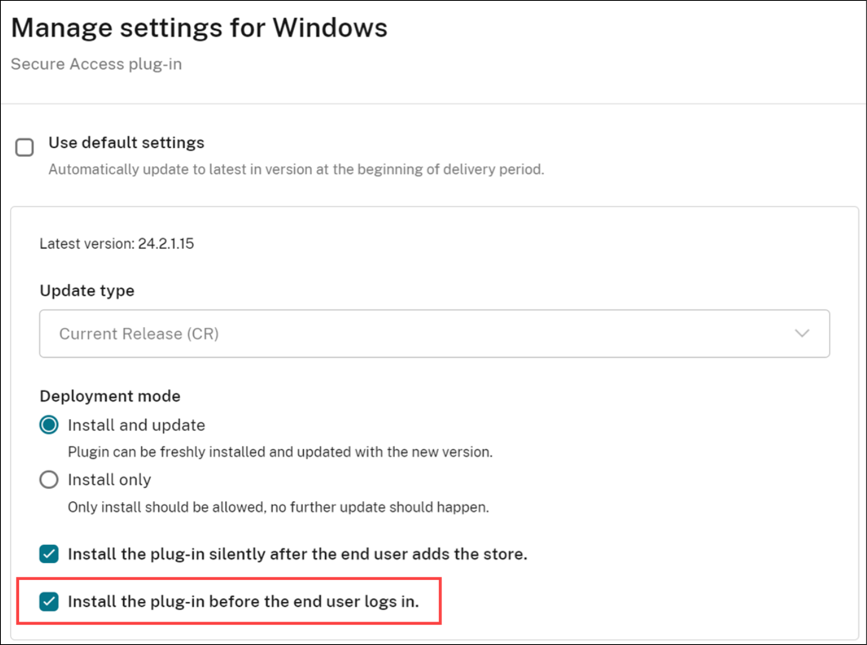
- On the Manage settings for Windows page, enable the Install the plug-in before the end-user logs in option.
- Click Save draft.
-
On the confirmation window that appears, click Yes.