Set up a GPU-enabled workspace on AKS
This guide explains how to enable and validate GPU-enabled Citrix Secure Developer Spaces™ (SDS) workspaces on an Azure Kubernetes Service (AKS) cluster using NVIDIA GPUs.
Prerequisites
Before you begin, ensure you have the following:
- An AKS cluster with permissions to manage node pools and deploy Kubernetes add-ons
- A GPU-capable node pool (example VM size: Standard_NC24ads_A100_v4)
- Kubernetes CLI access (kubectl)
- A workspace template/spec option that can request GPUs (for example GPUs: 1)
Add a GPU node pool
Create or scale a GPU node pool in AKS using the Azure portal, Azure CLI, or Infrastructure as Code (IaC). After the nodes are ready, confirm they have joined the cluster:
kubectl get nodes -o wide
<!--NeedCopy-->
Install the NVIDIA device plugin
You must deploy the NVIDIA device plugin as a DaemonSet to allow the cluster to communicate with the GPU hardware.
- Deploy the plugin:
kubectl create -f https://raw.githubusercontent.com/NVIDIA/k8s-device-plugin/v0.17.1/deployments/static/nvidia-device-plugin.yml
<!--NeedCopy-->
- Verify the plugin is running:
kubectl -n kube-system get ds nvidia-device-plugin-daemonset
kubectl -n kube-system get pods -l name=nvidia-device-plugin-ds -o wide
<!--NeedCopy-->
- Confirm the GPU resource is advertised by the node. Replace
with your specific node name:
kubectl describe node <GPU_NODE_NAME> | grep -E "nvidia.com/gpu|Capacity|Allocatable" -n
<!--NeedCopy-->
Expected result: The node displays nvidia.com/gpu under Capacity/Allocatable.
Reserve GPU nodes for GPU workloads (Recommended)
To ensure GPU nodes are reserved for specific tasks, apply labels and taints.
Label GPU nodes for workspace scheduling
Apply a label to the node for workspace scheduling:
kubectl label node <GPU_NODE_NAME> strong.network/type=workspace
<!--NeedCopy-->
Taint GPU nodes to prevent non-GPU workloads
Apply a taint to prevent non-GPU workloads from scheduling on these nodes:
kubectl taint node <GPU_NODE_NAME> nvidia.com/gpu=present:NoSchedule
<!--NeedCopy-->
NOTE:
GPU-enabled workspace pods must include a matching toleration so they can schedule onto these nodes.
Troubleshooting GPUs not detected by Kubernetes
If the device plugin is running but GPU capacity is not visible on nodes (common after node pool changes), restart the node runtime and redeploy the plugin:
kubectl debug <GPU_NODE_NAME> -it --image=ubuntu -- chroot /host systemctl restart containerd
kubectl delete daemonset -n kube-system nvidia-device-plugin-daemonset
kubectl create -f https://raw.githubusercontent.com/NVIDIA/k8s-device-plugin/v0.17.1/deployments/static/nvidia-device-plugin.yml
<!--NeedCopy-->
Then re-check node capacity:
kubectl describe node <GPU_NODE_NAME> | grep -E "nvidia.com/gpu|Capacity|Allocatable" -n
<!--NeedCopy-->
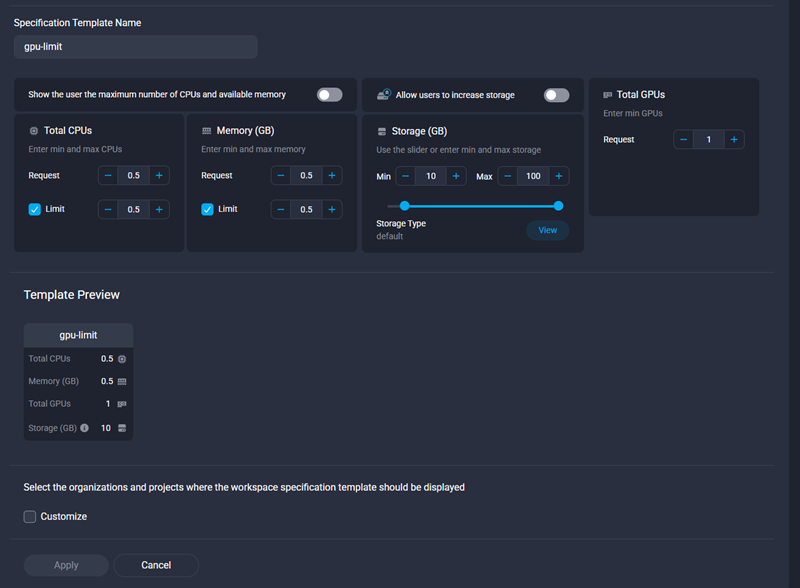
Create a GPU-enabled SDS workspace template
In your admin portal, create or update a workspace template that requests GPU resources. Ensure you configure:
- GPUs: 1 (or the value required for your workload).
- Resource limits: Size CPU, memory, and disk appropriately for GPU tasks.
Create the SDS workspace
Select your GPU-enabled template to create a new workspace.
Validate GPU allocation (Kubernetes)
After the workspace is deployed, verify that the GPU is correctly allocated and accessible.
Confirm the workspace pod is running on a GPU node
Verify the workspace pod is running on a designated GPU node:
kubectl get pod <workspace-pod> -n <namespace> -o wide
<!--NeedCopy-->
Expected result:
-
Status:
Running - Node: GPU-capable node.
Confirm GPU is requested by the workload container
kubectl describe pod <workspace-pod> -n <namespace>
<!--NeedCopy-->
Expected result:
- The main workspace container includes nvidia.com/gpu: 1 in requests/limits
- The pod has the necessary toleration (if GPU nodes are tainted)
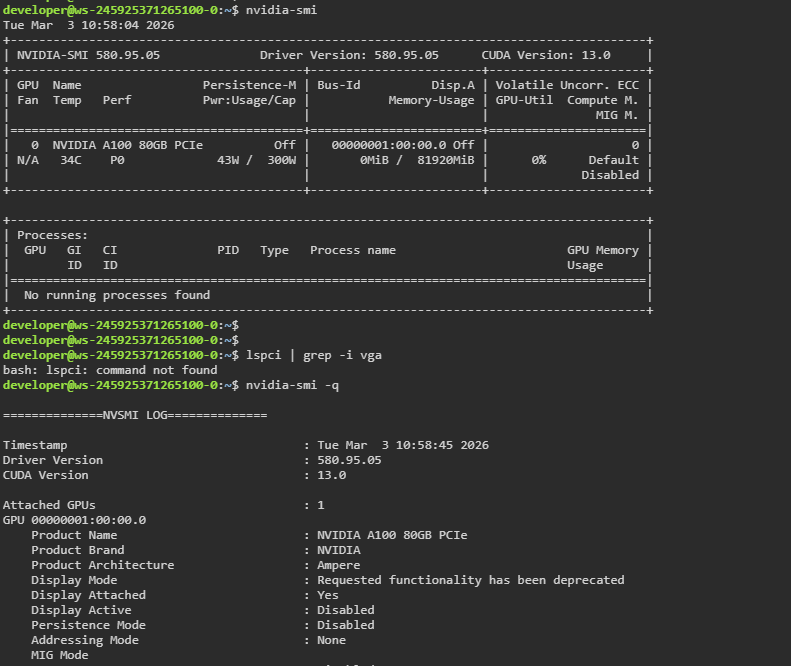
Validate GPU access inside the SDS workspace
From inside the SDS workspace container terminal, run:
nvidia-smi
<!--NeedCopy-->
Expected result:
- NVIDIA GPU details are displayed (model, driver version, utilization).
Common Issues
| Issue | Potential Cause |
|---|---|
| Pod Pending: “Insufficient nvidia.com/gpu” | Not enough free GPUs on the node pool, or the pod is requesting more GPUs than expected. |
| Pod schedules, but nvidia-smi fails | Driver/device plugin not functioning correctly, or the container image lacks required NVIDIA tooling. |
| Pod won’t schedule onto GPU nodes | GPU nodes are tainted but the pod lacks the required toleration, or node selectors/affinity prevent scheduling. |
| GPU resources not visible inside the container | NVIDIA device plugin not running correctly, or the container image is missing necessary NVIDIA libraries. |