This content has been machine translated dynamically.
Dieser Inhalt ist eine maschinelle Übersetzung, die dynamisch erstellt wurde. (Haftungsausschluss)
Cet article a été traduit automatiquement de manière dynamique. (Clause de non responsabilité)
Este artículo lo ha traducido una máquina de forma dinámica. (Aviso legal)
此内容已经过机器动态翻译。 放弃
このコンテンツは動的に機械翻訳されています。免責事項
이 콘텐츠는 동적으로 기계 번역되었습니다. 책임 부인
Este texto foi traduzido automaticamente. (Aviso legal)
Questo contenuto è stato tradotto dinamicamente con traduzione automatica.(Esclusione di responsabilità))
This article has been machine translated.
Dieser Artikel wurde maschinell übersetzt. (Haftungsausschluss)
Ce article a été traduit automatiquement. (Clause de non responsabilité)
Este artículo ha sido traducido automáticamente. (Aviso legal)
この記事は機械翻訳されています.免責事項
이 기사는 기계 번역되었습니다.책임 부인
Este artigo foi traduzido automaticamente.(Aviso legal)
这篇文章已经过机器翻译.放弃
Questo articolo è stato tradotto automaticamente.(Esclusione di responsabilità))
Translation failed!
传统 USB 重定向配置
如果您使用的任何组件版本低于 2212,或者您正在使用适用于 Linux 的 CWA,请遵循本指南在您的环境中配置 USB 重定向。
启用通用 USB 重定向
- 打开 Citrix Web Studio™ 策略,然后单击“策略”选项卡。
- 单击“创建策略”,然后展开 ICA® > USB 设备策略。
- 编辑“客户端 USB 设备重定向策略”。
- 选择“已允许”,然后单击“保存”。
创建 USB 重定向策略规则
当用户尝试将 USB 设备重定向到虚拟桌面时,系统会依次对照每个 USB 策略规则进行检查,直到找到匹配项。任何设备的第一个匹配项都被视为最终结果。如果第一个匹配项是“允许”规则,则允许将匹配的设备重定向到虚拟桌面。如果第一个匹配项是“拒绝”规则,则匹配的设备仅在本地桌面中可用。如果未找到匹配项,则使用默认规则。
在 DDC 上设置策略:
- 打开 Citrix Web Studio 策略,然后单击“策略”选项卡。
- 单击“创建策略”,然后展开 ICA > USB 设备策略。
- 编辑“客户端 USB 设备重定向规则”。
-
根据说明中提供的示例设置值,针对需要重定向的每个 USB 设备,然后单击“保存”。 例如: Allow: VID=056A PID=00A4 #STU-430 Deny: Class=08 subclass=05 # Mass Storage
注意:
如果 Citrix® 管理员选中“使用默认值”并单击“保存”,则可以在 VDA 中的以下注册表中找到默认规则。
注意!:
在使用注册表编辑器之前,请参阅本文末尾的免责声明。
HKLM\SOFTWARE\Wow6432Node\Citrix\PortICA\GenericUSB\DeviceRules
在客户端上使用 GPO:
-
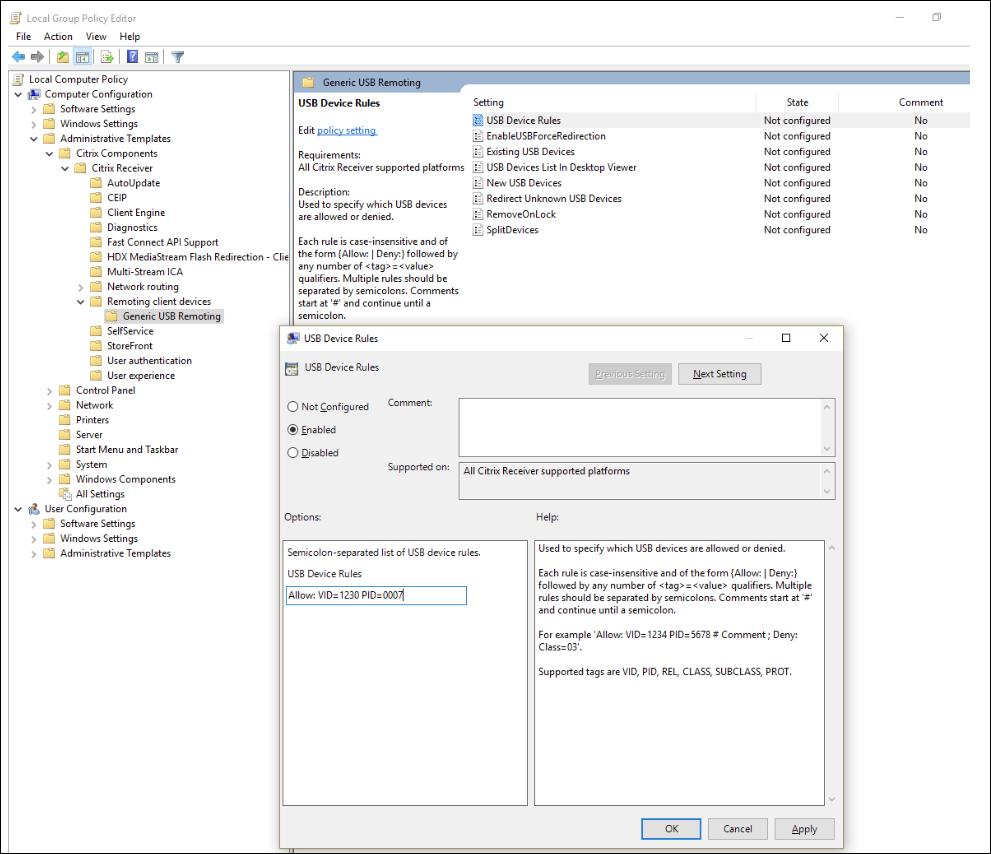
打开“本地组策略编辑器”,然后转到“管理模板 > Citrix 组件 > Citrix Receiver™ > 远程处理客户端设备 > 通用 USB 远程处理”。
-
打开“USB 设备规则”设置并启用该设置。按照此示例添加 USB 设备规则, 允许:VID=1230 PID=0007 规则允许供应商 ID 为 1230 且产品 ID 为 0007 的设备。
注意:
当特定设备必须位于设备规则列表的顶部时,请使用“允许:VID=xxxx PID=xxxx”规则。
注意:
可以使用 USBView 等工具,甚至“连接”工具栏来确定设备详细信息,例如 VID 和 PID(在此处包括 SS)。
配置 USB 设备的自动重定向
启用 USB 支持后,USB 设备会自动重定向。此外,USB 用户首选项设置配置为自动连接 USB 设备。并非总是最好重定向所有 USB 设备。用户可以从未自动重定向的 USB 设备列表中显式重定向设备。要阻止列出或重定向 USB 设备,请在客户端端点或 DDC 策略上使用 DeviceRules。
此策略可以在 DDC 上设置,也可以在客户端上使用 GPO 设置,使用 Citrix Workspace™ 首选项或 CDViewer 下的“连接”选项卡。所有这些方法都将在下面介绍:
在 DDC 上设置策略:
DDC 上有两个策略可以设置为允许 USB 设备自动重定向 — “允许自动连接现有 USB 设备,允许自动连接新到达的 USB 设备”
- 打开 Citrix Web Studio 策略,然后单击“策略”选项卡。
- 单击“创建策略”,然后展开 ICA > USB 设备策略。
- 编辑“允许自动连接现有 USB 设备”设置。
- 清除“使用默认值”复选框,然后从下拉菜单中选择“自动重定向可用 USB 设备”,然后单击“保存”。
- 编辑“允许自动连接新到达的 USB 设备”设置。
- 清除“使用默认值”复选框,然后从下拉菜单中选择“自动重定向可用 USB 设备”,然后单击“保存”。
在客户端上使用 GPO:
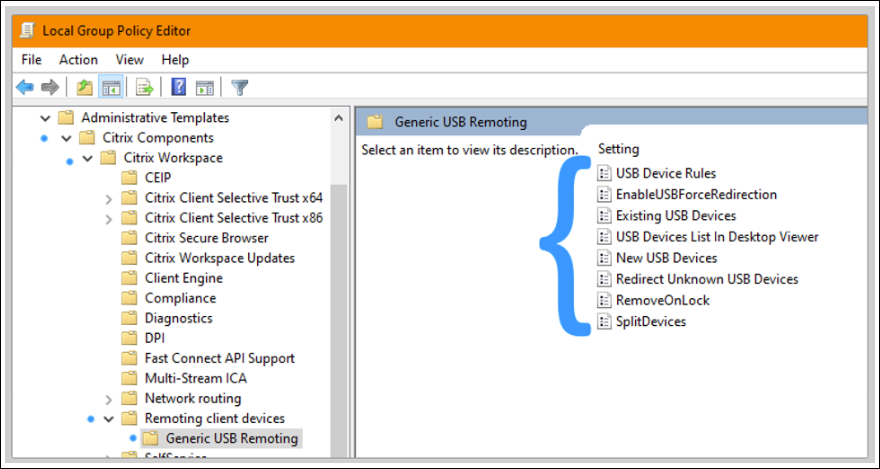
- 打开“本地组策略编辑器”,然后转到“管理模板 > Citrix 组件 > Citrix Receiver™ > 远程处理客户端设备 > 通用 USB 远程处理”。
- 打开“新 USB 设备”,选择“已启用”,然后单击“确定”。
- 打开“现有 USB 设备”,选择“已启用”,然后单击“确定”。
使用 Citrix 连接中心:
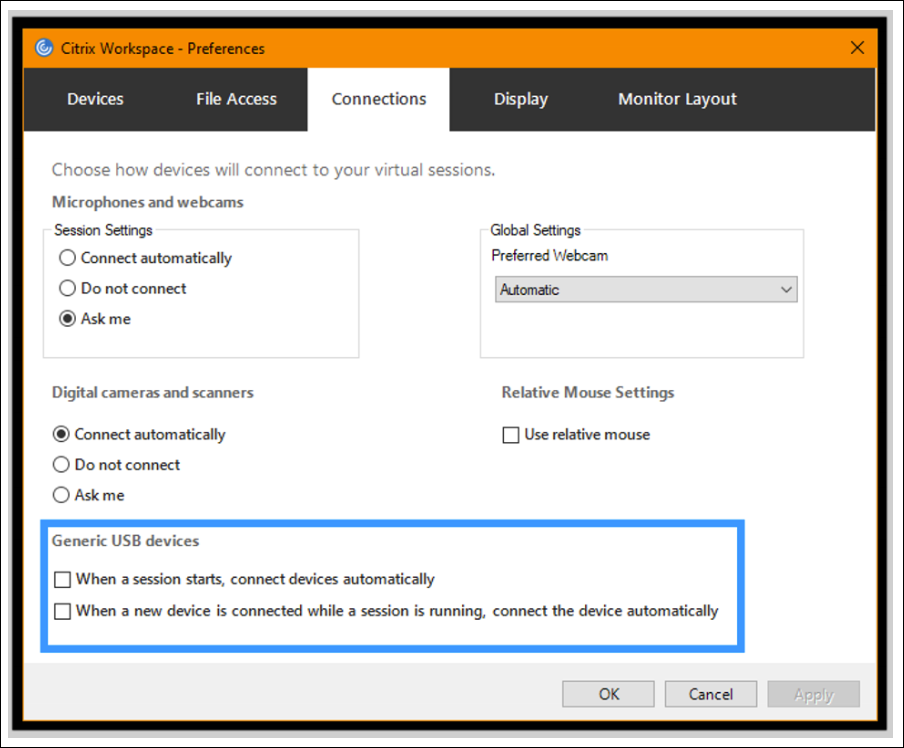
- 转到“Citrix Workspace 首选项 > 连接”。
- 确保选中以下选项:
- 会话启动时,自动连接设备
- 会话运行时连接新设备时,自动连接设备。
- 单击“确定”。
使用 CDViewer 连接工具栏:
- 会话启动后,单击“CDViewer”下拉菜单,然后选择“Citrix Workspace 首选项 > 连接”选项卡。
- 确保选中以下选项:
- 会话启动时,自动连接设备
- 会话运行时连接新设备时,自动连接设备。
- 单击“应用”和“确定”以保存策略。
对于基于客户端的配置,注册表项在客户端设备上的以下位置设置:
注意!:
在使用注册表编辑器之前,请参阅本文末尾的免责声明。
HKLM\SOFTWARE\Wow6432Node\Citrix\ICA Client\GenericUSB
共享
共享
This Preview product documentation is Citrix Confidential.
You agree to hold this documentation confidential pursuant to the terms of your Citrix Beta/Tech Preview Agreement.
The development, release and timing of any features or functionality described in the Preview documentation remains at our sole discretion and are subject to change without notice or consultation.
The documentation is for informational purposes only and is not a commitment, promise or legal obligation to deliver any material, code or functionality and should not be relied upon in making Citrix product purchase decisions.
If you do not agree, select I DO NOT AGREE to exit.