SAML using Entra ID and AD identities for store authentication
This article describes how you can configure SAML for store authentication using Active Directory (AD) identities. The default behavior for Citrix Cloud™ and SAML authentication to cloud stores or Citrix Cloud, regardless of the SAML provider used, is to assert against an AD user identity. For the configuration described in this article, using Entra ID Connect to import your AD identities to your Entra ID is required.
Important:
It is crucial to determine the appropriate SAML flow for your end users, as it directly impacts their sign-in process and resource visibility. The chosen identity influences the types of resources accessible to a store end user. There is an associated article that provides instructions on utilizing Entra ID as the SAML provider for authenticating into store using ME-ID identities. You can find detailed instructions in SAML using Microsoft Entra ID and ME-ID identities for store authentication. Usually, end users typically need to open apps and desktops provided by AD domain joined VDAs. It is essential to carefully review the use cases outlined in both articles before deciding on the most suitable SAML flow for your organization. If uncertain, Citrix® recommends using the AD SAML flow and following the instructions in this article, as it aligns with the most common DaaS scenario.
Feature scope
This article applies to users who use the following combination of Citrix Cloud and Azure features:
- SAML for store authentication using AD identities
- SAML for Citrix Cloud admin login using AD identities
- Citrix DaaS™ and HDX resource enumeration of resources published using AD domain-joined VDAs
- AD domain-joined VDA resource enumeration
What’s best: AD identities or Entra ID identities?
To determine whether your store users should authenticate using either SAML AD or SAML Entra ID identities:
- Decide which combination of resources you intend to make available to your users in their stores.
-
Use the following table to determine which type of user identity is appropriate for each resource type.
Resource type (VDA) User identity when signing in to stores Needs SAML identity using Entra ID? FAS provides single sign-on (SSO) to VDA? AD joined AD, Entra ID imported from AD (contains SID) No. Use default SAML. Yes
Configure the custom Entra ID Enterprise SAML application
By default, the behavior for SAML sign-in to stores is to assert against an AD user identity.
- Sign in to the Azure portal.
- From the portal menu, select Entra ID.
- From the left pane, under Manage, select Enterprise Applications.
- From the command bar in the working pane, select New Application.
- From the command bar, select Create your own application. Don’t use the Citrix Cloud SAML SSO enterprise application template. The template doesn’t allow you to modify the list of claims and SAML attributes.
- Enter a name for the application and then select Integrate any other application you don’t find in the gallery (Non-gallery). Click Create. The application overview page appears.
- From the left pane, select Single sign-on. From the working pane, select SAML.
- In the Basic SAML Configuration section, select Edit and configure the following settings:
- In the Identifier (Entity ID) section, select Add identifier and then enter the value associated with the region in which your Citrix Cloud tenant is located:
- For European Union, United States, and Asia-Pacific South regions, enter
https://saml.cloud.com. - For the Japan region, enter
https://saml.citrixcloud.jp. - For the Citrix Cloud Government region, enter
https://saml.cloud.us.
- For European Union, United States, and Asia-Pacific South regions, enter
- In the Reply URL (Assertion Consumer Service URL) section, select Add reply URL and then enter the value associated with the region in which your Citrix Cloud tenant is located:
- For European Union, United States, and Asia-Pacific South regions, enter
https://saml.cloud.com/saml/acs. - For the Japan region, enter
https://saml.citrixcloud.jp/saml/acs. - For the Citrix Cloud Government region, enter
https://saml.cloud.us/saml/acs.
- For European Union, United States, and Asia-Pacific South regions, enter
- In the Logout URL (Optional) section, enter the value associated with the region in which your Citrix Cloud tenant is located:
- For European Union, United States, and Asia-Pacific South regions, enter
https://saml.cloud.com/saml/logout/callback. - For the Japan region, enter
https://saml.citrixcloud.jp/saml/logout/callback. - For the Citrix Cloud Government region, enter
https://saml.cloud.us/saml/logout/callback.
- For European Union, United States, and Asia-Pacific South regions, enter
- From the command bar, select Save.
- In the Identifier (Entity ID) section, select Add identifier and then enter the value associated with the region in which your Citrix Cloud tenant is located:
-
In the Attributes & Claims section, click Edit to configure the following claims. These claims appear in the SAML assertion within the SAML response. After SAML app creation, configure the following attributes.
- For the Unique User Identifier (Name ID) claim, update the default value to be
user.localuserprincipalname. - For cip_upn claim, update the default value to be
user.localuserprincipalname.
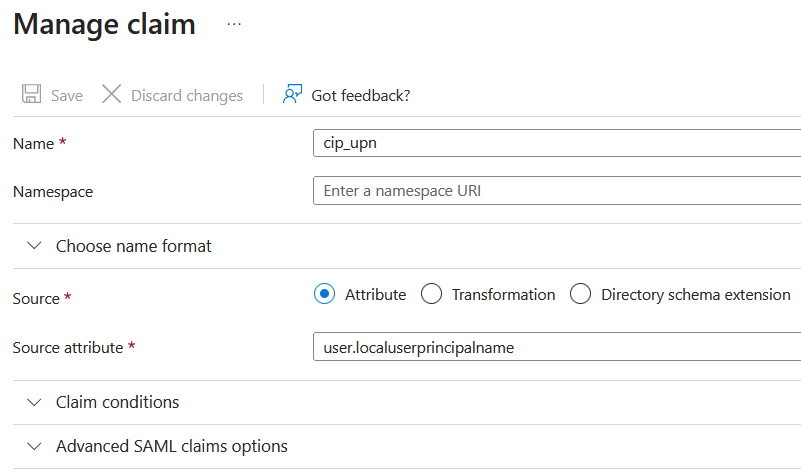
- For displayName, leave the default value of
user.displayname. - For givenName claim, update the default value to be
user.givenname. - For familyName claim, update the default value to be
user.surname. - In the Additional claims section, for any remaining claims with the
http://schemas.xmlsoap.org/ws/2005/05/identity/claimsnamespace, click the ellipsis (…) button and click Delete. No need to include these claims as they are duplicates of the above user attributes.
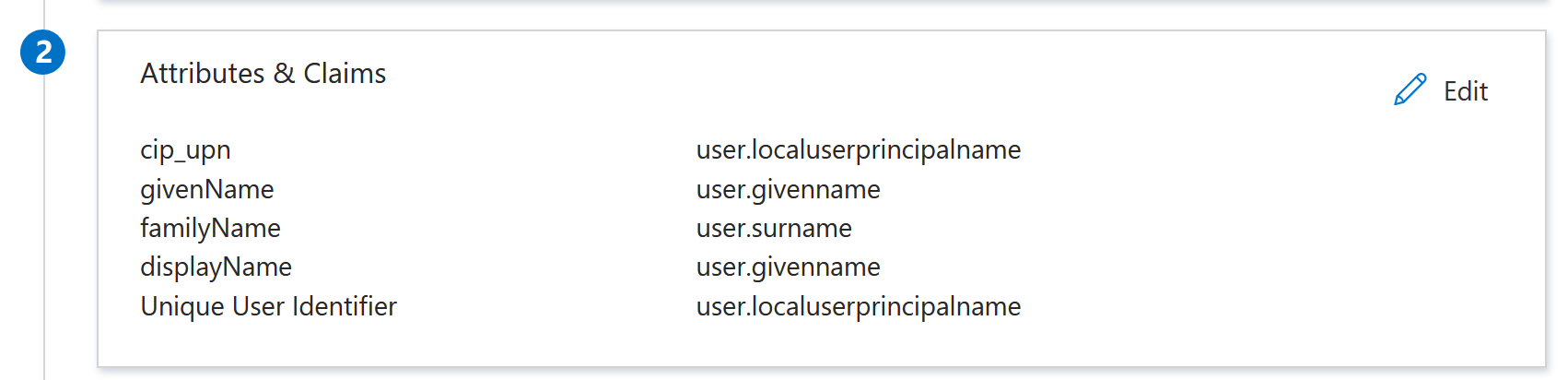
When finished, the Attributes & Claims section appears as illustrated below:
- For the Unique User Identifier (Name ID) claim, update the default value to be
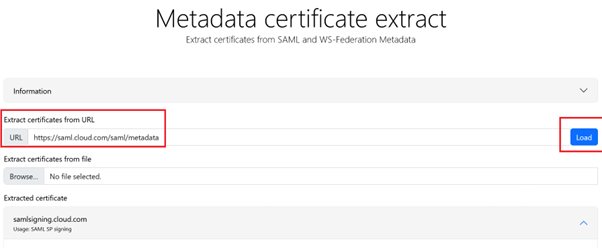
- Obtain a copy of the Citrix Cloud SAML signing certificate using this third party online tool.
- Enter
https://saml.cloud.com/saml/metadatain the URL field and click Load.
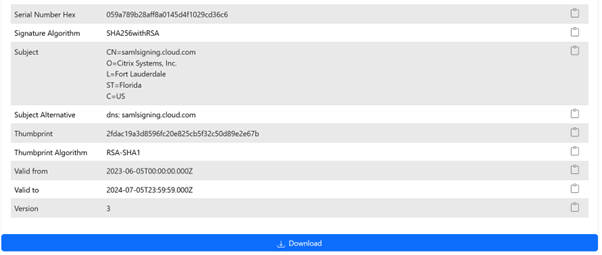
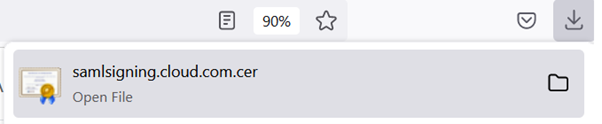
- Scroll to the bottom of the page and click Download.
- Enter
- Configure the Entra ID SAML application Signing Settings.
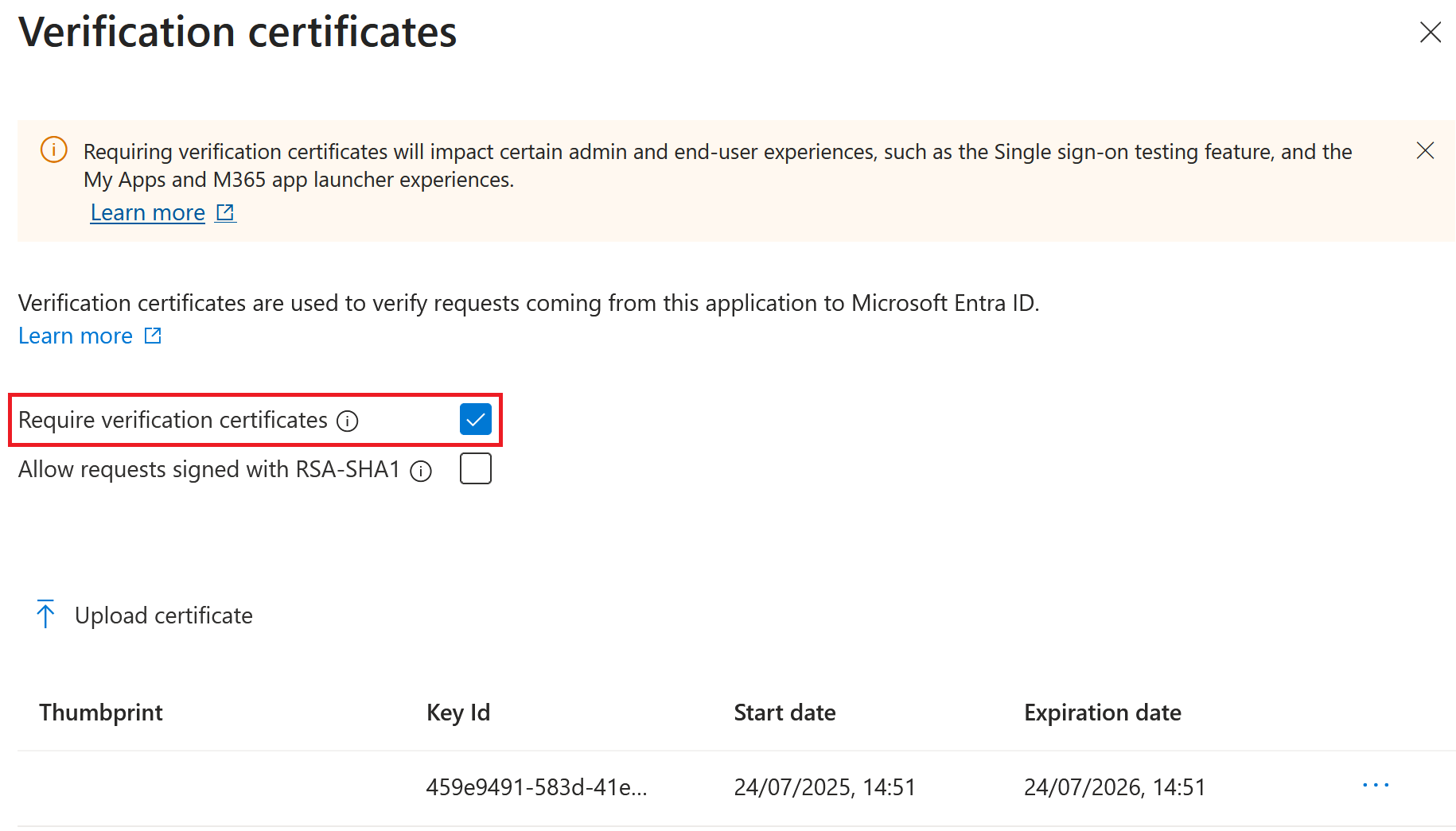
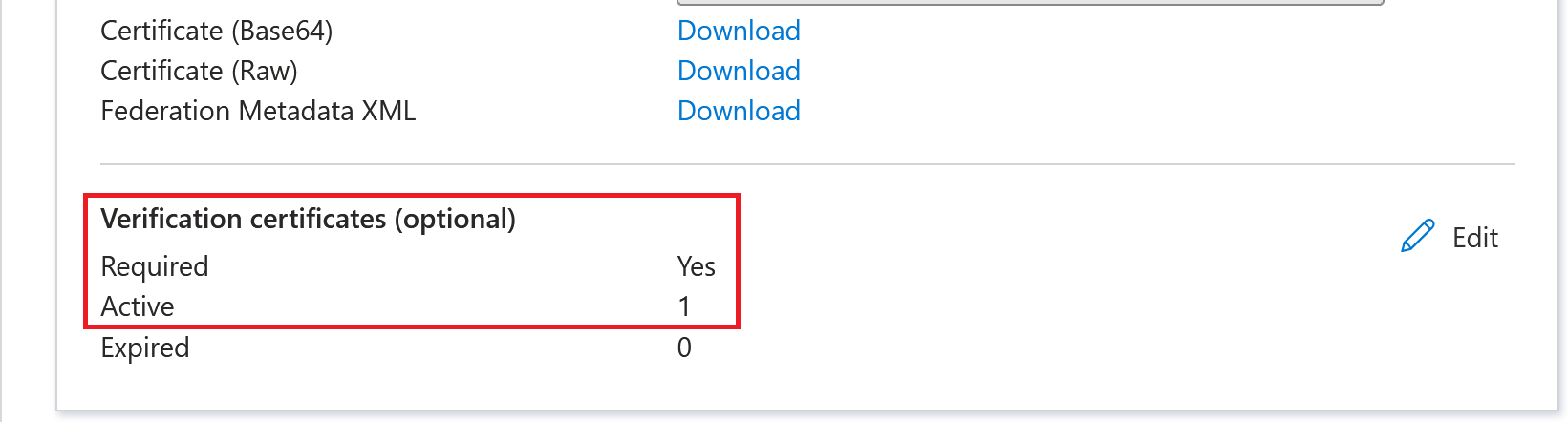
- Upload the production SAML signing certificate obtained in step 9 within the Entra ID SAML application.
- Enable Require verification certificates.
Troubleshooting
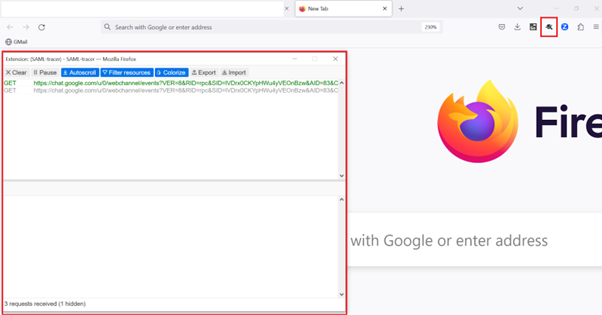
- Verify your SAML assertions contain the correct user attributes using a SAML networking tool, such as the SAML-tracer browser extension.
-
Locate the SAML response shown in yellow and compare to this example:

- Click on the SAML tab in the bottom pane to decode the SAML response and view as XML.
-
Scroll to the bottom of the response and verify that the SAML assertion contains the correct SAML attributes and user values.
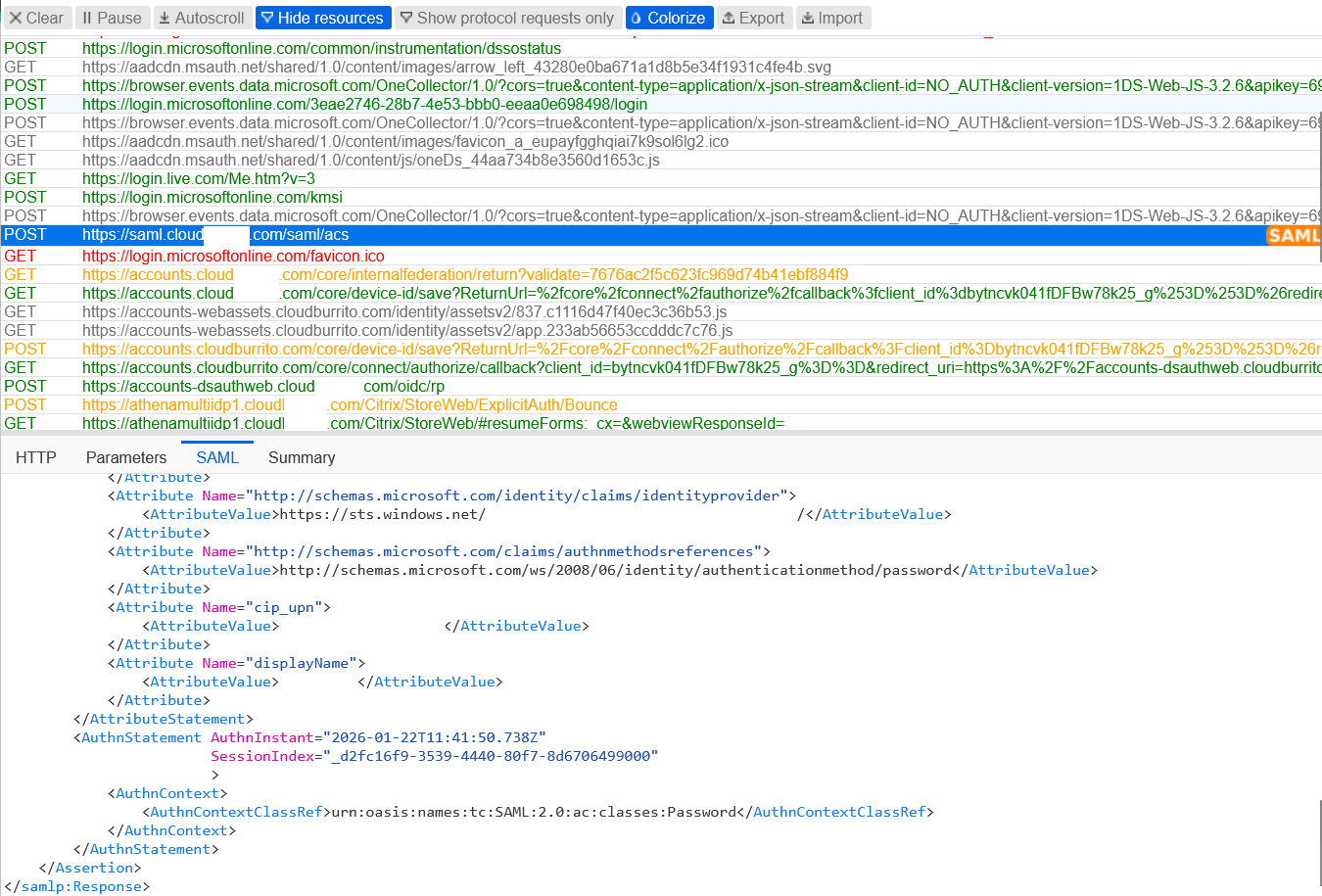
If your end users still can’t sign in to their store or they can’t see their Citrix HDX™ Plus for Windows 365 desktops, contact Citrix Support and provide the following information:
- SAML-tracer capture
- Date and time the sign-in to Citrix® StoreFront Cloud failed
- The affected user name
- The caller IP address of the client computer that you used to sign in to their store. You can use a tool like https://whatismyip.com to get this IP address.
Configure the Citrix Cloud SAML Connection
All Citrix logon flows need to be Service Provider initiated using either a store URL or a Citrix Cloud GO URL.
Use the default recommended values for the SAML connection within Identity and Access Management > Authentication > Add an identity provider > SAML.
Obtain the Entra ID SAML application SAML endpoints from your Entra ID portal to enter into Citrix Cloud.
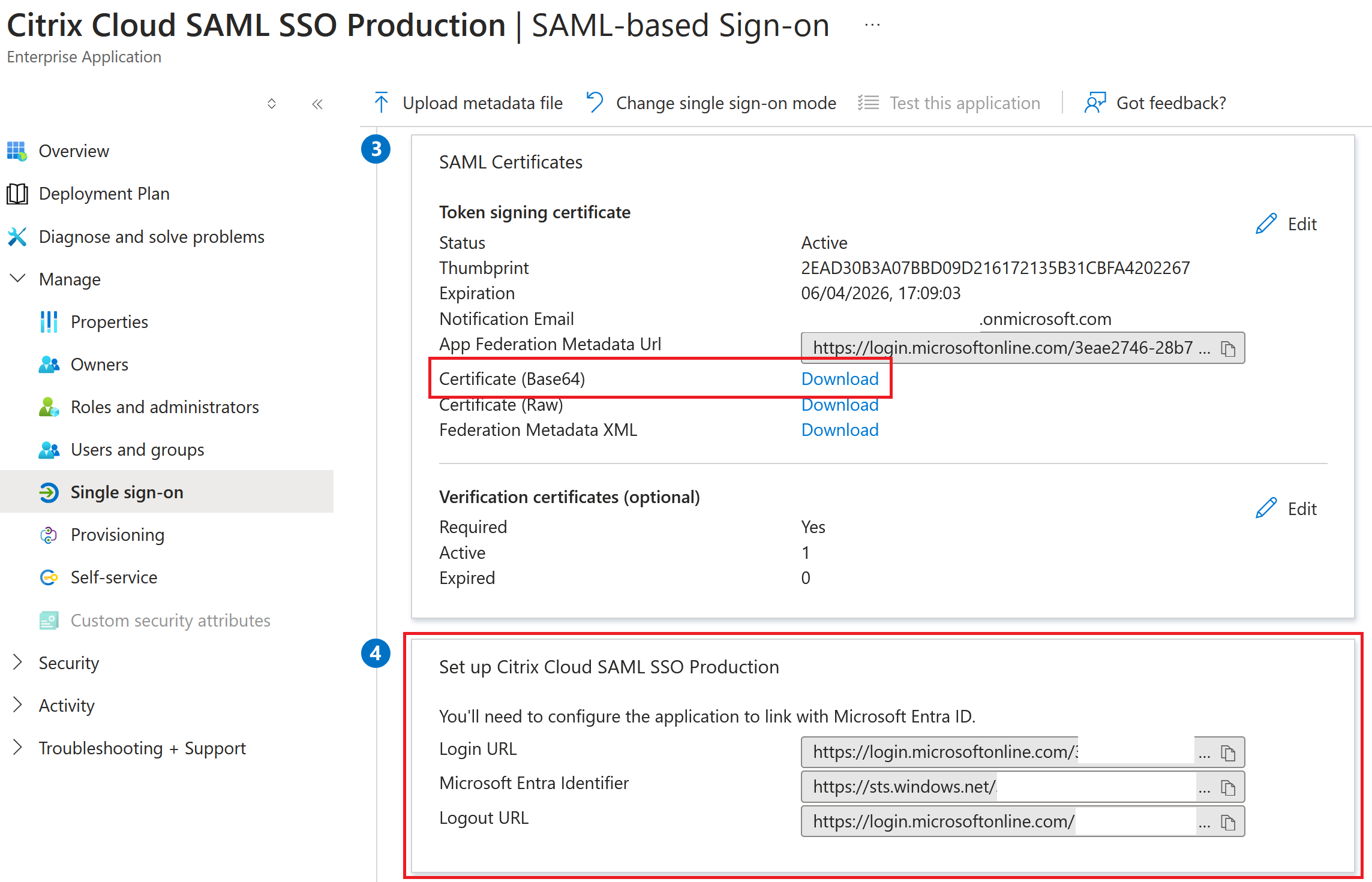
Entra ID SAML endpoint examples to be used within the Citrix Cloud SAML connection
Important:
EntraID SSO and Logout SAML endpoints are the same URL.
| In this field in Citrix Cloud | Enter this value |
|---|---|
| Entity ID | https://sts.windows.net/<yourEntraIDTenantID> |
| Sign Authentication Request | Yes |
| SSO Service URL | https://login.microsoftonline.com/<yourEntraIDTenantID>/saml2 |
| SSO Binding Mechanism | HTTP Post |
| SAML Response | Sign Either Response Or Assertion |
| Authentication Context | Unspecified, Exact |
| Logout URL | https://login.microsoftonline.com/<yourEntraIDTenantID>/saml2 |
| Sign Logout Request | Yes |
| SLO Binding Mechanism | HTTP Post |