Active Directory with Connector Appliance
You can use Connector Appliance to connect a resource location to forests which do not contain Citrix Virtual Apps and Desktops™ resources. For example, in the case of Citrix Secure Private Access customers or Citrix Virtual Apps and Desktops customers with some forests only used for user authentication.
When using multi-domain Active Directory with Connector Appliance, the following restrictions apply:
- Connector Appliance cannot be used in place of Cloud Connectors in forests that contain VDAs.
Requirements
Active Directory requirements
- Joined to an Active Directory domain that contains the resources and users that you use to create offerings for your users. For more information, see Deployment scenarios for Connector Appliances in Active Directory in this article.
- Each Active Directory forest that you plan to use with Citrix Cloud™ must always be reachable by two Connector Appliances.
- The Connector Appliance must be able to reach domain controllers in both the forest root domain and in the domains that you intend to use with Citrix Cloud. For more information, see the following Microsoft support articles:
- How to configure domains and trusts
- “Systems services ports” section in Service overview and network port requirements for Windows
- Use universal security groups instead of global security groups. This configuration ensures that user group membership can be obtained from any domain controller in the forest.
Network requirements
- Connected to a network that can contact the resources you use in your resource location.
- Connected to the Internet. For more information, see System and Connectivity Requirements.
In addition to the ports listed in Connector Appliance communication, the Connector Appliance requires an outbound connection to the Active Directory domain via these ports:
| Service | Port | Supported Domain Protocol |
|---|---|---|
| Kerberos | 88 | TCP/UDP |
| NetBIOS Name Service | 137 | UDP |
| NetBIOS Datagram | 138 | UDP |
| NetBIOS Session | 139 | TCP |
| LDAP | 389 | TCP/UDP |
| SMB over TCP | 445 | TCP |
| Kerberos kpasswd | 464 | TCP/UDP |
| Global Catalog | 3268 | TCP |
| Dynamic RPC Ports | 49152–65535 | TCP |
The Connector Appliance uses LDAP signing to secure connections to the domain controller. This means that LDAP over SSL (LDAPS) is not required. For more information on LDAP signing, see How to enable LDAP signing in Windows Server and Microsoft Guidance for Enabling LDAP Channel Binding and LDAP Signing.
Supported Active Directory functional levels
Connector Appliance has been tested and is supported with the following forest and domain functional levels in Active Directory.
| Forest Functional Level | Domain Functional Level | Supported Domain Controllers |
|---|---|---|
| Windows Server 2016 | Windows Server 2016 | Windows Server 2019 |
Other combinations of domain controller, forest functional level, and domain functional level have not been tested with the Connector Appliance. However, these combinations are expected to work and are also supported.
Connect an Active Directory domain to Citrix Cloud by using Connector Appliance
When you connect to the Connector Appliance administration webpage, the Active Directory domains section displays two tabs.
-
Joined Domains – Used for joining the Connector Appliance to AD Domains by creating a machine account for the appliance in the Domain. Kerberos can be validated by clicking the ellipsis menu on the right-hand side of the joined domain. Machine account presence in the domain is required.
-
Service Accounts – Used as part of a Secure Private access (SPA) solution to achieve Kerberos SSO using a service account instead of the machine account created by joining the domain. Kerberos can be validated by clicking the ellipsis menu on the right-hand side of the service account. Having a specific domain associated with the machine isn’t mandatory. However, even if the Connector Appliance isn’t connected to the domain, it can still connect to the domain controller.


To configure Active Directory to connect to Citrix Cloud through the Connector Appliance, complete the following steps.
-
Install a Connector Appliance in your resource location.
You can follow the information in the Connector Appliance product documentation.
- Connect to the Connector Appliance administration webpage in your browser by using the IP address provided in the Connector Appliance console.
- In the Active Directory domains section, navigate to the Joined domains tab.
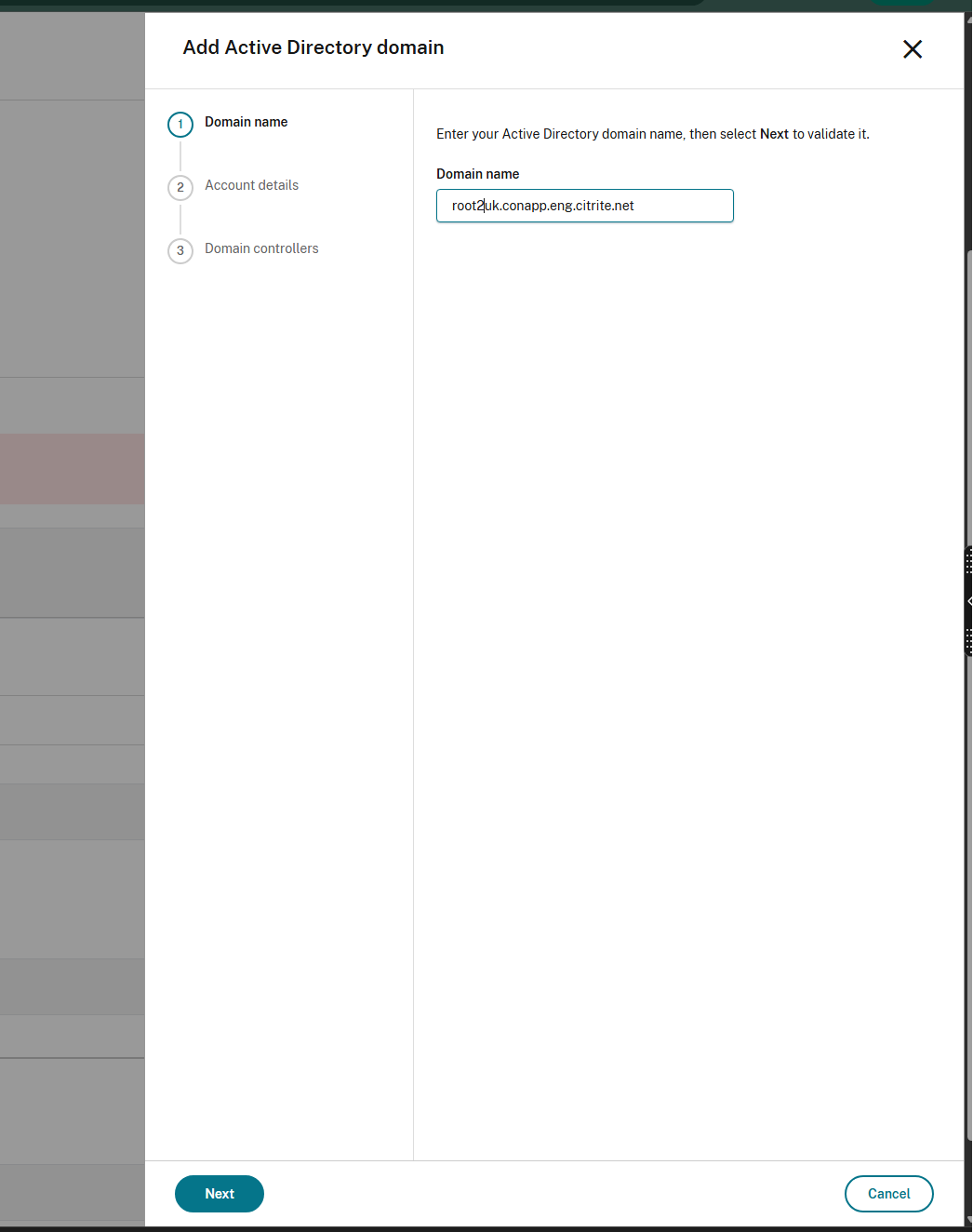
- Click + Add Active Directory domain, a new pop-up window displays to enter the domain name.
-
On the Domain name step, enter the Active Directory domain name and click Next. The Connector Appliance checks the domain. If the check is successful, the wizard advances to the next step.
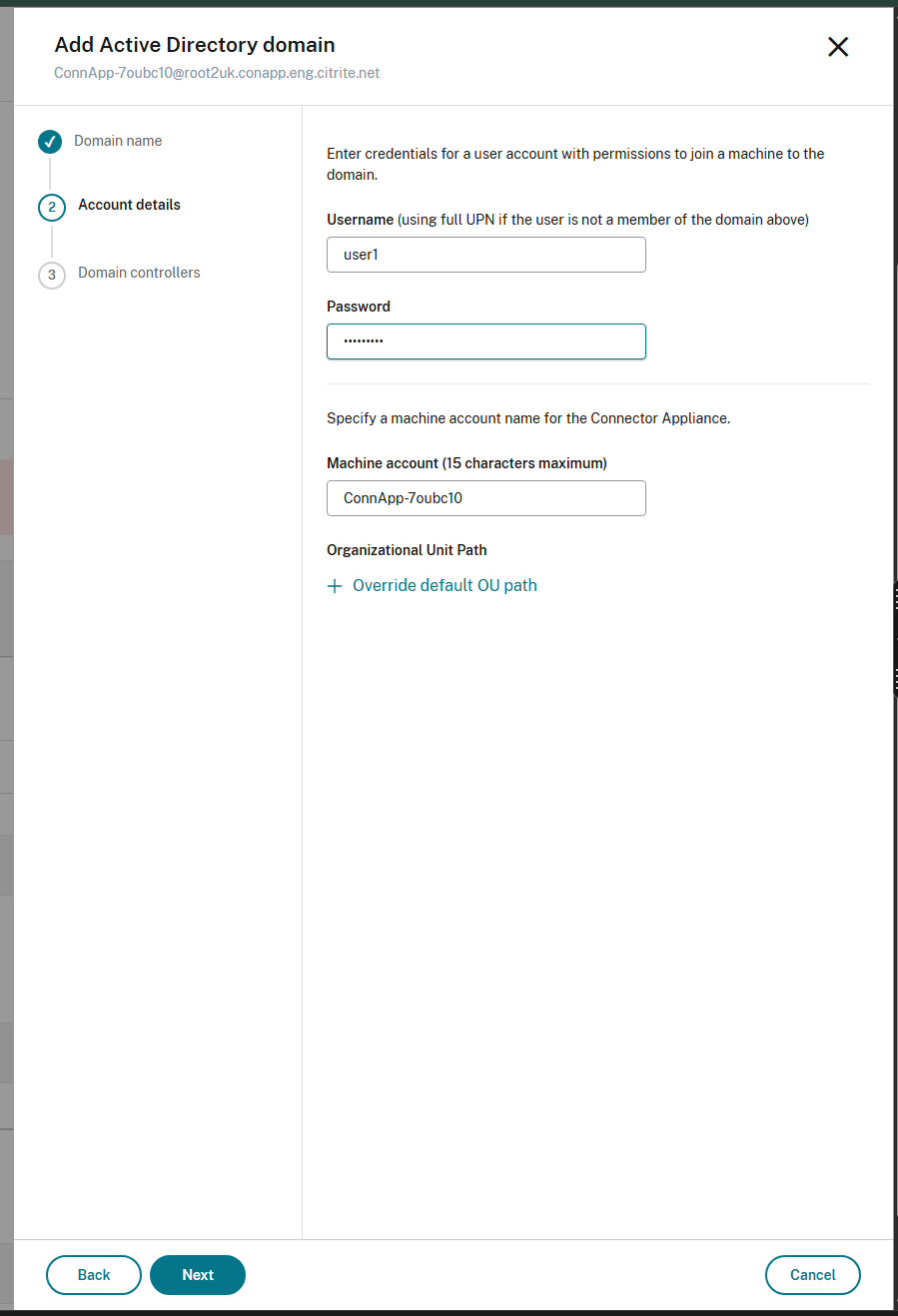
- On the Account details step, provide the following information, and then click Next:
- The user name and password of an Active Directory user with permission to join the domain.
- A machine name. The Connector Appliance suggests a machine name; you can override it with your own machine name of up to 15 characters. This machine name is created in the Active Directory domain when the Connector Appliance joins it.
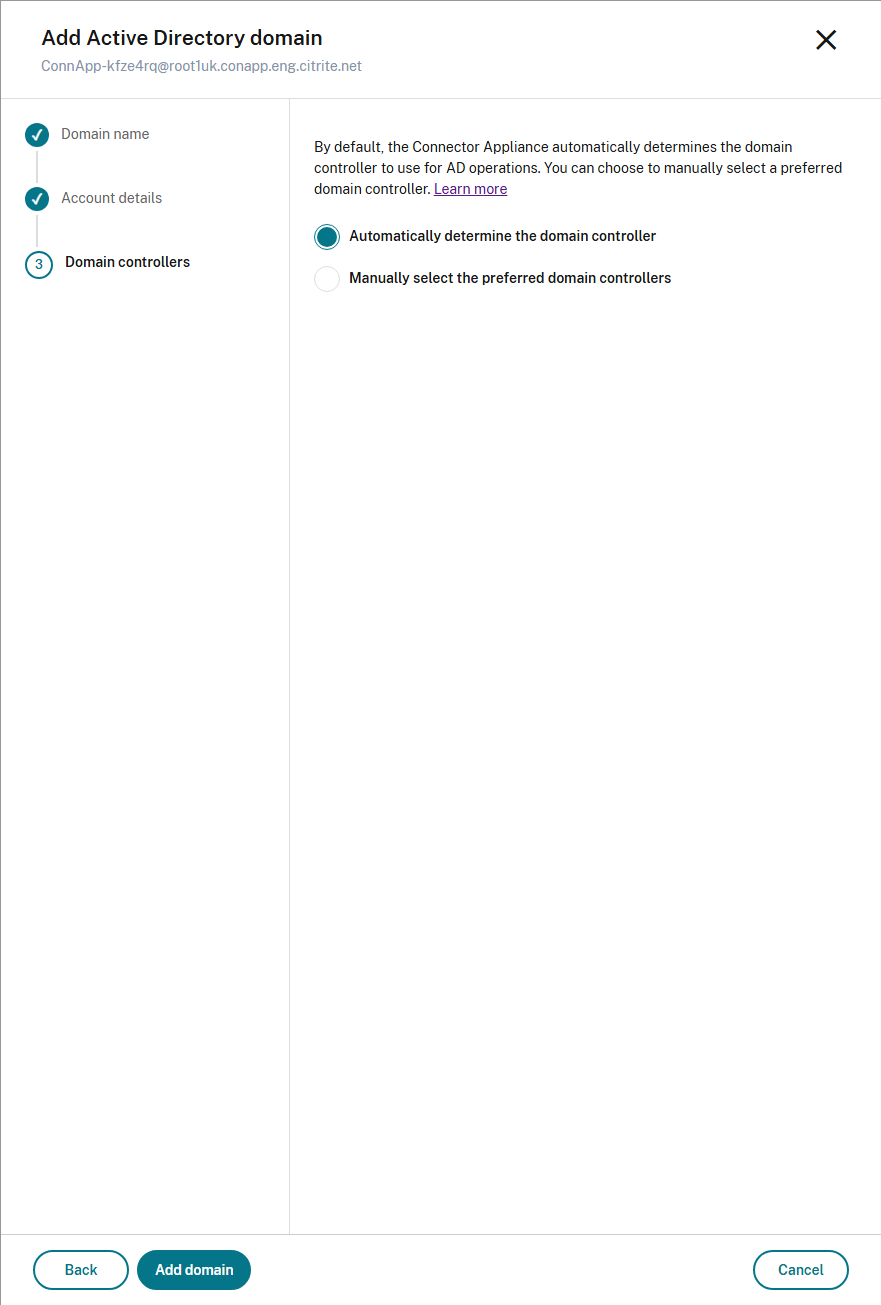
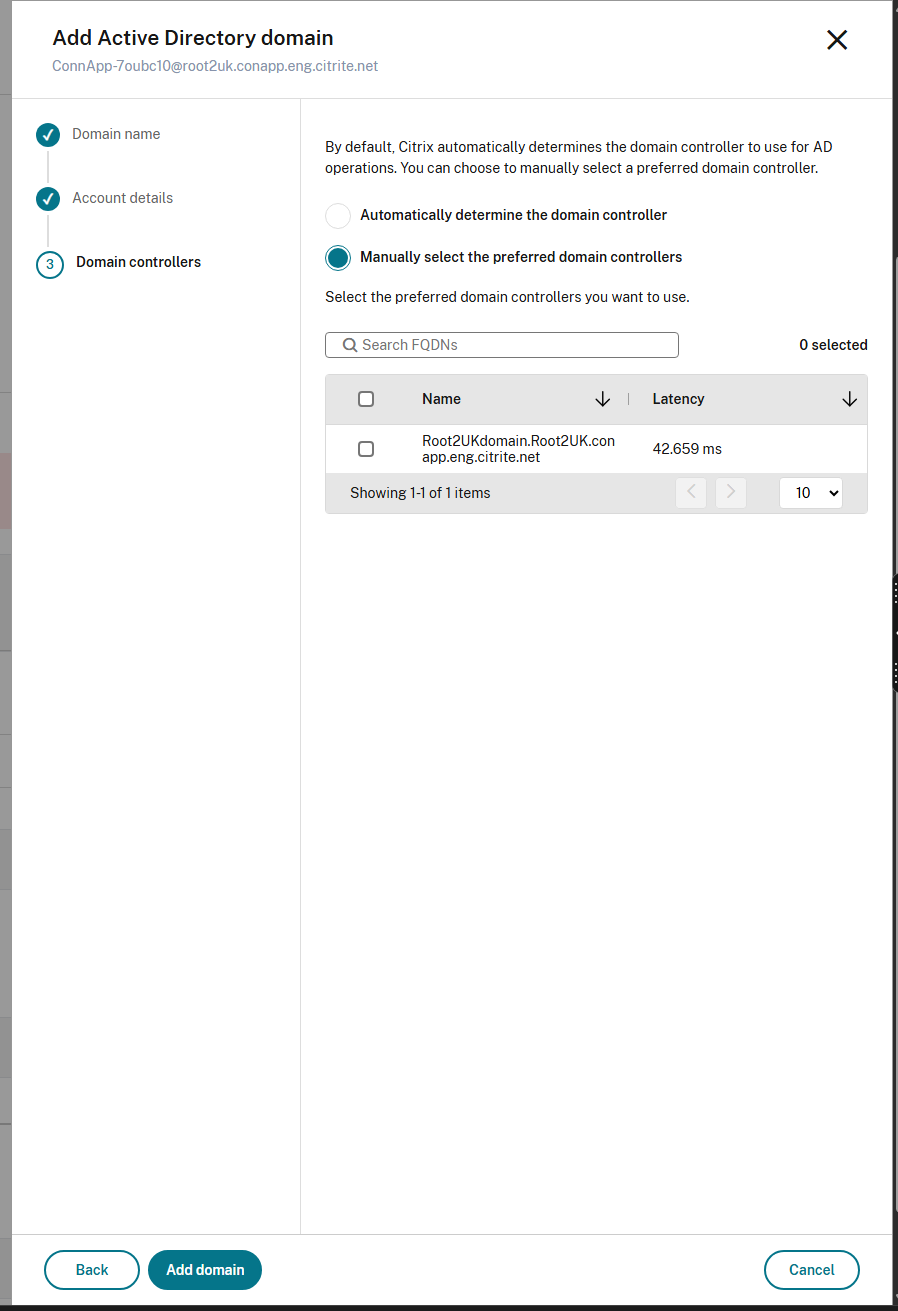
- On the Domain controllers step, choose one of the following options for how the Connector Appliance selects the domain controller for this domain:
-
Automatically determine the domain controller (default) – The Connector Appliance automatically determines which domain controller to use for Active Directory operations and re-evaluates this choice periodically.
-
Manually select the preferred domain controllers — The Connector Appliance uses only the domain controllers you select. A searchable table lists the available domain controllers with their measured Latency in milliseconds. Use the search box to filter by name, or sort by Name or Latency, then select the check boxes for the domain controllers you want to use. If you do not select any domain controllers, the Connector Appliance falls back to automatic selection.
-
Automatically determine the domain controller (default) – The Connector Appliance automatically determines which domain controller to use for Active Directory operations and re-evaluates this choice periodically.
- Click Add domain. The domain is now listed in the Active Directory domains section of the Connector Appliance UI.
What’s next
-
You can add more domains to this Connector Appliance.
Note:
The Connector Appliance is tested with up to 10 forests.
-
For resilience, add each domain to more than one Connector Appliance in each resource location.
Viewing your Active Directory configuration
You can view the configuration of the Active Directory domains and Connector Appliances in your resource locations in the following places:
-
In Citrix Cloud:
- In the menu, go to the Identity and Access Management page.
-
Go to the Domains tab.
Your Active Directory domains are listed with the resource locations that they are part of.
-
In the Connector Appliance webpage:
- Connect to the Connector Appliance webpage by using the IP address provided in the Connector Appliance console.
- Log in with the password you created when you first registered.
- In the Active Directory domains section of the page, you can see the list of Active Directory domains this Connector Appliance is joined to.
Removing an Active Directory domain from a Connector Appliance
To leave an Active Directory domain, complete the following steps:
- Connect to the Connector Appliance webpage by using the IP address provided in the Connector Appliance console.
- Log in with the password you created when you first registered.
- In the Active Directory domains section of the page, find the domain you want to leave in the list of joined Active Directory domains.
- Note the name of the machine account created by your Connector Appliance.
- Click the delete icon (trashcan) next to the domain. A confirmation dialog appears.
- Click Continue to confirm the action.
- Go to your Active Directory controller.
- Delete the machine account created by your Connector Appliance from the controller.
Change the domain controller preference for a joined Active Directory domain
After you join an Active Directory domain, you can change at any time which domain controllers the Connector Appliance uses for that domain. By default the Connector Appliance automatically determines the domain controller and re-evaluates the choice periodically; you can switch to manually selecting one or more preferred domain controllers if you have observed inconsistent performance in environments with a large number of domain controllers.
To change the domain controller preference for a joined domain, complete the following steps:
-
Connect to the Connector Appliance administration webpage by using the IP address provided in the Connector Appliance console.
-
Log in with the password you created when you first registered.
-
In the Active Directory domains section, on the Joined domains tab, find the domain you want to update.
-
Click the ellipsis (…) menu next to the domain and select Domain controller preference.
The Domain controller preference blade opens.
-
Choose how the Connector Appliance selects the domain controller for this domain:
-
Automatically determine the domain controller – The Connector Appliance automatically determines which domain controller to use for Active Directory operations and re-evaluates this choice periodically.
-
Manually select the preferred domain controllers – The Connector Appliance uses only the domain controllers you select. A searchable table lists the available domain controllers with their measured Latency in milliseconds. Use the search box to filter by name, or sort by Name or Latency, then select the check boxes for the domain controllers you want to use.
Note:
If you select Manually select the preferred domain controllers but do not select any domain controllers, the Connector Appliance falls back to automatic selection.
-
-
Click Save to apply your changes.
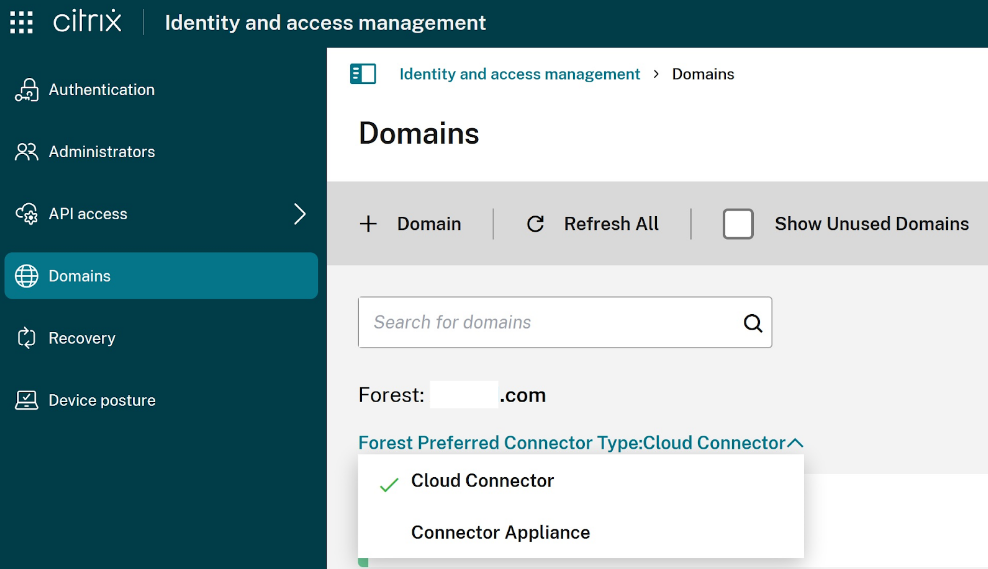
Set the Forest Preferred Connector Type
When a Citrix Cloud tenant has both Windows connectors and connector appliances joined to the same AD forest it is possible to set the preferred connector type.
To set the preferred connector type for a particular Active Directory forest, complete the following steps:
-
Navigate to Identity and Access Management > Domains and Click the down arrow on the AD Forest you want to set the preferred connector type for.
-
Select Forest Preferred Connector Type.
Deployment scenarios for using Connector Appliance with Active Directory
You can use both Cloud Connector and Connector Appliance to connect to Active Directory controllers. The type of connector to use depends on your deployment.
For more information about using Cloud Connectors with Active Directory, see Deployment scenarios for Cloud Connectors in Active Directory
Use the Connector Appliance to connect your resource location to the Active Directory forest in the following situations:
- You are setting up Secure Private Access. For more information, see Secure Private Access with Connector Appliance.
- You have one or more forests that are only used for user authentication
- You want to reduce the number of connectors required to support multiple forests
- You need a Connector Appliance for other use cases
Only users in one or more forests with a single set of Connector Appliances for all forests
This scenario applies to Standard customers or customers using Connector Appliance for Secure Private Access.
In this scenario, there are several forests that contain only user objects (forest1.local, forest2.local). These forests do not contain resources. One set of Connector Appliances is deployed within a resource location and joined to the domains for each of these forests.
- Trust relationship: None
- Domains listed in Identity and Access Management:
forest1.local,forest2.local - User logons to cloud stores: Supported for all users
- User logons to on-premises stores: Supported for all users
Users and resources in separate forests (with trust) with a single set of Connector Appliances for all forests
This scenario applies to Citrix Virtual Apps and Desktops customers with multiple forests.
In this scenario, some forests (resourceforest1.local, resourceforest2.local) contain your resources (for example, VDAs) and some forests (userforest1.local, userforest2.local) contain only your users. A trust exists between these forests that allows users to log on to resources.
One set of Cloud Connectors is deployed within the resourceforest1.local forest. A separate set of Cloud Connectors is deployed within the resourceforest2.local forest.
One set of Connector Appliances is deployed within the userforest1.local forest and the same set is deployed within the userforest2.local forest.
- Trust relationship: Bi-directional forest trust, or uni-directional trust from the resource forests to the user forests
- Domains listed in Identity and Access Management:
resourceforest1.local,resourceforest2.local,userforest1.local,userforest2.local - User logons to Citrix® StoreFront Cloud: Supported for all users
- User logons to an on-premises StoreFront: Supported for all users
In this article
- Requirements
- Supported Active Directory functional levels
- Connect an Active Directory domain to Citrix Cloud by using Connector Appliance
- What’s next
- Viewing your Active Directory configuration
- Removing an Active Directory domain from a Connector Appliance
- Change the domain controller preference for a joined Active Directory domain
- Set the Forest Preferred Connector Type
- Deployment scenarios for using Connector Appliance with Active Directory