-
-
-
-
Licensing for Citrix Service Providers
-
Cloud service license usage and reporting for Citrix Service Providers
-
Customer license and usage for Citrix Virtual Apps and Desktops™ service
This content has been machine translated dynamically.
Dieser Inhalt ist eine maschinelle Übersetzung, die dynamisch erstellt wurde. (Haftungsausschluss)
Cet article a été traduit automatiquement de manière dynamique. (Clause de non responsabilité)
Este artículo lo ha traducido una máquina de forma dinámica. (Aviso legal)
此内容已经过机器动态翻译。 放弃
このコンテンツは動的に機械翻訳されています。免責事項
이 콘텐츠는 동적으로 기계 번역되었습니다. 책임 부인
Este texto foi traduzido automaticamente. (Aviso legal)
Questo contenuto è stato tradotto dinamicamente con traduzione automatica.(Esclusione di responsabilità))
This article has been machine translated.
Dieser Artikel wurde maschinell übersetzt. (Haftungsausschluss)
Ce article a été traduit automatiquement. (Clause de non responsabilité)
Este artículo ha sido traducido automáticamente. (Aviso legal)
この記事は機械翻訳されています.免責事項
이 기사는 기계 번역되었습니다.책임 부인
Este artigo foi traduzido automaticamente.(Aviso legal)
这篇文章已经过机器翻译.放弃
Questo articolo è stato tradotto automaticamente.(Esclusione di responsabilità))
Translation failed!
Cloud service license usage and reporting for Citrix Service Providers
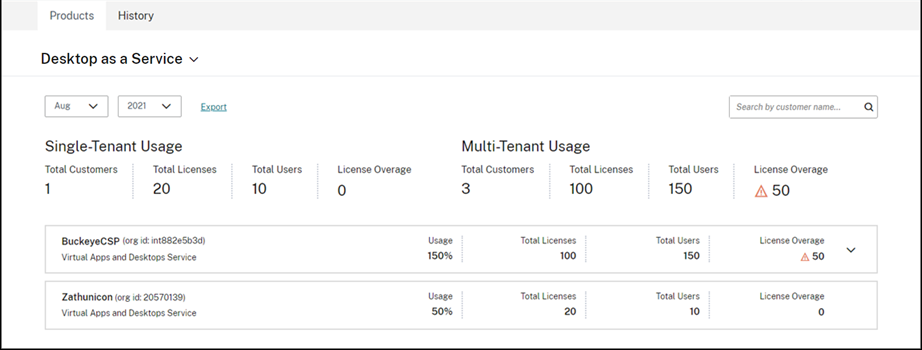
License Usage Insights automatically aggregates cloud service usage to provide a complete view across all single-tenant and multitenant customers. You can also export these details for a given month to a CSV file for further analysis.
Supported services
CSP DaaS license usage is available for Citrix DaaS™ Premium (formerly Virtual Apps and Desktops Premium service) multitenant and single tenant entitlements.
Note:
Mixing CSP DaaS entitlements with other non-CSP DaaS entitlements within the same cloud account is not supported. Single tenant CSP DaaS entitlements can only be delivered to a tenant customer account that is linked to a CSP’s account on the same Citrix Cloud™ control plane.
Licensing summaries
License Usage Insights provides the following breakdown for single tenant and multitenant usage for Citrix Service Providers (CSP):
- At-a-glance partner level summary grouped by tenant type that includes the total number of customers and the total number of purchased licenses, users, and overage (overused) licenses across all customers.
- Usage summary for each single tenant customer that includes the percentage of total licenses in use, total purchased licenses, users, and number of overused licenses.
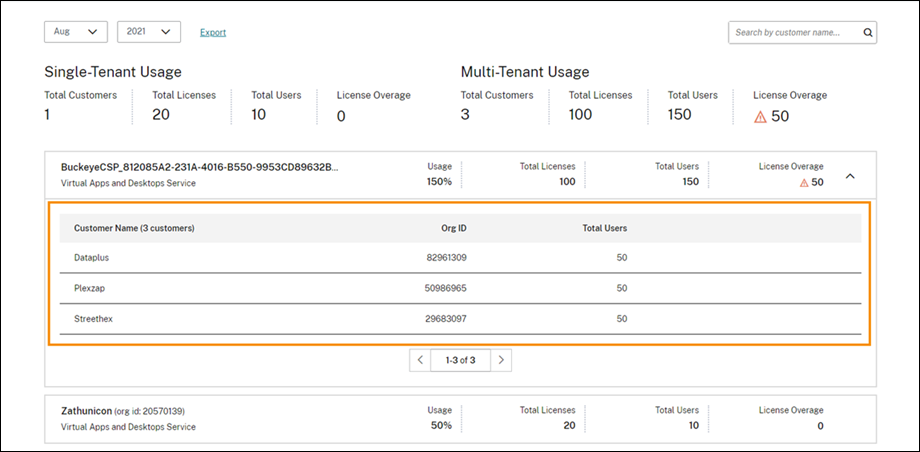
For multitenant services, you can expand the usage summary to view the customers breakdown, account ID, and total users associated with each tenant customer.
Tenant customers not linked
In the case that some users of the tenant customers were launching their sessions via the partner’s shared store URL rather than the tenant’s own store URL, these users might be listed as “Not Linked.”
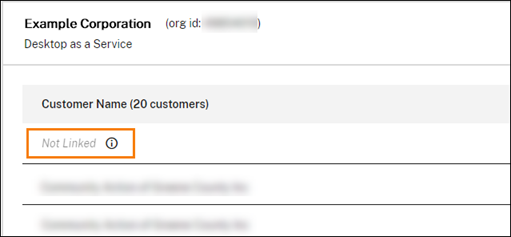
To ensure those unlinked users are properly associated with their relevant tenant customers for accurate billing and reporting while continuing to allow users accessing partner store URL, the service provider (partner) administrator can leverage the below two methods to link the users.
Delivery Group based auto user assignment (tagging)
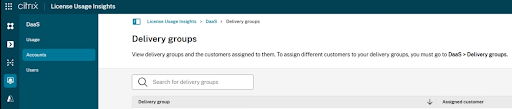
License Usage Insights (LUI) service can now automatically link the multitenant DaaS users to tenant customers via scoped delivery groups when users launch sessions from those groups, but each of those delivery groups must have been assigned with one specific tenant scope. Users launch sessions from unscoped or shared delivery groups cannot be linked. You can view the overall tenant scope assignment (or not assigned) for the multitenant DaaS delivery groups via License Usage Insights > DaaS > Accounts.
To assign or update the scope for a delivery group, you need to go to the Studio console for the multitenant DaaS.
User assignment (tagging) to tenant customer
Tenants should have dedicated delivery groups in a multitenant environment, however under special use cases where a delivery group is shared or some CSP admins belong to multiple delivery groups with different scopes, manual user tagging is needed to assign or un-assign the user to a tenant customer.
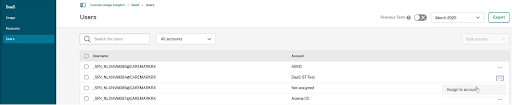
Navigate from the waffle menu > License Usage Insights > DaaS > Users:
-
To assign an individual user, click on the “…” at the end of the user row, select Assign to customer, and choose the tenant customer.
-
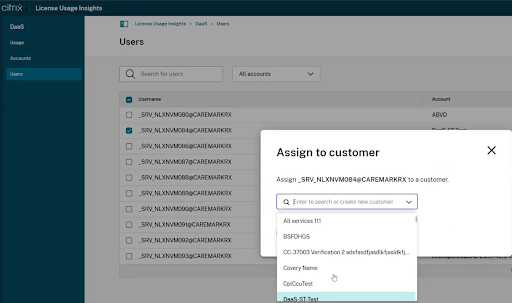
To assign bulk users, search for users with relevant criteria, check the boxes in the user rows, under Bulk actions, click Assign to customer, select the tenant customer, and click Assign.
-
You can also use the similar process to un-assign a customer.
View and export monthly usage
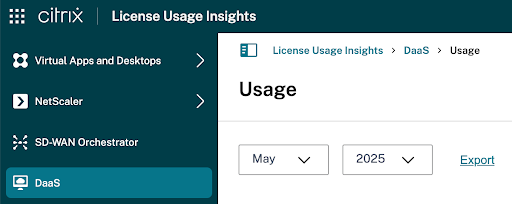
At any time, you can view license usage from previous months for all customers. You can also export this data to a CSV file for further analysis.
- From the product menu, select the product you want to view.
For Citrix DaaS, select the month and year you want to view and select Export.
Share
Share
In this article
This Preview product documentation is Citrix Confidential.
You agree to hold this documentation confidential pursuant to the terms of your Citrix Beta/Tech Preview Agreement.
The development, release and timing of any features or functionality described in the Preview documentation remains at our sole discretion and are subject to change without notice or consultation.
The documentation is for informational purposes only and is not a commitment, promise or legal obligation to deliver any material, code or functionality and should not be relied upon in making Citrix product purchase decisions.
If you do not agree, select I DO NOT AGREE to exit.