-
-
How to install and use JetBrains IntelliJ Gateway as a Citrix published application
-
Use Citrix Secure Access and Citrix Secure Developer Spaces with VS Code
-
Configure AI Gateway routing in Citrix Secure Developer Spaces
-
Configure external MongoDB with X.509 authentication in Citrix Secure Developer Spaces
-
This content has been machine translated dynamically.
Dieser Inhalt ist eine maschinelle Übersetzung, die dynamisch erstellt wurde. (Haftungsausschluss)
Cet article a été traduit automatiquement de manière dynamique. (Clause de non responsabilité)
Este artículo lo ha traducido una máquina de forma dinámica. (Aviso legal)
此内容已经过机器动态翻译。 放弃
このコンテンツは動的に機械翻訳されています。免責事項
이 콘텐츠는 동적으로 기계 번역되었습니다. 책임 부인
Este texto foi traduzido automaticamente. (Aviso legal)
Questo contenuto è stato tradotto dinamicamente con traduzione automatica.(Esclusione di responsabilità))
This article has been machine translated.
Dieser Artikel wurde maschinell übersetzt. (Haftungsausschluss)
Ce article a été traduit automatiquement. (Clause de non responsabilité)
Este artículo ha sido traducido automáticamente. (Aviso legal)
この記事は機械翻訳されています.免責事項
이 기사는 기계 번역되었습니다.책임 부인
Este artigo foi traduzido automaticamente.(Aviso legal)
这篇文章已经过机器翻译.放弃
Questo articolo è stato tradotto automaticamente.(Esclusione di responsabilità))
Translation failed!
License
Your license does two jobs: it lets your installation run, and it decides which features and limits apply. On the License page, you install your license and see exactly what it covers.
Find this page at System Configuration > License.
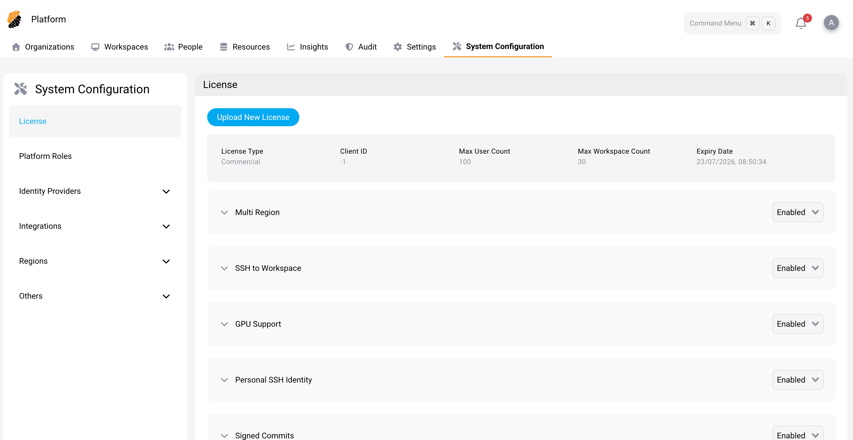
Review your license
When a license is active, the summary row shows the details that matter most:
| Field | Description |
|---|---|
| License Type | The kind of license, such as Internal, Commercial, Community Edition, or 1-Click VM. |
| Client ID | The identifier for your organization. |
| Max User Count | How many users you can register on the platform. |
| Max Workspace Count | How many workspaces the platform can hold. |
| Expiry Date | When the license expires. |
Upload a new license
You can install your license two ways:
- Online License — The platform fetches and refreshes your license automatically from the Citrix License Server. Use this when the platform can reach the License Server.
- File License — You upload a license file yourself. Use this for air-gapped or offline installations that can’t reach the License Server.
To install or replace a license:
- Go to System Configuration > License.
- Select Upload New License.
- Read and accept the Terms & Conditions.
- Choose how to install it:
- For an online license, select Online License. The platform fetches and checks it from the License Server.
- For a file license, select File License and choose your license file.
- Confirm the upload.
The summary row updates to show your new license.
Note:
If you have both an online and a file license, the online one takes precedence.
Turn features on or off
The License page also lists the features your license covers. Each one shows its current status, which you can change:
- Enabled — Everyone can use the feature.
- Disabled — The feature is turned off.
- Enabled for Selected Users — Only the users or groups you pick can use it.
- Enabled for Selected OS — Only the operating systems you pick can use it, where that applies.
Important:
You can only manage features your license covers. Within a covered feature, you can change its status and widen the set of users or groups it applies to.
Here are the features you can manage from this page:
| Feature | What it does |
|---|---|
| SSH to Workspace | Lets workspace owners connect to their workspaces over SSH. See SSH Access to Workspaces. |
| Multi Region | Turns on multi-region deployments. When it’s on, the Regions area appears. See Deploy Secure Developer Spaces in Multiple Regions. |
| Rest API | Opens access to the SDS REST API. See API. |
| Personal SSH Identity | Lets users add and manage multiple SSH identities in their account. |
| Signed Commits | Turns on signed Git commits from workspaces. |
| GPU Support | Turns on GPU-enabled workspaces. See Set up a GPU-enabled workspace on AKS. |
| Internal Dev User | Turns on internal developer user accounts. |
| Root Docker in Docker | Allows root Docker-in-Docker inside workspaces. |
| Persistent Container Images | Turns on persistent container images. |
| User Insights Monitoring | Turns on per-user insights monitoring. |
| Sysbox Container Runtime | Turns on the Sysbox container runtime. |
| VDI Application | Turns on the VDI application. See VDI Application. |
| Allow File Download | Lets users download files from workspaces. |
Related information
Share
Share
This Preview product documentation is Citrix Confidential.
You agree to hold this documentation confidential pursuant to the terms of your Citrix Beta/Tech Preview Agreement.
The development, release and timing of any features or functionality described in the Preview documentation remains at our sole discretion and are subject to change without notice or consultation.
The documentation is for informational purposes only and is not a commitment, promise or legal obligation to deliver any material, code or functionality and should not be relied upon in making Citrix product purchase decisions.
If you do not agree, select I DO NOT AGREE to exit.