-
-
How to install and use JetBrains IntelliJ Gateway as a Citrix published application
-
Use Citrix Secure Access and Citrix Secure Developer Spaces with VS Code
-
Configure AI Gateway routing in Citrix Secure Developer Spaces
-
Configure external MongoDB with X.509 authentication in Citrix Secure Developer Spaces
-
-
Run a graphical desktop with the Debian GUI image
This content has been machine translated dynamically.
Dieser Inhalt ist eine maschinelle Übersetzung, die dynamisch erstellt wurde. (Haftungsausschluss)
Cet article a été traduit automatiquement de manière dynamique. (Clause de non responsabilité)
Este artículo lo ha traducido una máquina de forma dinámica. (Aviso legal)
此内容已经过机器动态翻译。 放弃
このコンテンツは動的に機械翻訳されています。免責事項
이 콘텐츠는 동적으로 기계 번역되었습니다. 책임 부인
Este texto foi traduzido automaticamente. (Aviso legal)
Questo contenuto è stato tradotto dinamicamente con traduzione automatica.(Esclusione di responsabilità))
This article has been machine translated.
Dieser Artikel wurde maschinell übersetzt. (Haftungsausschluss)
Ce article a été traduit automatiquement. (Clause de non responsabilité)
Este artículo ha sido traducido automáticamente. (Aviso legal)
この記事は機械翻訳されています.免責事項
이 기사는 기계 번역되었습니다.책임 부인
Este artigo foi traduzido automaticamente.(Aviso legal)
这篇文章已经过机器翻译.放弃
Questo articolo è stato tradotto automaticamente.(Esclusione di responsabilità))
Translation failed!
Run a graphical desktop in a workspace with the Debian GUI image
Some workflows need more than a browser-based IDE and terminal. When you have to run GUI-based tooling, design applications, or test an application’s graphical interface, you can use the sample Debian GUI container image provided by Citrix Secure Developer Spaces™ (SDS). This image ships with a preconfigured XFCE desktop that you reach directly in your browser through noVNC.
This guide explains how to make the Debian GUI image available on your platform and how to open its desktop from a workspace.
How it works
The Debian GUI image is a standard SDS CDE image (container image) that adds:
- An XFCE desktop environment.
- A TigerVNC server and the noVNC client, which streams the desktop to your browser over port 8081.
- A startup script,
/usr/bin/strong_network_startup/xstartup/initialize_workspace.sh, that starts the VNC server and the desktop session.
You expose port 8081 to your browser by using either a Custom Access Item or a Workspace App, and then run the startup script to launch the desktop.
Prerequisites
Before you begin, make sure you have:
- The sample Debian GUI image available to your team. The reference image and
Dockerfileare published in the Strong Network images repository on GitHub. Build and push it to a registry your platform can reach, or use a prebuilt image if your administrator provides one. - The image added as a CDE
image
in your platform, organization, or project resources. This action requires
the
Security::Managepermission. - Permission to create or edit a workspace or workspace template that uses the image.
Open the desktop with a Custom Access Item
Use a Custom Access Item when you want the desktop to appear as a one-click connection option on the workspace, alongside VS Code and Terminal.
- Create or edit a workspace that uses the Debian GUI image.
- In the workspace wizard, go to Basic Info and open the Access menu.
-
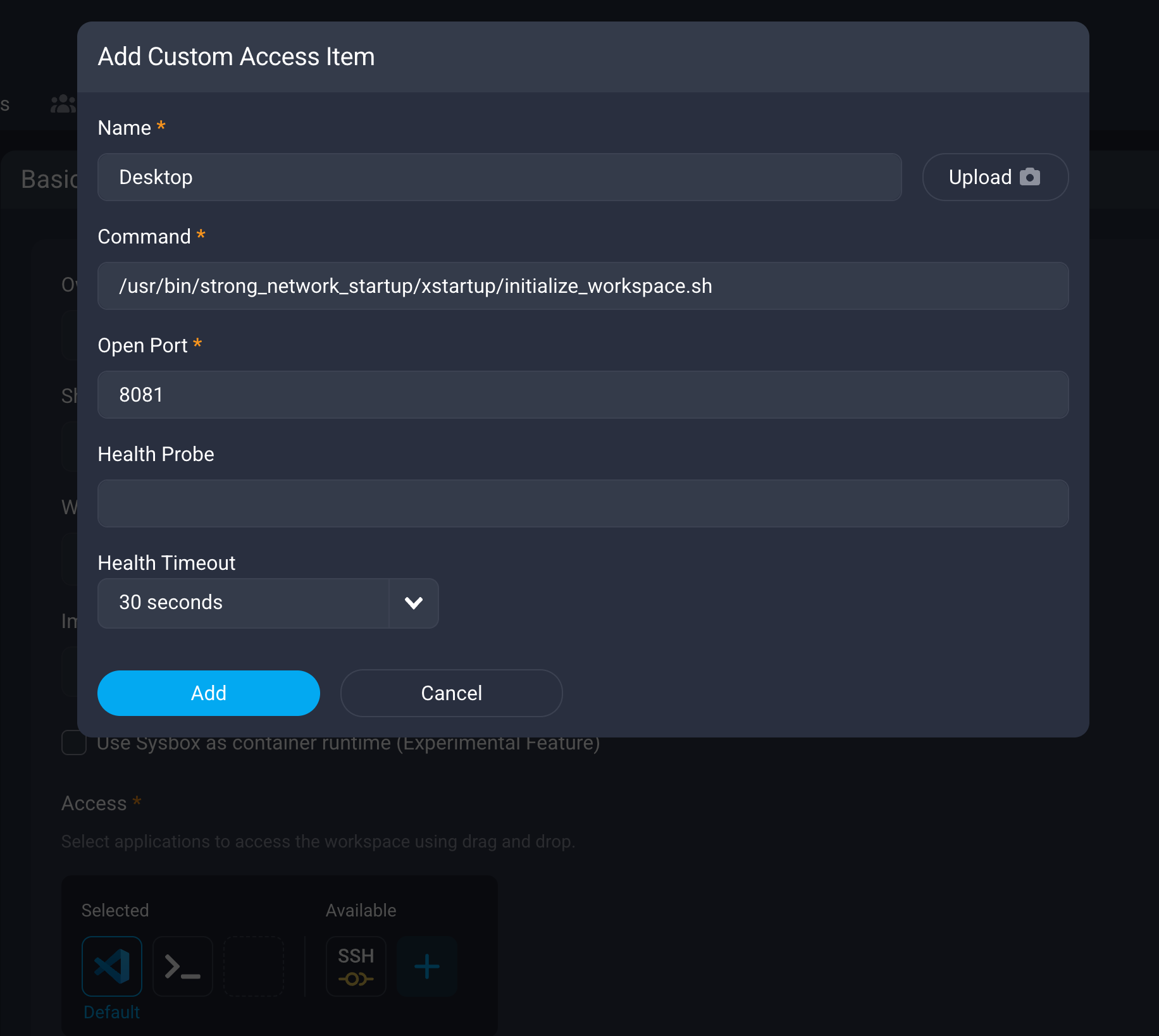
Click Add to open the Add Custom Access Item dialog and enter the following:
-
Name — A display name of your choice, for example
Desktop. -
Port —
8081. This is the port where noVNC runs. -
Command —
/usr/bin/strong_network_startup/xstartup/initialize_workspace.sh
-
Name — A display name of your choice, for example
- Save the wizard and launch the workspace.
- Open the desktop by clicking the access item you created.
Expected result: The XFCE desktop opens in your browser through noVNC.
Open the desktop with a Workspace App
Use a Workspace App when you prefer to start the desktop manually from the terminal, or when you want to reuse an existing app-based workflow.
- Create a workspace that uses the Debian GUI image.
- Expose port 8081 as a workspace app. For details, see Create a Workspace App.
-
Start the workspace, open the terminal, and run the startup script:
/usr/bin/strong_network_startup/xstartup/initialize_workspace.sh <!--NeedCopy--> - Open the workspace app.
Expected result: The XFCE desktop opens in the workspace app.
Start the desktop automatically
To avoid running the command manually each time, automate the steps above:
-
Add the startup command to the workspace startup script so the desktop launches every time the workspace starts:
/usr/bin/strong_network_startup/xstartup/initialize_workspace.sh <!--NeedCopy--> -
Create a workspace template that uses the Debian GUI image and already exposes port 8081 as a workspace app.
Workspaces created from this template start with the desktop ready to use, with no manual setup.
Troubleshooting
- The desktop does not load — Confirm that port 8081 is exposed (as a Custom Access Item or a Workspace App) and that the startup script has run. With a Custom Access Item, the script runs automatically; with a Workspace App, run it manually unless it is part of the startup script.
-
Clipboard copy and paste does not work — The image installs
autocutselfor clipboard support. Verify that any clipboard security policy on the workspace allows the action you are attempting. -
The image fails validation when added — A CDE image must include an SSH
client and the Git and Git LFS clients, and it must have a
developeruser with UID 1000. The sample Debian GUI image already meets these requirements. See Add a CDE Image.
Share
Share
This Preview product documentation is Citrix Confidential.
You agree to hold this documentation confidential pursuant to the terms of your Citrix Beta/Tech Preview Agreement.
The development, release and timing of any features or functionality described in the Preview documentation remains at our sole discretion and are subject to change without notice or consultation.
The documentation is for informational purposes only and is not a commitment, promise or legal obligation to deliver any material, code or functionality and should not be relied upon in making Citrix product purchase decisions.
If you do not agree, select I DO NOT AGREE to exit.