-
-
WebSocket communication between VDA and Delivery Controller™
-
-
-
-
-
-
MCS-provisioned machines (Search > Hardware view)
-
This content has been machine translated dynamically.
Dieser Inhalt ist eine maschinelle Übersetzung, die dynamisch erstellt wurde. (Haftungsausschluss)
Cet article a été traduit automatiquement de manière dynamique. (Clause de non responsabilité)
Este artículo lo ha traducido una máquina de forma dinámica. (Aviso legal)
此内容已经过机器动态翻译。 放弃
このコンテンツは動的に機械翻訳されています。免責事項
이 콘텐츠는 동적으로 기계 번역되었습니다. 책임 부인
Este texto foi traduzido automaticamente. (Aviso legal)
Questo contenuto è stato tradotto dinamicamente con traduzione automatica.(Esclusione di responsabilità))
This article has been machine translated.
Dieser Artikel wurde maschinell übersetzt. (Haftungsausschluss)
Ce article a été traduit automatiquement. (Clause de non responsabilité)
Este artículo ha sido traducido automáticamente. (Aviso legal)
この記事は機械翻訳されています.免責事項
이 기사는 기계 번역되었습니다.책임 부인
Este artigo foi traduzido automaticamente.(Aviso legal)
这篇文章已经过机器翻译.放弃
Questo articolo è stato tradotto automaticamente.(Esclusione di responsabilità))
Translation failed!
Monitor MCS-provisioned machines in Search > Hardware view
This article guides you through how to view MCS-provisioned machines and their properties using the Hardware view within the Search node.
Learn about the hardware view
The hardware view within the Search node displays your MCS-provisioned machines and their critical properties, including machine security settings, network details, images, and machine profile details.
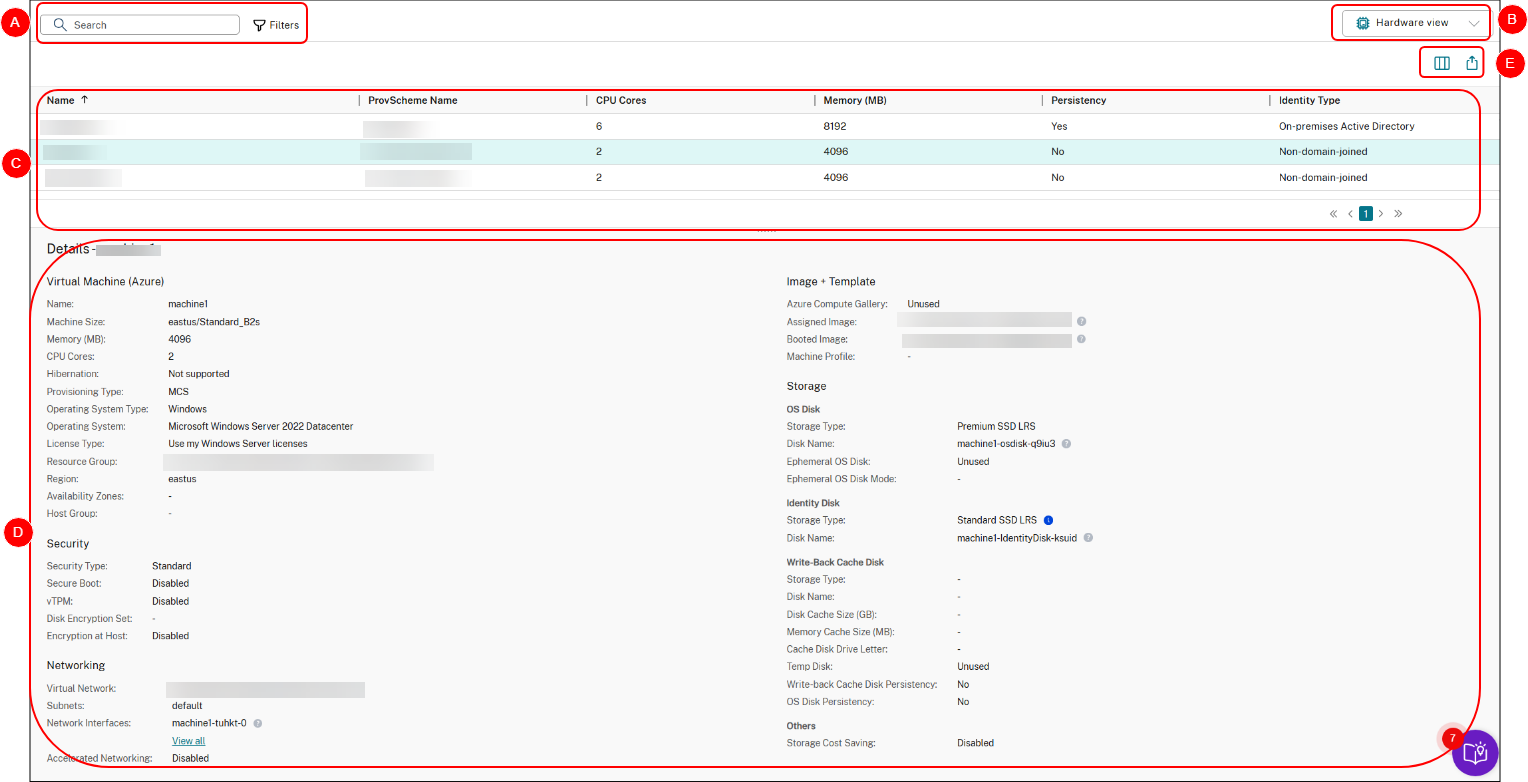
| Callout | Area | Description |
|---|---|---|
| A
|
Search bar
|
Provides a quick search and a filter-based search that allows you to define complex search criteria. For more information, see Search for machines.
Tip: Use filters to quickly narrow down machines by specific properties. For example, combine Pending Image Update = Yes and Identity Type = ActiveDirectory to view all Active Directory machines that are pending image updates. |
| B | Switch to Default view | Switch from Hardware view to Default view. |
| C | Main view | Displays your MCS-provisioned machines and their critical properties. You can customize the view by selecting the Column to display icon. For more information about available columns, see Machine columns. |
| D | Details pane | Displays detailed information for the selected machine. |
| E
|
List-level actions
|
Displays actions that you can perform on the entire displayed list:
|
Reference: Machine columns
This table lists all columns in Hardware view and their descriptions.
| Column | Description |
|---|---|
| Name | The DNS host name of the machine. |
| Provisioning Scheme Name | The name of the provisioning scheme used to provision the machine. |
| CPU Cores | The number of CPU cores allocated to the machine. |
| Memory (MB) | The amount of memory (in MB) allocated to the machine. |
| Persistency | Indicates whether the machine’s disk and data persist across restarts. |
| Identity Type | The identity type of the machine. |
| Pending Image Update | Indicates whether the VM image for the machine is outdated and due to be updated to a new image at the machine’s next reboot. |
| Last Boot Time (UTC) | The date and time (in UTC) when the machine was last started. |
| Use WBC | Indicates whether the machine is configured with WBC (aka MCSIO). |
| WBC Disk Size (GB) | The MCSIO disk-cache size of the machine. |
| WBC Memory Size (MB) | The MCSIO memory-cache size of the machine. |
| Identity Provider | The identity provider of the machine. |
| Activation Type | Valid only for Windows VDAs. The Windows license activation type of the machine. Values include: Unsupported VDA, Key Management Service, Multiple Activation Key, and Not valid. |
Share
Share
In this article
This Preview product documentation is Citrix Confidential.
You agree to hold this documentation confidential pursuant to the terms of your Citrix Beta/Tech Preview Agreement.
The development, release and timing of any features or functionality described in the Preview documentation remains at our sole discretion and are subject to change without notice or consultation.
The documentation is for informational purposes only and is not a commitment, promise or legal obligation to deliver any material, code or functionality and should not be relied upon in making Citrix product purchase decisions.
If you do not agree, select I DO NOT AGREE to exit.